Calculated column vs measure in Power BI: which to use
Calculated column or measure? Learn where each is worked out, what each costs, when to use which, and why a margin % belongs in a measure, not a column.
Power BIFix a problem9 min read
Both are written in DAX and both end up in the Data pane, so the choice between a calculated column vs measure looks like a matter of taste. It isn't. They're worked out at different times, in different contexts, and they cost different things. Pick the wrong one and you get a bigger model, totals that don't add up, or a number that ignores the slicer.
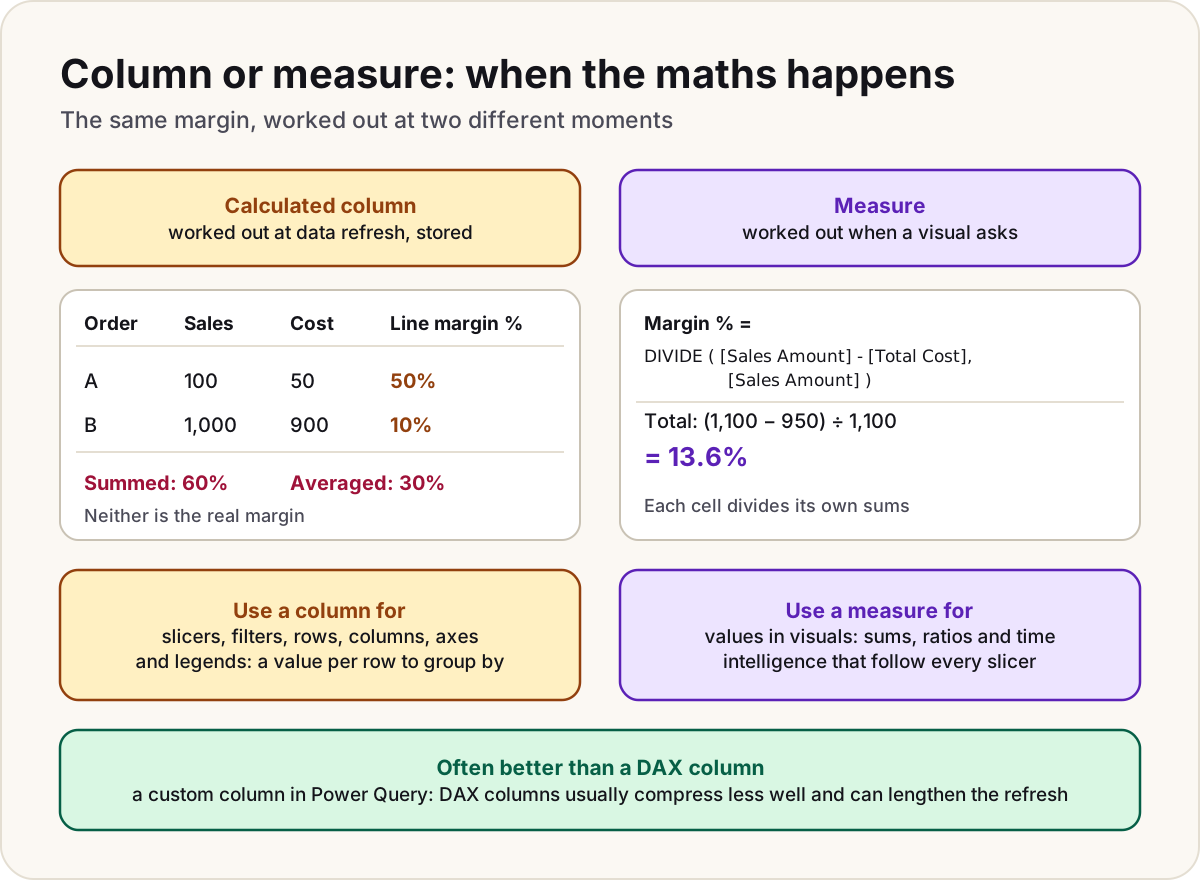
The difference in one table
| Calculated column | Measure | |
|---|---|---|
| Worked out | At data refresh | On demand, when a visual needs it |
| Results | Saved in the model | Calculated as required, never stored |
| Context | Row: the current row | Filter: whatever the slicers, filters, rows and columns select |
| Changes when someone clicks a slicer | No | Yes |
| Where you use it | Slicers, filters, rows, columns, axes, legends | Values in a visual, and visual-level filters |
Row context means "the current row". A calculated column such as = [Freight] + [Tax] gets the values from the same row, one row at a time, and can follow relationships to related tables with RELATED.
Filter context is the set of rows a visual's cell is looking at. Each cell, each combination of row and column headers, and each slicer selection gives a measure a different subset of data, so the same formula can return a different answer in every cell.
- Data refresh
- Calculated columns are worked out row by row and stored
- Someone opens the report or clicks a slicer
- Each visual asks for its numbers
- Measures are worked out for every cell in that filter context
The storage line is for Import models. In DirectQuery, Microsoft says calculated columns aren't stored and are worked out at query time instead.
When to use a calculated column
Use a column when you need a value per row that people will slice, filter or group by. A measure can't go on a slicer or on a visual's rows or axis.
A price band to slice sales by is a typical example. Right-click the Sales table in the Data pane, choose New column, and enter:
Price band =
SWITCH (
    TRUE (),
    Sales[Amount] < 100, "Under 100",
    Sales[Amount] < 500, "100 to 499",
    "500 and over"
)
Every row gets its band at refresh, and Price band works in a slicer like any other column.
Power Query is often the better place
A custom column in Power Query does the same job before the data enters the model. Microsoft's guidance for Import models prefers it: calculated columns usually compress less well, and they're only built once all the Power Query tables have loaded, which can lengthen the refresh. When the source is a database, Microsoft goes one step further and suggests doing the calculation in the SQL query, or storing it as a column in the source.
In Power Query Editor, select Add column > Custom column and enter:
if [Amount] < 100 then "Under 100"
else if [Amount] < 500 then "100 to 499"
else "500 and over"
In Power BI Desktop the Custom column dialog doesn't offer a data type, so set the new column's type afterwards.
Keep the column in DAX when its formula needs a measure, a related table, or a DAX-only function. A customer segment is a good example:
Customer segment = IF ( [Sales Amount] < 2500, "Low", "High" )
Added to the Customer table, this works out each customer's own sales: when you use a measure in a row context, DAX turns the current row into a filter for you (Microsoft calls this context transition). Remember the result is fixed at refresh. Slicing by year won't move a customer from Low to High.
When to use a measure
Use a measure for anything you add up, count, average, divide or compare over time: totals, ratios, percentages, year to date. Select Home > New measure (in the Calculations group) and the result recalculates for every cell, every slicer and every total.
Worked example: margin %
Say the Sales table has an Amount and a Cost for each order line. Here are two lines:
| Line | Amount | Cost | Margin on the line |
|---|---|---|---|
| A | 100 | 50 | 50% |
| B | 1,000 | 900 | 10% |
| Real total | 1,100 | 950 | 13.6% |
A Line margin % column gives each line its own margin. Summed in a visual, it shows 60%; averaged, 30%. Neither is the margin of the business, which is 150 profit on 1,100 sales: 13.6%.
The fix is to add up first and divide last, in measures:
Sales Amount = SUM ( Sales[Amount] )

Total Cost = SUM ( Sales[Cost] )

Margin % = DIVIDE ( [Sales Amount] - [Total Cost], [Sales Amount] )
Format Margin % as a percentage. Now each row of a visual, and the total, divides its own sums, so the total shows 13.6%. DIVIDE returns a blank instead of an error when the denominator is zero or blank, and Microsoft recommends it whenever the denominator could be either. Leave out the third argument: a blank lets visuals hide groups with no sales.
Implicit or explicit measures
Drag a numeric column into a visual and Power BI sums it for you. That's an implicit measure, shown with a sigma (∑) in the Data pane. A measure you write yourself is explicit, shown with a calculator icon.
Implicit measures are handy, but Microsoft gives reasons to write explicit ones even for a plain sum:
- Analyze in Excel uses PivotTables, which send MDX queries, and MDX needs explicit measures.
- Paginated reports built with the MDX query designer need them too.
- You control how a column is summarised. A unit price should never be summed, so hide the column and offer measures such as an average, minimum and maximum instead.
Explicit measures can also be reused inside other measures, as Margin % reuses Sales Amount above.
The quick decision
| You want to... | Use | Why |
|---|---|---|
| Put it on a slicer, a filter, rows, columns or an axis | Column (Power Query first, DAX if needed) | Measures can't go there |
| Label or group each row (band, segment, full name) | Column | It's a fixed value per row |
| Show a total, count or average | Measure | It follows every filter |
| Show a ratio or percentage | Measure with DIVIDE | Divide the totals, not the rows |
| Compare over time (year to date, last year) | Measure | The answer depends on the dates selected |
| Use a measure's result to group rows | DAX calculated column | Microsoft's exception to preferring Power Query |
Do
- Add columns as far back as you can: in the source, then Power Query, then DAX.
- Write explicit measures for anything people will total, and hide the raw columns behind them where summing would be wrong.
- Build ratios from other measures, so there's one definition of Sales Amount.
Don't
- Don't store a ratio in a column and let the visual sum or average it.
- Don't add a column just to feed one number in one visual. A measure's results aren't stored.
- Don't expect a calculated column to react to a slicer: it was worked out at refresh.
Common mistakes
Picked the wrong one?
- The percentage total is far too high, or is an average of the rows: it's a column being summed. Rebuild it as a measure.
- A column made with
SUMshows the same grand total on every row: with no filter on the table,SUM ( Sales[Amount] )adds up the whole column. Make it a measure instead. - A column that uses a measure gives one fixed value per row and ignores the slicers: it was worked out at refresh. If it must react to slicers, it has to be a measure.
- You can't drag a measure onto a slicer: slicers need a calculated column or a real column.
- A PivotTable in Analyze in Excel can't summarise a column: it sends MDX, which needs explicit measures.
For why totals behave the way they do, see why are my totals wrong. For where the columns should live in the first place, building a star schema from messy exports does most of the work in Power Query, and a date table in Power BI shows the measures that compare periods.
Related: Power BI DAX cheat sheet, Power Query vs Power Pivot vs Power BI.
Sources
- Use calculation options in Power BI Desktop — Microsoft Learn
- Create calculated columns in Power BI Desktop — Microsoft Learn
- Tutorial: Create calculated columns in Power BI Desktop — Microsoft Learn
- Create measures for data analysis in Power BI Desktop — Microsoft Learn
- Tutorial: Create your own measures in Power BI Desktop — Microsoft Learn
- DAX overview — Microsoft Learn
- CALCULATE function (DAX) — Microsoft Learn
- Understand star schema and the importance for Power BI — Microsoft Learn
- Data reduction techniques for Import modeling — Microsoft Learn
- Add a custom column — Microsoft Learn
- DIVIDE function (DAX) — Microsoft Learn
- DIVIDE function vs. divide operator (/) — Microsoft Learn
Did this fix it?
Comments
No comments yet. Share what worked for you.
Sign in to comment. Comments show under a display name you choose, never your email.