Power Platform ALM with GitHub Actions, end to end
Set up Power Platform ALM with GitHub Actions end to end: sign-in with no secret, reviewed exports, one managed build, gated releases, and alerts when a run fails.
Azure + Power PlatformFix a problem21 min read
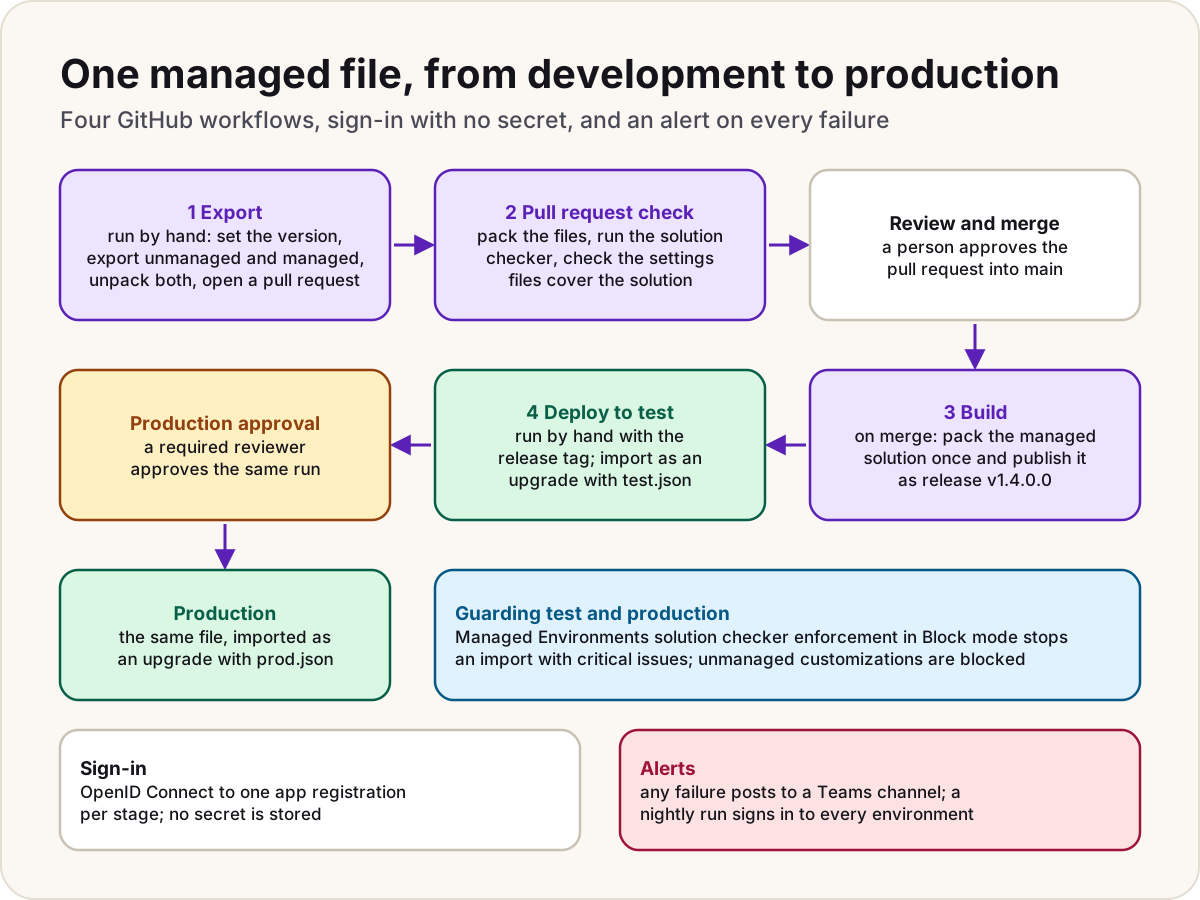
Power Platform ALM with GitHub Actions comes down to four workflows. One exports the solution from development into a pull request. One checks that pull request. One builds a single managed file when it merges. One deploys that same file to test and then, after an approval, to production. Sign in with OpenID Connect, so no secret is stored. Make every failure post to your team's channel, and run a nightly check that each environment still lets the pipeline in.
Note
Checked against Microsoft Learn on 21 October 2026, and against GitHub's documentation and the powerplatform-actions repository.
Where this approach comes from
We started from a public walkthrough of Power Platform with GitHub Actions on the Ryzmatic blog. It gets the big things right: it keeps the solution's source unpacked in Git, reviews every change in a pull request, builds the managed solution once from that source, deploys only managed solutions after development, and puts production behind a GitHub approval. It calls itself a proof of concept and suggests looking at federated sign-in for production. We kept its shape, checked each step against Microsoft Learn, GitHub's documentation and the issues people report on the actions' repository, and changed what those sources do better.
| The walkthrough | What the sources say | This guide | |
|---|---|---|---|
| Sign-in | A client secret, and a personal access token to open pull requests | Microsoft documents OpenID Connect for these actions, with no secret | OpenID Connect, one app registration per stage, and a GitHub App to open pull requests |
| Solution checker | Fails only if the analysis can't run | The action has no severity threshold; Managed Environments can block critical issues at import | The check reports in the pull request; Block mode stops critical issues in test and production |
| Settings files | Checks that they're valid JSON | pac solution create-settings lists every value a solution needs | The check compares each file with the solution and fails on anything missing |
| Build output | A workflow artifact kept 30 days, picked by run number | Artifacts expire; GitHub keeps them 90 days by default | A GitHub release per version, outside the artifact retention period |
| Import options | Publishes customisations after a managed import | Microsoft says publishing isn't needed for managed imports and slows them; it recommends upgrade imports | Imports as an upgrade, with no publish and no overwrite |
| Test, then production | Two separate runs; the approver must type the tested run's number | Pipelines in Power Platform enforce test before production | One run deploys to test, waits for approval, then deploys the same file |
| Alerts | None | Neither GitHub nor Power Platform posts a team alert on its own | A Teams post on any failure, and a nightly sign-in check |
What you need first
| You need | Why |
|---|---|
| Development, test and production environments with a Dataverse database | The actions only support environments with a database. |
| Your work in one solution, unmanaged in development | Workflows move solutions, not loose apps and flows. |
| A GitHub repository, and a plan that offers what you'll use | Environments in private repositories need GitHub Pro or Team; see the warning in Step 2. |
| Rights to create app registrations in Microsoft Entra ID, and to add application users in each environment | Each workflow signs in as its own identity. |
| Managed Environments on test and production (recommended) | For solution checker enforcement and blocking unmanaged changes. |
Step 1: An identity per stage, with no secret
GitHub can hand each job a short-lived OpenID Connect token, and Microsoft Entra ID can trust that token through a federated credential. The action then signs in to Dataverse without any client secret. Microsoft has a tutorial for exactly this with GitHub Actions for Power Platform, and the actions' maintainers still describe the feature as a preview.
Use one app registration per stage, not one for everything. A federated credential decides which GitHub job may get a token, but not which environment that token is then used against. If one app is an administrator in development and in production, a job that's allowed to sign in for development can reach production too.
- In the Microsoft Entra admin center, go to App registrations > New registration and create three: one for development, one for test, one for production. Copy each one's Application (client) ID and the Directory (tenant) ID.
- In each, open API permissions > Add a permission > Dynamics CRM and add the Dataverse permission, as Microsoft's tutorial does.
- In each, open Certificates & secrets > Federated credentials > Add credential, choose GitHub Actions deploying Azure resources, enter your organization and repository, choose the Environment entity type, and enter the GitHub environment's name:
dev,testorproduction. Don't create a client secret. - In the Power Platform admin center, add each app as an application user in its own environment only, with a security role that can import solutions. Our Azure DevOps guide uses System Administrator, as Microsoft's Build Tools instructions do.
- Create a fourth, for the nightly health check in Step 7. Federate it to a
production-monitorenvironment, and give it a read-only role in production, so it can sign in but can't change anything.
Warning
The subject must match GitHub's token exactly. For a job that names an environment, GitHub's default subject is repo:ORG/REPO:environment:NAME. Repositories created, renamed or transferred after 15 July 2026 use GitHub's immutable format instead, with numeric IDs: repo:ORG@ORG-ID/REPO@REPO-ID:environment:NAME. And if someone customised the repository's OpenID Connect subject template (Microsoft's tutorial switches it to repository and workflow), the subject changes again. A mismatch only shows up when a workflow runs, as a failed sign-in.
In every workflow, two lines make this work: the job asks for the token with id-token: write, and the Power Platform steps pass app-id and tenant-id but no client-secret.
Step 2: GitHub environments and branch rules
Create four GitHub environments in Settings > Environments. Store each one's environment URL, app ID and tenant ID as environment variables; they identify things but aren't secrets.
| Environment | Used by | Protection |
|---|---|---|
dev | Export, pull request check | None |
test | Deploy | Deployment branches: main only |
production | Deploy | Required reviewers, Prevent self-reviews, main only, and administrators can't bypass |
production-monitor | Nightly health check | main only; its app registration is an application user in production with a read-only role |
Then protect main with a branch rule: require a pull request with one approving review, and require the pull request check from Step 4 to pass. GitHub only lists a check as a choice after it has run once, so add it to the rule after the first pull request.
Warning
GitHub's documentation says required reviewers and wait timers on Free, Pro and Team plans work only in public repositories. If your repository is private on one of those plans, the production approval won't exist, and the deploy job won't wait for anyone. Check your plan's features before you rely on it. Without required reviewers, deploy production from a protected release branch that needs an approving review, and limit the production environment to that branch.
Step 3: The export workflow
Run this by hand when a change in development is ready. It sets the new version in development, exports the solution twice, unpacks both into source files, and opens a pull request.
Pull requests opened with the built-in GITHUB_TOKEN don't start your checks until someone with write access selects Approve workflows to run. GitHub recommends a GitHub App token instead, so create a small GitHub App with Contents and Pull requests write access on this repository. Store its client ID as a variable and its private key as a secret. Unlike a personal access token, it isn't tied to a person who might leave.
Save this as .github/workflows/export.yml, and change ContosoInvoices to your solution's name (not its display name):
name: Export from development

on:
  workflow_dispatch:
    inputs:
      version:
        description: New version, four numbers, for example 1.4.0.0
        required: true

permissions:
  contents: read
  id-token: write

env:
  SOLUTION: ContosoInvoices

jobs:
  export:
    runs-on: ubuntu-latest
    environment: dev
    steps:
      - name: Check the version
        env:
          VERSION: ${{ inputs.version }}
        run: |
          [[ "$VERSION" =~ ^[0-9]+\.[0-9]+\.[0-9]+\.[0-9]+$ ]] || { echo "::error::Use four numbers, like 1.4.0.0"; exit 1; }

      - name: Get a token for the pull request
        id: bot
        uses: actions/create-github-app-token@v3
        with:
          client-id: ${{ vars.ALM_BOT_CLIENT_ID }}
          private-key: ${{ secrets.ALM_BOT_PRIVATE_KEY }}

      - uses: actions/checkout@v5
        with:
          token: ${{ steps.bot.outputs.token }}

      - name: Install the Power Platform tools
        uses: microsoft/powerplatform-actions/actions-install@v1

      - name: Set the version in development
        uses: microsoft/powerplatform-actions/set-online-solution-version@v1
        with:
          environment-url: ${{ vars.ENVIRONMENT_URL }}
          app-id: ${{ vars.APP_ID }}
          tenant-id: ${{ vars.TENANT_ID }}
          name: ${{ env.SOLUTION }}
          version: ${{ inputs.version }}

      - name: Export unmanaged
        uses: microsoft/powerplatform-actions/export-solution@v1
        with:
          environment-url: ${{ vars.ENVIRONMENT_URL }}
          app-id: ${{ vars.APP_ID }}
          tenant-id: ${{ vars.TENANT_ID }}
          solution-name: ${{ env.SOLUTION }}
          solution-output-file: out/${{ env.SOLUTION }}.zip
          run-asynchronously: true

      - name: Export managed
        uses: microsoft/powerplatform-actions/export-solution@v1
        with:
          environment-url: ${{ vars.ENVIRONMENT_URL }}
          app-id: ${{ vars.APP_ID }}
          tenant-id: ${{ vars.TENANT_ID }}
          solution-name: ${{ env.SOLUTION }}
          solution-output-file: out/${{ env.SOLUTION }}_managed.zip
          managed: true
          run-asynchronously: true

      - name: Clear the old source files
        run: rm -rf "solutions/$SOLUTION"

      - name: Unpack both into source files
        uses: microsoft/powerplatform-actions/unpack-solution@v1
        with:
          solution-file: out/${{ env.SOLUTION }}.zip
          solution-folder: solutions/${{ env.SOLUTION }}
          solution-type: Both

      - name: Open a pull request
        env:
          GH_TOKEN: ${{ steps.bot.outputs.token }}
          VERSION: ${{ inputs.version }}
        run: |
          if [ -z "$(git status --porcelain solutions)" ]; then
            echo "Nothing changed in development."
            exit 0
          fi
          branch="export/$SOLUTION-$VERSION"
          git config user.name "Export workflow"
          git config user.email "export-workflow@contoso.example"
          git switch -c "$branch"
          git add solutions
          git commit -m "Export $SOLUTION $VERSION from development"
          git push origin "$branch"
          gh pr create --base main --head "$branch" --title "$SOLUTION $VERSION" --body "Exported from development by the export workflow."
Why each part is there:
- Export twice, unpack with Both. Microsoft's packaging tool can't turn an unmanaged solution into a managed one; the only conversion is an import and a managed export. Keeping both in the source files lets the build pack a managed solution from Git alone.
- Clear the folder first.
pac solution unpackdoesn't delete files by default, so a component you removed in development would linger in Git. - The version is passed through
env. Writing${{ inputs.version }}straight into a script lets crafted input run as code; GitHub's hardening guide recommends an environment variable instead.
Step 4: The pull request check
This runs on every pull request into main. It proves the source still packs, runs the solution checker, and confirms the deployment settings files are complete. Save it as .github/workflows/check.yml:
name: Check the pull request

on:
  pull_request:
    branches: [main]

permissions:
  contents: read
  id-token: write

env:
  SOLUTION: ContosoInvoices

jobs:
  check:
    runs-on: ubuntu-latest
    environment: dev
    steps:
      - uses: actions/checkout@v5

      - name: Install the Power Platform tools
        uses: microsoft/powerplatform-actions/actions-install@v1
        with:
          add-tools-to-path: true

      - name: Pack both types
        uses: microsoft/powerplatform-actions/pack-solution@v1
        with:
          solution-folder: solutions/${{ env.SOLUTION }}
          solution-file: out/${{ env.SOLUTION }}.zip
          solution-type: Both

      - name: Run the solution checker
        uses: microsoft/powerplatform-actions/check-solution@v1
        with:
          environment-url: ${{ vars.ENVIRONMENT_URL }}
          app-id: ${{ vars.APP_ID }}
          tenant-id: ${{ vars.TENANT_ID }}
          path: out/${{ env.SOLUTION }}.zip
          geo: ${{ vars.CHECKER_GEO }}

      - name: Check the deployment settings files
        run: |
          pac solution create-settings --solution-folder "solutions/$SOLUTION" --settings-file expected.json
          for file in settings/test.json settings/prod.json; do
            jq -e --slurpfile want expected.json '
              ([$want[0].EnvironmentVariables[]?.SchemaName] - [.EnvironmentVariables[]?.SchemaName]) as $vars
              | ([$want[0].ConnectionReferences[]?.LogicalName] - [.ConnectionReferences[]?.LogicalName]) as $refs
              | [.ConnectionReferences[]? | select((.ConnectionId // "") == "") | .LogicalName] as $empty
              | if ($vars + $refs + $empty | length) == 0 then true
                else error("missing: \($vars + $refs), no connection: \($empty)") end' "$file" > /dev/null \
              || { echo "::error file=$file::$file doesn't cover this solution"; exit 1; }
          done
The settings files hold each environment's values for the solution's environment variables and connection references. Create them once with pac solution create-settings from a managed export, and fill in each value and each ConnectionId from a connection that already exists in that environment. They hold IDs, never passwords: keep secrets in Azure Key Vault behind a secret-type environment variable. The last step regenerates the list from the solution, so a new environment variable that nobody added to prod.json fails the pull request, not the production import.
Warning
The check-solution action has no severity threshold. It fails when the analysis can't run, not when it finds problems, and its results are uploaded as a run artifact for the reviewer to read. The hard stop belongs in the target: in the Power Platform admin center, set Solution checker enforcement to Block on test and production (Managed Environments). An import with critical issues is then cancelled before anything changes. Set CHECKER_GEO to the geography your data must stay in, such as Canada or Europe; the action defaults to the United States.
Step 5: Build once, as a release
When the pull request merges, pack the managed solution once and publish it as a GitHub release named after its version. Workflow artifacts expire (GitHub keeps them 90 days by default, and up to 400 in private repositories if you raise it), and a production deployment shouldn't depend on one still existing. A release isn't a workflow artifact, so that retention period doesn't apply to it. Save as .github/workflows/build.yml:
name: Build a release

on:
  push:
    branches: [main]
    paths: ['solutions/**', 'settings/**']

permissions:
  contents: write

env:
  SOLUTION: ContosoInvoices

jobs:
  build:
    runs-on: ubuntu-latest
    steps:
      - uses: actions/checkout@v5

      - name: Install the Power Platform tools
        uses: microsoft/powerplatform-actions/actions-install@v1

      - name: Pack the managed solution
        uses: microsoft/powerplatform-actions/pack-solution@v1
        with:
          solution-folder: solutions/${{ env.SOLUTION }}
          solution-file: out/${{ env.SOLUTION }}_managed.zip
          solution-type: Managed

      - name: Publish the release
        env:
          GH_TOKEN: ${{ github.token }}
        run: |
          version=$(grep -oPm1 '(?<=<Version>)[^<]+' "solutions/$SOLUTION/Other/Solution.xml")
          gh release create "v$version" "out/${SOLUTION}_managed.zip" --target "$GITHUB_SHA" --title "$SOLUTION $version" --notes "Built from $GITHUB_SHA."
If the version wasn't raised, gh release create fails because the tag already exists. That's deliberate: two different builds should never share a version.
Step 6: Deploy to test, then production
Run this by hand with a release tag. One run imports the release into test, waits at the production environment for an approval, then imports the same file into production. Nobody has to find and type which build passed test. Save as .github/workflows/deploy.yml:
name: Deploy a release

on:
  workflow_dispatch:
    inputs:
      release:
        description: Release to deploy, for example v1.4.0.0
        required: true

permissions:
  contents: read
  id-token: write

concurrency:
  group: deploy
  cancel-in-progress: false

env:
  SOLUTION: ContosoInvoices

jobs:
  test:
    runs-on: ubuntu-latest
    environment: test
    steps:
      - uses: actions/checkout@v5
        with:
          ref: ${{ inputs.release }}

      - name: Download the release
        env:
          GH_TOKEN: ${{ github.token }}
          RELEASE: ${{ inputs.release }}
        run: gh release download "$RELEASE" --pattern '*_managed.zip' --dir out

      - name: Install the Power Platform tools
        uses: microsoft/powerplatform-actions/actions-install@v1

      - name: Import into test as an upgrade
        uses: microsoft/powerplatform-actions/import-solution@v1
        with:
          environment-url: ${{ vars.ENVIRONMENT_URL }}
          app-id: ${{ vars.APP_ID }}
          tenant-id: ${{ vars.TENANT_ID }}
          solution-file: out/${{ env.SOLUTION }}_managed.zip
          use-deployment-settings-file: true
          deployment-settings-file: settings/test.json
          stage-and-upgrade: true
          run-asynchronously: true
          max-async-wait-time: 60

  production:
    needs: test
    runs-on: ubuntu-latest
    environment: production
    steps:
      - uses: actions/checkout@v5
        with:
          ref: ${{ inputs.release }}

      - name: Download the release
        env:
          GH_TOKEN: ${{ github.token }}
          RELEASE: ${{ inputs.release }}
        run: gh release download "$RELEASE" --pattern '*_managed.zip' --dir out

      - name: Install the Power Platform tools
        uses: microsoft/powerplatform-actions/actions-install@v1

      - name: Import into production as an upgrade
        uses: microsoft/powerplatform-actions/import-solution@v1
        with:
          environment-url: ${{ vars.ENVIRONMENT_URL }}
          app-id: ${{ vars.APP_ID }}
          tenant-id: ${{ vars.TENANT_ID }}
          solution-file: out/${{ env.SOLUTION }}_managed.zip
          use-deployment-settings-file: true
          deployment-settings-file: settings/prod.json
          stage-and-upgrade: true
          run-asynchronously: true
          max-async-wait-time: 60
Each job reads ENVIRONMENT_URL and APP_ID from its own GitHub environment, so the same lines reach test in one job and production in the other. The settings files come from the release's own commit, so they always match the solution they were checked with.
What the import options do, and why:
stage-and-upgrade: trueapplies the new version as an upgrade in one step, so components you deleted in development are removed from the target too. Microsoft's import guidance recommends it over the slower two-step holding import, and it's the default in pipelines in Power Platform.- No
publish-changes. Microsoft says publishing all customisations is only needed after unmanaged imports, slows a managed one, and publishes every pending change in the environment, not just this solution. - No
force-overwrite. Overwriting unmanaged customisations is slow and hides the real problem. Prevent them instead: turn on Block unmanaged customizations for test and production in the environment's Features settings. concurrencywithout cancelling queues a second deployment behind the first, rather than starting two imports into the same environment or stopping one halfway.
Warning
The identity that imports a solution owns what it deploys, so your flows and apps in test and production belong to that stage's app registration. During import, Microsoft checks that each connection in a connection reference is owned by, or shared with, the connection reference's owner. After the first import, share the connections named in prod.json with the production app user, or flows stay off.
Step 7: Alerts and a nightly health check
A pipeline you only look at when it's run by hand fails silently the night before a release. Add two things.
Post every failure to the team's channel. In Microsoft Teams, open the channel, select More options (...) > Workflows, and use the Send webhook alerts to a channel template. Copy the webhook link into a repository secret called TEAMS_WEBHOOK_URL; anyone who has the link can post to that channel. Then add this job to the deploy workflow, and the same job to the others with their own job names under needs:
  alert:
    needs: [test, production]
    if: failure()
    runs-on: ubuntu-latest
    steps:
      - name: Post to the team's channel
        env:
          WEBHOOK: ${{ secrets.TEAMS_WEBHOOK_URL }}
          RUN_URL: ${{ github.server_url }}/${{ github.repository }}/actions/runs/${{ github.run_id }}
        run: |
          jq -n --arg text "Power Platform deployment failed: $RUN_URL" '{text: $text}' \
            | curl -sS --fail -H "Content-Type: application/json" -d @- "$WEBHOOK"
if: failure() makes the job run when any job it depends on fails, including a production approval that was rejected. Use the Workflows template rather than an older incoming webhook: Microsoft says the Microsoft 365 connectors behind those are nearing deprecation, and creating new ones will soon be blocked.
Check every sign-in nightly. Federated credentials don't expire, but an application user can be removed, a role changed, or a subject broken by a repository rename. Find out before a release does. Save as .github/workflows/health.yml:
name: Nightly health check

on:
  schedule:
    - cron: '30 6 * * *'
  workflow_dispatch:

permissions:
  contents: read
  id-token: write

jobs:
  sign-in:
    strategy:
      fail-fast: false
      matrix:
        target: [dev, test, production-monitor]
    runs-on: ubuntu-latest
    environment: ${{ matrix.target }}
    steps:
      - name: Install the Power Platform tools
        uses: microsoft/powerplatform-actions/actions-install@v1

      - name: Sign in and ask who I am
        uses: microsoft/powerplatform-actions/who-am-i@v1
        with:
          environment-url: ${{ vars.ENVIRONMENT_URL }}
          app-id: ${{ vars.APP_ID }}
          tenant-id: ${{ vars.TENANT_ID }}
Add the same alert job, with needs: sign-in. Production is checked through production-monitor, whose read-only app registration means a nightly job never holds rights to change production. In public repositories, GitHub turns off scheduled workflows after 60 days with no activity, so look at the health check's history now and then.
Inside Power Platform, watch what the pipeline can't see: flows that fail after a good deployment. For that, send flow run telemetry to Application Insights and alert on it, as in our Application Insights alerts for Power Automate guide.
When it fails
- The sign-in fails with no matching federated identity: the subject in the app registration doesn't match the job's. Check the environment name, the immutable subject format for repositories created or renamed after 15 July 2026, and any custom subject template.
- The sign-in fails because there's no token at all: the job is missing
id-token: writeunderpermissions, and without it GitHub won't issue one. - The pull request's checks never start: it was opened with
GITHUB_TOKENand is waiting for Approve workflows to run. Open it with the GitHub App's token. - The actions stop working after a GitHub runner update: GitHub's runners switched to Node.js 24 by default on 16 June 2026 and removed Node.js 20 on 23 September 2026. Version 1.9.2 of the Power Platform actions (May 2026) is the first built for Node.js 24, so a workflow pinned to an older version needs updating. Use
@v1or v1.9.2 and later. - The job times out while downloading the action in setup: reported more than once in the repository's issues; re-run the job.
- The checker signs in, then fails calling the service: reported in the repository's issues in December 2025 with no fix posted as of October 2026. Re-run, confirm
geo, and rely on Block mode in the targets meanwhile. - The import is cancelled for validation issues: solution checker enforcement found a critical issue. Fix it in development and export again.
- Flows are off after import: check the settings file's
ConnectionIdvalues, and that those connections are shared with the stage's app user. If a flow lost a component it needs, see moving a flow into a solution without missing dependencies. - A Key Vault environment variable fails after import: the identity reading the secret needs access; see Key Vault secret environment variable not authorized.
Do
- Sign in with OpenID Connect, one app registration per stage.
- Build the managed file once, from reviewed source, and deploy that exact file everywhere.
- Import as an upgrade, and block unmanaged customisations in test and production.
- Pin actions to a full commit SHA, as GitHub's hardening guide recommends, and let Dependabot propose updates.
Don't
- Don't sign workflows in with a person's user name and password: it can't do multifactor authentication.
- Don't import unmanaged solutions into test or production, or publish all customisations after a managed import.
- Don't put passwords or keys in the settings files or the workflow files.
GitHub Actions or pipelines in Power Platform?
If you don't need the source in Git, deployments to another tenant or gates of your own, pipelines in Power Platform do much of this from the maker portal: they store each version, deploy the same file through every stage in order, and support approvals and service-principal deployments. Our guide on choosing between pipelines in Power Platform, Azure DevOps and GitHub compares them, and the Azure DevOps step-by-step setup builds the same flow in Azure DevOps.
Sources
- Tutorial: Use OIDC/FIC authentication with GitHub Actions for Microsoft Power Platform — Microsoft Learn
- GitHub Actions for Microsoft Power Platform — Microsoft Learn
- Available GitHub Actions for Microsoft Power Platform development — Microsoft Learn
- SolutionPackager tool: managed and unmanaged solutions — Microsoft Learn
- pac solution (unpack, create-settings, check) — Microsoft Learn
- Pre-populate connection references and environment variables for automated deployments — Microsoft Learn
- Performance recommendations for solution import — Microsoft Learn
- Block unmanaged customizations in Dataverse — Microsoft Learn
- Solution checker enforcement in Managed Environments — Microsoft Learn
- Overview of pipelines in Power Platform — Microsoft Learn
- Configure an app to trust an external identity provider — Microsoft Learn
- Create incoming webhooks with Workflows — Microsoft Learn
- OpenID Connect in GitHub Actions — GitHub Docs
- Deployments and environments — GitHub Docs
- GITHUB_TOKEN — GitHub Docs
- Security hardening for GitHub Actions — GitHub Docs
- microsoft/powerplatform-actions: releases, issues and the workload identity federation announcement — GitHub
- The walkthrough we started from: GitHub Actions for Power Platform — Ryzmatic blog
Did this fix it?
Comments
No comments yet. Share what worked for you.
Sign in to comment. Comments show under a display name you choose, never your email.