Power Apps user-defined functions: syntax, limits and when to use
Named formulas with parameters: how to write user-defined functions in canvas apps, behaviour functions that return Void, the settings switch, limits and status.
Power AppsFix a problem9 min read
Power Apps user-defined functions are named formulas with parameters. You write one once in the app's Formulas property, as Name(Param: Type): ReturnType = formula;, and call it from any control the way you call If or Filter. Microsoft announced them as generally available in September 2025; the user-defined types that let them take and return records and tables followed in May 2026.
Note
Checked against Microsoft Learn on 21 October 2026, and against the Microsoft Power Platform blog.
The syntax
User-defined functions live in the same place as named formulas. In Power Apps Studio, select App at the top of the Tree view, then pick Formulas in the property list to the left of the formula bar. Each definition ends with a semicolon:
// App.Formulas
VatInclusive( Net: Number, Rate: Number ): Number = Round( Net * (1 + Rate), 2 );

Initials( FullName: Text ): Text = Upper( Concat( Split( FullName, " " ), Left( Value, 1 ) ) );
Then call them anywhere, for example in a label's Text:
Text( VatInclusive( ThisItem.NetPrice, 0.2 ), "#,##0.00" ) & " incl. VAT"
The parts of a definition:
| Part | Required | What goes there |
|---|---|---|
| Function name | Yes | The name you call it by |
| Parameters | No | Each written Name: Type. A function can have none |
| Parameter types | With each parameter | A built-in data type such as Text, Number, Date or Boolean, a data source name, or a type you define with Type |
| Return type | Yes | The type of the value it gives back, or Void for a behaviour function that returns nothing |
| Formula | Yes | The calculation, using the parameters by name |
Every parameter and the return value must have a type. That's the main thing that separates a function from a named formula, whose type Power Apps works out for you.
Records and tables need a type first
To pass in or return a record or a table, define a user-defined type in Formulas with := and the Type function. RecordOf pulls the record type out of a table type.
// App.Formulas
OrderLine := Type( { Net: Number, Rate: Number } );
OrderLines := Type( [ OrderLine ] );

LineTotal( Line: OrderLine ): Number = Round( Line.Net * (1 + Line.Rate), 2 );

// LineTotal( { Net: 100, Rate: 0.2 } ) returns 120
// LineTotal( { Net: 100, Rate: 0.2, Customer: "A" } ) is an error: Customer isn't in OrderLine
The second call fails on purpose. Records passed to a function are matched more strictly than elsewhere in Power Fx: the record can't carry fields that the type doesn't define. Build the record you pass, with only the fields the type expects.
The Type function doesn't support every data type. Learn lists Currency, Image, Media and Record reference as unsupported, and Void, which only ever appears as a return type.
Behaviour functions
Named formulas, and functions written as above, can't have side effects: no Set, Collect, Patch or Notify. When a function genuinely has to change something, wrap its body in curly braces, separate the steps with semicolons, and use Void as the return type if it gives nothing back:
// App.Formulas
LogVisit( ScreenName: Text ): Void = {
    Collect( VisitLog, { Screen: ScreenName, At: Now() } );
    Notify( $"Opened {ScreenName}", NotificationType.Information )
};
Call it from a behaviour property, such as a screen's OnVisible: LogVisit( "Orders" ).
Microsoft's advice is to avoid changing state where you can, and let formulas recalculate on their own. Keep behaviour functions for real actions, such as saving, logging or notifying.
Warning
A behaviour function doesn't stop at the first error. As with any Power Fx formula, the steps after a failed one still run unless you guard them, with If around the risky steps or with IfError. A Void function can still return an error if something goes wrong.
Turning them on, and their status
| Feature | Status (October 2026) | Where it's switched on |
|---|---|---|
| User-defined functions, including behaviour functions | Generally available, announced 2 September 2025 | Part of the New analysis engine setting: Settings > Updates > New. On by default for new apps |
User-defined types (Type, RecordOf in Formulas) | Generally available, announced 13 May 2026 | Settings > Updates > New > User-Defined types. On by default for new apps from Power Apps Studio version 3.26044 |
They first appeared as an experimental feature in Power Apps Studio 3.24013, rolled out worldwide in February 2024. The separate preview switch was removed in version 2508.3. Microsoft folded them into the New analysis engine switch because they depend on it. Features under New are generally available and fully supported, and are normally on for new apps. In an older app, check that tab and turn the switch on yourself.
Limits to know
- No recursion. A function can't call itself, yet.
- Strict record matching. A record argument with an extra field is an error (see records and tables).
- Types are mandatory. Every parameter and the result need one, and some data types can't be described with
Type. - No side effects without braces. A plain function doesn't support
Set,Notifyand other behaviour functions; use the behaviour form. - Copilot doesn't recognise them. Learn lists user-defined functions as a limit of the formula bar's Copilot, both when it explains a formula and when it writes one from a comment. Copilot can't generate named formulas or functions for you either.
- One app at a time. Learn documents user-defined functions only in an app's Formulas property, and describes no way to share them between apps.
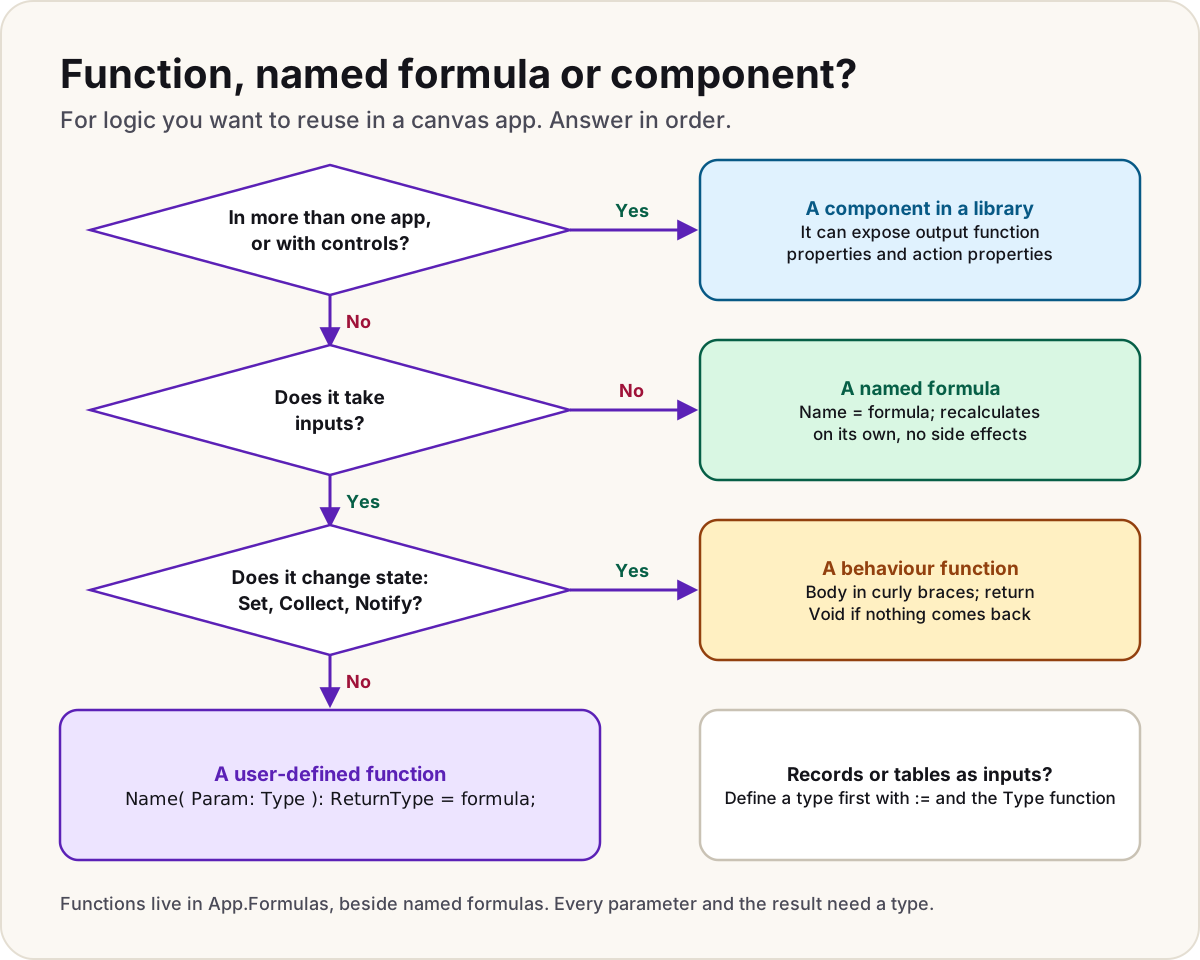
Function, named formula or component?
| You need... | Use | Because |
|---|---|---|
| A value worked out from other things, with no inputs: the signed-in user's email, today's open tasks | A named formula, Name = formula; | It recalculates when its inputs change, and nothing can overwrite it |
| The same calculation in several places with different inputs | A user-defined function | One definition with typed inputs, instead of copies |
| The same action in several places: log, save, notify | A behaviour function returning Void | Only the curly-brace form can change state |
| Logic or UI in more than one app | A component kept in a component library | Apps keep a link to the library and are told about updates |
A component can carry logic as well as controls. With Enhanced component properties turned on (Settings > Updates > New), a component can expose an output Function property that the app calls like a function, and an Action property that can change state. Function properties can't read variables or the component's own controls, so everything they need comes in as arguments.
Microsoft's pages don't agree on that feature's status: the component overview still calls it experimental, the component properties page lists it on the New tab and on by default for new apps, and the May 2026 announcement says it's generally available.
For how named formulas, functions and a component library fit together in one app, read named formulas and components. For choosing between a named formula, a variable and a collection, see Power Apps variables.
Do
- Write a function the second time you paste the same formula, not the tenth.
- Keep most functions free of side effects, and name behaviour functions after what they do.
- Define a type once and reuse it in every function that takes the same record.
Don't
- Don't pass a record from a data source straight into a function typed with fewer fields; build the record it expects.
- Don't write a function that calls itself.
- Don't rely on the formula bar's Copilot to explain or write formulas that use your functions.
User-defined functions also come up in interviews; question 11 of our Power Apps interview questions covers what to say.
Sources
- App object in Power Apps: Formulas property and user-defined functions — Microsoft Learn
- RecordOf and Type functions — Microsoft Learn
- Data types — Microsoft Learn
- Understand new, preview, experimental, and retired features in canvas apps — Microsoft Learn
- Rename controls in canvas apps with Copilot (the New analysis engine setting) — Microsoft Learn
- Use Copilot to create and edit Power Fx formulas — Microsoft Learn
- FAQ about using Copilot with Power Fx — Microsoft Learn
- Canvas component properties — Microsoft Learn
- Canvas component overview — Microsoft Learn
- Released version 3.24013 (experimental user-defined functions) — Microsoft Learn
- Power Apps user-defined functions are generally available (2 September 2025) — Microsoft Power Platform blog
- Power Fx: user-defined types generally available (13 May 2026) — Microsoft Power Platform blog
Did this fix it?
Comments
No comments yet. Share what worked for you.
Sign in to comment. Comments show under a display name you choose, never your email.