InvokerConnectionOverrideFailed: fix a flow called from Power Apps
The app's copy of the flow is out of date. What InvokerConnectionOverrideFailed means, the fix Microsoft documents, and how to change flows without breaking apps.
Power AppsFix a problem10 min read
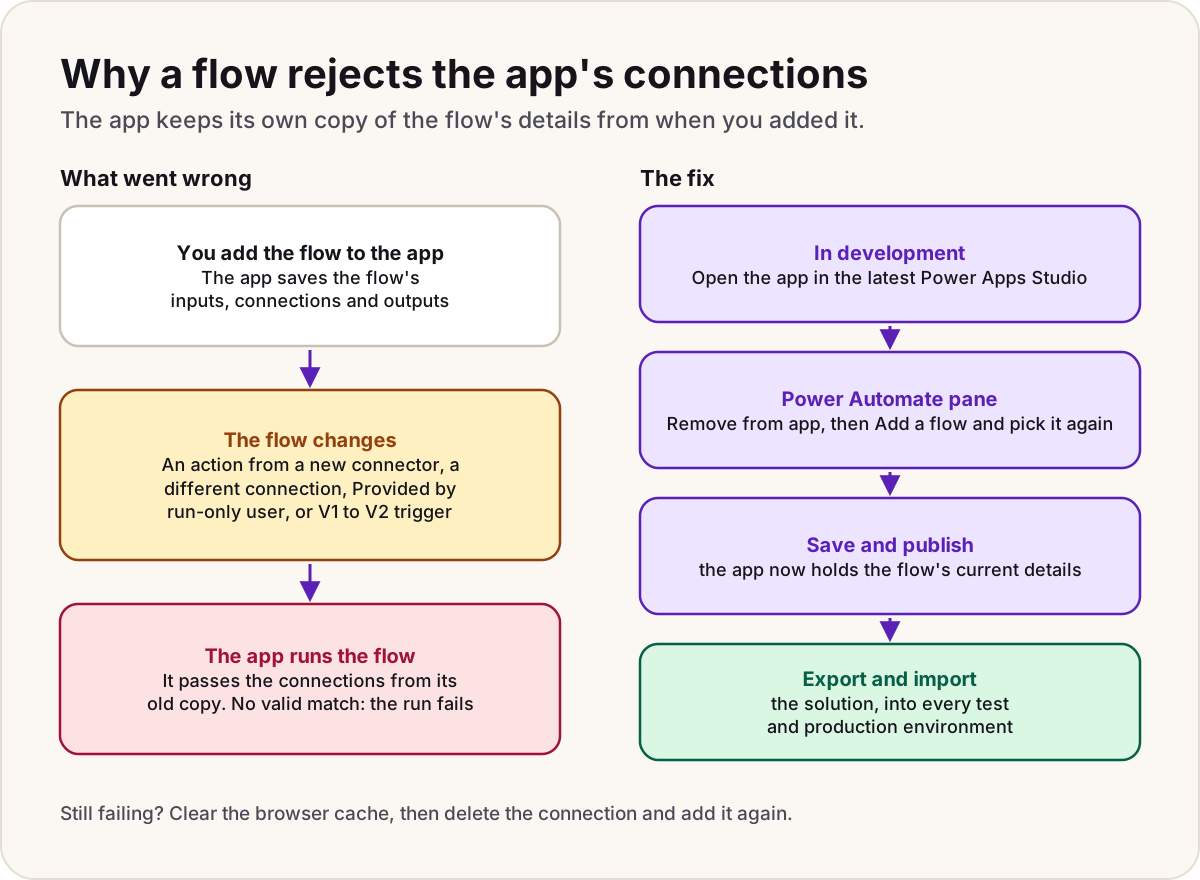
InvokerConnectionOverrideFailed is the error a cloud flow returns when a canvas app runs it with out-of-date details. Someone changed the flow to use a new or different connection, but the app still holds the flow's old metadata, so the connections it passes in don't match what the flow now expects. Microsoft's fix is short: open the app, remove the flow, add it back, then save and publish.
What the error means
You see it in the flow's run history, or in the app's telemetry, looking like this:
{
  "code": "InvokerConnectionOverrideFailed",
  "message": "Failed to parse invoker connections from trigger 'manual' outputs. Exception: Could not find any valid connection for connection reference name 'shared_office365' in APIM tokens header."
}
To run a flow, Power Apps needs to know three things about it: the inputs it asks for, the connections to hand over, and the outputs it sends back. The app saves all three in its own definition when you add the flow. From then on, that version of the app is tied to the flow as it was at that moment.
The invoker is the person who runs the flow. For each connection in a flow that's run from an app, the flow owner chooses on the flow's details page, under Run only users, whether the flow uses the connection already in the flow or one Provided by run-only user. A connection provided by the run-only user lets the flow act as that person, with their access to data. If you export the flow, those connections show a RuntimeSource of invoker.
Read with that in mind, the message says the flow looked for a valid connection for one of its connectors (shared_office365 here) among the ones the app passed in, and didn't find one. The same problem can also surface as a vague "Install flow failed" when the flow is installed through Dataverse.
What causes it
Microsoft gives one cause: the flow was updated to use a new connection, and the apps that call it kept the old metadata. Learn lists the changes most likely to break the link between an app and its flows:
| Change to the flow | What happens |
|---|---|
| Adding an action from a connector the flow didn't use before, such as SharePoint | The flow now needs a connection the app doesn't know about |
| Switching an existing action to a different connection | The app's copy still names the old one |
| Setting connections to Provided by run-only user in a flow with the Power Apps (V2) trigger | A known issue: you must refresh, or remove and re-add, the flow in the app |
| Moving the flow from the original Power Apps trigger to Power Apps (V2) | The flow breaks with a connection error until you remove and re-add it |
| Adding an Ask in Power Apps input, or removing an output from Respond to Power Apps | Different symptoms (a missing trigger property, or a blank value in the app), but the same fix |
Replacing a leaver's connections counts too: it's a change to an existing connection, so every app that calls the flow needs the same treatment (handing over a leaver's flows covers the rest of that job).
Warning
Published versions break as well as the one you're editing. Because each app version stores the flow's inputs, connections and outputs, a change to any of the three can break every earlier version of the app that calls the flow.
The fix: remove the flow and add it back
- Open the app for editing in the latest version of Power Apps Studio.
- On the app authoring menu, select Power Automate.
- Under In your app, select ... next to the flow, then Remove from app. This only takes the flow out of the app; the flow itself stays in the environment.
- Select Add a flow, and pick the same flow from Add a flow from this environment.
- Check that the formulas calling the flow, such as
NotifyManager.Run(TitleInput.Text), show no errors, and pass any inputs the flow has gained. - Save and publish the app.
You can add an existing flow only if you have access to it, can see the flows in its solution, and it starts with a Power Apps trigger.
Refresh, the lighter option
The same ... menu has Refresh, which pulls in the flow's latest changes. Microsoft says you must refresh after editing a flow in Power Automate rather than inside Power Apps Studio. Skip it and the flow may fail to run, even from apps you published earlier. Every time the app runs, it also tries to check the flow's connections against out-of-date details, which can cause performance issues.
For this error, though, Microsoft's troubleshooting article names removing and re-adding the flow. Use Refresh first if you like, and remove and re-add the flow if the error comes back.
In a solution, fix it in development
Microsoft's advice for every flow integration error is the same. Make the fix in the source (development) environment, update the solution there, then export it and import it into every test and production environment. Changing the app or flow directly in a target environment adds an unmanaged layer on top, and Microsoft warns that unmanaged layers can interfere with connection references.
If the target environment still fails with "Connection reference ... was not given by invoker", the error codes are MissingConnectionReference or NotAllowedConnectionReference. The flow in the target has drifted from the source. Fix it in the same order:
- In the source environment, remove and re-add the flows in the app, then save and publish.
- In the target environment, remove all unmanaged layers from the app and the flow.
- Export the solution and import it into the target again.
For connection references and other import problems, see moving a flow into a solution.
If it's still failing
Microsoft lists a few more things to try, and some neighbouring errors that point to a different fix:
- Clear the browser cache, then delete the connection and add it again. The connectors' known issues page suggests both for this error.
- Check the maker's connections. The person adding the flow to the app needs permission on every connection the flow uses, not just on the flow.
- Check the run-only users. With Provided by run-only user, each person who runs the app uses their own connection, so each needs access to the data behind it. If a Dataverse action is set this way, the flow owner who saves the flow needs the Act on behalf of another user privilege (prvActOnBehalfOfAnotherUser), which the Delegate role includes.
| Error | What it means | What to do |
|---|---|---|
| ConnectionAuthorizationFailed | The maker lacks permission on a connection the flow uses | Authorise every connection for the person adding the flow |
| WorkflowTriggerIsNotEnabled | The flow is turned off | Turn it on, and test it with a manual run |
| ResponseTimeout (504) | A flow that replies to the app took more than 120 seconds | Speed the flow up so it replies within 120 seconds |
| MissingConnectionReference, NotAllowedConnectionReference | The app's copy and the flow's connections don't match, often only in the target environment | Re-add in development and redeploy |
| 0x80040265 or 0x80048d0b, "Failed to install the flow" | Microsoft says the causes may be the same as for the errors above | Try the fixes for ConnectionAuthorizationFailed, WorkflowTriggerIsNotEnabled and InvokerConnectionOverrideFailed |
For errors raised inside the flow's own actions, such as 401, 403 or 429, see our cloud flow error codes.
Stop it happening again
Changing the inputs, connections or outputs of a flow that a live app already calls is what breaks it. Microsoft suggests a different route for each case.
The app is published and in use:
- Make a copy of the flow with Save As.
- Make your changes to the copy.
- Point the app at the copy: remove the old flow from the app and add the new one.
- Test and publish the app.
- Once everyone is on the new version of the app, turn off or delete the original flow.
The app is still in development: change the flow, then remove it from the app and add it back in the Power Automate pane, and save. Nobody is using the app yet, so nothing breaks.
Do
- Edit flows from the Power Automate pane in Power Apps Studio when you can, and use Refresh whenever you've changed one in Power Automate instead.
- Decide early whether each connection is the flow's own or Provided by run-only user, and set it before you add the flow to apps.
- Make the change in development and move it on with the solution.
Don't
- Don't swap a connection in a flow that live apps call without re-adding the flow to each of them.
- Don't patch the app in production: it adds an unmanaged layer, which can interfere with connection references.
- Don't delete the original flow until every user has the app version that calls the copy.
If the flow sends files back to a SharePoint library, saving attachments and photos to SharePoint shows the Power Apps (V2) trigger set up end to end.
Sources
- Troubleshoot Power Apps flow integration issues — Microsoft Learn
- Use Power Automate pane — Microsoft Learn
- Known issues with Power Apps V2 trigger — Microsoft Learn
- Known issues and limitations for connectors — Microsoft Learn
- Share a cloud flow — Microsoft Learn
- Guide to cloud flow sharing and permissions — Microsoft Learn
- Manage connections for the Microsoft Dataverse connector — Microsoft Learn
- Trigger flows when a row is added, modified, or deleted — Microsoft Learn
Did this fix it?
Comments
No comments yet. Share what worked for you.
Sign in to comment. Comments show under a display name you choose, never your email.