Power BI DAX cheat sheet: the functions you use, with examples
A Power BI DAX cheat sheet: SUMX, CALCULATE, ALL, SWITCH, DIVIDE, RELATED, time intelligence, RANKX and VAR, each with its syntax, meaning, an example and the traps.
Power BIQuick reference18 min read
This Power BI DAX cheat sheet groups the functions makers use every week by the job they do. Each entry has the syntax, one line on what it does, and an example you can paste into New measure. The examples use a Sales table (Amount, Quantity, Unit price, OrderDate, ShipDate) related to Product, Customer and Date tables.
Row context and filter context in one minute
Every DAX formula runs in a context, and most surprises come from forgetting which one.
| Row context | Filter context | |
|---|---|---|
| What it is | "The current row" | The set of rows a visual's cell is looking at |
| Where you get it | A calculated column, or inside an iterator such as SUMX or FILTER | Rows, columns and totals of a visual, slicers, filters, and CALCULATE |
What it does to SUM ( Sales[Amount] ) | Nothing: SUM ignores the current row and adds the whole filtered column | Adds only the rows the cell is looking at |
Two rules tie them together:
CALCULATEturns a row context into a filter context. Microsoft calls this context transition. It happens automatically when you call a measure in row context, so[Sales Amount]insideSUMX ( Customer, … )gives each customer's own sales.- The total row isn't a sum of the rows above it. It runs the same measure again with fewer filters. Why are my totals wrong works through the four cases where that bites.
For which to build in the first place, see calculated column vs measure.
Aggregation and iterators
| Function | Syntax | What it does | Example |
|---|---|---|---|
SUM | SUM ( <column> ) | Adds the numbers in one column | SUM ( Sales[Amount] ) |
SUMX | SUMX ( <table>, <expression> ) | Works out the expression on each row of the table, then adds the results | SUMX ( Sales, Sales[Quantity] * Sales[Unit price] ) |
COUNTROWS | COUNTROWS ( [<table>] ) | Counts the rows of a table or table expression; blank if there are none | COUNTROWS ( Sales ) |
DISTINCTCOUNT | DISTINCTCOUNT ( <column> ) | Counts the different values in a column, including a blank | DISTINCTCOUNT ( Sales[CustomerKey] ) |
AVERAGEX | AVERAGEX ( <table>, <expression> ) | Works out the expression on each row, then averages the results | AVERAGEX ( VALUES ( Customer[CustomerKey] ), [Sales Amount] ) |
Sales Amount = SUM ( Sales[Amount] )

Revenue = SUMX ( Sales, Sales[Quantity] * Sales[Unit price] )

Orders = COUNTROWS ( Sales )

Customers = DISTINCTCOUNT ( Sales[CustomerKey] )

Average per customer = AVERAGEX ( VALUES ( Customer[CustomerKey] ), [Sales Amount] )
SUMorSUMX?SUMaccepts only a column. As soon as you need maths on each row first (quantity times price), useSUMX.- Count rows with
COUNTROWS, notCOUNTon a column. Microsoft recommends it: it's faster, it doesn't skip blanks in a column, and it says what it means. - Distinct counts don't add up. A customer who bought in two categories is counted once in each category and once in the total. Use
DISTINCTCOUNTNOBLANKif a blank shouldn't count as a value.
Filter functions
| Function | Syntax | What it does | Example |
|---|---|---|---|
CALCULATE | CALCULATE ( <expression> [, <filter1> [, <filter2> …]] ) | Works out an expression under changed filters | CALCULATE ( [Sales Amount], 'Product'[Color] = "Blue" ) |
FILTER | FILTER ( <table>, <condition> ) | Returns the rows of a table where the condition is true, tested row by row | FILTER ( VALUES ( 'Date'[Month] ), [Profit] > 0 ) |
ALL | ALL ( [<table or column> [, <column> …]] ) | Ignores filters on a table or columns; also returns all their rows as a table | ALL ( 'Product' ) |
ALLEXCEPT | ALLEXCEPT ( <table>, <column> [, <column> …] ) | Removes every filter on a table except those on the columns you list | ALLEXCEPT ( Customer, Customer[Country] ) |
REMOVEFILTERS | REMOVEFILTERS ( [<table or column> [, <column> …]] ) | Clears filters, and only that: it doesn't return a table | REMOVEFILTERS ( 'Product'[Color] ) |
KEEPFILTERS | KEEPFILTERS ( <expression> ) | Makes a CALCULATE filter combine with the existing one instead of replacing it | KEEPFILTERS ( 'Product'[Color] = "Red" ) |
VALUES | VALUES ( <table or column> ) | The distinct values of a column (or the rows of a table) still visible under the current filters | COUNTROWS ( VALUES ( Sales[OrderNumber] ) ) |
SELECTEDVALUE | SELECTEDVALUE ( <column> [, <alternate>] ) | The column's value if the filters leave exactly one; otherwise the alternate, or blank | SELECTEDVALUE ( 'Product'[Category], "All categories" ) |
Blue sales = CALCULATE ( [Sales Amount], 'Product'[Color] = "Blue" )

Share of all colours =
DIVIDE (
    [Sales Amount],
    CALCULATE ( [Sales Amount], REMOVEFILTERS ( 'Product'[Color] ) )
)

Sales in profitable months =
CALCULATE ( [Sales Amount], FILTER ( VALUES ( 'Date'[Month] ), [Profit] > 0 ) )

Chosen category = SELECTEDVALUE ( 'Product'[Category], "All categories" )
What CALCULATE does with each filter
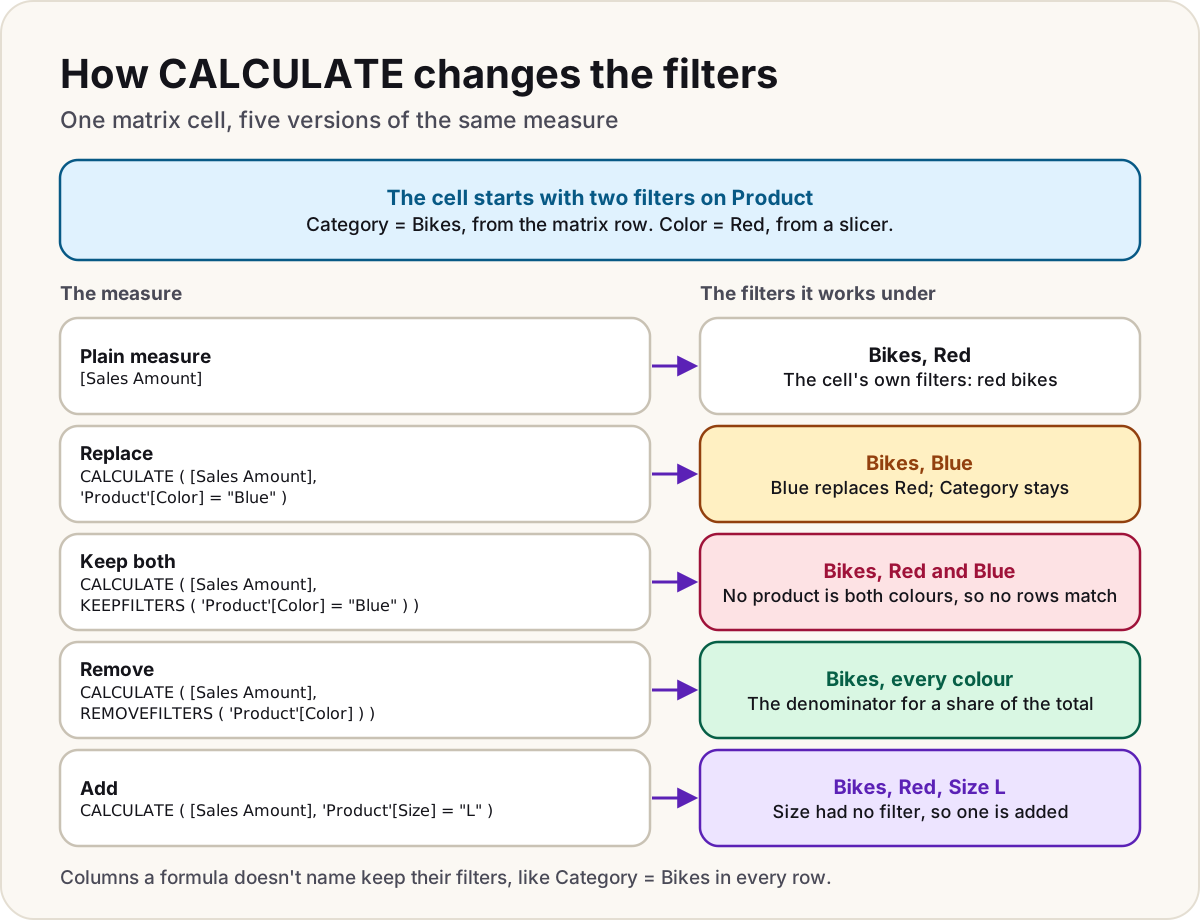
For each filter you pass, CALCULATE follows one of these rules (the diagram above shows all of them on one cell):
- The column had no filter: your filter is added.
- The column already had a filter: your filter replaces it, unless you wrap it in
KEEPFILTERS, which keeps both and uses only the rows that pass both. ALL,ALLEXCEPTorREMOVEFILTERS: those filters are removed.- Columns you don't name keep whatever filter they had.
A filter written as a condition, such as 'Product'[Color] = "Blue", can only use columns from one table, can't use a measure, and can't contain another CALCULATE. When you need any of those, pass a table with FILTER instead, as in Sales in profitable months above.
Tip
If your tool has REMOVEFILTERS, Microsoft recommends it over ALL for clearing filters: it says what it does. SELECTEDVALUE is the short, recommended form of the older IF ( HASONEVALUE ( … ), VALUES ( … ) ) pattern, and it's what a dynamic title uses in field parameters in Power BI.
Logical functions and DIVIDE
| Function | Syntax | What it does | Example |
|---|---|---|---|
IF | IF ( <test>, <if true> [, <if false>] ) | One of two values; blank if the test is false and there's no third argument | IF ( [Sales Amount] > 10000, "High", "Normal" ) |
SWITCH | SWITCH ( <expression>, <value>, <result> [, …] [, <else>] ) | Returns the result of the first value that matches; blank if nothing matches and there's no else | SWITCH ( 'Date'[Month number], 1, "Jan", 2, "Feb", "Other" ) |
SWITCH ( TRUE (), … ) | SWITCH ( TRUE (), <test1>, <result1>, … , <else> ) | Returns the result of the first test that's true: a readable replacement for nested IFs | See below |
COALESCE | COALESCE ( <expression>, <expression> [, …] ) | The first value that isn't blank | COALESCE ( [Sales Amount], 0 ) |
DIVIDE | DIVIDE ( <numerator>, <denominator> [, <alternate>] ) | Divides, and returns blank (or the alternate, which must be a constant) when the denominator is 0 or blank | DIVIDE ( [Profit], [Sales Amount] ) |
Price band =
SWITCH (
    TRUE (),
    Sales[Unit price] >= 500, "500 and over",
    Sales[Unit price] >= 100, "100 to 499",
    "Under 100"
)

Margin % = DIVIDE ( [Sales Amount] - [Total Cost], [Sales Amount] )
- Order matters in
SWITCH ( TRUE (), … ). It stops at the first true test, so put the narrowest test first. Written the other way round (< 500before< 100), the second band can never be reached. - Every result in
SWITCHmust be the same data type. Mixing text and a number gives an error. COALESCE ( [Sales Amount], 0 )shows zeros, but it also makes the measure non-blank for every row. Visuals drop groups whose values are blank by default, so a table that listed only products with sales now lists every product. The same goes for a third argument inDIVIDE; Microsoft suggests leaving measures blank.
Relationship functions
| Function | Syntax | What it does | Example |
|---|---|---|---|
RELATED | RELATED ( <column> ) | Fetches one value from the "one" side of a many-to-one relationship, for the current row | RELATED ( 'Product'[Category] ) in a Sales column |
RELATEDTABLE | RELATEDTABLE ( <table> ) | Returns the rows of a related table that belong to the current row | COUNTROWS ( RELATEDTABLE ( Sales ) ) in a Customer column |
USERELATIONSHIP | USERELATIONSHIP ( <column1>, <column2> ) | Uses an inactive relationship for one calculation, inside CALCULATE | See below |
CROSSFILTER | CROSSFILTER ( <column1>, <column2>, <direction> ) | Sets a relationship's filter direction (None, Both, OneWay and two one-way variants) for one calculation, inside CALCULATE | See below |
Category = RELATED ( 'Product'[Category] )          -- calculated column on Sales

Order count = COUNTROWS ( RELATEDTABLE ( Sales ) )   -- calculated column on Customer

Sales by ship date =
CALCULATE ( [Sales Amount], USERELATIONSHIP ( Sales[ShipDate], 'Date'[Date] ) )

Products sold =
CALCULATE (
    DISTINCTCOUNT ( 'Product'[ProductKey] ),
    CROSSFILTER ( Sales[ProductKey], 'Product'[ProductKey], Both )
)
RELATEDneeds a row context: a calculated column, or inside an iterator such asSUMXorFILTER. It can't fetch across a limited relationship.USERELATIONSHIPneeds the relationship to exist in the model (usually inactive, drawn as a dashed line). It can't be used where row-level security is defined: Microsoft's example returns an error because the customer table in the relationship has a security rule. That matters if you use dynamic row-level security.- Prefer
CROSSFILTERin one measure to setting a relationship to Both in the model: the model setting changes how filters work between those two tables everywhere, not just in this number.
Time intelligence
The classic time intelligence functions need a date table: one row per day, unique dates, no blanks, no gaps, full years, marked with Mark as date table. A date table in Power BI builds one in a few minutes.
| Function | Syntax | What it does | Example |
|---|---|---|---|
TOTALYTD | TOTALYTD ( <expression>, <dates> [, <filter>] [, <year end>] ) | Year to date, up to the last date in the current context | TOTALYTD ( [Sales Amount], 'Date'[Date] ) |
SAMEPERIODLASTYEAR | SAMEPERIODLASTYEAR ( <dates> ) | The current context's dates moved back one year | CALCULATE ( [Sales Amount], SAMEPERIODLASTYEAR ( 'Date'[Date] ) ) |
DATEADD | DATEADD ( <dates>, <number>, <interval> ) | The current dates shifted by a number of year, quarter, month or day | CALCULATE ( [Sales Amount], DATEADD ( 'Date'[Date], -1, MONTH ) ) |
DATESINPERIOD | DATESINPERIOD ( <dates>, <start>, <number>, <interval> ) | A run of dates from a start date, forward or back | See below |
Sales YTD = TOTALYTD ( [Sales Amount], 'Date'[Date] )

Sales fiscal YTD = TOTALYTD ( [Sales Amount], 'Date'[Date], "6/30" )

Sales last year = CALCULATE ( [Sales Amount], SAMEPERIODLASTYEAR ( 'Date'[Date] ) )

Sales last month = CALCULATE ( [Sales Amount], DATEADD ( 'Date'[Date], -1, MONTH ) )

Sales last 12 months =
CALCULATE (
    [Sales Amount],
    DATESINPERIOD ( 'Date'[Date], MAX ( 'Date'[Date] ), -12, MONTH )
)
- Point them at the date table's column,
'Date'[Date], not atSales[OrderDate]. The functions only return dates that exist in the column you give them. - The interval is a keyword, not text:
MONTH, never"month". - The year end in
TOTALYTDis text, such as"6/30", read in the locale of the file. Microsoft recommends the month/day form. DATEADDneeds a continuous run of dates. With the date column syntax, a selection that isn't contiguous returns an error.- Microsoft now recommends calendar-based time intelligence, still a preview in October 2026 (turn on Enhanced DAX Time Intelligence under File > Options and settings > Options > Preview features). It lets these functions take a calendar you define, such as a fiscal or 4-5-4 retail calendar, in place of the date column. The classic form above still works, and still needs the marked date table.
Text and ranking
| Function | Syntax | What it does | Example |
|---|---|---|---|
FORMAT | FORMAT ( <value>, <format> [, <locale>] ) | Turns a number or date into text using a format string | FORMAT ( 'Date'[Date], "mmm yyyy" ) |
CONCATENATEX | CONCATENATEX ( <table>, <expression> [, <delimiter> [, <order by>, <order>]] ) | Joins an expression's results from every row into one text value | See below |
RANKX | RANKX ( <table>, <expression> [, <value> [, <order> [, <ties>]]] ) | The position of the current value among the values the expression gives across the table | See below |
Month label = FORMAT ( 'Date'[Date], "mmm yyyy" )

Selected products =
CONCATENATEX ( VALUES ( 'Product'[Product] ), 'Product'[Product], ", ", 'Product'[Product], ASC )

Product rank = RANKX ( ALL ( 'Product'[Product] ), [Sales Amount], , , Dense )
FORMATreturns text. A measure wrapped in it can't go on a chart's values. To change how a number looks while keeping it a number, use a format string on the measure instead (Power BI also offers dynamic format strings for measures).FORMATuses Visual Basic style codes, not .NET ones:mmis the month (unless it comes straight afterhorhh),nnis minutes, and"Percent"works where"p"doesn't.RANKXranks within the table you give it. In a visual that shows one product per row,VALUES ( 'Product'[Product] )holds one product, so everything ranks 1. UseALL ( 'Product'[Product] )to rank against every product.- Rank a measure, not a bare
SUM. The measure gets context transition for each product;SUM ( Sales[Amount] )written directly insideRANKXdoesn't, so every product gets the same total. - Order and ties: leave the order out (or use 0) to give the highest value rank 1; use 1 to rank from the lowest. For ties,
Skip(the default) jumps after a tie, as in 1, 1, 3;Densedoesn't, as in 1, 1, 2. Skip an optional argument with an empty comma, as above.
Variables: VAR and RETURN
Sales growth % =
VAR SalesNow = [Sales Amount]
VAR SalesPriorYear =
    CALCULATE ( [Sales Amount], SAMEPERIODLASTYEAR ( 'Date'[Date] ) )
RETURN
    DIVIDE ( SalesNow - SalesPriorYear, SalesPriorYear )
- A variable is worked out once, where it's defined, and then never changes. Using it twice doesn't calculate it twice, which Microsoft says can roughly halve the query time of a measure like this.
- That includes inside
CALCULATE.CALCULATE ( SalesNow, … )returnsSalesNowunchanged, because the variable was already worked out under the original filters. Put the expression itself inCALCULATE, asSalesPriorYeardoes. - Debug by returning a variable: change
RETURNtoRETURN SalesPriorYearfor a moment and check the number. - Names: letters and digits only (a double underscore is allowed as a prefix), not starting with a digit, no spaces, and not a reserved word or the name of a table. Microsoft's own VAR example breaks that last rule, naming a variable
Salesin a model with a Sales table; use names likeSalesNowand stay clear of it.
Traps
Warning
SUM written straight into a calculated column shows the grand total on every row. SUM ignores row context. Call a measure instead, or wrap the expression in CALCULATE, so context transition filters to the current row.
Don't
- Don't pass
FILTER ( 'Product', 'Product'[Color] = "Red" )toCALCULATEwhen'Product'[Color] = "Red"will do. The simple condition is faster on Import tables; keepFILTERfor tests that need a measure, two columns or anORacross tables. - Don't divide with
/when the denominator can be 0 or blank:DIVIDEreturns a blank instead of an error. (Dividing by a constant, such as/ 1000, is the case where Microsoft prefers/.) - Don't compare
VALUES ( … )to a single value when more than one value might be visible: a table of several rows can't be compared with one value, and you get an error. UseSELECTEDVALUE. - Don't wrap a number in
FORMATjust to add a thousands separator. It becomes text.
Do
- Build small measures (Sales Amount, Total Cost) and reuse them inside bigger ones.
- Use the date table's column in every time intelligence function.
- Use
ALLorREMOVEFILTERSon only the column or table you mean to clear, so slicers on everything else still apply.
The number looks wrong
- Every row of a ranking says 1:
RANKXover a one-row table. UseALLon the column. - The total doesn't equal the sum of the rows: the total row re-runs the measure; see row context and filter context.
- A
KEEPFILTERSmeasure is blank for most rows: it keeps both filters, and the rows have to pass both. - Last year's figure is blank: the date column isn't from a marked date table, or the date table doesn't cover last year.
Sources
- DAX overview — Microsoft Learn
- SUM function (DAX) — Microsoft Learn
- SUMX function (DAX) — Microsoft Learn
- COUNTROWS function (DAX) — Microsoft Learn
- Use COUNTROWS instead of COUNT — Microsoft Learn
- DISTINCTCOUNT function (DAX) — Microsoft Learn
- AVERAGEX function (DAX) — Microsoft Learn
- CALCULATE function (DAX) — Microsoft Learn
- FILTER function (DAX) — Microsoft Learn
- Avoid using FILTER as a filter argument — Microsoft Learn
- ALL function (DAX) — Microsoft Learn
- ALLEXCEPT function (DAX) — Microsoft Learn
- REMOVEFILTERS function (DAX) — Microsoft Learn
- KEEPFILTERS function (DAX) — Microsoft Learn
- VALUES function (DAX) — Microsoft Learn
- SELECTEDVALUE function (DAX) — Microsoft Learn
- Use SELECTEDVALUE instead of VALUES — Microsoft Learn
- IF function (DAX) — Microsoft Learn
- SWITCH function (DAX) — Microsoft Learn
- COALESCE function (DAX) — Microsoft Learn
- DIVIDE function (DAX) — Microsoft Learn
- DIVIDE function vs. divide operator (/) — Microsoft Learn
- RELATED function (DAX) — Microsoft Learn
- RELATEDTABLE function (DAX) — Microsoft Learn
- USERELATIONSHIP function (DAX) — Microsoft Learn
- CROSSFILTER function (DAX) — Microsoft Learn
- TOTALYTD function (DAX) — Microsoft Learn
- SAMEPERIODLASTYEAR function (DAX) — Microsoft Learn
- DATEADD function (DAX) — Microsoft Learn
- DATESINPERIOD function (DAX) — Microsoft Learn
- Set and use date tables in Power BI Desktop — Microsoft Learn
- Implement time-based calculations in Power BI — Microsoft Learn
- FORMAT function (DAX) — Microsoft Learn
- CONCATENATEX function (DAX) — Microsoft Learn
- RANKX function (DAX) — Microsoft Learn
- VAR keyword (DAX) — Microsoft Learn
- Use variables to improve your DAX formulas — Microsoft Learn
Was this helpful?
Comments
No comments yet. Share what worked for you.
Sign in to comment. Comments show under a display name you choose, never your email.