Power Query vs Power Pivot vs Power BI: the three layers explained
Power Query shapes the data, Power Pivot is Excel's data model with DAX, and Power BI holds both plus reports and a service. What belongs in which layer, and why.
Power BIChoose a tool13 min read
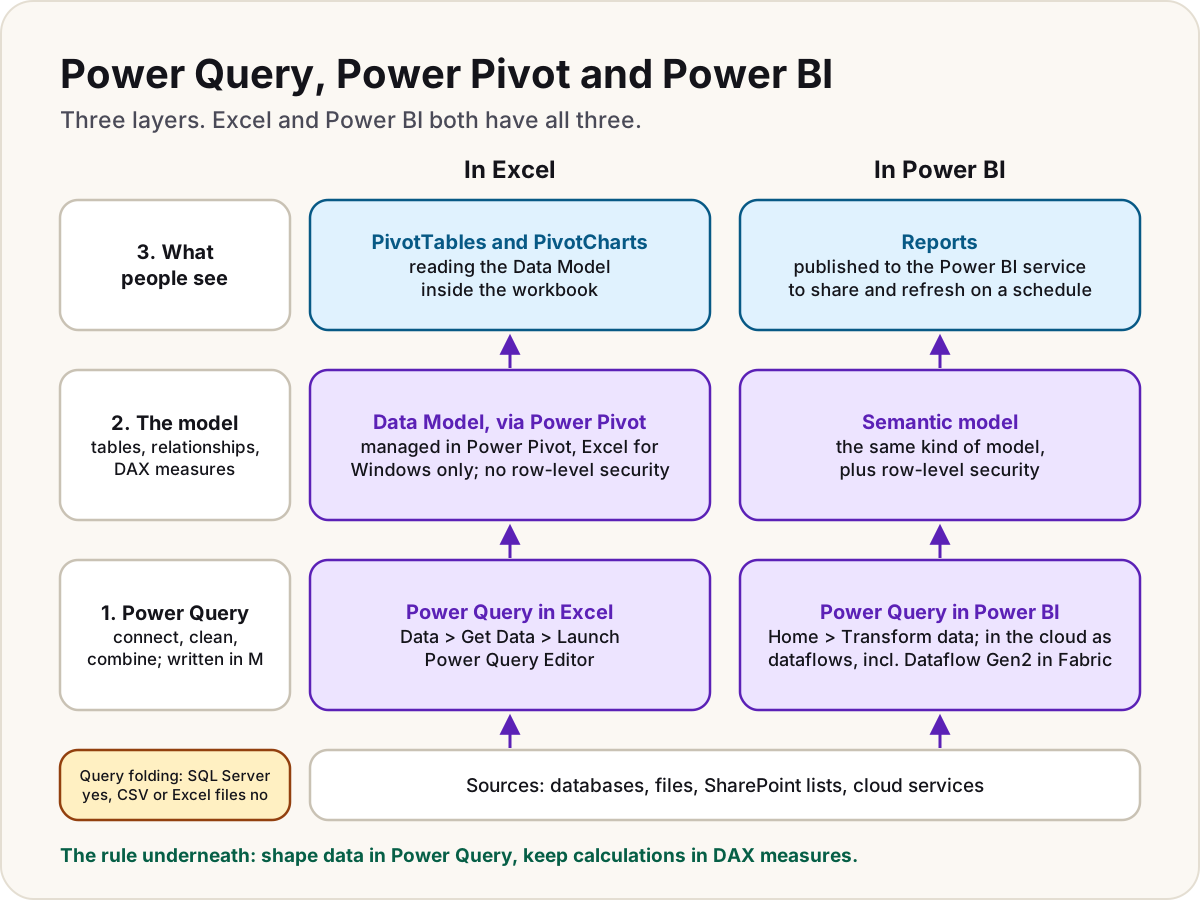
Power Query, Power Pivot and Power BI aren't three competing tools. Power Query is the engine that gets and shapes data; Power Pivot is the data model, with DAX, that lives inside Excel; and Power BI is the product that has its own Power Query and its own model, then adds reports and a service to share them. So Power BI vs Power Query is really a whole against one of its parts: you use Power Query inside Power BI, and inside Excel too.
Note
Checked against Microsoft Learn on 22 October 2026. Excel's own features and limits were checked on Microsoft Support the same day.
The three in one table
| Power Query | Power Pivot | Power BI | |
|---|---|---|---|
| What it is | A data preparation engine | Excel's data modelling add-in | A product: Desktop app, model, reports and a cloud service |
| Its job | Connect to sources, clean, reshape, combine | Hold related tables and calculate over them | Everything from source to shared report |
| Language | M | DAX | M (in its Power Query) and DAX (in its model) |
| Where you find it | Excel, Power BI Desktop, dataflows, Fabric, Power Apps | Excel for Windows | Power BI Desktop (free, Windows) and the Power BI service |
| What it produces | A clean table, loaded wherever the host puts it | A model that PivotTables and PivotCharts read | Reports and semantic models others can use |
Microsoft's own training module describes Power BI Desktop as the Power Query and DAX model technologies from Excel, joined with the cloud Power BI service. That's the clearest way to hold it in your head.
Power Query gets and shapes the data
Power Query connects to a source, then records every change you make (remove a column, filter rows, merge two tables, unpivot) as a step. It never changes the source: refresh, and it replays the steps on fresh data. Behind the scenes every step is written in M, the Power Query formula language, which you can read and edit in the Advanced Editor.
Power Query has no storage of its own. The product that hosts it decides where the result goes: a worksheet or the Data Model in Excel, the model in Power BI, or a table in Dataverse or a lakehouse for a dataflow.
How to open it:
- Excel: Data > Get Data > Launch Power Query Editor. To send a query to the model, use Home > Close & Load > Close & Load To and tick Add this data to the Data Model.
- Power BI Desktop: Home > Transform data.
- In a browser: as Power Query Online, inside dataflows: Dataflow Gen2 in Microsoft Fabric, Power BI dataflows (now called Gen1) and Power Platform dataflows.
Microsoft lists Power Query Desktop in Excel for Windows, Excel for Mac and Power BI Desktop. Power Query Online and its connectors can differ by host, so a connector that works in Power BI Desktop isn't guaranteed in every dataflow.
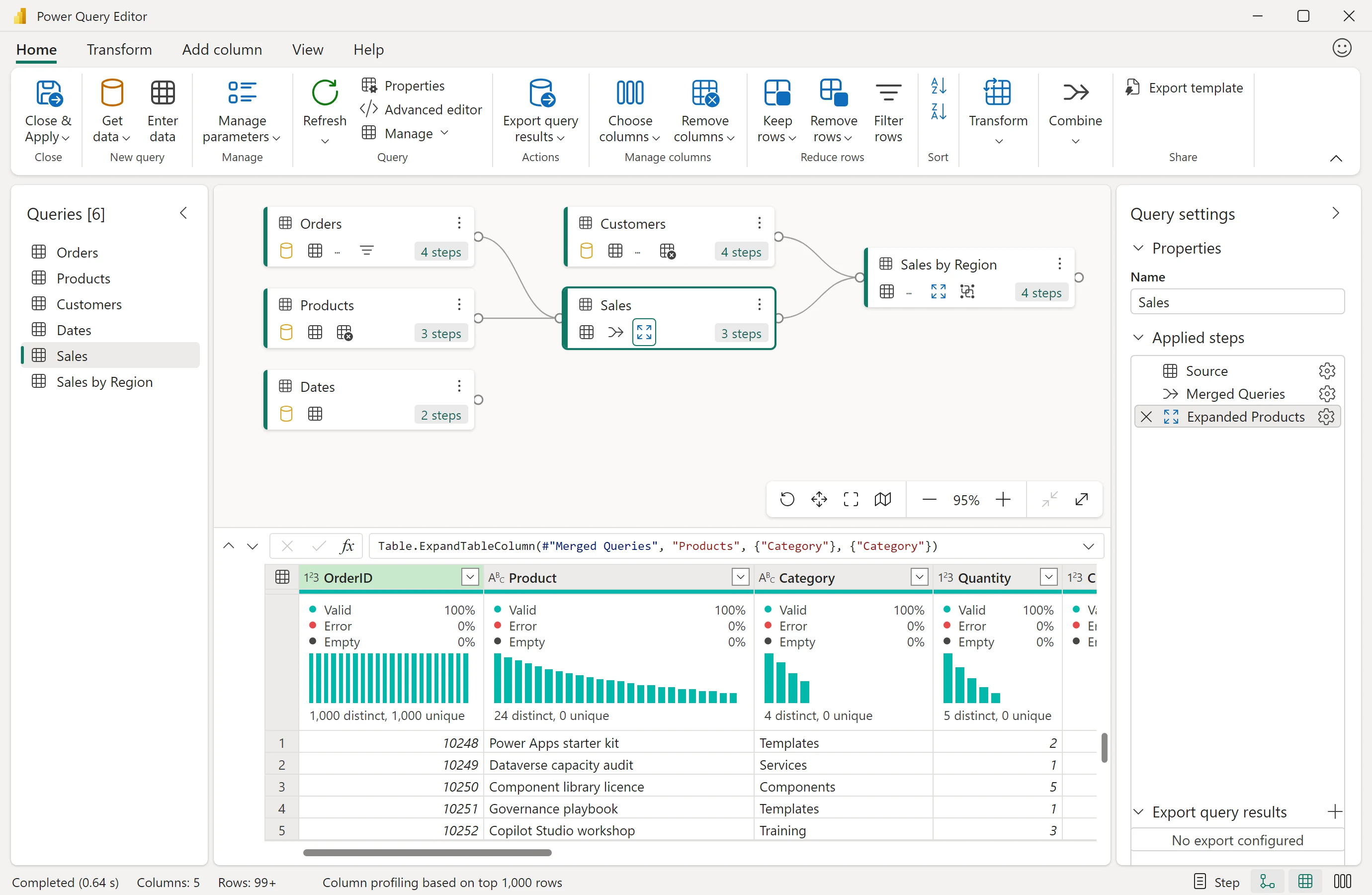
What the new Power Query Editor in Power BI Desktop shows, as of September 2026 (it's a preview, turned on in File > Options and settings > Options > Preview features > New Power Query experience):
- The ribbon: the Home, Transform, Add column, View and Help tabs, with commands such as Get data, Advanced editor and Close & Apply.
- Queries [6]: every query in the file; select one to work on it.
- The current view: here the diagram view, showing each query and its steps, above the data preview with the formula bar and the column profiles (Valid, Error, Empty).
- Query settings: the query's Name and its Applied steps, the recorded steps that replay on every refresh.
- The status bar: how long the query took, its Columns and Rows, and buttons to switch views.
Query folding in two sentences
When it can, Power Query translates your steps into the source's own query language, so a database filters and groups the rows before sending them; that's query folding. SQL Server and OData sources commonly fold, while CSV and Excel files have no query engine and don't fold, so every step on them runs in the Power Query engine.
It matters most for big tables and for incremental refresh, which relies on a date filter that folds. In Power Query Online, folding indicators beside each step show which ones fold; View Native Query shows the query sent to the source, where the connector supports it.
Power Pivot is the model inside Excel
The Excel Data Model is a set of tables with relationships, stored in a compressed analytical database inside the workbook. Power Pivot is the add-in that lets you manage it properly: the model you see in Excel and in the Power Pivot window is the same one. In the Power Pivot window you can:
- arrange tables in Diagram view and create relationships;
- write DAX calculated columns and measures;
- define hierarchies, KPIs and perspectives, which Excel on its own can't.
To turn it on, go to File > Options > Add-ins, choose COM Add-ins in the Manage box, select Go, then tick Microsoft Power Pivot for Excel. Open it with Power Pivot > Manage.
Warning
Microsoft says Power Pivot isn't currently available in Excel for Mac or Excel for the web. Mac users can still use Power Query, and a workbook built with Power Pivot can be opened in the Windows desktop app.
A Data Model table can hold up to 1,999,999,997 rows, far beyond a worksheet's 1,048,576, which is why a model is the right home for big tables even inside Excel.
Power BI contains both, plus reports and a service
Power BI Desktop is a free Windows application. Transform data opens its Power Query; the Model view and the DAX formula bar are its model, which Microsoft calls a semantic model (it used to say dataset). On top sit the report canvas and visuals, and Publish sends it all to the Power BI service, where it refreshes on a schedule and people open it in a browser.
Because the engines match, an Excel model moves across almost whole. In Power BI Desktop, File > Import > Power Query, Power Pivot, Power View converts a workbook's queries, Power Pivot connections, relationships, calculated columns, measures and KPIs into a new .pbix file. It's a one-time copy: afterwards, the .pbix file doesn't depend on the workbook.
What Power BI adds that the Excel layers don't have:
- Row-level security. Roles defined in DAX that show each viewer only their rows. Microsoft's DAX overview states that row-level security isn't available in Power Pivot in Excel.
- Scheduled refresh in the service, without anyone opening a file.
- Sharing through workspaces and apps, with a shared semantic model that many reports can use (one semantic model, many reports).
Where each one shows up
| Where | Power Query | The model | What people see |
|---|---|---|---|
| Excel for Windows | Yes | Data Model, with Power Pivot | PivotTables, PivotCharts |
| Excel for Mac | Yes | No Power Pivot | Worksheets, PivotTables, charts |
| Excel for the web | Yes, as Power Query Online | No Power Pivot | Worksheets, PivotTables |
| Power BI Desktop | Yes (Transform data) | Its own model, with DAX | Report pages |
| Power BI service | Dataflows (Gen1) | Published semantic models | Reports, dashboards, apps |
| Microsoft Fabric | Dataflow Gen2 | Semantic models over lakehouses and warehouses | Power BI reports |
| Power Apps | Dataflows that load into Dataverse | No | Apps |
Dataflows are Power Query as a cloud service: you prepare the data once and store the result so other models, reports and apps can reuse it. Microsoft now calls Power BI dataflows Gen1, says they get no new feature investment, and recommends Dataflow Gen2 in Fabric for new projects. Dataflow Gen2 can write to destinations such as a Fabric lakehouse or warehouse, Azure SQL Database or SharePoint files.
What to do in which layer
The rule of thumb: each job belongs in the lowest layer that can do it well.
| Job | Layer | Why |
|---|---|---|
| Remove columns, filter out rows you'll never report on | Power Query (or the source) | Less data loaded, smaller model, faster refresh |
| Fix types, split, merge, unpivot, combine files | Power Query | Repeatable steps that replay on every refresh |
| A label or band per row (price band, full name) | Power Query custom column | Microsoft prefers it to a DAX column in Import models: better compression, quicker refresh |
| Split a flat export into fact and dimension tables | Power Query, then relationships in the model | A star schema is what the model is built for |
| Totals, ratios, year to date, anything that follows a slicer | DAX measure in the model | Worked out for every cell and every filter |
| A per-row value that needs a measure or a related table | DAX calculated column | Power Query can't see the model's measures |
| Show each viewer only their rows | Power BI row-level security | Not available in Power Pivot |
| The same clean tables in many models | A dataflow | Prepare once, reuse many times |
Do
- Shape and reduce data in Power Query before it reaches the model, and push filters to a source that can fold them.
- Split flat exports into a star schema: our star schema from messy exports tutorial does it entirely in Power Query.
- Keep anything that should react to a slicer in a measure. Calculated column or measure walks through the choice with a worked margin example.
Don't
- Don't do row-by-row clean-up in DAX calculated columns when a Power Query step can do it.
- Don't assume a step folds. On a large database table, check the folding indicators or View Native Query before you trust a refresh time.
- Don't rely on Excel sheet protection to hide data from colleagues: Microsoft says it isn't intended as a security feature. If people must see only their own rows, the model belongs in Power BI with row-level security.
When something breaks, the layer tells you where to look. A refresh error such as the key didn't match any rows in the table is a Power Query step that can no longer find its source table. A total that looks wrong is almost always a model or DAX question. And if you're deciding between building the report in Excel or in Power BI at all, see Power BI vs Excel.
Sources
- What is Power Query? — Microsoft Learn
- Overview of query evaluation and query folding in Power Query — Microsoft Learn
- Query overview in Power BI Desktop — Microsoft Learn
- Import Excel workbooks into Power BI Desktop — Microsoft Learn
- Transition from Excel to Power BI (training module) — Microsoft Learn
- DAX overview — Microsoft Learn
- Get started with Power BI Desktop — Microsoft Learn
- What is Dataflow Gen2? — Microsoft Learn
- Create and use dataflows in Microsoft Power Platform — Microsoft Learn
- Data reduction techniques for Import modeling — Microsoft Learn
- Row-level security (RLS) with Power BI — Microsoft Learn
- Power Pivot: Powerful data analysis and data modeling in Excel — Microsoft Support
- Turn on Power Pivot — Microsoft Support
- Create, load, or edit a query in Excel (Power Query) — Microsoft Support
- Data Model specification and limits — Microsoft Support
- Excel specifications and limits — Microsoft Support
- Protect a worksheet — Microsoft Support
Was this helpful?
Comments
No comments yet. Share what worked for you.
Sign in to comment. Comments show under a display name you choose, never your email.