Power Apps variables: global, context, collections and named formulas
Power Apps variables explained: when to use Set, UpdateContext, a collection, a named formula or With, how long each one lasts, and the mistakes that cause bugs.
Power AppsFix a problem9 min read
Power Apps variables work differently from variables in other tools. Microsoft's own advice is to ask "what would I do in Excel?" first: a formula recalculates by itself when its inputs change, and a variable doesn't. You still need variables when a value depends on what the user did, such as a running total or an open side panel. This guide covers each kind, how long it lasts, and when to pick it.
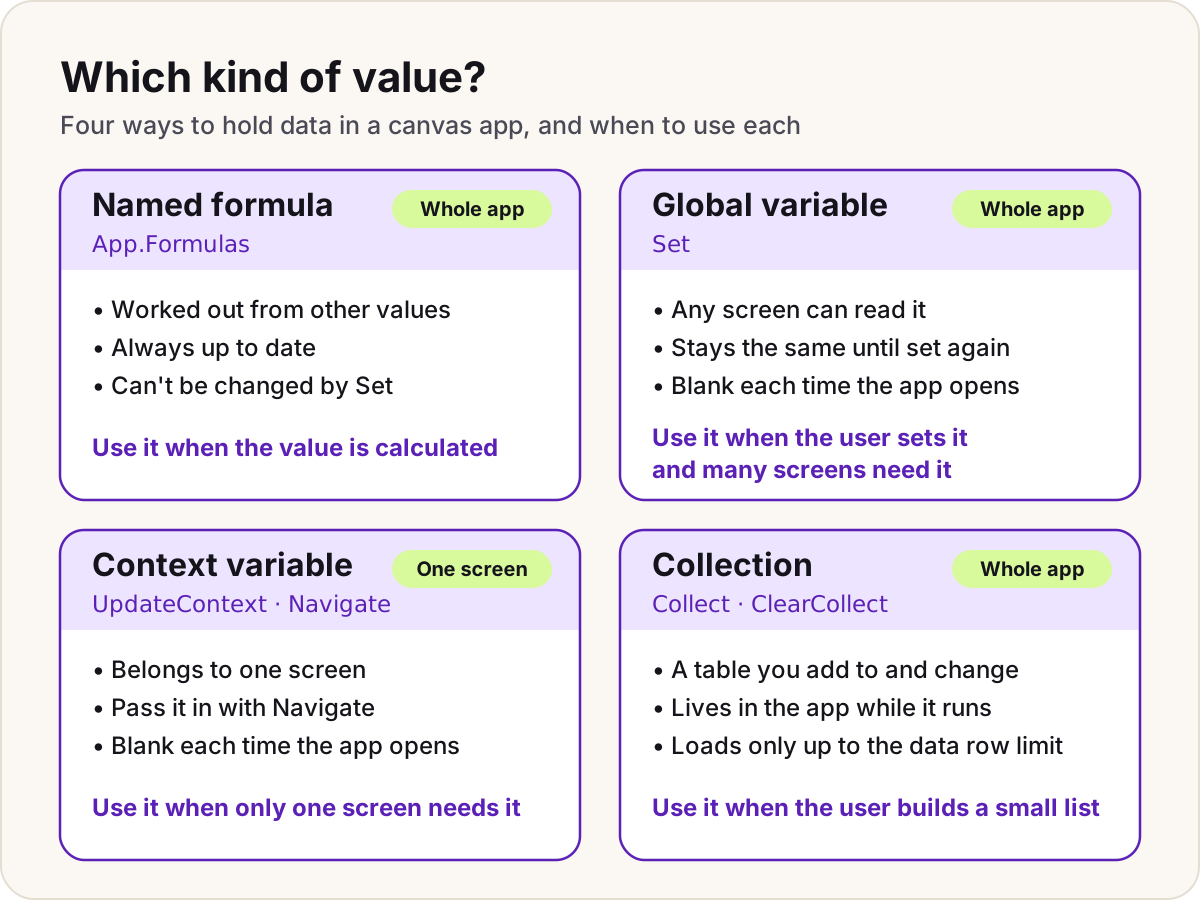
The kinds at a glance
Canvas apps have three kinds of variable, plus two formula features that often replace them:
| Kind | Created with | Scope | Lasts |
|---|---|---|---|
| Global variable | Set | The whole app | Until the app closes |
| Context variable | UpdateContext, or Navigate | One screen | Until the app closes |
| Collection | Collect or ClearCollect | The whole app | Until the app closes |
| Named formula | App.Formulas | The whole app | Always: it's a formula, not a stored value |
| With | With | One formula | Only while that formula runs |
A few rules apply to all three kinds of variable:
- You never declare them. A variable exists because a
Set,UpdateContext,Navigate,CollectorClearCollectmentions it somewhere in the app, even if that formula hasn't run yet. Remove every one of those and the variable is gone. - The type comes from use.
Set(X, 1)makesXa number. A second button withSet(X, "Hello")is an error, because every place must agree on the type. - They start empty. When the app opens, variables are blank and collections are empty tables.
- They're lost when the app closes. To keep a value, write it to a data source, for example with
Patch. - They're set in behaviour formulas only, such as OnSelect, OnChange or OnVisible.
Set,UpdateContext,CollectandClearCollectcan't go in a property like Text or Visible.
Global variables with Set
A global variable holds one value, record or table, and any screen can read it.
// A dropdown's OnChange: remember the region for every screen
Set(varRegion, drpRegion.Selected.Value)

// A button's OnSelect: add to a running total
Set(varTotal, varTotal + Value(txtAmount.Text))

// Hold a whole record, then change one field of it
Set(varDraft, { Title: "New request", Priority: "Normal" });
Set(varDraft, Patch(varDraft, { Priority: "High" }))

// Clear it
Set(varRegion, Blank())
Formulas that read a variable update when it changes. The variable itself doesn't: if txtAmount changes later, varTotal stays where it was until something sets it again. That's the main reason Microsoft suggests a formula over a variable wherever one will do.
Context variables with UpdateContext and Navigate
A context variable belongs to one screen. You can't refer to it from a formula on another screen. Its value isn't reset when the user leaves the screen: it stays until the app closes.
UpdateContext takes a record, so the syntax is { name: value } rather than name = value. You can set several at once, and any context variable you don't mention keeps its value.
// A button's OnSelect: open or close a side panel on this screen
UpdateContext({ locShowPanel: !locShowPanel })

// Set two at once
UpdateContext({ locStep: 2, locError: "" })
To pass a value to another screen, give Navigate a third argument. It sets context variables on the screen you're opening, as if UpdateContext ran there, and it's the only way to set a context variable from outside its screen.
// In a gallery: open the details screen with the selected record
Navigate(scrDetails, ScreenTransition.Fade, { locRequest: ThisItem })

// On scrDetails, a label's Text
locRequest.Title
Collections for tables you change
A collection is a table held in the app. Unlike a table in a global variable, you can add, change and remove single rows. A basket is a good fit:
// Add button: add a row (the collection is created if it doesn't exist)
Collect(colBasket, { Product: galProducts.Selected.Name, Price: galProducts.Selected.Price, Qty: 1 })

// Plus icon in a gallery whose Items is colBasket: change one row
Patch(colBasket, ThisItem, { Qty: ThisItem.Qty + 1 })

// Trash icon in the same gallery: remove that row
Remove(colBasket, ThisItem)

// Empty the basket (the columns stay)
Clear(colBasket)

// Replace a collection's contents in one step: Clear, then Collect
ClearCollect(colMyOpen, Filter(Requests, Status = "Open"))
Clear works only on collections, never on a data source. In a collection, Remove removes a row whose whole record matches; add RemoveFlags.All to remove every copy if the same record appears more than once.
Named formulas for values you can calculate
Most values people put in a global variable at start-up never change afterwards: the user's email, a colour, a lookup of the user's profile. Write those as named formulas in the App.Formulas property instead, each ending with a semicolon (for a calculation that takes inputs, write a user-defined function):
// App.Formulas
UserEmail = User().Email;
BrandColour = ColorValue("#0F6CBD");
IsWeekend = Weekday(Today(), StartOfWeek.Monday) > 5;
Microsoft lists why this is better than Set: the value is always available, with no start-up step that must run first; it stays up to date as its inputs change; its definition can't be changed anywhere else in the app; and it's only worked out when something needs it. The limits: a named formula can't use behaviour functions, you can't change it with Set, and two formulas can't refer to each other in a circle. Because it never changes, drop the var prefix. Our guide to named formulas and components covers moving an existing App.OnStart over.
With for values inside one formula
With names values that exist only inside one formula, like local variables. Microsoft prefers it to context or global variables for this job: it's self-contained, and it works in any formula, not only in behaviour properties.
// A label's Text: work out the basket total once, use it twice
With(
    { total: Sum(colBasket, Price * Qty) },
    If(total > 100, "Free delivery on " & Text(total, "#,##0.00"), Text(total, "#,##0.00"))
)
Which one to use
- Can a formula work it out? Use a named formula or With
- Does a user action change it? Use a variable
- Only one screen needs it? UpdateContext, otherwise Set
- A small table the user edits? Use a collection
| You need | Use |
|---|---|
| A value calculated from data, the user or other values | A named formula |
| An in-between value inside one formula | With |
| A choice the user makes that several screens read | Set |
| State for one screen, such as an open panel or the current step | UpdateContext |
| A record handed to the next screen | Navigate with a third argument |
| A small table the user builds or edits before saving | A collection |
| Rows to show from a large list | Neither: point the gallery's Items at the data source |
Common mistakes
- A label shows blank at first and fills in later: it reads a variable that hasn't been set yet. Every variable starts blank, so check what sets it and when, or make it a named formula.
- A screen shows a different value from the one you set with
Set: a context variable on that screen has the same name and wins. Rename one, or read the global one as[@varName]. - A collection of a big list is missing rows:
CollectandClearCollectcan't be delegated, so they copy only the first rows, 500 by default and at most 10,000 with the Data row limit setting.
Do
- Prefix names so they're easy to tell apart, such as
varfor global,locfor context andcolfor collections, and nevervaron a named formula. - Filter before you collect, so the collection holds only the rows you need.
- Open Variables on the app authoring menu in Studio to see every variable. Select one under Global variables or Context variables to see where it's set and used, and select Collections to see what each collection holds.
Don't
- Don't use a global variable for everything. Each
Setis one more place a value can change, which makes bugs hard to trace. - Don't copy a whole list into a collection just to show it. Microsoft notes that collections don't recalculate like formulas do; see canvas app performance and the delegation cheat sheet.
- Don't give a global variable the same name as a control or a collection. Learn says it can't share either name.
- Don't name a variable after an app property, such as
ActiveScreen,Height,WidthorTheme. Microsoft lists these as reserved.
Sources
- Understand variables in canvas apps — Microsoft Learn
- Set function — Microsoft Learn
- UpdateContext function — Microsoft Learn
- Back and Navigate functions — Microsoft Learn
- Collect, Clear, and ClearCollect functions — Microsoft Learn
- Create and update a collection in a canvas app — Microsoft Learn
- Remove and RemoveIf functions — Microsoft Learn
- Patch function — Microsoft Learn
- App object: the Formulas property — Microsoft Learn
- With function — Microsoft Learn
- Delegation overview: changing the limit — Microsoft Learn
Did this fix it?
Comments
No comments yet. Share what worked for you.
Sign in to comment. Comments show under a display name you choose, never your email.