Power Pages interview questions (2026): sites, security and Liquid
Power Pages interview questions with short answers and likely follow-ups. Covers site setup, table permissions, Liquid, the Web API, server logic and ALM.
Power PagesQuick reference55 min read
A Power Pages site faces the open internet, and its data lives in Dataverse. So expect the interview to keep coming back to one worry: can you put business records on a public website and still show each visitor only what they're allowed to see? After that, be ready for questions on how data reaches a page, how you write Liquid and custom code, and how you ship changes without breaking a live site.
We answer 26 Power Pages interview questions here, in groups that follow that order, with scenarios and the 2026 changes at the end. Every answer begins with a few sentences to say out loud. After them come the details that show you've done the work, Learn's syntax where it helps, and the question we'd expect an interviewer to ask next.
No employer supplied these questions: we wrote them for this page, and checked each answer against Microsoft Learn on 21 October 2026. The Liquid, Web API and CLI examples use Microsoft's documented syntax, and we didn't run them for this page. Where two Learn pages disagree, we say so and say which one we follow. If the role also covers apps, flows or tenant administration, see our Power Apps interview questions, Power Automate interview questions and Power Platform admin interview questions.
Sites and setup
1. Walk me through creating a Power Pages site. What do you decide before you pick a template?
Short answer: Three decisions come first: which environment, who's allowed to build there, and which template gets closest to the job. We create the site in a dedicated environment, never the default one. Then we pick a business template, a starter layout or a blank page, and build in the design studio while the site is still private.
In more detail:
- Learn's warning about the default environment comes down to who else is in it: the whole tenant. Site data kept there could end up with people it was never meant for.
- Building a site takes two things in that environment: the System administrator role and a user account in Read-Write access mode. Tenants that have switched off site creation add a third: the Dynamics 365 administrator or Power Platform administrator role.
- Out of the box, the design studio lets only system administrators edit a site. Other makers can get in with the System customizer role, Learn explains, but that role needs some extra privileges and still runs into a few limitations.
- Makers used to need rights to register an app in Microsoft Entra ID before they could create a site. Not any more: Power Pages now reaches Dataverse through an identity the platform manages.
- Templates come as business templates, such as application processing or program registration, cross-industry starter layouts, and a blank page. Dynamics 365 templates appear when Dynamics 365 apps are installed in the environment, though Learn says they don't show for the first site you create in Power Pages.
- The design studio has five workspaces: Pages, Styling, Data, Set up and Security. Learn's overview of designing sites names all five. Its "Use design studio" page, updated more recently, says four. We follow the overview, because Learn's own page on the Security workspace, newer than both, tells you to open it from the studio's left pane.
- After a change in the Portal Management app, select Sync in the studio so it picks the change up. That app, called Power Pages Management on the enhanced data model, opens from the studio's ... menu and holds the settings the studio doesn't. For code, Edit site code opens Visual Studio Code for the Web.
Follow-up they may ask: "Would you build our intranet in Power Pages?" Usually not. SharePoint suits your own staff and a few named guests. Power Pages suits the public, and outside users who sign themselves up and submit records into Dataverse. Our Power Pages or SharePoint comparison sets out the decision.
Go deeper: Build your first Power Pages site on Dataverse
2. What does site visibility control, and who can make a site public?
Short answer: Visibility decides whether the internet can reach the site at all. Every new site starts private, which keeps it inside your organization: visitors sign in with your Microsoft Entra ID, and only the makers and the colleagues they grant access to get in. Switching to public is a controlled step, and for non-production sites a tenant admin can block it entirely.
In more detail:
- The access list is in the Security workspace, under Site visibility, and takes up to 50 people from your organization. System administrators don't need a place on it: their role in the environment already lets them in. The list is stored as an environment variable, so treat edit rights on that variable as a security setting.
- Switching between private and public restarts the site, so allow a few minutes. After that, a public site shows each edit to visitors as soon as you make it.
- A tenant setting,
enableSystemAdminsToChangeSiteVisibility, decides whether system administrators can change visibility; at false, only those in a security group you've delegated it to can. Power Platform administrators and Dynamics 365 administrators can change it either way. - Learn's pages disagree about that setting's default, null. The site visibility page says system administrators can change visibility while it's null. The changes page says that since 1 October 2023 they can't, and advises setting it to true or false. We follow the site visibility page, because it's the page about this setting, and Learn revised it in March 2026, well after the 1 October 2023 date the changes page gives. In practice, set the value explicitly and the question goes away.
- Tenant admins set a policy for non-production sites, such as trials, under Manage > Power Pages > Governance controls in the Power Platform admin center. Until an admin picks another value, the policy is None: no maker can take a non-production site public.
- Don't turn off Microsoft Entra authentication on a private site. Learn lists this as a known issue: the private site stops working. Make the site public first.
Follow-up they may ask: "So is a private site safe for real customer data?" In our view, treat private mode as protection against accidental exposure while you build, not as your security model. The site still needs web roles, table permissions and page permissions before it goes public.
3. What's the difference between the standard and the enhanced data model?
Short answer: Think of it as many tables against a few. On the standard data model, every kind of site configuration has a table of its own, all named with the adx_ prefix. The enhanced data model gathers that configuration into a handful of system tables, mostly Site Component, and you see it through virtual tables. New sites use the enhanced model by default, and it's the one that works with solutions, pipelines and environment variables.
In more detail:
- The enhanced model has three system tables (Site, Site Component and Site Language), non-configuration tables for runtime data such as invitations and external identities, and virtual tables such as
mspp_webpagethat you edit in the Power Pages Management app. - What you gain, per Learn: faster provisioning; fixes that arrive by themselves, with no package updates to apply by hand; and proper ALM, because the site's configuration goes into a solution with the tables, apps and flows it needs, and can move through pipelines and Git integration (in preview), with environment variables for site settings. Learn also says Microsoft builds new Power Pages features on the enhanced model.
- Four places tell you which model a site uses: the management app's name (Power Pages Management means enhanced, Portal Management means standard), the Set up workspace,
pac pages list -v, and the Data Model field in the site's details in the Power Platform admin center. - Some templates still create standard sites even when the enhanced model is on, such as the Dynamics 365 Customer Portal and Field Service templates.
- The virtual tables can't be changed, and they can't be used in relationships. Custom code that reads
adx_tables has to be rewritten. - The Switch to enhanced data model toggle decides the model for sites created from then on. Turning it off doesn't move or stop any site that already exists.
Follow-up they may ask: "Can we move an existing site by turning the setting on?" No. That setting only applies to sites created afterwards. An existing site moves with the migration utility, pac pages migrate-datamodel, which question 25 walks through.
Sign-in and web roles
4. How do site users sign in, and how would you make a site invitation-only?
Short answer: Every signed-in user is a contact record in Dataverse. They sign in through an identity provider you configure, such as Microsoft Entra ID, Microsoft Entra External ID, or any OpenID Connect, SAML 2.0 or WS-Federation provider. To control who signs up, turn off open registration and send invitations, which link each person to a contact you prepared.
In more detail:
- Learn also lists OAuth 2.0 providers (Microsoft, LinkedIn, Facebook, Google and Twitter) and local accounts. It doesn't recommend local accounts, and its security guidance says not to use them on production sites.
- Duplicate email addresses lock people out. Learn counts deactivated contacts too: when two or more contacts share an address, none of them can sign in.
- Open registration starts switched on. Until you turn it off, any visitor can sign up, invited or not.
- Power Pages ties each external user to a contact by the provider's own identifier for them, which stays the same. Matching by email is a separate setting,
AllowContactMappingWithEmail, and Learn's guidance is to switch it on only when you need it, since an address can change or move to someone else. - Redeeming an invitation can do three things for you: attach the contact to an account, give them web roles and start a workflow. Each invitation is for one person or a group, and can carry an expiry date. Two cautions from Learn: the Send Invitation workflow mails only the contact's primary address, and turning it into a real-time workflow isn't supported.
Follow-up they may ask: "Can Power Pages enforce multifactor authentication?" Set it in the identity provider. Learn points to the provider's own controls for this, and for risk-based, location and device rules too, and suggests trying each policy out before you enforce it.
Go deeper: Invite users to a Power Pages site: invitation codes, emails and fixes
5. What is a web role, and what's special about Authenticated Users and Anonymous Users?
Short answer: A web role is a named bundle of permissions: you give it to people, and it brings their table permissions and page permissions with it. Two roles have special jobs: Authenticated Users, which every signed-in user holds automatically, and Anonymous Users, which covers everyone who isn't signed in. Custom roles, such as Partner, go to chosen contacts, and a user's access adds up across all the roles they hold.
In more detail:
- Two fields on the web role, Authenticated Users Role and Anonymous Users Role, make it the default for signed-in or signed-out visitors. Learn's rule is one of each per site.
- Table permissions are all the anonymous role responds to; other rules and permissions don't apply to it. And Learn says you can't assign a role marked as anonymous straight to a user.
- Roles are created in the Portal Management app, and you can link people from either end: open the role and add contacts, or open a contact and add roles. On the enhanced data model, Learn has you add roles from the contact's enhanced form.
- Be sparing with the two default roles. Each one reaches a whole category of visitor, every signed-in user or every signed-out one, and Learn's security guidance says neither should grant more than the minimum.
- Learn's Site Checker guidance warns that more than 100 web roles can slow every page on a site.
- Web roles aren't Dataverse security roles. With enhanced authorization, a preview, each web role maps to a Dataverse security role and Dataverse checks permissions itself, but makers still define access with web roles.
Follow-up they may ask: "A signed-in user sees more than you expected. Where do you look?" At every role they hold, including Authenticated Users. Permissions add up, so one generous default role can open data that a custom role was meant to restrict.
Go deeper: Web roles and table permissions: securing portal data
Table permissions and data security
- Visitor signs in
- Power Pages matches them to a contact
- The contact's web roles apply
- Table permissions choose the rows and privileges
- The list, form, Liquid or Web API shows only those rows
6. Explain table permissions: access types, privileges and child permissions.
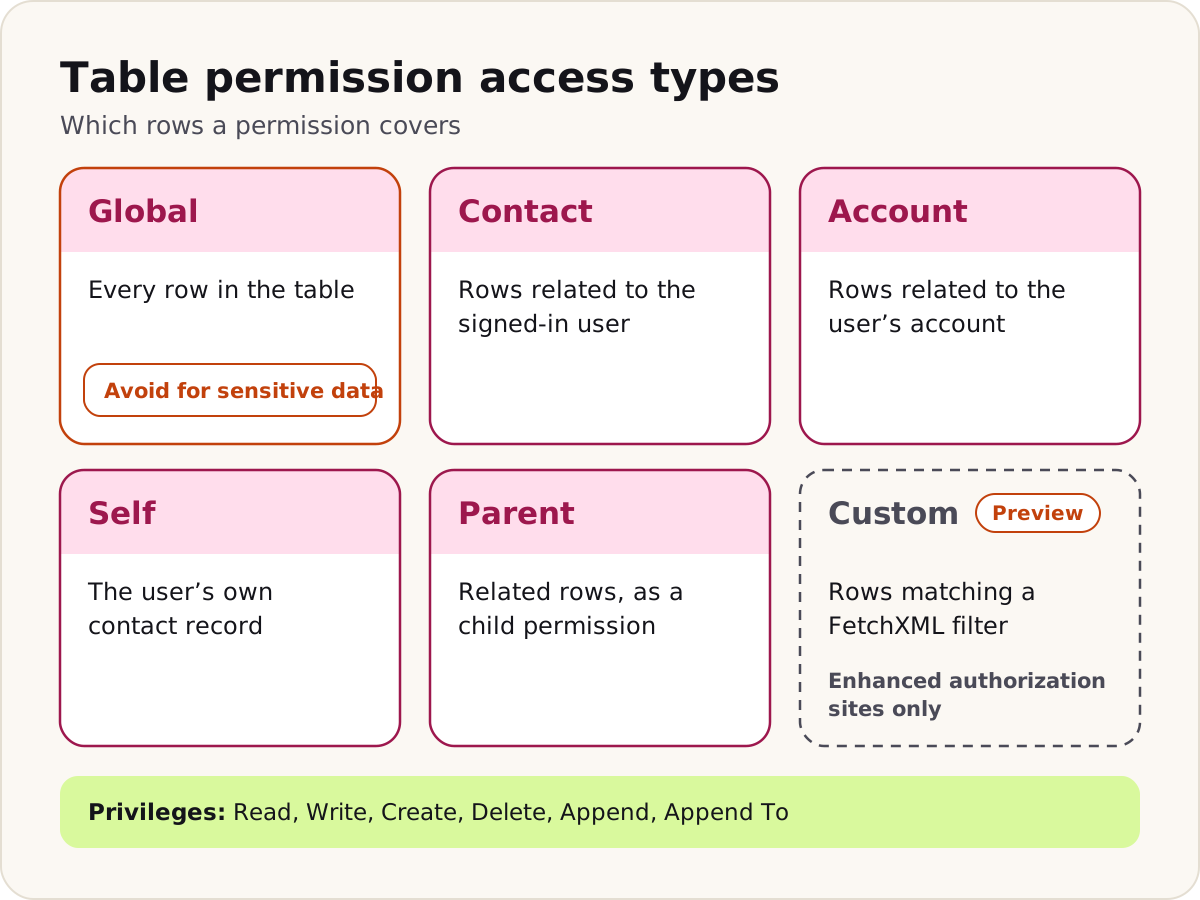
Short answer: Each table permission ties a Dataverse table to web roles: its privileges say what those roles can do, and its access type says on which rows. Global covers every row. Contact covers rows related to the signed-in user, Account covers rows related to their account, and Self covers only their own contact record. Child permissions carry access on to related tables. Without a table permission, lists, forms, Liquid and the Web API return nothing; question 7 covers the Enable Table Permissions setting, which Learn's pages disagree about.
In more detail:
- The privileges are Read, Write, Create, Delete, Append and Append To.
- Contact and Account access need a relationship between the table and Contact or Account, which you pick when you create the permission.
- You won't find a Parent access type in the design studio; only the Portal Management app offers it. The studio reaches related rows through a child permission, added under an existing permission. A child takes its roles from its parent, and Learn says polymorphic lookups aren't supported in parent-child permissions.
- The Custom access type (preview) picks rows with a FetchXML query, of which Power Pages reads only the
filterelement. You'll find it only on sites with enhanced authorization, itself a preview. - With no web role attached, a permission grants nobody anything. Children depend on their parent: deactivate the parent and they stay active but stop working; delete it and they go with it.
- Global needs the most care. Opening the same table to the Web API makes a Global permission riskier still, Learn notes, and its advice is plain: "Avoid global table permissions for sensitive business data." Anything you grant to Anonymous Users, anyone on the internet can use.
Do
Begin with the narrowest access type that fits, whether Contact, Account or Self, and reach related tables through child permissions. Keep wider access for custom web roles, and test as two different users and while signed out.
Follow-up they may ask: "Users can see records but can't add a note to one. What's missing?" Linking needs privileges on both sides. Learn's notes setup, for example, needs Create and Append on the note's child permission and Append To on the parent table's permission.
Go deeper: Power Pages data security checklist: table permissions, web roles and sign-in
7. Since June 2026, does the Enable Table Permissions setting still matter?
Short answer: Yes. We turn Enable Table Permissions on for every list, form and multistep form step, however old the site is. Learn disagrees with itself here. According to its changes page, forms and lists enforce table permissions from June 2026 with the setting on or off. Its older pages on forms and Site Checker treat the setting as the switch. With the setting on, table permissions apply under either reading.
In more detail:
- Learn's pages disagree. On the changes page, the June 2026 sentence talks about websites in general, but the heading above it still says the change is for new websites. On the other side are Learn's pages on basic forms, multistep form steps and Site Checker. They link to the changes page and mark the old behaviour as soon to be deprecated, yet they still describe the setting as deciding whether table permissions apply.
- On the facts, we follow the changes page: Microsoft published it to announce this change, it was updated more recently than the other three, and each of them links to it. By its account, forms and lists on sites created with release 9.3.7.x or later, from 2021, have enforced table permissions all along, with or without the setting.
- Our advice holds either way. Switch the setting on everywhere, and make sure the table behind each list and form has table permissions for the web roles that need it. Then sign in as a user whose roles have no permission on that table: the list or form should come back empty. Never leave the setting off to make data appear; the missing permission is what needs fixing.
- For multistep forms, Learn's step page says the setting affects only the first step, while the Site Checker page says to turn it on for every step. Turning it on for every step covers both.
- The same rules apply to trial sites converted to production.
- Anonymous access should never be a side effect. Where you want it, grant it deliberately: a table permission assigned to the Anonymous Users role.
- List OData feeds are a legacy feature. Learn's changes page says new sites haven't been able to use them since October 2022, that the feature was due to be removed by June 2026, and that you should move to the Web API. Release 9.3.7.x added a rule for every site: a feed needs table permissions on its list before it works. On an older site, visit
/_odatasigned out, in a private window: the page lists the feeds still enabled. Then visit each one, for example/_odata/accounts. Data in the response means anyone can read that feed; a 403 means they can't.
Follow-up they may ask: "A list that used to show records now shows none. What happened?" Likely it was relying on the setting being off, and table permissions now apply to it. Don't turn the setting off to bring them back. Check that it's on, give the right role a table permission with Read and the right access type, then test again.
Go deeper: Power Pages data security checklist
8. Why do you need page permissions as well as table permissions?
Short answer: Table permissions protect data; page permissions protect pages. A page can show members-only content without touching a table, and a page left out of the menu can still be opened by anyone who has its address. We restrict every page that isn't public to the roles that need it.
In more detail:
- In the design studio, open the page's Page settings and then Permissions. Either anyone can see the page, or you choose roles. Child pages inherit their parent's permissions by default.
- In the Portal Management app, page permissions are web page access control rules. Restrict read limits who can view a page and its children. Grant change lets a role publish content changes there. It also lets that role read those pages, even where Restrict read would keep it out.
- Leave only one rule active on each page. With more than one, you get an error about conflicting rules. The Portal Management app also warns you if you add the Anonymous Users role to a page directly.
- Don't make the home page's web files follow its permissions. That's where the site's style sheets live, so restricting them leaves every page unstyled, sign-in pages too, and Learn says the option shouldn't be set there. Elsewhere, a page's web files can follow its permissions.
- Learn's list guidance adds a design rule: lock the page itself against any role that will never be allowed to see the list's records.
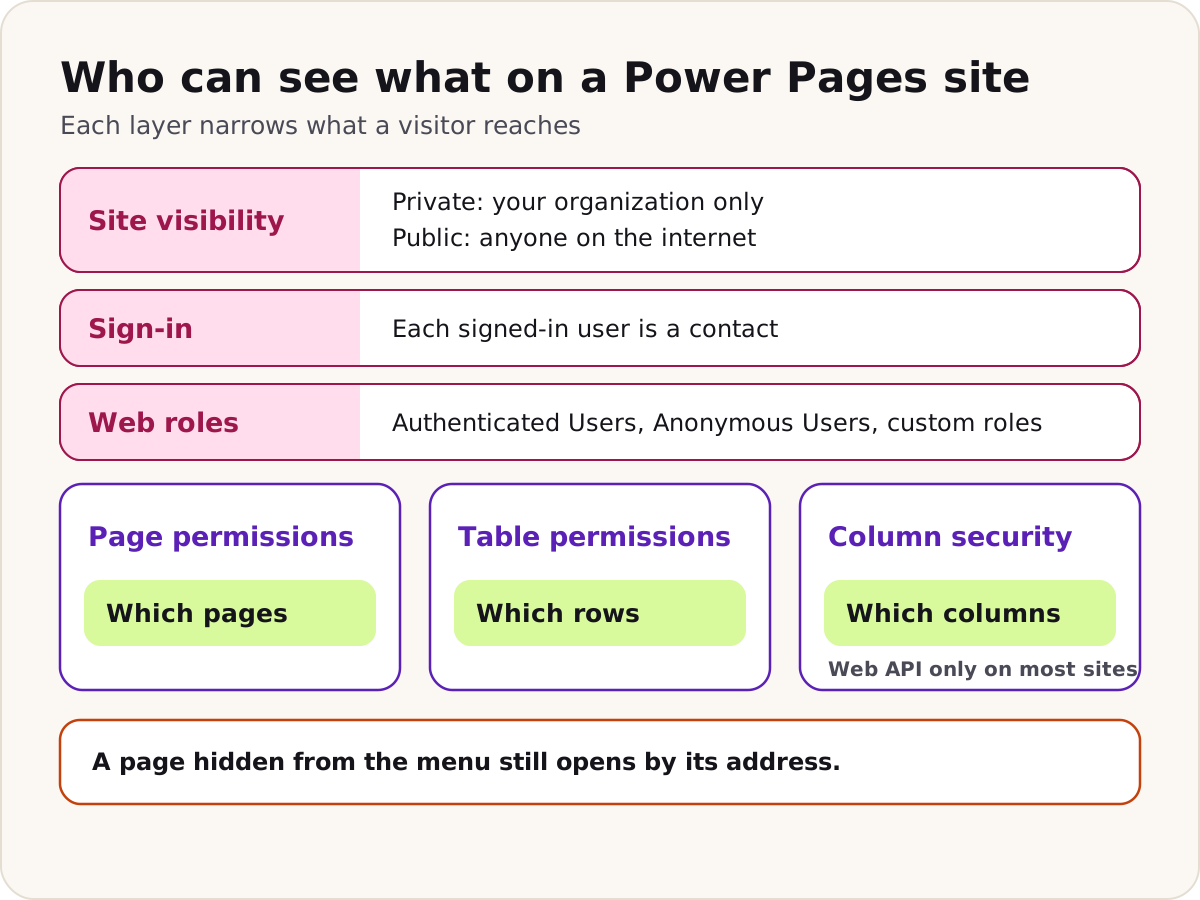
Follow-up they may ask: "An admin can still open a restricted page. Why?" Check the home page's rules before the page's own. A rule on the home page reaches the whole site, and its scope is All content unless someone changed it, so a Grant change rule there that names one of their roles beats any Restrict read further down. Take the role off that rule, or change the rule's scope, as Learn suggests.
9. How do you protect a single sensitive column, such as a date of birth?
Short answer: It depends on the authorization model. Without enhanced authorization, column permissions apply only to the Web API. With enhanced authorization, a preview, Dataverse column security profiles apply to every component. So on most sites the real protection is to keep sensitive columns off forms, lists, Liquid and search unless a page needs them.
In more detail:
- Column permission profiles hang off web roles and allow Create, Read and Update in any combination.
- Column permissions only narrow access that a table permission already gives. They do nothing for a user with no access to the table, and if a table has none, nothing narrows its table permission column by column.
- Turn on enhanced authorization and those column permissions stop counting; Dataverse column security profiles take over. Learn marks the profiles as a preview for Power Pages, and they cover forms, lists and the Web API alike.
- Those column permissions cover the Web API only. They don't protect the same column when a form, a list, search, Liquid or FetchXML shows it, and Learn's security guidance says not to assume they do.
- For the Web API there's a second gate: only the columns you allow for the table are available at all, through its
fieldssite setting, its Power Pages Web API Columns view, or both.
Follow-up they may ask: "Can we hide the column with JavaScript?" No. Learn's guidance is that users can change or bypass client-side code. Take the column off the form or view.
Lists, forms and the Web API
10. Basic form or multistep form: when do you use each?
Short answer: A basic form shows one Dataverse form to create, edit or read a record. A multistep form splits a longer process into steps, can branch on what the user enters, and remembers where they got to so they can come back. Both use Dataverse forms you build in the Data workspace, and both need table permissions.
In more detail:
- A basic form finds its record from the query string, the current user, or a record linked to the current user through a relationship.
- Multistep step types are load form or load tab, condition and redirect. The first step can't be a condition, and a step can't be used twice except on the branches of a condition.
- Authentication Required sends signed-out visitors to sign in first. Start New Session On Load, which defaults to No, decides whether a returning user resumes or starts again.
- Each session record remembers the steps a user has visited. Edit the steps and that history can go stale, so Learn suggests clearing the form's session records afterwards.
- You can place a basic form with Liquid, using the
entityformtag and the form's name. - Learn lists gaps worth knowing: duplicate fields and party list fields aren't supported on basic forms, nor are subgrids on the connection table, and a lookup shown as a drop-down loses its related-records filter.
Follow-up they may ask: "How do you let users attach files?" Turn on Attach File for the form. Files go to note attachments, or to Azure Blob Storage if the organization is set up for it. With Enable Table Permissions on, as we advise, the parent table's permission needs Append To, and the note table's at least Create and Append, Learn says.
11. How does a list decide which rows a visitor sees?
Short answer: Table permissions decide which rows the visitor may see. The list's view decides which of those to show, and how. A view filter can narrow results to the current user, their account or the website, but that's presentation, not security. If a role should never see the rows, protect the page too.
In more detail:
- Behind every list is a Dataverse view, and a list can offer several, which users choose between from a drop-down. Lists you add to a newly created site are modern by default: they keep loading rows as the user scrolls, where classic lists split rows into pages.
- The view's filter can point at any placeholder contact, account or website; at run time, Power Pages swaps in the visitor's own contact, their parent account or the current site. Signed-out visitors get no rows from such a view, so Learn suggests a page permission that makes them sign in first.
- If you set both Portal User Attribute and Account Attribute, users can switch between their own records and their account's.
- The site setting
EntityList/ShowRecordLevelActionsdecides whether users see actions they can't use. At true, each row offers only what the user's permissions allow. At false, on a table with more than one permission, every row shows every action, and the ones the user isn't allowed end in an error.
Follow-up they may ask: "A signed-in user should see records but the list is empty. Where do you start?" With the permission. Does one of their roles have Read on the table, and is the permission's Contact or Account relationship the one that actually links each row to that user or their account? Only then look at the view's filter.
12. How do you set up the Power Pages Web API, and what changed in September 2026?
Short answer: You turn it on table by table with site settings, and list the columns it may use. Your own pages call /_api/<entity set name>, send a CSRF token with each request, and get only the rows table permissions allow. The wildcard * in Webapi/<table>/fields stopped working everywhere on 14 September 2026: every Web API call to a table still set that way fails.
In more detail:
- Site settings use the table's logical name, such as
account. URLs use the entity set name, such asaccounts. Webapi/<table>/enabledis false by default.Webapi/<table>/fieldstakes a comma-separated list of column logical names. From site version 9.8.8.x,Webapi/<table>/UseFieldsFromViewcan add the columns displayed in a public system view named Power Pages Web API Columns; changes to that view take up to five minutes to apply.- New sites lost the wildcard in August 2026, and every site on 14 September 2026. If a site isn't ready, an admin can request a single short extension on the Manage exemptions page in the Power Platform admin center. That buys time, nothing more: the wildcard still has to go.
- Every call must carry the CSRF token. Nothing else is needed for sign-in: the visitor's session already takes care of that.
- Learn lists its limits: Dataverse actions and functions can't be called, configuration tables are off limits, operations are case-sensitive, and calls between Power Pages sites aren't supported. It's designed for the site's own pages, and Learn says it isn't optimized for third-party services or integrating other apps.
- Every call is licensed. A signed-in caller needs authenticated user capacity, and an anonymous one draws on anonymous capacity.
Site settings and a read call, in the form Learn documents:
Webapi/account/enabled = true
Webapi/account/fields = name,revenue

GET <site-url>/_api/accounts?$select=name,revenue&$top=3
Follow-up they may ask: "A GET returns a Dataverse error on a table whose permissions chain through several one-to-many levels. What now?" It's a documented known issue: the extra conditions that Parental, Contact or Account access adds to such a query trip it up. Learn's way round it is to put the query in the request as FetchXML.
Go deeper: Power Pages Web API cheat sheet: setup, site settings, the wildcard change and error codes
Liquid
13. What are Liquid objects, tags and filters? Give an example.
Short answer: Liquid is the template language Power Pages runs on the server, so the browser only ever receives HTML. Objects output values inside double braces, such as {{ user.fullname }}. Tags hold the logic inside {% %}, such as if, for and assign. Filters change a value after a pipe, such as | escape.
In more detail:
- You can write Liquid in a page's Copy field, in content snippets and in web templates.
- Objects you'll use often:
user(the signed-in contact, or null if nobody is signed in),page,requestandparams,settings,snippets,website,now, andentities, which loads a record by its ID. user.roleslists the user's web roles, and thehas_rolefilter tests for one.- Encode untrusted data with the
escapefilter. From release 9.3.8.x, escaping is on by default for theuserandrequestobjects. Be careful with theliquidfilter: it runs whatever string it's given as Liquid, so keep it to content your trusted authors write. - Liquid's truth rules catch people out: an empty string and an empty array both count as true, and only null and false count as false. To test for emptiness, compare with
emptyor check.size. - Code sites, the single-page app kind, take their data from the Web API and their markup from your framework's templates; Liquid isn't supported there.
{% if user %}
  <p>Signed in as {{ user.fullname | escape }}</p>
  {% assign is_partner = user | has_role: 'Partner' %}
  {% if is_partner %}
    <a href="/partner-orders/">Your company's orders</a>
  {% endif %}
{% else %}
  <p>Sign in to see your orders.</p>
{% endif %}
Follow-up they may ask: "Does hiding that link keep other users off the partner page?" No. Anyone can type the address. A page permission restricted to the Partner role is what keeps them out.
14. How do you query Dataverse from Liquid, and what do caching and security change?
Short answer: The fetchxml tag runs a FetchXML query on the server, and you loop through the results in the template. Table permissions still apply, so the query returns only rows the user's roles allow. The trap is caching: header and footer output is cached and shared, so anything specific to one user belongs inside a substitution tag.
In more detail:
- Results sit under
<variable>.results.entities, with paging details such asMoreRecordsandPagingCookiealongside. - Write every element with its own closing tag, such as
<attribute name="createdon"></attribute>; Learn says not to use the self-closing form. - To see what table permissions did to your query, print the variable's
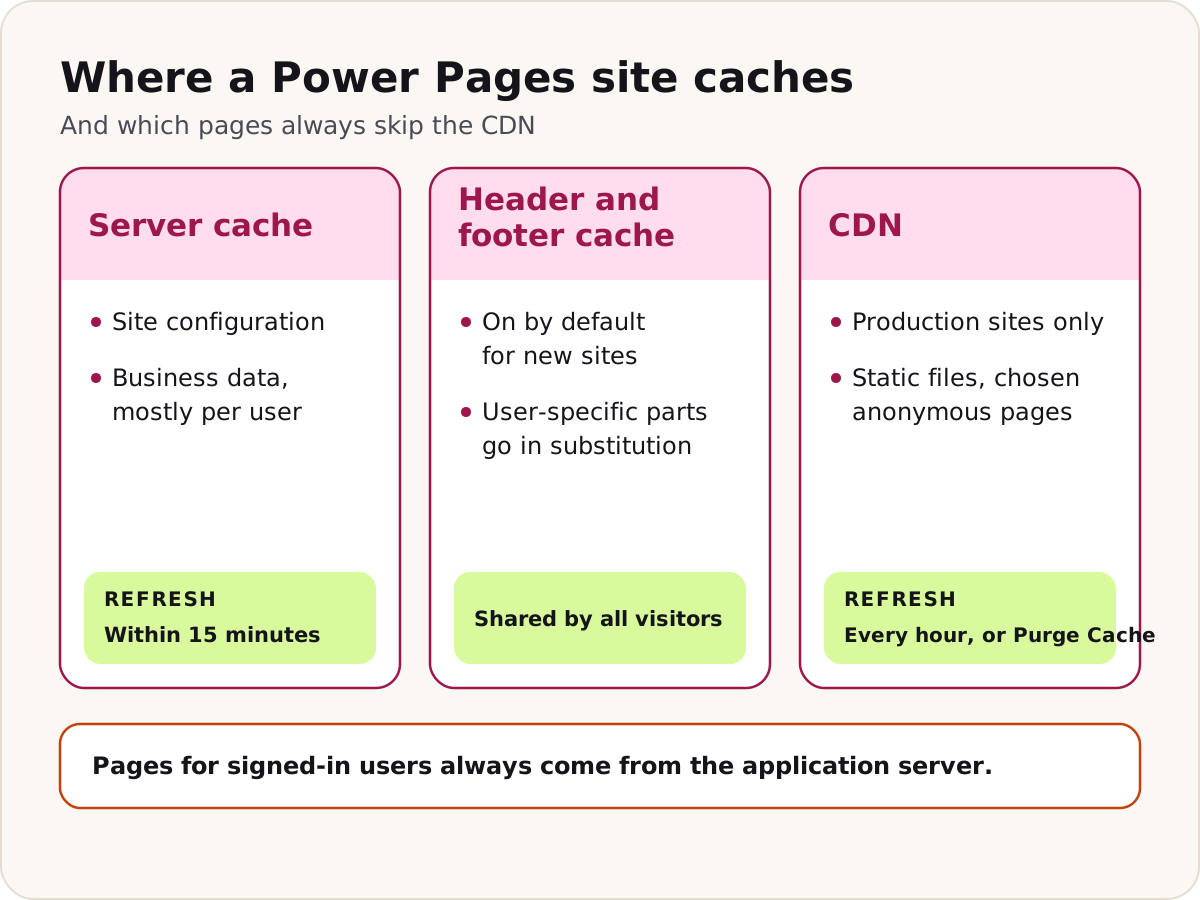
xmlattribute through thehfilter while you debug. It holds the query as it was actually sent, and Learn suggests it for exactly this check. - Header and footer output caching is on by default for new sites. A block wrapped in
substitutionisn't cached. Learn notes thatrequest.urland thenowobject can return cached values. - Learn's security guidance doesn't ask you to turn shared caching off. It asks you to keep anything specific to the signed-in user out of it: wrap that Liquid in
substitution, and keep per-user Dataverse queries out of cached templates altogether. - For speed, Learn suggests the Dataverse Liquid tags for loading collections, rather than fetching related records one item at a time inside a loop.
{% fetchxml recentcases %}
<fetch count="5">
  <entity name="incident">
    <attribute name="title"></attribute>
    <attribute name="createdon"></attribute>
    <order attribute="createdon" descending="true"></order>
  </entity>
</fetch>
{% endfetchxml %}
{% for row in recentcases.results.entities %}
  <p>{{ row.title | escape }}</p>
{% endfor %}
Which cases come back depends on the user's table permissions on the case table, not on the query alone.
Follow-up they may ask: "This query shows nothing to anonymous visitors. Why?" The Anonymous Users role has no table permission with Read on that table, and that role only works through table permissions. Decide whether the data really should be public before you add one.
Custom code, server logic and the CLI
15. How do you add custom JavaScript to a form, and where does it stop being enough?
Short answer: jQuery makes fields easy to target, because each input's HTML ID is its column's logical name. The script itself goes in the Custom JavaScript field of a basic form or multistep form step, and Power Pages places it at the end of the page, just before the form closes. Script improves the experience, but it never enforces security.
In more detail:
- For extra checks when the user selects Next or Submit, extend the
entityFormClientValidatefunction and return false to stop the submission. For field-level messages, add a validator toPage_Validators. Learn says client-side field validation isn't supported in subgrids. - Never add choices to a choice column from script. On the page it's a server-side drop-down, and the submission will fail with "Invalid postback or callback argument".
- Keep request validation on, as Learn's security guidance says. It's on from the start, and it's what turns away a field holding script or unencoded HTML, with a generic error.
- Anything the browser receives, a visitor can read. So no token, key or connection string belongs in a script, a snippet or a web file. Learn's guidance adds two habits: serve scripts from your own web files or other trusted sources, and never pass untrusted data to
innerHTML.
Don't
Filter records or hide fields in JavaScript and call it security. Visitors can change client-side code; table permissions on the server are the boundary that counts.
Follow-up they may ask: "When would you move logic to the server instead?" When it has to be trusted: enforcing a business rule, calling an external service with a key, or returning only part of a record. That's what server logic is for.
16. What is server logic, and when would you choose it?
Short answer: Server logic is JavaScript that runs on the Power Pages server, out of the browser's sight, and pages call it as an API at /_api/serverlogics/<name>. Who may call it, and which tables it may use, comes down to web roles and table permissions. Reach for it when code needs a secret key, such as a call to an outside service, when data needs checking or reshaping, or when a page should get back only the data it needs.
In more detail:
- Some unsafe patterns are blocked, and browser APIs aren't there at all, so code that needs the DOM,
fetchorXMLHttpRequestwon't run. What you write is plain ECMAScript 2023. - Each HTTP method maps to a function you write:
get(),post(),put(),patch(), anddel()for DELETE. - Calls need the CSRF token; the session handles sign-in.
- Optional site settings:
ServerLogic/Enabled(true by default),ServerLogic/AllowedDomains,ServerLogic/TimeoutInSeconds(120 seconds by default, up to 240) andServerLogic/AllowNetworkingToAllDomains. - Tenant admins can block outbound HTTP calls from server logic, site by site, to prevent data leaving.
- Server logic deploys with the rest of the site, through the same ALM, because its code and configuration live in Dataverse. You author it in Visual Studio Code, which gives you IntelliSense.
- Learn's security guidance adds three habits: only the web roles that need an operation should be able to call it, the server code should check every input itself, and the identities and connections behind it should hold no more permissions than the job needs.
Follow-up they may ask: "Server logic, the Web API or a cloud flow?" Learn's page on Microsoft's Power Pages plugin for AI coding tools sorts features like this: approvals, notifications and scheduled jobs go to a cloud flow; checks that must run on the server, and calls to outside APIs, go to server logic; plain create, read, update and delete stays with the Web API. For flows called from the site, Learn's security guidance adds two rules: let only the web roles that need a flow start it, and use the Power Pages trigger, not a generic HTTP request trigger.
17. What does the Power Pages CLI do, and where does Visual Studio Code fit?
Short answer: pac pages copies a site's configuration down to your machine as YAML and HTML files and pushes it back up, so the site can live in source control and travel between environments. Visual Studio Code is the editor around it: the Power Platform extension adds Liquid IntelliSense, and Edit site code on the Power Pages home page, or Edit code in the studio, opens Visual Studio Code for the Web, which Learn labels a preview.
In more detail:
- The core commands are
list,downloadandupload.--modelVersion 1means the standard data model and2the enhanced one. - The command has been renamed twice:
pac paportalbecamepac powerpagesin CLI version 1.27, andpac pagesin 1.32. The old names still work. - Downloads leave two manifest files behind.
manifest.ymllists deleted records, so a later upload removes them in any environment.org-url-manifest.ymlbelongs to one environment: it lets an upload back to that environment send only what changed, and Learn says to add it to your Git ignore list. An upload to a different environment sends everything anyway, and--forceUploadAllforces a full upload. - On the standard data model, deployment profiles, such as
test.deployment.yml, override values like site settings for each environment. - The CLI doesn't move Dataverse tables or their schema. Move those in solutions first.
- Single-page app sites have their own commands,
upload-code-siteanddownload-code-site. They use the same security model, but not Liquid, the Pages workspace or the Styling workspace.
pac pages list -v
pac pages download --path "C:\sites" --webSiteId "<WEBSITE_ID>" --modelVersion 2
pac pages upload --path "C:\sites\<site-folder>" --modelVersion 2
Follow-up they may ask: "Your upload to test replaced everything, not just your change. Why?" That's by design. Change tracking works only when you download from and upload to the same environment; across environments, the CLI does a full upload.
ALM and deployment
18. How do you move a site from development to production?
Short answer: On the enhanced data model, with solutions. Add the site and its components to a solution with the tables, apps and flows it needs, export it as managed, and deploy it with pipelines or your own tooling. Values that differ by environment, such as identity provider settings, go into environment variables. On the standard data model, the CLI's download and upload, with deployment profiles, does the job.
In more detail:
- In Power Pages, open the Solutions tab, add the site through Add existing > Site, and include all its objects or choose them. Two kinds of item stay out of the solution unless you add them yourself: the Dataverse system tables behind site components, and any site component created after the site went in, as Learn's troubleshooting guidance also warns. Check the solution before each release.
- In the target environment, link the imported site record to a site under Site Details in the admin center, then restart the site.
- Make changes in development, never in the target. An edit there sits in an unmanaged layer on top of the managed one, and new managed imports won't show through until that layer is removed. And a site that arrived in a managed solution goes away only when you delete that solution, not from the management app.
- Environment variables for site settings need the enhanced data model. You're asked for their values on import, and secret variables need Azure Key Vault details. Don't move every setting into one: Learn reserves them for ALM-related settings and secrets, and warns that wider use can slow the site.
- Learn's security guidance: deploy through a controlled ALM process, keep production secrets and real personal data out of development and test, and limit who can change security settings in production.
- On the standard model, Learn's steps for preparing a target environment start with provisioning a site from the same template.
Follow-up they may ask: "Can pipelines deploy a Power Pages site?" Yes, for sites on the enhanced data model. You set each environment variable's value for the target stage. If you deploy with Azure DevOps or GitHub instead, our guide to deploying Power Platform solutions with Azure DevOps or GitHub covers the pipeline side.
Performance, SEO and licensing
19. How do caching and the CDN work, and what never gets cached?
Short answer: Power Pages caches on the server: configuration such as pages and settings, and business data, refreshed within 15 minutes. The content delivery network adds edge caching for static files and, if you choose, for pages that anonymous visitors see. Pages for signed-in users always come from the application server.
In more detail:
- Business data is usually cached separately for each user. Learn's examples of exceptions are anonymous users and tables with Global permissions. Learn doesn't promise that changes made by plug-ins or workflows show at once. A create, update or delete made on the site itself is different: it empties that table's cache for every user straight away. Everything else catches up within 15 minutes, a limit you can't lower.
- A full cache clear slows the site for a while, so Learn says to use it seldom on a busy live site. When you do need one, select Preview in the studio, or use
/_services/aboutwith a role that has all website access permissions. - If one table stays stale far longer, Site Checker lists tables that aren't enabled for change tracking.
- The CDN is for production sites, not trials, and you turn it on in the admin center under Performance and Protection. It caches static files by file extension. You choose which static pages to cache under Set up > Site performance; caching is for anonymous users only, and the CDN cache refreshes every hour, or when you select Purge Cache.
- Learn advises against caching pages with forms in edit or read-only mode, or with FetchXML, because visitors could see stale data.
- To check a response, look for an
x-cacheheader ofTCP_HIT. - The CDN and the Web Application Firewall come with Power Pages licensing at no extra cost.
Follow-up they may ask: "An editor says changes take ages to appear. Is something broken?" Probably not. Up to 15 minutes is expected. For configuration changes, Preview in the studio clears the cache; save a full cache clear for quiet hours.
20. What can you do for search engines on a Power Pages site?
Short answer: Learn shows the basics: give each page a clear title and a description that becomes its meta description, publish a Robots.txt file as a web file under the home page, and add meta tags, such as a site verification tag, through the Head/Bottom content snippet. Fast public pages help too, which is where the CDN comes in.
In more detail:
- In the Portal Management app, a web page's Title replaces its Name on the site. Learn's indexing steps set the Description on both the Information form and the Content Page form.
- Robots.txt is a web file named Robots.txt, with the home page as its parent page, Robots.txt as its partial URL, a Published state, and the file attached as a note.
- Hidden from Sitemap only removes a page from the site's navigation. The page still works at its address and can be linked to, so it isn't a way to keep people out; page permissions are.
- A private site asks for organization sign-in, so in our reading search engines can't read it until it goes public.
- The Learn pages we checked don't describe an XML sitemap generated for sites built in the studio, so we wouldn't promise one in an interview.
Follow-up they may ask: "How would you get a new public site indexed quickly?" Learn's page on grounding answers in Bing search walks through Bing Webmaster Tools: verify ownership with an XML file or a meta tag, submit the important URLs, then inspect them to confirm they're indexed.
21. How is Power Pages licensed? Keep it brief.
Short answer: By capacity, per website per calendar month. Signed-in users are counted once by their contact record; anonymous visitors are counted by a browser cookie. You buy subscription packs or pay as you go. Sites in trial or private mode aren't counted, and neither are staff who already have Power Apps per user or a Dynamics 365 enterprise licence that covers the site.
In more detail:
- Someone who signs in to three sites counts three times, once for each.
- A visitor who browses signed out and then signs in the same day (UTC) is counted once, as signed in. Anonymous visitors, though, are known only by a cookie, so a new browser, a new device or cleared cookies make a new anonymous visitor.
- Sign-in, registration and invitation pages,
/_system pages, redirects and error responses, requests only for static files, and bots don't count as anonymous visits. - For a staff licence to count, two things must hold: it's assigned in the site's own tenant, and the person signs in with Microsoft Entra ID through the site's built-in provider.
- In an environment set to pay as you go, prepaid capacity assigned to it is ignored.
- Analytics tools such as Application Insights count differently from the licence meters, and Learn explains why the numbers can differ.
Follow-up they may ask: "Do the CDN and the firewall cost extra?" No. Learn's licensing FAQ says both are included.
Go deeper: Power Pages licensing explained: authenticated and anonymous users
Scenario questions
There's rarely one right answer here. Interviewers listen for the order you work in, so say which screen or setting you'd open first and what you'd change there.
22. Partners from many companies sign in to one portal, and each company must see only its own orders. How do you build it?
Short answer: Relate the data to Account, link each partner's contact to their company's account, and give a custom Partner role an Account-access table permission on orders. Child permissions carry that access down to order lines. Then restrict the partner pages to the role, and test with users from two different companies.
In more detail:
- Model the data. Give the order table a lookup to Account, and relate order lines to orders.
- Link people to companies. Invite partners with invitations that set Assign to Account and add the Partner role on redemption. Turn off open registration so nobody signs up without a code.
- Grant access. On orders, create a table permission with Account access through the relationship to Account, and only the privileges partners need: Read, plus Create or Write if they place or change orders. Assign it to the Partner role. Add a child permission for order lines. Don't use Global.
- Protect the pages. Restrict every partner page to the Partner role with page permissions.
- Shape the list. Use the list's Account Attribute filter so each partner sees their company's orders laid out sensibly. Remember the filter is for display; the permission is the security, so keep Enable Table Permissions on for the list.
- Open the Web API only if you must. Enable it for the tables a page needs, list the exact columns, and keep it away from Global access.
- Test like an outsider. Sign in as users from two companies, open each other's order links directly, and try every page signed out.
Follow-up they may ask: "A partner signs in and sees no orders. What do you check?" That their contact is linked to the right account, that they hold the Partner role, and that the permission's relationship runs from Account to the order table's lookup.
Go deeper: Web roles and table permissions
23. A public contact form is attracting spam. What do you do?
Short answer: Add a CAPTCHA to the form, make sure anonymous visitors can only create records on that table and never read them, and put the Web Application Firewall in front of the site with a rate limit on the form's page. If the form doesn't really need to be anonymous, ask people to sign in instead.
In more detail:
- CAPTCHA. Turn on Add Captcha in the form's options. Learn's security guidance asks for CAPTCHA on any form a signed-out visitor can submit, and adds: "For higher-risk or high-volume scenarios, consider a custom CAPTCHA provider".
- Permissions. Turn on Enable Table Permissions for the form, then give the Anonymous Users role only what the form needs to create a record on its table, and never Read. Learn's guidance is to treat anything granted to anonymous users as public.
- Firewall. Learn says converting a trial site to production switches the Web Application Firewall on by default; trial sites themselves can't use it. Turn on the managed rules and bot protection, then add a custom rule of type Rate limit that matches the form page's request URI. Rate-limit windows run from one to five minutes.
- Find the source. If most of the spam comes from a few addresses, block those IPs or ranges with custom rules. The firewall's downloadable logs show where requests came from, with client IPs and request URIs.
- Keep request validation on, so script pasted into a field is rejected.
Follow-up they may ask: "The site also uses IP restrictions under Site Details. Any problem with turning on the firewall?" Yes. Recreate those restrictions as firewall custom rules first: Learn says the platform's own IP restrictions aren't supported once the firewall is on.
24. The site was fine in testing, but it's slow since launch. Where do you start?
Short answer: Run Site Checker, then look at what the slow pages actually do. Its performance checks look for too many web roles, too many active web files, big lookup drop-downs, and header or footer caching turned off. Then serve static content from the CDN and keep heavy, per-user queries out of shared templates.
In more detail:
- Run Site Checker. In the admin center, open the site and select Run under Site Health.
- Work through its findings. Learn's checks flag more than 100 web roles, more than 500 active web files, lookups shown as drop-downs with more than 200 frequently changing records, and a disabled header or footer output cache. Learn also explains why home-page web files hurt: any web file whose parent is the home page loads every time the home page does. Move any file the home page doesn't use under another parent, load it only on the pages that need it, and mark scripts
asyncordefer. - Check caching. Keep header and footer output caching on, wrap only the user-specific parts in
substitution, and don't clear the server cache on a busy site during the day. - Use the CDN for static files, and for static pages that anonymous visitors see.
- Trim the templates and calls. No related-record loading inside Liquid loops, and a
$selectwith only the columns each Web API call needs, which Learn calls a performance best practice. - Measure before and after. Use the traffic analytics in the admin center, and decide what you'll track so you can show the fix worked.
Follow-up they may ask: "Some tables show old data for hours, not minutes. Why?" Site Checker's cache checks point at two causes: the table isn't enabled for change tracking, or the organization lost change tracking, for example after a restore from an old database.
Go deeper: Portal KPIs: sign-ups, self-service rate and form completion
25. You're moving an older site to the enhanced data model. How do you plan it?
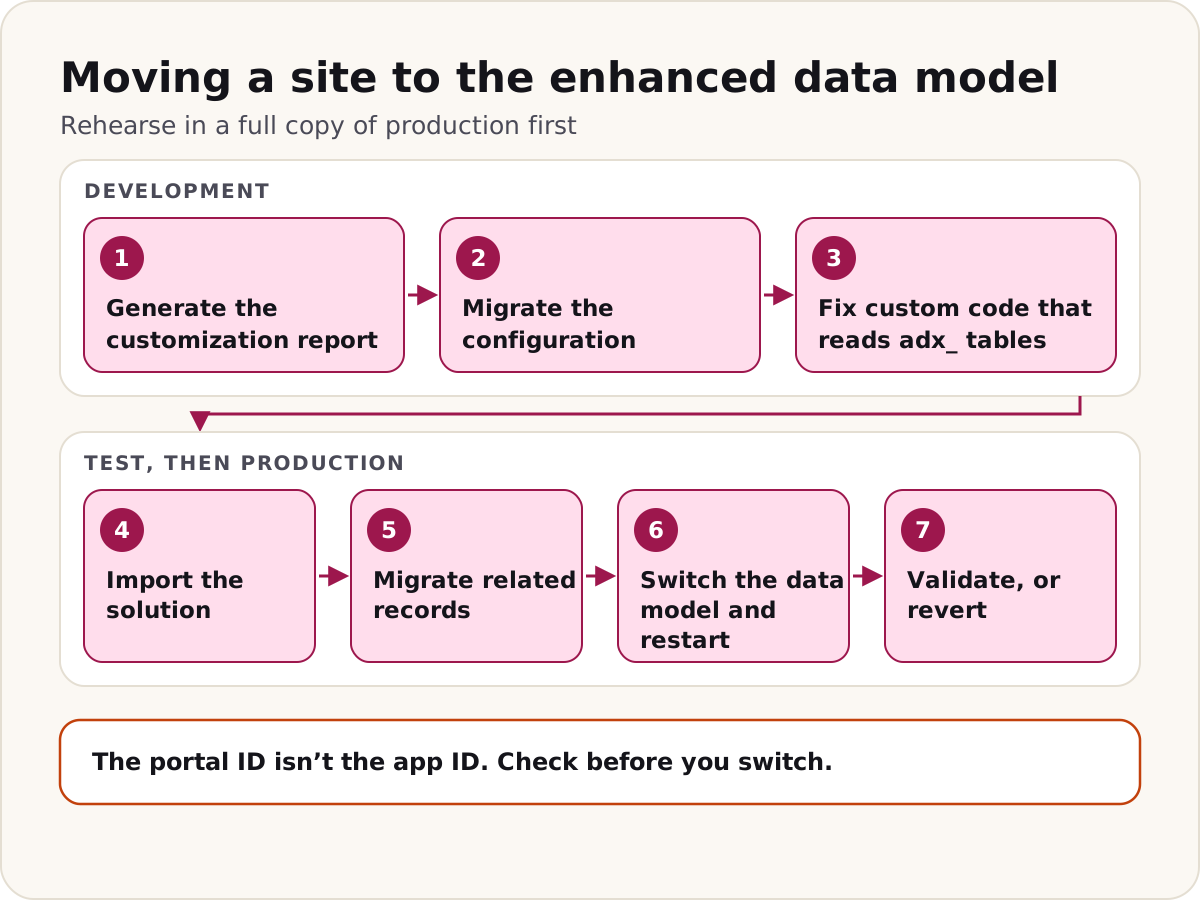
Short answer: Rehearse in a full copy of production first. Generate the customization report, migrate the configuration in development, and fix any custom code that reads adx_ tables. Then move the configuration downstream in a solution, migrate the related records, switch the data model, restart and test. Keep the revert command ready.
In more detail:
- Check you can. Learn lists Power Platform CLI 2.11.2 or later, the
CDSBasePortalpackage at 9.3.2607.x or later,PowerPages_Coreat 1.0.2605.x or later, and the System Administrator, Dynamics 365 administrator or Power Platform administrator role to switch the model. The site must come from a supported template. - Read the customization report. Generating it doesn't change the site. It lists custom columns and relationships on
adx_tables, Liquid and FetchXML that read them, and workflows and plug-ins registered on them. - Development: migrate with
--mode configurationData, fix what the report found, and capture the result in a solution. - Test, then production: import the solution, then run
--mode configurationDataReferences. It migrates the records that refer to site configuration, so runtime records such as invitations point at the migrated components. Check the status until it reads Completed. - Switch and restart: run the command with
--updateDataModelVersionand the portal ID (that's the CLI reference's spelling; the migration page writes--updateDatamodelVersion), restart the site, and confirm Data model shows Enhanced. - Validate: sign-in, invitations, web roles, table and column permissions, forms and lists, and custom code. In the browser, look for console errors that mention
adx_, 401 or 403 responses from/_api, and 500 errors. - Revert if you must, with
--revertToStandardDataModel. Reverting brings the old standard site record back into use. It's a different record from the enhanced one, so work out what changed since the switch before you run it.
pac pages migrate-datamodel --webSiteId "<WEBSITE_ID>" --checkMigrationStatus
pac pages migrate-datamodel --webSiteId "<WEBSITE_ID>" --siteCustomizationReportPath "<OUTPUT>"
pac pages migrate-datamodel --webSiteId "<WEBSITE_ID>" --mode configurationData
Learn's pages disagree on four Dynamics 365 templates: Community, Customer Self-Service, Employee Self-Service and Partner Portal. The enhanced data model page says sites built from them can't be migrated yet. The migration page lists all four as supported. We follow the migration page, because it's the utility's own and more detailed page, but we'd prove it in the rehearsal before promising a date.
Follow-up they may ask: "Migration says Completed, but the site still shows Standard. What went wrong?" The switch step didn't run, or it used the wrong portal ID. Learn warns that the portal ID isn't the Power Pages app ID; you'll find the right one in the site's details in the admin center, or on its /_services/about page.
What changed in 2026
26. What changed in Power Pages in 2026?
Short answer: Mostly security. The biggest change is to table permissions, which Learn's changes page says cover all forms and lists from June 2026, even where Enable Table Permissions isn't set. Older Learn pages disagree, so keep that setting on. The Web API stopped accepting the wildcard column list on 14 September 2026. Server logic became generally available in April, and Learn now documents a CLI utility for moving older sites to the enhanced data model.
In more detail, by date:
- January 2026: single-page app code sites became generally available on 31 January.
- March 2026: the governance control over making non-production sites public became generally available on 20 March.
- April 2026: server logic became generally available on 6 April.
- June 2026: the month Learn's changes page gives for enforcing table permissions on every form and list, setting or no setting. Older Learn pages say Enable Table Permissions still decides, so we keep it on everywhere (question 7). The changes page also said list OData feeds and the old portal content editor would be removed by then.
- July 2026: the public preview of merging web roles with Dataverse security roles, the model Learn's enhanced authorization page describes, began on 8 July, per Learn's 2026 release wave 1 plan.
- August 2026: new sites could no longer use the Web API wildcard.
- 2 September 2026: Learn's wildcard troubleshooting page says tools to suggest which columns to list became available, including the
/migrate-webapi-selectallskill in the Power Pages plugin. - 14 September 2026: the wildcard stopped working on every site.
- No date on Learn: the
pac pages migrate-datamodelutility (question 25), column security profiles for Power Pages, and the Custom access type. The last two are previews, and both need enhanced authorization. - Security agent: Learn's security best-practices page now recommends an AI-powered Security agent that looks over a site's configuration and scan results, ranks the risks it finds and guides the fixes, which Learn says to review and approve before they're applied.
The January, March, April and July dates come from Microsoft's release plans on Learn, which now say they were archived in October 2026 and are no longer maintained.
Follow-up they may ask: "Our site still had the wildcard on 14 September. What do we do now?" List the columns. For each table, write out the ones its calls use, or name them in a Power Pages Web API Columns view, or do both. Then retest every page that calls the Web API, once per web role and once signed out. If you asked for an extension under Manage exemptions, use it to finish this work, not to put it off.
Before the interview
- In a trial, create a site from the blank page template and find out which data model it uses.
- Build a table with a lookup to Contact, then a list and a form on it, with Enable Table Permissions on for both. Give Authenticated Users a Contact-access permission with Read and Create, and test with two users.
- Add a page permission to a page, then try to open it signed out.
- Turn on the Web API for one table with an explicit column list, and call it from a page.
- Write a
fetchxmlquery in Liquid and print itsxmlattribute to see table permissions applied. - Run Site Checker and the security scan, and read what they report.
- Reread Learn's Power Pages changes page the day before. Dates move.
- Prepare your own questions: which data model their sites use, how they deploy, which identity provider they use, and who reviews table permissions before a release.
The answers reflect Microsoft Learn as of 21 October 2026. The examples follow Microsoft's documented syntax and weren't run for this page.
Sources
- Create a site with Power Pages (Microsoft Learn)
- Roles required for website administration (Microsoft Learn)
- Use design studio (Microsoft Learn)
- Overview of designing and building sites (Microsoft Learn)
- Overview of the Security workspace (Microsoft Learn)
- Site visibility in Power Pages (Microsoft Learn)
- Control public access for non-production Power Pages sites (Microsoft Learn)
- Enhanced data model (Microsoft Learn)
- Migrate standard data model sites to enhanced data model (Microsoft Learn)
- Overview of authentication in Power Pages (Microsoft Learn)
- Invite contacts to your Power Pages site (Microsoft Learn)
- Create and assign web roles (Microsoft Learn)
- Power Pages security (Microsoft Learn)
- Power Pages security best practices (Microsoft Learn)
- Configuring table permissions (Microsoft Learn)
- Assign table permissions (Microsoft Learn)
- Configure notes as attachments for basic and multistep forms (Microsoft Learn)
- Important upcoming changes and deprecations in Power Pages (Microsoft Learn)
- Power Apps portals version 9.3.7.x release notes (Microsoft Learn)
- Set page permissions (Microsoft Learn)
- Set column permissions (Microsoft Learn)
- Column security profile (preview) (Microsoft Learn)
- Enable enhanced authorization (preview) (Microsoft Learn)
- About basic forms (Microsoft Learn)
- Define multistep form steps (Microsoft Learn)
- Define multistep form properties (Microsoft Learn)
- Define a load form and load tab step type (Microsoft Learn)
- Lists overview (Microsoft Learn)
- Securing lists (Microsoft Learn)
- Enhanced view filter for lists (Microsoft Learn)
- Portals Web API overview (Microsoft Learn)
- Query data using portals Web API (Microsoft Learn)
- Web API requests fail after wildcard column configuration is deprecated (Microsoft Learn)
- Liquid overview (Microsoft Learn)
- Available Liquid objects (Microsoft Learn)
- Available Liquid tags (Microsoft Learn)
- Available Liquid filters (Microsoft Learn)
- Available Liquid conditional operators (Microsoft Learn)
- Template tags, including fetchxml and substitution (Microsoft Learn)
- Enable header and footer output caching (Microsoft Learn)
- Add custom JavaScript to a form (Microsoft Learn)
- Server logic overview (Microsoft Learn)
- Get started with the Power Pages plugin for GitHub Copilot CLI and Claude Code (Microsoft Learn)
- Microsoft Power Platform CLI support for Power Pages (Microsoft Learn)
- Microsoft Power Platform CLI pages command group (Microsoft Learn)
- Edit code with Visual Studio Code for the Web (preview) (Microsoft Learn)
- Create and deploy a single-page application in Power Pages (Microsoft Learn)
- Use solutions with Power Pages (Microsoft Learn)
- Use environment variables with site settings (Microsoft Learn)
- Migrate website configuration (Microsoft Learn)
- Troubleshoot Power Pages site configuration differences between environments (Microsoft Learn)
- How server-side caching works in Power Pages (Microsoft Learn)
- Configure a site with Content Delivery Network (Microsoft Learn)
- Run Site Checker (Microsoft Learn)
- Site Checker performance (Microsoft Learn)
- Site Checker configuration issues (Microsoft Learn)
- Site Checker cache invalidation (Microsoft Learn)
- Manage web pages (Microsoft Learn)
- Generate answers from public data using Bing search, including Robots.txt and meta descriptions (Microsoft Learn)
- Web Application Firewall for Power Pages (Microsoft Learn)
- Configure Web Application Firewall for Power Pages (Microsoft Learn)
- Configure Web Application Firewall custom rules (Microsoft Learn)
- FAQ for configuring Web Application Firewall in Power Pages (Microsoft Learn)
- Monitor traffic to your websites (Microsoft Learn)
- Power Platform licensing FAQs: Power Pages (Microsoft Learn)
- Pay-as-you-go meters (Microsoft Learn)
- Pay-as-you-go known issues and FAQ (Microsoft Learn)
- Enable secure server-side logic in Power Pages, 2026 release wave 1, archived (Microsoft Learn)
- What's new and planned for Power Pages, 2025 release wave 2, archived (Microsoft Learn)
- Build modern single-page applications, release plan, archived (Microsoft Learn)
- Unify Power Pages authorization by merging web role with Dataverse security role, 2026 release wave 1, archived (Microsoft Learn)
Was this helpful?
Comments
No comments yet. Share what worked for you.
Sign in to comment. Comments show under a display name you choose, never your email.