Power Automate formatDateTime and time zones that come out right
Use Power Automate formatDateTime, convertTimeZone and addDays to show dates in your time zone, filter SharePoint and Dataverse by day, and stop off-by-one dates.
Power AutomateFix a problem11 min read
A date in a flow can be right in SharePoint and a day out in your email. The cause is nearly always the same: the value is in UTC, and it was formatted before anyone converted it. This guide shows the Power Automate formatDateTime function with the right format letters, how to convert time zones with an expression or with no code at all, and how to compare dates so "today" means your today.
Why your dates arrive in UTC
Power Automate uses Coordinated Universal Time (UTC) by default. Three things catch people out:
utcNow()is always UTC. It returns the current date and time, by default in the round-trip formatyyyy-MM-ddTHH:mm:ss.fffffffK, such as2025-09-25T05:18:31.3384797Z. AZat the end means UTC.- SharePoint sends UTC. SharePoint's back end uses UTC. The SharePoint web page shows your local time only because the browser converts it for you, so treat a SharePoint date in a flow as UTC until you convert it.
- Dataverse stores UTC. Dataverse stores all date and time values in UTC. A column with the default User local behaviour comes back from a retrieve as UTC. Date only columns are the exception: they store a date with no time and no time zone conversion.
- Stored in UTC
- Read by the flow as UTC
- Converted to your time zone
- Formatted for people or compared by day
- Right day, right hour
Convert to your time zone first
With an expression
Three functions do the work. Each takes an optional format string as its last parameter.
| Function | What it does | Example |
|---|---|---|
convertTimeZone(timestamp, source, destination, format?) | Any zone to any zone | convertTimeZone(utcNow(), 'UTC', 'Eastern Standard Time') |
convertFromUtc(timestamp, destination, format?) | UTC to your zone; the result has no UTC offset | convertFromUtc(utcNow(), 'India Standard Time') |
convertToUtc(timestamp, source, format?) | Your zone back to UTC | convertToUtc('01/01/2018 00:00:00', 'Pacific Standard Time') returns 2018-01-01T08:00:00.0000000Z |
The time zone names are Windows time zone names, not offsets or city names:
| Where | Name to use |
|---|---|
| UK and Ireland (Dublin, Edinburgh, Lisbon, London) | GMT Standard Time |
| India (Chennai, Kolkata, Mumbai, New Delhi) | India Standard Time |
| Eastern Time (US and Canada) | Eastern Standard Time |
| Amsterdam, Berlin, Bern, Rome, Stockholm, Vienna | W. Europe Standard Time |
| Pacific Time (US and Canada) | Pacific Standard Time |
Greenwich Standard Time is a different zone (Monrovia, Reykjavik), so don't pick it for the UK. If a name with punctuation, such as W. Europe Standard Time, is rejected, Microsoft notes you might have to remove the punctuation.
Warning
Don't fake a time zone with addHours(utcNow(), 5). addHours takes a whole number of hours, so it can't even express India's UTC+05:30, and a fixed offset is wrong for half the year anywhere the clocks change. Use a time zone name, and test with dates either side of a clock change.
With the Convert time zone action
If you'd rather not write expressions, use the built-in Convert time zone action. In the designer, search for convert time zone and choose the built-in operation. Fill in:
- Base time: the date and time to convert, usually dynamic content.
- Source time zone: the zone it's in now, usually UTC.
- Destination time zone: the zone you want.
- Format string (optional): how the result should look.
The action and the convertTimeZone expression do the same job. The action is easier to read for the next person; the expression fits inside another expression.
Format with formatDateTime
formatDateTime(timestamp, format?, locale?) returns the timestamp as text. The format can be a standard format (one letter) or a custom format (more than one character).
| Format | Kind | Result for 15 June 2009, 13:45:30 |
|---|---|---|
'dd/MM/yyyy' | Custom | 15/06/2009 |
'yyyy-MM-dd' | Custom | 2009-06-15 |
'dd MMM yyyy HH:mm' | Custom | 15 Jun 2009 13:45 |
'dddd d MMMM yyyy' | Custom | Monday 15 June 2009 |
'hh:mm tt' | Custom | 01:45 PM |
'D' | Standard | Monday, June 15, 2009 |
's' | Standard | 2009-06-15T13:45:30 |
'u' | Standard | 2009-06-15 13:45:30Z |
The letters that matter:
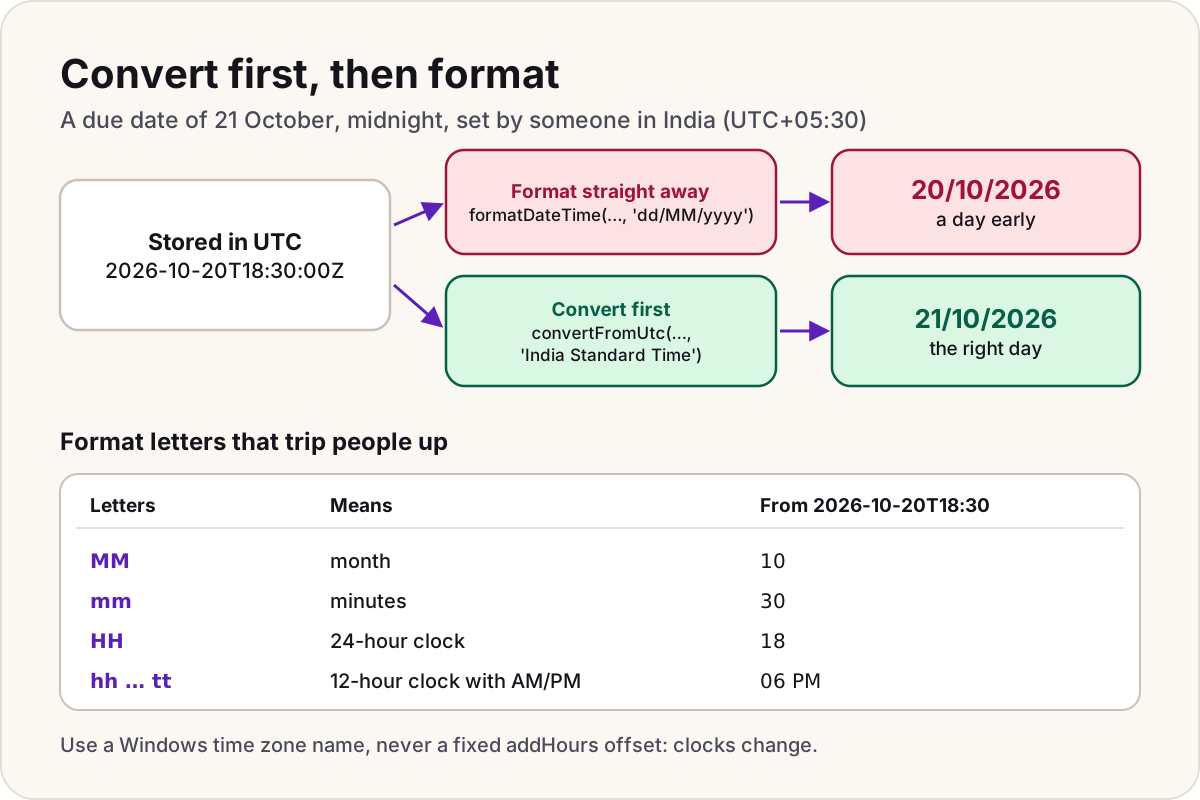
yyyyyear;MMmonth01–12;MMMandMMMMthe short and full month name.ddday01–31;dddandddddthe short and full day name.HHhour on a 24-hour clock;hhon a 12-hour clock, withttfor AM or PM.mmminutes;ssseconds.
Standard formats such as 'd' follow the language, so 'd' gives 9/25/2025 in the default en-us. For a fixed layout such as dd/MM/yyyy, write the custom format. The third parameter changes the language of day and month names: formatDateTime('01/31/2016', 'dddd MMMM d', 'fr-FR') returns dimanche janvier 31.
Format last. The result is text, so do the converting and the date maths first, then format once, at the point where a person reads it or you compare days. To turn text such as 25/12/2026 back into a date, use parseDateTime with a locale and the format, so the day and month can't swap: parseDateTime('25/12/2026', 'en-GB', 'dd/MM/yyyy').
Add, subtract and start of day
addDays(timestamp, days, format?)adds days; use a negative number to go back.addHours,addMinutesandaddSecondswork the same way.addToTime(timestamp, interval, unit, format?)adds weeks, months or years, with'Week','Month'or'Year'as the unit.startOfDay(timestamp, format?)moves the time to midnight:startOfDay('2018-03-15T13:30:30Z')returns2018-03-15T00:00:00.0000000Z.dayOfWeek(timestamp)returns0for Sunday,1for Monday, up to6for Saturday.
The order matters. startOfDay(utcNow()) is midnight in UTC, not yours. Convert first, then take the start of the day:
startOfDay(convertFromUtc(utcNow(), 'India Standard Time'))
To filter a source that expects UTC, turn that local midnight back into UTC:
convertToUtc(startOfDay(convertFromUtc(utcNow(), 'India Standard Time')), 'India Standard Time', 'yyyy-MM-ddTHH:mm:ssZ')
Compare dates in conditions and filters
In a Condition or Filter array
Put both sides in the same time zone and the same format. For "is this item due today in London", compare the two dates as yyyy-MM-dd text, which convertTimeZone can produce in one step:
@equals(convertTimeZone(item()?['DueDate'], 'UTC', 'GMT Standard Time', 'yyyy-MM-dd'), convertTimeZone(utcNow(), 'UTC', 'GMT Standard Time', 'yyyy-MM-dd'))
For "before" and "after", compare ticks, which count time from the year 1: greater(ticks(variables('dateA')), ticks(variables('dateB'))). Comparing date text with greater only works for yyyy-MM-dd; '03/18/2026' against '12/01/2025' gives the wrong answer.
An expression typed into a trigger input is worked out once, when you save the flow. utcNow() there becomes a fixed time and never moves on. Do date comparisons in actions instead.
In a SharePoint Get items filter
Dates go in single quotes, and the column is its internal name (spaces become _x0020_). This filter, adapted from Microsoft's own example, asks for items starting after today:
Start_x0020_Date gt '@{formatDateTime(utcNow(), 'yyyy-MM-dd')}'
For "due today", don't rely on one exact date: the stored value is UTC and can carry a time. Ask Get items for a window a day either side, then keep the exact local day with the Filter array expression above. The reminder emails guide builds this pattern step by step.
DueDate ge '@{formatDateTime(addDays(utcNow(), -1), 'yyyy-MM-dd')}' and DueDate le '@{formatDateTime(addDays(utcNow(), 1), 'yyyy-MM-dd')}'
In a Dataverse List rows filter
In Filter rows, dates have no quotes, and the column is its logical name: createdon ge 2026-01-01T00:00:00Z. To get rows created since midnight in India, use the UTC-midnight expression from the previous section:
createdon ge @{convertToUtc(startOfDay(convertFromUtc(utcNow(), 'India Standard Time')), 'India Standard Time', 'yyyy-MM-ddTHH:mm:ssZ')}
A Date only column needs no conversion: it has no time to shift. More filter syntax is in the OData filter query cheat sheet.
The off-by-one-day bug
Someone in India sets a due date of 21 October, midnight. India is UTC+05:30, so the UTC value is 2026-10-20T18:30:00Z. A flow that runs formatDateTime(item()?['DueDate'], 'dd/MM/yyyy') prints 20/10/2026: a day early. In a zone behind UTC, a late-evening time tips into the next day instead.
The fix is always the same: convert, then format.
formatDateTime(convertFromUtc(item()?['DueDate'], 'India Standard Time'), 'dd/MM/yyyy')
What are you seeing?
-1 dayDates are a day early or latea UTC value was formatted without converting it first.30/18/2026The month shows minutesmmis minutes. UseMMfor the month andddfor the day.+1 hourTimes are an hour out for part of the yeara fixedaddHoursoffset instead of a time zone name.ISO 8601An error that the date time string must match ISO8601 formatthe function can't read the value it was given. Pass the original date from the trigger or action, or turn text into a date withparseDateTime.utcNow()A trigger always compares with the same timeexpressions in trigger inputs are worked out when you save.
Do
- Name the zone in every conversion, and keep the name in one Compose or variable so it's changed in one place.
- Convert, then do the date maths, then format, in that order.
- Compare days as
yyyy-MM-ddtext in the same time zone. - Test with an item near midnight, and one either side of a clock change.
Don't
- Don't format a SharePoint or Dataverse date for people without converting it from UTC.
- Don't use
addHoursas a time zone. - Don't compare dates written as
dd/MM/yyyytext: the order is wrong for sorting and comparing. - Don't convert a Dataverse Date only value.
Copy-ready expressions
Swap 'GMT Standard Time' for your own zone.
| Task | Expression |
|---|---|
| Now, in UTC | utcNow() |
| Now, in your zone | convertFromUtc(utcNow(), 'GMT Standard Time') |
Today as dd/MM/yyyy, your zone | convertFromUtc(utcNow(), 'GMT Standard Time', 'dd/MM/yyyy') |
Today as yyyy-MM-dd, your zone | convertTimeZone(utcNow(), 'UTC', 'GMT Standard Time', 'yyyy-MM-dd') |
| A SharePoint date for an email | formatDateTime(convertFromUtc(item()?['DueDate'], 'GMT Standard Time'), 'dd MMM yyyy HH:mm') |
| Seven days from now | addDays(utcNow(), 7) |
| Thirty days ago, as a date | addDays(utcNow(), -30, 'yyyy-MM-dd') |
| Next month | addToTime(utcNow(), 1, 'Month') |
| Midnight today, your zone | startOfDay(convertFromUtc(utcNow(), 'GMT Standard Time')) |
| Your midnight, in UTC | convertToUtc(startOfDay(convertFromUtc(utcNow(), 'GMT Standard Time')), 'GMT Standard Time') |
| Day of the week (0 is Sunday) | dayOfWeek(convertFromUtc(utcNow(), 'GMT Standard Time')) |
| Is A after B? | greater(ticks(variables('dateA')), ticks(variables('dateB'))) |
| Text to a date | parseDateTime('25/12/2026', 'en-GB', 'dd/MM/yyyy') |
| A file name stamp | formatDateTime(utcNow(), 'yyyy-MM-dd HH:mm') |
Related: Power Automate expressions cheat sheet.
Sources
- Customize or format date and time values in a flow — Microsoft Learn
- Convert a time zone — Microsoft Learn
- Expression cookbook for cloud flows: date and time — Microsoft Learn
- Reference guide to functions in expressions for workflows in Azure Logic Apps and Power Automate — Microsoft Learn
- Default time zones — Microsoft Learn
- Standard date and time format strings — Microsoft Learn
- Custom date and time format strings — Microsoft Learn
- Behavior and format of the date and time column in Dataverse — Microsoft Learn
- Configure the behavior and format of the date and time column by using code — Microsoft Learn
- SharePoint Online list connector: time zone issues — Microsoft Learn
- Working with Get items and Get files: filter queries — Microsoft Learn
- Troubleshoot common issues with triggers: expressions in triggers — Microsoft Learn
Did this fix it?
Comments
No comments yet. Share what worked for you.
Sign in to comment. Comments show under a display name you choose, never your email.