Power Apps vs Power Automate vs Power BI: which tool for which job
Apps people use, flows that run, reports people read. Real jobs matched to each tool, how the three work together, and what each licence costs.
Power AppsChoose a tool10 min read
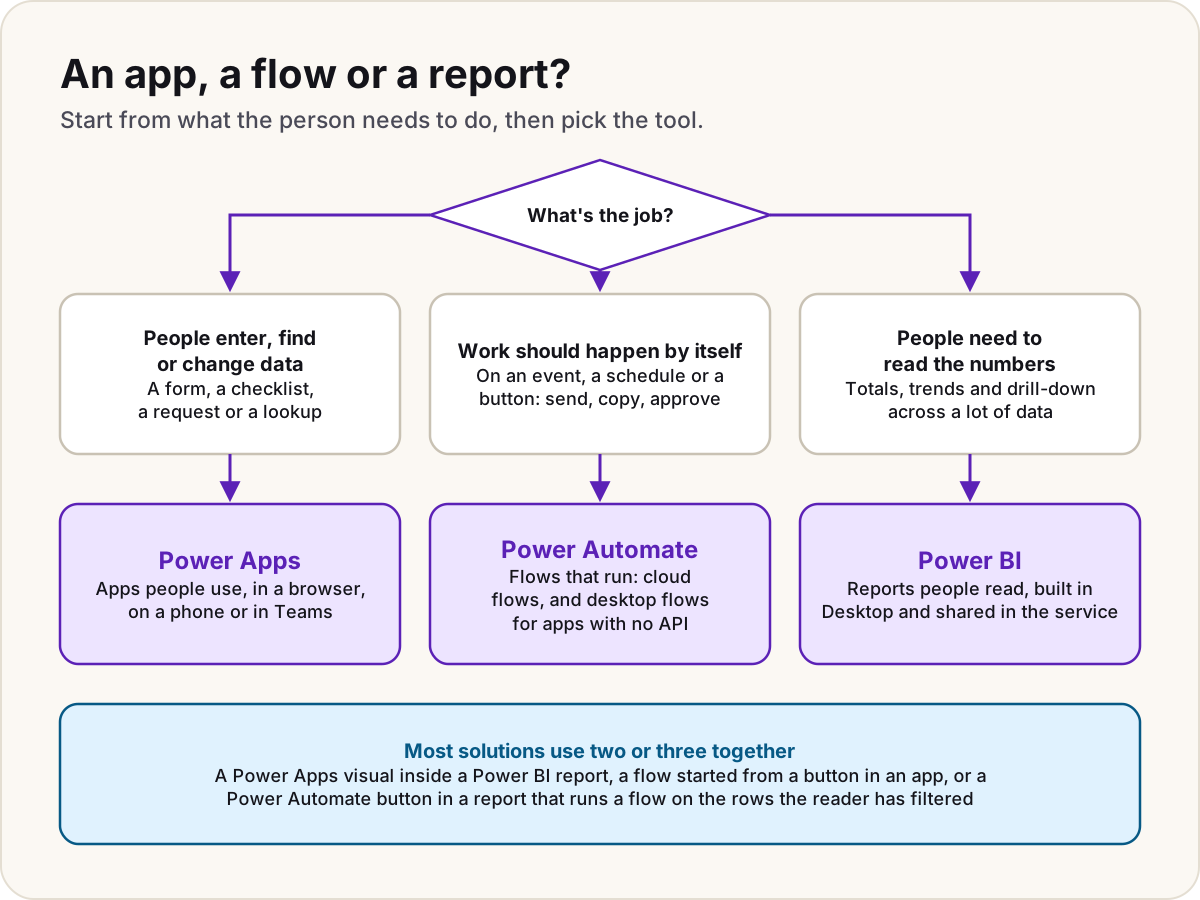
Power Apps, Power Automate and Power BI aren't rivals; each does a different job. Power Apps builds the apps people use to enter and change data. Power Automate runs the work nobody should do by hand, on a trigger, a schedule or a button. Power BI turns data into reports people read and explore. Pick by asking what the person needs to do, and expect most real solutions to use more than one.
Note
Checked against Microsoft Learn on 22 October 2026, and against Microsoft's pricing pages.
The three at a glance
| Power Apps | Power Automate | Power BI | |
|---|---|---|---|
| You build | Apps | Flows | Reports and dashboards |
| People | Use it to enter, find and change data | Rarely see it: it runs on a trigger, a schedule or a button | Read it, filter it and drill into it |
| Built in | Power Apps Studio (canvas) or the app designer (model-driven) | The Power Automate designer | Power BI Desktop, then published to the Power BI service |
| Runs in | A browser, the Power Apps mobile app, Teams | Microsoft's cloud (cloud flows) or a Windows machine (desktop flows) | The Power BI service and the Power BI mobile apps |
| Writes data? | Yes, that's its main job | Yes, as steps in a flow | Mostly reads; write-back is newer and narrower (see below) |
| Data | Connectors or Dataverse | Connectors or Dataverse | More than 100 sources in Power BI Desktop, shaped with Power Query |
All three can work on the same Dataverse tables and use the same family of connectors, which is why they combine so easily.
What each tool is for
Power Apps: apps people use
Choose Power Apps when a person needs a screen: to fill in a form, tick through a checklist, look up a record or update a status. A canvas app gives you a blank screen and Excel-like Power Fx formulas; a model-driven app builds its screens from Dataverse tables. What is Power Apps explains the app types, and canvas vs model-driven helps you pick between them.
Power Automate: work that runs by itself
Choose Power Automate when the work should happen without someone driving it: when an email arrives, every Monday at 8:00, or when someone presses a button. Microsoft lists three kinds of flow:
- Cloud flows, started automatically by an event, instantly by a person, or on a schedule.
- Desktop flows, Microsoft's robotic process automation (RPA), which automate tasks on the web or the desktop by working through an application's screens, useful for older systems that have no API.
- Generative actions (preview), where you state the intent and AI chooses the steps.
A flow has no screen of its own. If people need to type something in, they do it in an app, a form, Teams or an email, and the flow picks it up. For heavy integration owned by IT, compare cloud flows with Azure Logic Apps.
Power BI: reports people read
Choose Power BI when people need to understand data: totals, trends, comparisons and drill-down across thousands or millions of rows. You build reports in Power BI Desktop (a free download), where you model the data with relationships and DAX, then publish to the Power BI service to share them and schedule refreshes.
Power BI is for reading, not data entry. Microsoft has added a way to write back from a report, translytical task flows, which call Fabric user data functions to add, change or delete rows in Fabric SQL databases, warehouses and lakehouse files. Microsoft announced it as generally available in the March 2026 Power BI Desktop update, though some Learn pages still label it a preview. It needs Fabric; Power BI write-back covers it. For general data entry on other sources, an app is still the tool.
Which tool for which job
| The job | Tool | Why |
|---|---|---|
| Log a site inspection on a phone, with photos | Power Apps | A person fills in a screen |
| Book out laptops and track who has which | Power Apps | Lookup plus update |
| Email the manager when a request is submitted, and record the approval | Power Automate | Triggered by an event, no screen needed |
| Copy new rows from one system to another every night | Power Automate | Scheduled, nobody watching |
| Click through an old desktop system that has no API | Power Automate (desktop flow) | Desktop flows automate screens |
| Show sales by region and month, with drill-down | Power BI | Reading and slicing lots of data |
| Track a KPI against a target across the year | Power BI | Totals and trends |
| Let a manager approve a budget line they've spotted in a report | Power BI + Power Apps | The app sits inside the report |
| Submit a request, route it for approval and report on cycle times | All three | App to submit, flow to route, report to measure |
Do
- Name the person and the verb first: "the inspector records", "the system sends", "the director reviews". The verb picks the tool.
- Keep each tool on its own job: logic that moves data belongs in the flow, not hidden in the app's button.
Don't
- Don't build a "report" in Power Apps with galleries and charts when people only need to read totals; Power BI does that better.
- Don't build a flow that emails a spreadsheet every morning when a shared report would do.
- Don't expect a flow to give people a screen to fill in.
How they work together
A flow started from an app
The most common pairing. In Power Apps Studio, select Power Automate on the app authoring menu, then Create new flow, or Add a flow to reuse one that has a Power Apps trigger. Then call it from a button's OnSelect, passing any inputs the flow asks for:
SendRequestEmail.Run(txtTitle.Text, User().Email)
A Power Apps per-user licence covers running a flow only when it's started through the Power Apps trigger like this, so a Power Apps Premium user doesn't need a separate Power Automate licence for it. Microsoft warns that the values an app passes to a flow are visible in network traffic, so the flow should check them before acting, for example confirming that an email address belongs to your organisation.
A Power Apps visual inside a Power BI report
Add the Power Apps visual to a report, choose the fields to pass, and create or pick a canvas app. The report's current filter context flows into the app as PowerBIIntegration.Data, so a manager can act on exactly the rows they're looking at. Limits worth knowing:
- At most 1,000 records pass from the report to the app.
- The visual can't filter the report or send data back to it.
- You share the app separately from the report.
- It works for embedding for your organisation, not for embedding for your customers.
A Power Automate button inside a Power BI report
The Power Automate visual (in Power BI Desktop, Insert > Power Automate) puts a button on the report that runs a flow with the reader's current selection, up to 1,000 records. Create the flow from inside the report, not in Power Automate, and give readers permission to run it. It doesn't work with Publish to web or embedded analytics.
Power BI inside an app, and alerts that start a flow
- In a canvas app, Insert > Charts > Power BI tile shows a tile from a Power BI dashboard. Share the dashboard with the app's users too; Microsoft recommends no more than three tiles loaded at once.
- A Power BI data alert can start a flow, through the When a data driven alert is triggered trigger, for example to email a team when a figure crosses a threshold.
Licensing in one minute
Each tool is licensed on its own. Microsoft 365 covers the basics of the first two; Power BI needs Pro to share. US list prices, per user per month paid yearly, in October 2026:
| Included with Microsoft 365 | Paid options | Full guide | |
|---|---|---|---|
| Power Apps | Apps that use standard connectors | Power Apps Premium $20 ($22 for terms from 1 January 2027), or $10 per active user per app on the pay-as-you-go meter | Power Apps licensing |
| Power Automate | Cloud flows that use standard connectors | Power Automate Premium $15; Process $150 per bot or flow | Power Automate licensing |
| Power BI | Building in your own My workspace with a free account; Pro comes with Microsoft 365 E5 and Office 365 E5 | Pro $14; Premium Per User $24; viewers can stay free on an F64 or larger Fabric capacity | Power BI licensing |
Premium connectors such as SQL Server, and Dataverse itself, push both Power Apps and Power Automate into their paid tiers. For the whole picture across products, see the Power Platform licensing map.
Sources
- What is Power Apps? — Microsoft Learn
- What is Power Automate? — Microsoft Learn
- What is Power BI? — Microsoft Learn
- What is Microsoft Dataverse? — Microsoft Learn
- Use Power Automate pane — Microsoft Learn
- Power Apps visual for Power BI — Microsoft Learn
- Create a Power Automate visual for Power BI — Microsoft Learn
- Power BI tile control in Power Apps — Microsoft Learn
- Integrate Power BI data alerts with Power Automate — Microsoft Learn
- Understand translytical task flows — Microsoft Learn
- Power BI reports overview — Microsoft Learn
- Previous monthly updates to Power BI Desktop (March 2026) — Microsoft Learn
- Power Apps licensing FAQs — Microsoft Learn
- Licensing overview for Microsoft Power Platform — Microsoft Learn
- Deep dive on specific licenses: Power Automate seeded licenses — Microsoft Learn
- Pay-as-you-go meters — Microsoft Learn
- Power Apps licensing and pricing — Microsoft
- New pricing for Power Apps Premium (9 September 2026) — Microsoft Licensing News
- Power Automate pricing — Microsoft
- Power BI pricing — Microsoft
Was this helpful?
Comments
No comments yet. Share what worked for you.
Sign in to comment. Comments show under a display name you choose, never your email.