Power Automate trigger conditions: run flows only when they should
Power Automate trigger conditions stop a cloud flow starting unless an expression is true. Where to add them, how to write them, and why a flow stops firing.
Power AutomateFix a problem7 min read
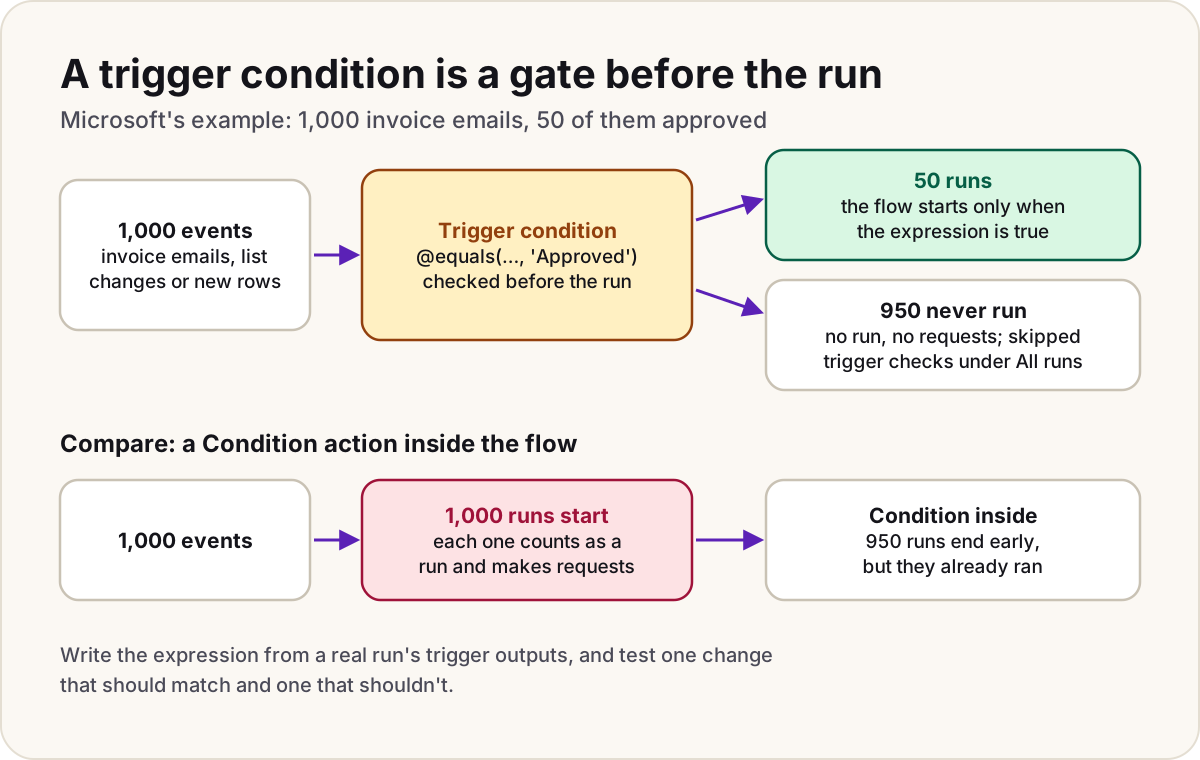
Power Automate trigger conditions let a cloud flow ignore the events it doesn't care about. The trigger still checks every change, but the flow only starts when your expression is true. You could filter with a Condition action inside the flow instead, but by then the flow has already run, and Microsoft counts its calls as API requests. With a trigger condition, an event that doesn't match never becomes a run.
Why use a trigger condition
Microsoft's own example: a flow that handles approved invoices. Without a trigger condition, it runs for every invoice email, so 1,000 invoices mean 1,000 runs even if only 50 are approved. With one, it runs 50 times. That keeps your flow runs and Power Platform requests down, and it matters most in pay-as-you-go environments, where every run is charged.
- Something changes
- The trigger picks up the change
- Power Automate checks your trigger conditions
- All true: the flow runs
- Any false: no run starts and the check is skipped
Where to add a trigger condition
In the new designer:
- Go to My flows, select the flow, then select Edit.
- Select the trigger, then select Settings.
- Next to Trigger conditions, select + Add.
- Type your expression. Every trigger condition must start with @.
- Save the flow.
In the classic designer, select the ellipsis (…) on the trigger, then Settings. Under Trigger Conditions, select Add, type the expression and select Done.
Let the designer write it for you
If you'd rather not type the expression, borrow one:
- Add a Filter array action under the trigger.
- Build your condition in it with the usual pickers, using the trigger's fields.
- Select Edit in advanced mode and copy the expression.
- Paste it into Trigger conditions on the trigger's Settings tab.
- Delete the Filter array action.
This is the safest way to get a field's path right first time.
How to write one
A trigger condition is a workflow expression that comes out true or false. Two functions read the event that fired the trigger:
triggerOutputs()returns the trigger's whole output. For example, the Dataverse trigger stores the kind of change intriggerOutputs()?['body/SdkMessage'].triggerBody()is the shorthand for just thebodypart.
The ? before each ['...'] is the null-ignore operator. If the field is missing, the expression returns null instead of failing.
You can add more than one condition. By default, all of them must be true for the flow to run. When either of two things is enough, put them in one condition with or().
| Run the flow only when | Trigger condition |
|---|---|
| A field has a set value | @equals(triggerBody()?['Status'], 'Approved') |
| A field isn't empty | @not(empty(triggerBody()?['Reviewer'])) |
| A number is over a limit | @greater(triggerBody()?['Amount'], 100) |
| Text contains a word, in any case | @contains(toLower(triggerBody()?['Title']), 'urgent') |
| Either of two values | @or(equals(triggerBody()?['Status'], 'Approved'), equals(triggerBody()?['Status'], 'Rejected')) |
| Both things are true, in one row | @and(equals(triggerBody()?['Status'], 'Approved'), greater(triggerBody()?['Amount'], 100)) |
Status, Reviewer, Amount and Title stand in for your own fields. Use each name exactly as it appears in the trigger's outputs from a real run. If a field there holds an object rather than plain text, your path has to go one level further, to the property inside it. The Filter array trick above builds that path for you.
Stop a flow from triggering itself
If a flow starts when an item is updated, and then updates that same item, it can trigger itself forever. Power Automate warns you about a possible infinite trigger loop when you save a flow like this.
Microsoft's advice is to use a trigger condition. If the flow sets a status, only let it run while the status isn't already set to that value:
@not(equals(triggerBody()?['Status'], 'Processed'))
The flow's own update sets Processed, the next change event fails the check, and the loop stops. A column that only the flow ever writes, such as a "done" flag, works the same way. Microsoft's other option is a Terminate action that ends the run when it spots an item it has already handled.
Dataverse: filter on the trigger first
The Dataverse trigger When a row is added, modified or deleted has its own filters, and they're often a better fit:
- Select columns: a comma-separated list of column names. The flow runs only when one of them is included in an update. It applies to updates only. Lookup columns aren't supported, and the flow runs even when the value hasn't changed. Leave out columns that are in every update, such as the primary key, or every update triggers it.
- Filter rows: an OData filter such as
firstname eq 'John', checked after the change is saved. Don't include$filter=. Our OData filter query cheat sheet covers the operators.
You can still add trigger conditions on the same trigger for anything those two can't express.
Test before you trust it
- Save the flow, select Test, then Manually, then Test.
- Make one change that should match. The flow should run.
- Make one change that shouldn't match. Nothing should run.
- Open the flow, go to the 28-day run history and select All runs. A skipped trigger check means the event arrived and the condition was false.
A skipped event never becomes a run, so there are no actions to inspect. If you need to see what the trigger received, remove the condition, run it once, and read the trigger's outputs.
When the flow stops triggering
- Nothing has run since you added the condition: the field name doesn't match the trigger's outputs. Because of
?, a wrong name quietly returns null, so the check is simply false. - The condition was saved without @ at the start.
- A text check fails on case:
contains()is case-sensitive. Wrap both sides intoLower(). - The field is an object, not text: compare the property inside it, not the field itself.
- You put "either" conditions in two rows: separate rows must all be true. Use
or()in one row. empty()on a number: it throws an error. Useequals()orgreater()for numbers.
Do
- Copy field paths from a real run's trigger outputs, or let Filter array build them.
- Add a loop guard to every flow that updates the item that triggered it.
- On Dataverse, use Select columns and Filter rows before reaching for an expression.
Don't
- Don't filter with a Condition action when a trigger condition would do: every unwanted run still counts.
- Don't put conditions you meant as "either" in separate rows.
- Don't assume a quiet run history means the trigger is broken. Check All runs for skipped checks first.
If the condition looks right and the flow still won't start, work through why didn't my flow trigger for the other causes, from connections to data policies.
Related: Power Automate expressions cheat sheet.
Sources
- Customize your triggers with conditions — Microsoft Learn
- Use expressions in conditions to check multiple values — Microsoft Learn
- Expression cookbook for cloud flows — Microsoft Learn
- Reference guide to functions in expressions for workflows in Azure Logic Apps and Power Automate — Microsoft Learn
- Schema reference guide for the Workflow Definition Language: operators — Microsoft Learn
- Avoid anti-patterns: avoid infinite loops — Microsoft Learn
- Optimize Power Automate triggers — Microsoft Learn
- Trigger flows when a row is added, modified, or deleted — Microsoft Learn
- Troubleshoot Power Automate trigger problems and errors — Microsoft Learn
Did this fix it?
Comments
No comments yet. Share what worked for you.
Sign in to comment. Comments show under a display name you choose, never your email.