Power Automate interview questions (2026): answers, expressions and scenarios
Power Automate interview questions with answers you could give out loud, the reasoning behind them and the likely follow-up. Covers triggers, expressions, loops and limits, error handling, approvals, solutions, desktop flows, scenarios and 2026 changes.
Power AutomateQuick reference54 min read
Interviewing for a role that uses Power Automate? Be ready for two layers of questions. One layer checks that you can build a flow. The other checks whether that flow would survive production: a trigger that fires on its own updates, a loop that hits a limit, a failure that nobody hears about.
This page answers 27 of them, grouped by topic. Each answer starts with a short version you could say first, then the detail behind it, an example where one helps, the follow-up an interviewer might ask next, and a link to our longer guide where we have one.
We wrote these questions for this page; they don't come from any employer. The answers follow Microsoft's documentation as it stood on 13 October 2026. The expressions follow Microsoft's documented syntax but weren't run for this page.
Note
Checked against Microsoft Learn on 13 October 2026. Limits, exams and preview labels change, so treat each number and status here as correct on that date, and open the linked source before you quote it.
Fundamentals
1. What's the difference between a cloud flow, a desktop flow and an agent flow?
Short answer: Start with where each one runs and how it reaches other systems. A cloud flow runs in Microsoft's cloud and works through connectors. A desktop flow runs on a Windows machine and drives an application's screen, which is the route for software with no connector or API. An agent flow is built in Copilot Studio, charged to Copilot Studio capacity, and can be called by an agent as a tool.
In more detail:
- Cloud flows are split by what starts them: an event (automated), a person pressing a button (instant) or a schedule (scheduled).
- Microsoft's licensing documentation scopes robotic process automation to software you can't reach any other way: no prebuilt connector, and no API you could wrap in a custom connector. Say you'd look for a connector or an API first, and give the reason: a desktop flow also needs a registered machine and a desktop flow connection.
- Billing is per action: Learn's agent flows overview says "Every action your agent flow executes consumes Copilot Studio capacity." Sharing is locked down too: you can't add co-owners or run-only users to an agent flow, and you can't copy or share it.
- Converting a cloud flow needs care. The flow must already sit in a solution; you then select Edit and set its plan to Copilot Studio. Learn's agent flows overview says the conversion "can't be reversed due to the change in the flow's billing".
- An agent can call an agent flow only when three things are true, per Learn's agent flows FAQ: it's a solution flow, it starts with When an agent calls the flow, and it returns its result through Respond to the agent.
Follow-up they may ask: "Can a cloud flow start a desktop flow?" Yes. The Run a flow built with Power Automate for desktop action starts it on a registered machine or machine group, sends it input variables and reads its output variables when it finishes.
Read more: Cloud flow, agent flow or desktop flow? Which one to build
2. What trigger types are there, and why does polling versus webhook matter?
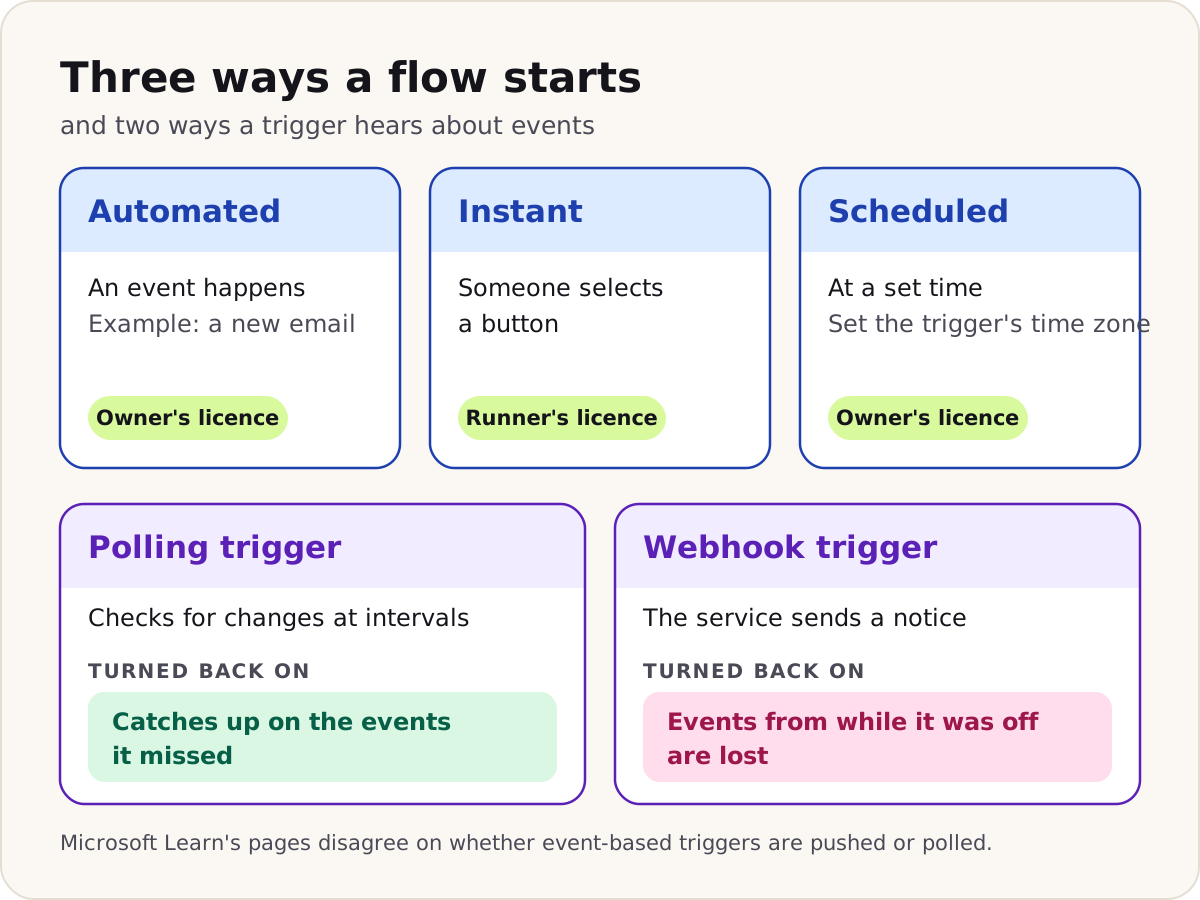
Short answer: By what starts the run, triggers are automated, instant or scheduled. By how they hear about events, a trigger either polls, asking the service for changes at intervals, or uses a webhook, where the service tells Power Automate as soon as something happens. The difference shows most when a flow is switched off and on again.
In more detail:
- Turning a polling flow back on releases a backlog: every event since its last check gets processed, which can arrive as a sudden burst of runs. To skip that backlog, Learn's trigger guidance says to "create a copy of the flow and then delete the original"; the copy's trigger starts from a clean registration.
- Webhook triggers carry the opposite risk. Events that arrive while the flow is off are simply missed.
- Polling adds a wait. Microsoft's troubleshooting pages give 1 to 5 minutes as typical, varying by connector, and the licence sets a minimum gap between runs: Learn gives 15 minutes on the Free plan and 5 on the Office 365 plan. Learn isn't consistent about the alternative: its cloud flow troubleshooting page says "Event-based triggers in Power Automate use polling intervals, not real-time push notifications", while its trigger guidance says "A webhook trigger listens for events in real time."
- To tell which kind you have, open the trigger's code view. A
recurrencesection with an interval and a frequency means it polls.
Follow-up they may ask: "A user says the flow didn't run. Where do you look first?" Run history, with All runs selected, because it separates two different problems. If nothing is listed for the time of the event, the problem is before the first action: check that the flow is on, that its connection still works, and that the event really happened. If a run is listed with its trigger check skipped, look at the trigger conditions instead, because one of them returned false for that event.
Read more: Why didn't my flow trigger? A checklist that finds the cause
3. Whose licence does a flow use, and when is premium needed?
Short answer: It depends on how the flow starts. Automated and scheduled flows use their owner's licence. Instant flows use the licence of the person who runs them. If the flow uses a premium connector, that person needs a premium licence, unless the flow has a Process licence of its own.
In more detail:
- Learn's licensing FAQ is explicit about connections: "Connections are independent from license checks," and a flow "always runs in the context of primary owner/run-only user/Process license", however many people's connections it holds.
- Office 365 licences cover standard connectors. Approvals is a standard connector, which is why a basic approval flow needs no premium licence.
- Any flow with a custom connector needs a premium or trial licence to run.
- A Process licence is assigned to a flow, not a person, and gives it 250,000 actions a day. You can stack several on one flow, or share one across up to 25 flows in a flow group.
- Data policies apply on top of licensing. Admins place each connector in a Business, Non-Business or Blocked group. Put a Business connector and a Non-Business connector in one flow, or add one from the Blocked group, and you've broken the policy. Learn says such a flow "will be saved, but it will be marked as Suspended and won't be executed unless the maker resolves the data policy violation."
Follow-up they may ask: "A flow that ran yesterday is Suspended today, and its owner changed nothing. Why?" A data policy is the likely cause. When an admin changes a policy, a background process checks existing flows against it and marks any that now break it as Suspended. Learn notes that this process works by polling and "isn't instantaneous", so the suspension can arrive some time after the change.
Read more: Change a Power Automate flow's owner when someone leaves
Triggers and expressions
4. What is a trigger condition, and why use one instead of a Condition action?
Short answer: A trigger condition is an expression in the trigger's settings that must be true before a run starts. A Condition action works inside a run that has already started and is already counting against your limits. When most events should be ignored, filter them at the trigger.
In more detail:
- When the condition is false, no run starts. Learn's page on trigger conditions says this "helps keep flow runs and Power platform requests consumption low", and calls it "especially important in pay-as-you-go environments, where every flow run is charged".
- Each trigger condition starts with
@. If you add several, all of them must be true; for "either one will do", put the tests inside a single@or(...). - A shortcut Microsoft documents: build the test in a Filter array action, switch it to advanced mode, copy the expression into the trigger's settings, then delete the Filter array.
- On Dataverse, the trigger has its own filters as well: Select columns for updates to particular columns, and Filter rows for an OData condition.
The example below is for a SharePoint list with a single line of text column called Region and a number column called Amount. Runs start only for North requests over 500:
@and(equals(triggerOutputs()?['body/Region'], 'North'), greater(triggerOutputs()?['body/Amount'], 500))
- An item changes
- The trigger evaluates its condition
- False: no run starts
- True: the run starts and its actions count
Follow-up they may ask: "You added a condition and now the flow never runs. How do you debug it?" Take the condition off, let one event start a run, and open that run's trigger outputs. Check your expression against them: the exact column names, their letter case and the type of each value. Fix the expression, then add it back.
Read more: Why didn't my flow trigger? A checklist that finds the cause
5. What do Split On and trigger concurrency control do?
Short answer: Split On is for triggers that return an array: it starts a separate run for each item instead of one run holding them all. Concurrency control caps how many runs of the flow can be in progress at once. Concurrency control starts switched off, and once you switch it on you can't simply switch it off again.
In more detail:
- Without concurrency control, a flow can have any number of runs going at once. With it on, the cap is between 1 and 100. Microsoft's pages disagree about the starting value: the limits page says 25 and the trigger guidance says 1, so read the setting rather than quoting a number.
- Runs over the cap wait in a queue of up to the cap plus 10. Once that's full, Learn says the connector might retry the extra events, without promising success, and recommends keeping concurrency off if every event has to become a run.
- Undoing it is awkward. The limits page says you must delete and re-add the trigger; the trigger guidance says you need a new flow.
- Concurrency also changes Split On: with it on, Split On handles 100 items at most. Without it, the limit is 5,000 items on the Low performance profile and 100,000 on the others.
- One reason Microsoft gives for switching it on: a flow that reads a record and then updates it can end up working from old data, a so-called dirty read. Its advice is to keep the part that needs control small, for example in a child flow of its own.
Follow-up they may ask: "A Microsoft Forms trigger shows no dynamic content in later steps. What do you try?" The Split On setting. Microsoft's pages give opposite fixes: the troubleshooting article says turn Split On off, while the Copilot in cloud flows FAQ blames a temporary issue with it switched off and says turn it on. Check which state the trigger is in and test the other.
6. Explain triggerOutputs(), outputs(), body() and items(). Where does the question mark go?
Short answer: They're how one step reads another step's results. triggerOutputs() reads what the trigger received. outputs('Action') reads everything an action returned, and body('Action') goes straight to the body of it. items('Loop') is the current item inside an Apply to each. The ? goes just before the square bracket of each property, as in ?['Title']; if that property is missing you get null, not a failed run.
In more detail:
- Expressions refer to actions by name with underscores for spaces. Microsoft's own example reads an action called Get user as
body('Get_user'). - Microsoft documents
body('X')as shorthand foractions('X').outputs.body. item()gives the current item of the loop the expression sits in.items('Loop_name')returns the current item of the loop you name, so you choose which loop it reads.coalesce()returns its first argument that isn't null, which makes it a natural partner for?. Watch the edge case: it treats an empty string as a real value, so a blank text field passes straight through. Test withempty()when blanks matter, but not on numbers, because Microsoft's cookbook saysempty(0)throws an error.- An unhandled null can surface as InvalidTemplate, with a message that the provided value is of type Null.
triggerOutputs()?['body/Title']
body('Get_items')?['value']
items('Apply_to_each')?['Email']
coalesce(triggerOutputs()?['body/Department'], 'Unassigned')
Follow-up they may ask: "When would you add Parse JSON instead of writing expressions?" When a payload's fields should appear as named dynamic content and its shape is stable. Generate the schema from a sample payload. If a run later fails with "Invalid type. Expected String but got Null.", Learn's troubleshooting page explains it as a field arriving as null where text is expected, and suggests coalesce() or a null check.
Read more: Dynamic content missing? Parse JSON, nested arrays and loops explained
7. How do you handle dates and time zones in a flow?
Short answer: Treat every timestamp as UTC until you convert it. Power Automate works in UTC by default and utcNow() returns UTC, so convert with convertTimeZone() using a Windows time zone name, then format with a .NET date format string. For schedules, set the time zone on the Recurrence trigger itself.
In more detail:
convertTimeZone()takes the timestamp, the source zone, the target zone and an optional format, so one call can convert and format.- Time zone names come from Windows' list of default time zones. Microsoft notes that you may need to strip punctuation from a name.
- Format strings follow .NET rules, where case matters:
MMis the month andmmis minutes. - To compare two dates, Microsoft's expression cookbook compares their
ticks()values, and it works out the days between two dates by dividing the difference in ticks by 864,000,000,000.
convertTimeZone(utcNow(), 'UTC', 'GMT Standard Time', 'dd MMM yyyy HH:mm')
div(sub(ticks(variables('dueDate')), ticks(utcNow())), 864000000000)
Follow-up they may ask: "Your daily flow was set for 8:00 but fires an hour or more off. What do you check?" First the Time zone field on the Recurrence trigger: the 8:00 is read in that zone, not in yours. Then the Start time, which sets when the schedule begins.
Read more: Reminder emails for items due soon: a daily flow that gets dates right
Loops, data and limits
8. Apply to each or Do until: when do you use each, and what limits apply?
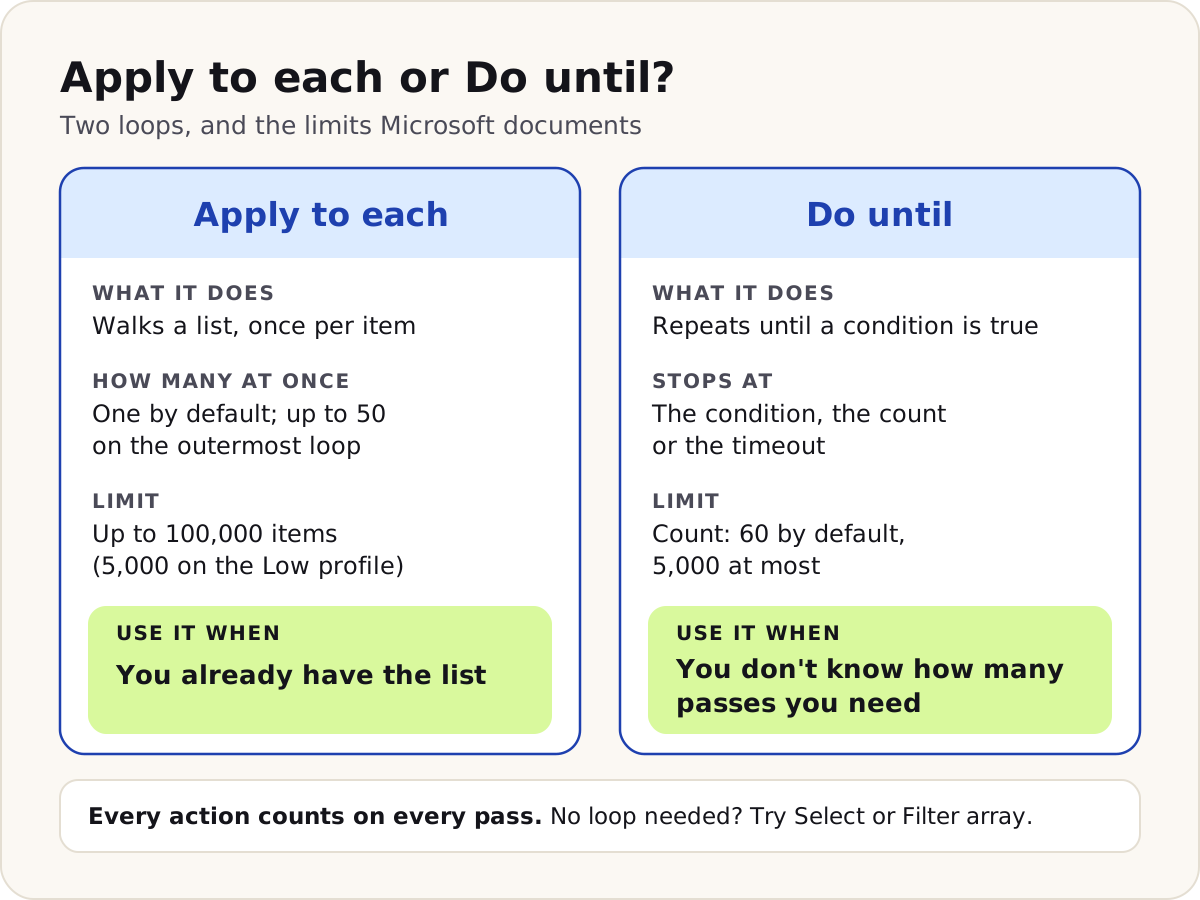
Short answer: Apply to each walks an array you already have, once per item. Do until repeats until a condition becomes true, which suits waiting for a status or fetching pages when you don't know how many there are. Both multiply your action count, so first ask whether you need a loop at all.
In more detail:
- Apply to each runs one item at a time by default. Its concurrency setting allows 1 to 50 iterations at once, but only on the outermost loop; a nested Apply to each ignores its own setting and handles one item at a time.
- It handles up to 100,000 items, or 5,000 on the Low performance profile.
- Learn's page on variables says two things about parallel loops. Its warning: "you must run the loop iterations sequentially if it's important for your loop variables to return predictable results." Further down: "Unless you're incrementing or decrementing variables, changing variables inside loops might create unexpected results if you run loops in parallel." So the risky case is setting or appending in parallel.
- Do until stops when its condition is met, when it reaches its count limit (60 by default, 5,000 at most) or when it reaches its timeout, whichever happens first.
- Every action inside a loop counts once per pass. Microsoft's licensing FAQ works it through: a loop with 2 actions and 10 passes uses 21 actions.
- If the role touches Azure Logic Apps too, mention that its For each runs in parallel by default, unlike Power Automate's Apply to each.
Do
Shape and filter whole arrays with Select and Filter array, which are one action each, and loop only over what's left.
Don't
Raise Apply to each concurrency on a loop that sets or appends to variables when you need those variables to come out right.
Follow-up they may ask: "Why not use Do until to wait for an approval?" Learn's approvals known issues recommend a Condition or Switch on the outcome instead. A basic approval can finish as Approved, Rejected or Canceled, and a loop whose exit test misses one of them can get stuck in an infinite loop.
Read more: Get more than 5,000 SharePoint items in Power Automate
9. What counts against request limits, and how do you stay under them?
Short answer: Every action the flow runs counts: connector calls and built-in steps such as Compose, variables and scopes, failed actions as well as successful ones, retries, and each extra page that pagination fetches. Daily allowances depend on the licence, and a flow that's throttled for 14 days in a row is turned off. Design for fewer actions per run and fewer runs.
In more detail:
- Microsoft's daily figures depend on the licence: a user on an Office 365 licence gets 6,000 actions, a Power Automate Premium user 40,000, and each Process licence 250,000. Those are the final limits; while the licensing transition period lasts, higher limits apply and are counted per flow (10,000, 200,000 and 500,000).
- Allowances don't add up across people: Learn's licensing FAQ says limits "don't pool or combine at the environment or tenant level", so one busy flow can't borrow a colleague's unused actions.
- Each version of a flow also has a ceiling of 100,000 requests in any 5 minutes, and saving a new version resets it. Connectors throttle separately, and Learn's limits page warns: "Individual connectors have their own limits, which you often reach before the limits mentioned previously."
- The flow's Analytics page has an Actions tab that shows how many actions it runs.
- Ways to cut the count: trigger conditions, Filter Query and Top Count at the source, Select and Filter array instead of loops, and scheduled flows that run less often.
Follow-up they may ask: "Would a Process licence fix a throttled flow?" It raises that flow's allowance, and Microsoft suggests it for flows that run thousands of actions a day. Save the flow again after assigning it so the new plan applies. Connector limits still apply.
Read more: Cloud flow error codes: what each one means and how to fix it
10. What time limits apply to a run, and to an app or agent that's waiting for one?
Short answer: A run can last 30 days from its start; after that, pending steps such as approvals time out. A caller that waits for the flow's answer, such as a canvas app or an HTTP request, has a 120-second limit. When the work takes longer, place the response action before the slow steps, so the caller gets its answer while the rest of the run goes on.
In more detail:
- The response action is what makes this work. Learn lists three actions that answer the caller within the limit: Respond to a PowerApp or flow, HTTP Response and Respond to Copilot. Learn's limits page adds that "actions after the response action continue running beyond this limit".
- Outbound synchronous calls are also cut off at 120 seconds. For longer jobs, Microsoft suggests an asynchronous polling pattern or an Until loop.
- A child flow doesn't buy extra time, because the parent waits only while its own run can last. Learn's child flows page gives that as "one year for flows that use built-in connections and Dataverse or 30 days for all other flows".
- Learn's limits page gives 30 days of run retention, while its troubleshooting page points you to the "28-day run history" section of a flow's details page. Flows in a solution get a second record: their run data goes to Dataverse's FlowRun table, which holds it for 28 days unless someone changes its time-to-live setting,
FlowRunTimeToLiveInSeconds. - For a process that outlasts 30 days, Microsoft's error reference describes a "relay" pattern, where one run ends and hands its state to the next through Dataverse or a file.
- Copilot Studio added asynchronous responses for agent flows in May 2026, for work that takes longer than an agent's two-minute wait.
Follow-up they may ask: "Why does the designer say a test timed out when the run is still going?" It's a documented quirk of long tests. Learn's limits page: "If you test a cloud flow that runs for longer than 10 minutes, you might get a timeout message in Power Automate, even though the flow continues to run in the background." Run history shows how far the run has really got.
Read more: Child flows that fail well: inputs, results, errors and connections
Errors and resilience
11. How do you build try, catch and finally in a cloud flow?
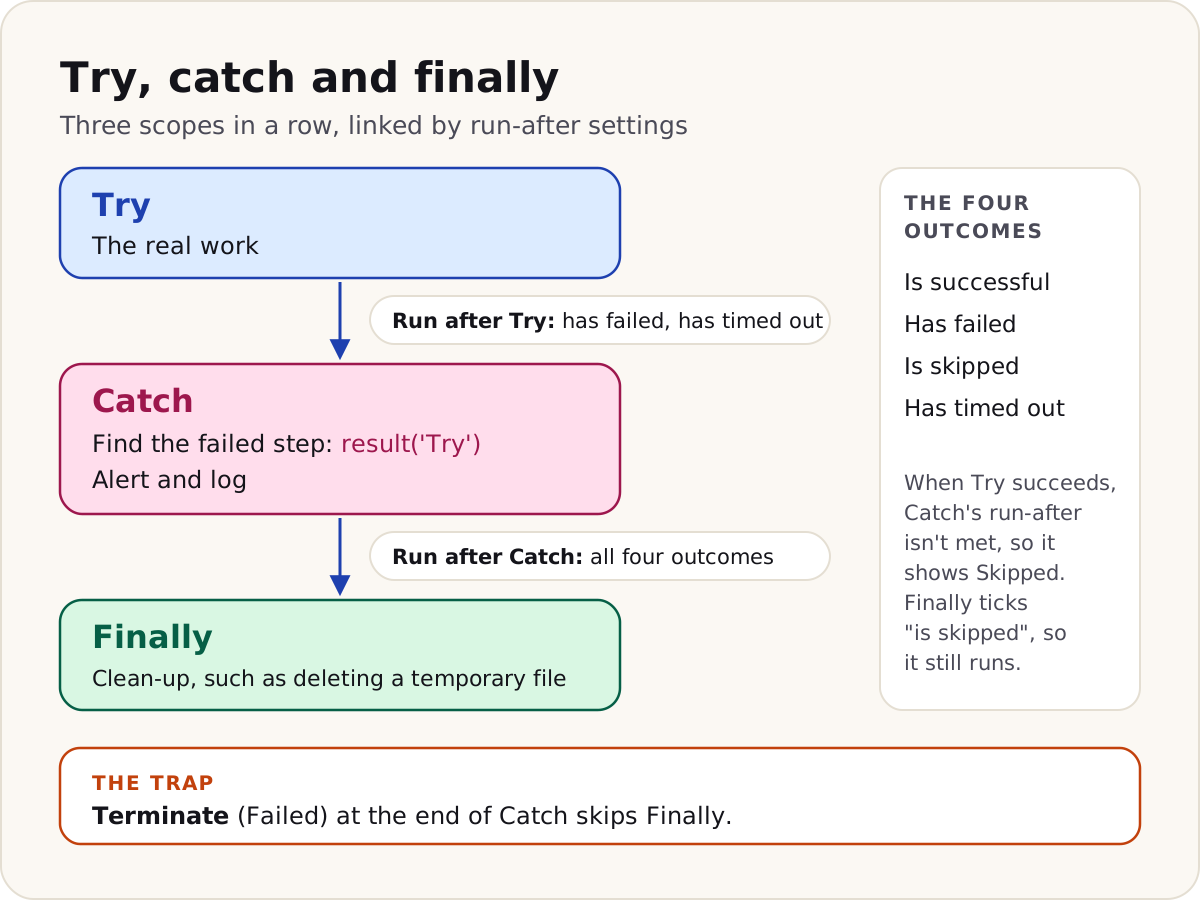
Short answer: With three scopes in a row and their run-after settings. Try holds the real work. Catch is set to run after Try has failed or has timed out; inside it, result('Try') lists Try's actions with their status, so you can pick out the one that failed, log it and send an alert. Finally runs after Catch on all four run-after outcomes, for clean-up such as deleting a temporary file. Last, stop a handled failure from being recorded as a success.
In more detail:
- Every action has a run-after setting with four outcomes of the step before it: is successful, has failed, is skipped and has timed out. New actions run only after success. When an action fails, the actions after it don't run unless their run-after setting allows it. Learn's Logic Apps page on run-after marks them Skipped, and so does the table on Power Automate's failure-notification page, but that page's text says they're "marked as failed, even though they didn't run".
- Catch sees only Try's overall status. Any failed action inside turns the whole scope Failed, so the scope itself doesn't name the culprit.
- Know
result()'s limit: per Learn's function reference, it reports one level down only. If Try contains a Switch or a Condition, a step that fails in one of its branches isn't inresult('Try'); open the run and expand the scope to find it. - Left like that, the failure disappears from view: Learn's Logic Apps page on run statuses treats a run whose failure was handled later as Succeeded, and Catch is exactly that kind of handling. A Terminate action (status Failed) as Catch's last step puts the true outcome back in run history.
- Then name the conflict this creates, because spotting it makes a strong answer. Learn's workflow schema reference says Terminate "stops the run for a workflow instance, cancels any actions in progress, skips any remaining actions". So with Terminate in Catch, a failed Try means Finally is skipped as well. Put any clean-up that must always happen ahead of Terminate.
- Microsoft's workflow schema reference also says Terminate can't sit inside a For each or Until loop, which Power Automate shows as Apply to each and Do until.
In code view, the Catch scope's run-after setting looks like this:
"runAfter": {
  "Try": [
    "Failed",
    "TimedOut"
  ]
}
Follow-up they may ask: "How do you put a link to the failed run in the alert?" Call workflow(), which describes the run that's in progress. In Microsoft's error-handling guidance, a Parse JSON action reads that output, and a Compose action puts the address together from the environment name, the flow's internal name (logicAppName) and the run details.
Read more: Try, catch and finally: error handling with scopes
12. How do retry policies work, and when would you change one?
Short answer: Actions that support retries try again by themselves when a call times out (408), is throttled (429) or hits a server error (5xx). How many retries the default policy makes depends on the performance profile: up to 2 on Low, and up to 12 on Medium and High, where the interval grows to about an hour by the last retry. You can pick None, a fixed interval or an exponential interval instead. Change it when sending the same request twice could cause damage, or when you'd rather learn about a failure quickly.
In more detail:
- A custom policy allows up to 90 attempts, with waits between 5 seconds and 1 day.
- Other 4xx errors aren't retried, which makes sense: resending a request the service has already rejected as invalid won't change the answer.
- Retries count against request limits.
- Microsoft's trigger troubleshooting page gives the "at-least-once" design of Azure Logic Apps as one reason a single run can occasionally carry out some of its actions twice. Its answer is idempotent design: before creating something, check whether it already exists, or let a key in Dataverse reject duplicates.
- For temporary faults, Microsoft's error-handling guidance prefers exponential intervals, which leave more time for the problem to clear.
In code view, a custom policy sits inside the action's inputs and looks like this:
"retryPolicy": {
  "type": "exponential",
  "count": 4,
  "interval": "PT10S"
}
Follow-up they may ask: "When would you choose None?" When repeating the call could create something you can't take back, such as a text message to a customer, and you'd rather catch the failure and check by hand.
Read more: 502 Bad Gateway and other random failures in Power Automate: retry, wait or report
13. How should a child flow report success or failure to its parent?
Short answer: Design the child so the parent never has to guess. The child starts with Manually trigger a flow and keeps its real work in a Try scope and its error handling in a Catch scope. Its final step, outside both scopes, is a single Respond to a Power App or flow that returns a status and a message whatever happened in Try. In the parent, Run a Child Flow is followed by a check on that status, plus a run-after branch for calls that error out before the child can reply.
In more detail:
- Build both flows inside one solution from the start. Learn lists this as a known issue: "If you import a flow into a solution, you might get unexpected results."
- Be ready to explain connections. Learn says: "At this time, you can't pass connections from the parent flow to the child flow." Only a child limited to built-in actions and the Dataverse connector can skip this; any other child needs connections of its own, so in its Run only users settings each connection is set to Use this connection rather than Provided by run-only user. Miss that, and the parent's call is rejected with an error ending "child workflows only support embedded connections".
- Keep that single response out of Try and Catch. Learn's scopes page: "Triggers and response actions should remain outside of scopes."
- A child called inside an Apply to each can fail with "Nested flows are not supported in this context". Learn's troubleshooting table gives the fix: "Move the child flow call outside the loop, or restructure to pass the full array to the child flow and loop inside it."
- Process capacity doesn't flow down. Learn: "A child flow doesn't inherit Process license capacity from a parent flow's flow group." Add the child to the parent's flow group as well; Learn adds that "Each flow counts separately toward the 25-flow limit."
Follow-up they may ask: "Why split a flow at all?" Microsoft's limits page caps a flow at 500 actions and 8 levels of nesting, and points to child flows for a design that needs more. Microsoft also presents child flows as a way to keep long flows manageable and to reuse the same steps across flows.
Read more: Child flows that fail well: inputs, results, errors and connections
Approvals and people
14. Which approval action and approval type would you choose?
Short answer: For a straightforward request, Start and wait for an approval: one action sends it and pauses the flow until it's decided. When other steps must run between sending and deciding, such as posting the approval card in Teams or writing a log entry, use Create an approval and then Wait for an approval. The type then sets whose answers the flow needs before it moves on: every approver's, the first one's, all or one of those picking from your custom responses, or each approver's in a fixed order.
In more detail:
- Only Create an approval gives you an adaptive card to post in Teams. The responses and comments come out of Start and wait, or out of Wait for an approval.
- Put little or nothing between Create and Wait. Learn's approvals known issues explain why: "If a user immediately responds to an approval request before the flow reaches the wait action, it's possible for the flow to become stuck in the wait stage."
- With Everyone must approve, the flow moves on after every approver says yes, or straight after the first rejection.
- When a condition tests the response, Approve and Reject must match in letter case.
- Approvals are stored in Dataverse. In an environment other than the default one, the first approval flow provisions the database, and the person who runs it needs an admin role there.
Follow-up they may ask: "Two teams have to sign off in parallel, each making its own call. How do you build it?" Microsoft's parallel approval tutorial gives each approval its own parallel branch with its own Condition on the outcome, then adds a step below the branches that emails a summary of all the decisions. If each team has one approver and a single rejection should end the request, one approval of type Everyone must approve can do the same job.
Read more: Approval actions compared: start and wait, create plus wait, types, sequential and parallel
15. An approver is away. How do you stop the approval from stalling?
Short answer: Put a time limit on the approval action itself, far below the 28 days an approval flow can wait. It goes in the action's Timeout setting as an ISO 8601 duration, such as P3D for three days. Then give the flow something to do when that time is up: a branch that runs only after the approval has timed out, and escalates the request, reminds someone, or closes it and tells the requester.
In more detail:
- The two limits come from different Learn pages. The limits page lets any run last 30 days; the approvals known issues say "An approval flow can wait for 28 days. If the wait time exceeds 28 days, that flow fails." Choose a timeout that also leaves room for the escalation step and its own timeout.
- A flow that fails this way leaves debris. Learn says the approval "continues to exist in the action center", and "The requestor or environment admin then needs to manually delete these approvals from the action center."
- Create an approval doesn't pause the flow, so steps such as reminders can run while the request is open. Start and wait pauses everything until there's an outcome.
- Record the outcome, who responded and when on the request itself. This is our advice, not Microsoft's: it lets anyone filter for requests that still have no decision.
- The Power Automate mobile app was deprecated on 31 August 2026. Microsoft says approvals carry on through Teams, actionable messages in Outlook and the Power Automate portal.
Follow-up they may ask: "And if the person you escalate to doesn't answer either?" Then the flow settles it, by a rule the business agreed before go-live. Whatever the rule, give the request a status that shows it timed out and email the requester, so no request is left without an answer.
Read more: Approvals that don't stall: reminders, escalation and an audit trail
Solutions and ownership
16. Why build flows inside solutions?
Short answer: Solutions let a flow travel to test and production and keep working after the person who built it has gone. In a solution, the flow points at connection references and environment variables rather than fixed connections and values. When you import the solution into another environment, you're asked for that environment's connections, and for any environment variable values it doesn't already have. You also get version history, run history in Dataverse, owner changes in place, and deployment through pipelines.
In more detail:
- Actions in a solution flow use a connection reference instead of a connection of their own. Swapping the connection is then one edit, made on the reference.
- Microsoft says only solution-aware flows support environment variables, flow versioning and run history in Dataverse.
- One person can own at most 600 flows outside solutions; there's no such cap for flows in solutions.
- Child flows belong in the parent's solution for one more reason: Learn's page on solution-aware flows notes that parent and child "can use the same connection reference" there.
- Microsoft's best practices: edit only in development, deploy managed solutions to test and production, and have service principals own production flows.
Follow-up they may ask: "An import fails with missing dependencies. What do you do?" Start with Show dependencies on the failed import. Learn's article on this error sorts the gaps into three kinds, and the kind tells you where the fix happens: a missing or outdated application is installed or updated in the target; a managed solution that yours depends on must reach the target first, at the version yours was built against; and a missing unmanaged component must be added to your solution in the environment you exported from, followed by a fresh export.
Read more: Move a cloud flow into a solution, and fix 'missing dependencies' on import
17. Someone who built critical flows is leaving. What do you do?
Short answer: Begin before their account is switched off, and work through four things for each important flow: who owns it, which connections it signs in with, which licence it runs under, and whether it sits in a solution. A flow in a solution can have its primary owner changed; a flow that mustn't depend on any one person can be owned by a service principal.
In more detail:
- Only a flow in a solution can have its owner changed in place. For any other flow, Learn's page on changing owners gives two routes, and the environment decides which: with Dataverse, put the flow into a solution and change the owner there; where there's no Dataverse, a copy made by export and import, Save as or Send a copy becomes the new owner's flow.
- Expect two names afterwards. Learn: "the original owner and the new owner become co-owners of the flow".
- Automated and scheduled flows switch to the new owner's licence with a lag. Learn: "This change can take up to seven (7) days to become effective", unless someone edits and saves the flow, which applies it at once.
- Handing a premium flow to someone without a premium licence starts a 30-day grace period, after which Power Automate turns the flow off until they're licensed.
- Plan new connections as well. Any connection the leaver made still signs in as them, and Learn's sharing page says: "Owners can use services in a cloud flow but can't modify the credentials for a connection that another owner created." The new owner adds connections under their own account and points each action at them.
- A service principal owner needs its own set-up. The flow's connections have to be shared with it before it can run the flow. With no user licence of its own, it brings the limits for non-licensed users. And Learn is clear that "You can't make a Service Principal application user a co-owner of a flow."
- Doing nothing has two consequences, spread over two Learn pages. The limits page: "If the original owner leaves the organization, the flow reverts to the Low performance profile." The licensing FAQ adds that all flow owners are notified "and the flow is turned off in 14 days if no action is taken".
Follow-up they may ask: "Someone deleted a flow by mistake. Can you get it back?" Yes, if it was deleted no more than 21 days ago. Learn documents two admin routes: the Restore Deleted Flow as Admin action, run from a button flow, or the Restore-AdminFlow PowerShell cmdlet. Expect the flow to be disabled when it returns, so someone has to switch it back on. See Restore a deleted flow in Power Automate (cloud and desktop flows).
Read more: Change a Power Automate flow's owner when someone leaves
Desktop flows
18. What's the difference between attended and unattended desktop flows?
Short answer: The difference is the state the machine has to be in. For an attended run, someone must already be signed in as the connection's account, and the session mustn't be locked; it suits work a person keeps an eye on. An unattended run needs, in Learn's words, "an available machine with all users signed out": Power Automate handles the session itself, from sign-in to sign-out, keeping the screen locked while it works. Attended runs come with Power Automate Premium; unattended runs need a Process licence.
In more detail:
- An unattended run takes place in a remote desktop (RDP) session that Power Automate sets up for the run and closes afterwards. Learn spells out what that needs: "The user specified in the connection must have permissions to create a remote desktop session on the machine. In most cases this means the user must be a member of the Remote Desktop Users group on the machine."
- On Windows 10 and 11 the machine has to be empty. Learn: "Windows 10 and Windows 11 devices can't run unattended desktop flows if any active Windows user sessions are present (even a locked one)."
- Screen size can trip up a flow that clicks or reads the screen. Learn warns that "The default screen resolution of the remote desktop session might be different than the one used during flow authoring", which can hide or move elements, and it links to steps for fixing the resolution in unattended mode.
- An attended run fails with AttendedUserSessionNotActive when the user's session is locked or disconnected.
- A machine can be set to Reuse sessions for unattended runs, so a run uses an existing session instead of signing in again.
Follow-up they may ask: "An unattended run fails with SessionExistsForTheUserWhenUnattended. What's wrong?" That machine already has a session for the connection's user, perhaps only a locked one. Unattended mode needs it gone, so sign it out.
Read more: Desktop flow won't run from the cloud: 'connection not found', session and credential errors fixed
19. How does a cloud flow run a desktop flow, and how do you scale it?
Short answer: The cloud flow uses Run a flow built with Power Automate for desktop, with a desktop flow connection that points at a registered machine or a machine group. Input variables go in and output variables come back. To scale, put several machines in a machine group: runs queue against the group and go to the next machine that's free.
In more detail:
- The licence check applies to the person who created the desktop flow connection.
- A desktop flow's inputs can total 2 MB (1 MB in China regions). Inputs that carry secrets can be kept out of the logs.
- Microsoft lists a limit of 70 desktop flow runs per minute for each connection.
- Machine group limits on Learn's machine groups page: 300 machines per group, 500 runs in the queue, 12 hours waiting in the queue at most, and 24 hours of running at most. Learn's page on managing machines disagrees on two of these: it gives 50 machines per group, and "Unlimited" for how long a desktop flow can run. Check the current figures before you quote either.
- Each run has a priority, High or Normal. Higher-priority runs go first, then the ones queued earliest.
- Watch the Asynchronous Pattern setting on the action: with it off, a desktop flow keeps going even after you cancel the cloud flow that started it.
Follow-up they may ask: "A desktop flow worked yesterday and now can't find a button. Where do you start?" Begin with the selector. Learn's article on the "Failed to get UI element" error says to "capture the element again after the failure, and compare the new selector with the old one to identify the differences." In its example, a window name that ends in a changing number is matched with Starts with instead of Equal to, and it names Ends with and Contains among the other operators for the job. A second selector is a useful safety net, because "Whenever a selector fails, Power Automate uses the following selector in the defined order," as Learn's UI elements page puts it.
Read more: UI elements that survive changes: robust selectors for desktop flows
Scenario questions
Scenarios check how you diagnose, not what you've memorised. Say what you'd look at first, what each finding would tell you, and what you'd change.
20. A flow updates the item that triggered it, so it keeps running. How do you stop it?
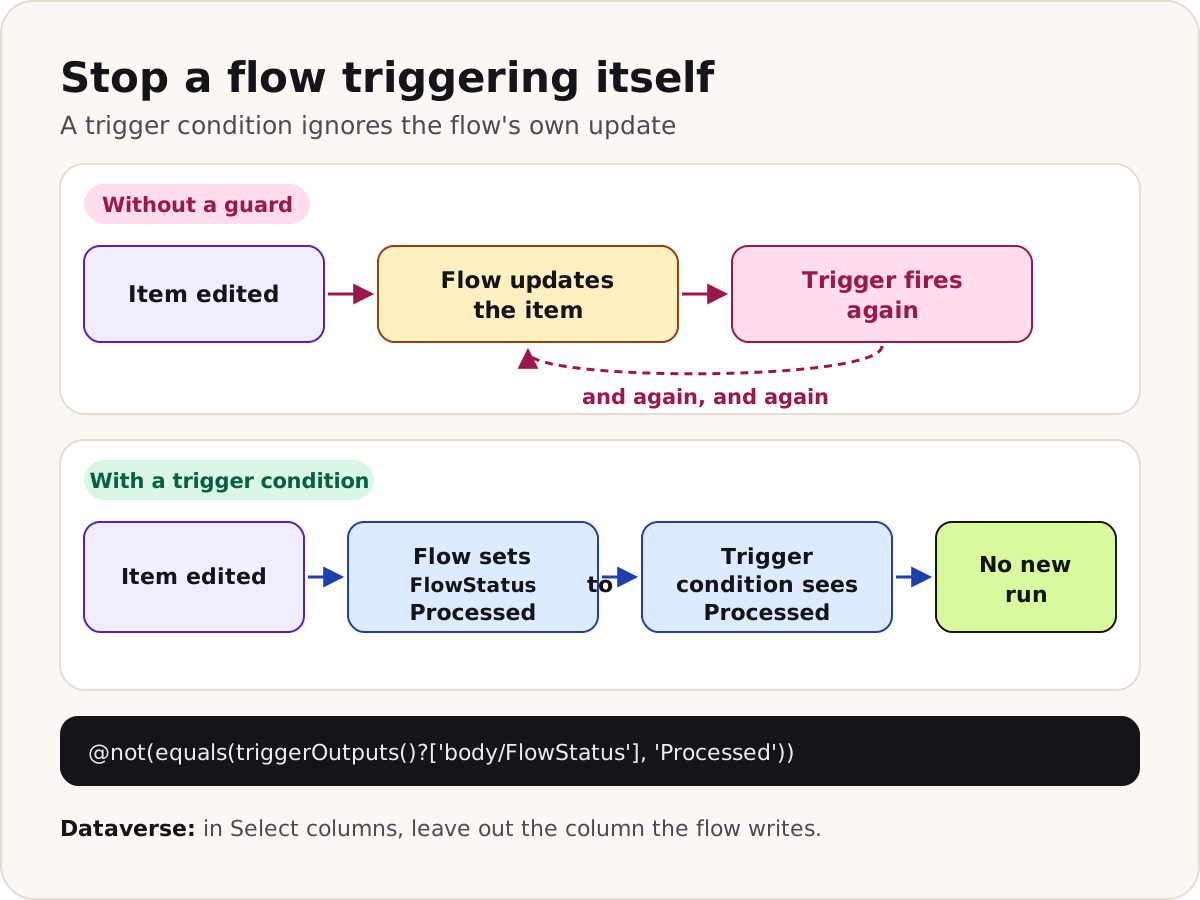
Short answer: Make the trigger ignore the flow's own change. Add a trigger condition that only lets an item through while the flow still has work to do, for example while a status column that only the flow writes isn't yet Processed, and have the flow set that status. On Dataverse, also limit the trigger to the columns that matter.
Work through it:
- Confirm it. Run history shows a new run straight after each update the flow makes. Power Automate may already have warned you on save: "Actions in this flow may result in an infinite trigger loop."
- Give the flow something to check. A single line of text column that only the flow writes, such as FlowStatus.
- Add the trigger condition. It turns false once the flow has set FlowStatus to Processed, so the flow's own update starts nothing.
- Decide when the status resets. If people can edit the item again later and that edit should be processed, whatever saves their edit has to clear FlowStatus.
- On Dataverse, use Select columns. List only the columns whose changes matter, and leave out the one the flow writes. Learn warns that "The flow triggers when any column in the Select columns is included as part of the update, regardless if data changed in that column", and that lookup columns "aren't supported in the Select columns filter".
- Add a backstop. Learn's anti-patterns page also suggests ending the run with Terminate whenever the flow finds the record was already handled.
On SharePoint, another option is the When an item or a file is modified trigger with Get changes for an item or a file (properties only), which reports which columns changed. The list needs versioning turned on.
@not(equals(triggerOutputs()?['body/FlowStatus'], 'Processed'))
Follow-up they may ask: "Why not test the status with a Condition action inside the flow?" Every extra run would still start and count its actions. A trigger condition stops it before it starts.
21. Get items returns 100 rows, but the list has 12,000. What's wrong?
Short answer: Nothing is broken. Get items returns 100 items unless you ask for more. Top Count raises a single request to 5,000 at most. Beyond that, switch on Pagination and give it a threshold big enough for the whole list; the most it allows is 100,000 items, or 5,000 on the Low performance profile. And filter at the source, on indexed columns, so you fetch only what you need.
Work through it:
- Check the action's settings: Top Count and Pagination.
- Filtering a list of more than 5,000 items? Switch on pagination as well. Learn's Get items guidance lists a known limitation: "no records are returned if there are no items matching the filter query in the first 5000 items". Its fix is to enable pagination.
- Filter in Filter Query, not afterwards. Use the columns' internal names, and index the columns you filter on.
- Count the cost. Every page that pagination fetches is one more request against your daily allowance.
- Past 100,000 items, or 5,000 on the Low profile, Microsoft's advice is to spread the work across several runs.
- Question the design. If the flow only needs items that are new or edited since it last ran, use the When an item is created or modified trigger instead, and there's no list to page through. Learn's SharePoint connector page says Power Automate checks the list for changes at intervals, so one run "may gather more than one change".
Status eq 'Open' and Modified ge '2026-10-01'
Follow-up they may ask: "Now it fails with a message that the operation exceeds the list view threshold. Why?" Learn's troubleshooting page ties this error to Get items covering more than 5,000 items. The fixes it lists: an OData filter, on an indexed column, or a Top Count of 5,000 with pagination turned on.
Read more: Get more than 5,000 SharePoint items in Power Automate and OData filter query cheat sheet for SharePoint, Dataverse and SQL Server
22. A nightly flow failed for a week and nobody noticed. What do you change?
Short answer: Stop relying on Power Automate's own emails. Add alerting you control: a Catch path that notifies a shared mailbox or channel with a link to the failed run, and a regular review of failures across flows in the Power Platform admin center or Application Insights.
Work through it:
- Explain why nobody heard. Per-run failure alerts are narrow by design. Learn: an alert goes out only "If the root cause matches a known issue with a specific fix, such as a broken connection or a throttled action". Even then, alerts aren't on for every flow by default, and Learn describes a "28-day cooldown period" after each one. Everything else reaches owners in a weekly digest email, and no alert reaches admins: they're "never sent to environment admins or tenant admins".
- Add a Catch path. Notify a shared address, not one person, and include the run link.
- Watch the estate. Give someone a regular look at the Monitor experience in the Power Platform admin center, which Learn says shows every failed run "with no exclusions". Admins can also send cloud flow telemetry to Application Insights and alert on it.
- Mind the clock. After 14 days of continuous failure, Power Automate turns the flow off.
- Recover the missed work. Fix the cause, then resubmit the failed runs from run history; there's a bulk option for many runs.
Follow-up they may ask: "How would you notice a flow that stopped running altogether?" A failure alert can't fire when there's no run. Track how many runs each important flow makes and alert when the number drops.
Read more: Flow health KPIs: success rate, failure causes and hours saved
23. A loop over 10,000 rows takes hours and gets throttled. How do you speed it up?
Short answer: Do less work per row, then do it in parallel where that's safe. Filter at the source so the loop sees fewer rows, swap reshaping loops for Select and Filter array, raise Apply to each concurrency if the steps don't share variables, and use batch or bulk operations for large writes. For heavy data jobs, Microsoft suggests a dataflow rather than a flow.
Work through it:
- Check the plan first. On the Low performance profile, which covers Microsoft 365 plans, Apply to each stops at 5,000 items, so a 10,000-row loop fails outright.
- Count the actions. Three actions inside a loop over 10,000 rows use 30,001 actions for the loop alone, most of a Premium user's 40,000 a day after the transition period.
- Filter at the source with Filter Query and Top Count, so the loop sees only the rows that need work.
- Replace reshaping loops with Select and Filter array.
- Raise concurrency up to 50 for independent steps. Higher isn't automatically quicker: Microsoft's parallel execution guidance notes that dividing the work and waiting on the target service both cost time.
- Write in bulk. SharePoint accepts batch requests. Dataverse bulk operations, such as CreateMultiple, are carried out as one operation.
Follow-up they may ask: "After you raised concurrency, the totals came out wrong. Why?" The parallel passes were setting the same variable, each from a value that another pass may already have changed. Run that loop one item at a time, or work out the totals after the loop from the array itself.
Read more: Dynamic content missing? Parse JSON, nested arrays and loops explained
Behavioural questions
These ask for evidence from your own work. Keep each story short: what the situation was, the part you played and why, and the result, measured if you can. The outlines below are made up to show the structure; swap in your real work and figures when you answer.
24. Tell me about a flow you built that saved people time.
Short answer: Choose a flow whose effect you can show in numbers. Say what people did by hand before, which design choices kept the flow reliable, and how you worked out the time it saves.
Example outline (made up for this page):
- Context: purchase requests arrived by email and waited days for a decision.
- What you did: a SharePoint list as the single intake, an approval with a timeout and an escalation path, the outcome written back to the request, and the flow in a solution with a service account as owner.
- What changed: your own figures. If you estimated the hours saved, show the working: the minutes each case took by hand, times the number of successful runs, less the time now spent on cases the flow can't handle.
Follow-up they may ask: "How do you know it's still working?" Name the checks: success rate per flow, failure alerts you control, and a regular look at run history.
Read more: Flow health KPIs: success rate, failure causes and hours saved
25. Tell me about a time a flow failed in production.
Short answer: Show the order you worked in: contain the damage, find the cause, fix it, then stop it happening again. A strong answer also covers who you told and how you recovered the work the flow missed, not only the fix.
Example outline (made up for this page):
- Context: at month end, an invoice flow started failing with 429 errors.
- What you did: confirmed throttling in run history, filtered at the source and replaced a loop with Select to cut the calls, lowered concurrency, added a Catch path with alerts, and resubmitted the failed runs.
- What changed: your own figures, such as failures before and after, and how quickly the next problem was spotted.
Follow-up they may ask: "What would you change if it happened again?" Name one concrete change, for example load-testing with month-end volumes before go-live, or switching on failure alerts from the first release.
Read more: Cloud flow error codes: what each one means and how to fix it
What changed in 2026
An interviewer may check that your knowledge is current. Give the status Microsoft shows, and say "preview" where it applies; Microsoft's preview notices say "Preview features aren't meant for production use".
26. What's new in Power Automate that you'd mention?
Short answer: New flows open in the new designer, and the classic designer now gets only security and critical fixes. Copilot can draft a flow from a description and help fix errors, while the expression assistant and generative actions are still in preview. The mobile app was deprecated on 31 August 2026, and Microsoft's 2026 release wave 1 plan says release plans stopped in September 2026, with new capabilities moving to the AI at Work roadmap.
In more detail:
- Designer: Microsoft has set no retirement date for the classic designer and says it will give notice. Copilot works only in the new designer; it's on by default, and admins can turn it off.
- Copilot: troubleshooting with Copilot in the designer has been generally available since 15 September 2025. The expression assistant is in preview, and generative actions are in preview with a limited list of connectors.
- Mobile app: since 31 August 2026 it's out of the app stores and unsupported, and push notifications from Send me a mobile notification no longer arrive in it. Microsoft suggests Teams or email instead. Existing flows keep running.
- Release wave 1 of 2026: sharing Process licence capacity across workflows became generally available on 30 July 2026. For desktop flows, version control and comparing versions became generally available on 13 May 2026, and video logs for unattended runs entered preview on 30 April 2026.
- Copilot Studio: agent flows run on its standard harness, while its workflows run on the GitHub Copilot harness, and some workflow features are in preview. You can convert a cloud flow into an agent flow, but not into the workflow format. Multistage and AI approvals in agent flows are in preview.
Follow-up they may ask: "Would you build a production flow with generative actions?" Not while they're in preview (see the start of this section), and not while they work with only a limited set of connectors.
27. Which certifications cover Power Automate now?
Short answer: For makers, AB-410, Building Intelligent Applications, which replaced PL-200 when PL-200 retired on 31 August 2026. Its largest area, at 40 to 45%, is business logic and automation, including cloud flows. For developers, PL-400 becomes AB-400 on 16 October 2026, with a skill area for Power Automate cloud flows and Copilot Studio workflows. The RPA developer exam, PL-500, retired on 30 June 2026.
In more detail:
- AB-410, Create cloud flows: recommending triggers, evaluating connectors, managing approvals, configuring actions, conditions and loops, and testing and troubleshooting flows.
- AB-400, Configure Power Automate cloud flows and Copilot Studio workflows: complex expressions, flow control including error handling, trigger filters and retry policies, child flows, and service principal authentication for the Dataverse connector. The change log marks this area as a major change from PL-400.
- Mid-way through PL-400? Its study guide gives 16 October 2026 as the last day to register, and 30 October 2026 as the last day for registered candidates to sit it.
- Earlier certificates: Microsoft's Partner Center announcements for August 2026 say: "If you completed a retiring certification before its retirement date, your certification remains valid for one year."
- Preview topics: both study guides say most questions cover generally available features, but preview features can appear if they're commonly used.
Follow-up they may ask: "Do you hold the RPA certification?" If you do, say when you earned it: PL-500, the RPA developer exam, retired on 30 June 2026. Either way, point to desktop flow work you've actually delivered.
Before the interview
- Practise on a SharePoint list that has grown past 5,000 items: give the flow a trigger condition, read the list with Get items and pagination on, and filter with a Filter Query on an indexed column.
- Wrap its work in Try, Catch and Finally scopes. Make it fail on purpose and read
result('Try')in the run history. - Package the flow in a solution with a connection reference and an environment variable, then import the solution into another environment.
- Call a child flow that returns a status, and time how long a caller waits for the response.
- If the role includes RPA, run a desktop flow from a cloud flow, attended and then unattended.
- Rehearse the two behavioural answers above with your own projects: a flow that saved time, and one that failed in production.
- Work through the skills list for AB-410 or AB-400, whichever fits the role (question 27), and look over the AI at Work roadmap.
- Bring questions of your own, for example who owns flows in production, how a flow reaches production, how failures get noticed, and whether makers have premium licences.
The answers reflect Microsoft's documentation as of 13 October 2026. The expressions follow Microsoft's documented syntax and weren't run for this page.
Sources
- Overview of cloud flows (Microsoft Learn)
- Triggers in Power Automate cloud flows (Microsoft Learn)
- Limits of automated, scheduled, and instant flows (Microsoft Learn)
- Types of Power Automate licenses (Microsoft Learn)
- Power Automate licensing FAQ (Microsoft Learn)
- Get started with approvals: licences and approval types (Microsoft Learn)
- Impact of data policies on apps and flows (Microsoft Learn)
- Agent flows overview (Microsoft Learn)
- Agent flows in Copilot Studio FAQ (Microsoft Learn)
- Harnesses in Copilot Studio (Microsoft Learn)
- Optimize Power Automate triggers (Microsoft Learn)
- Customize your triggers with conditions (Microsoft Learn)
- Troubleshoot Power Automate trigger problems and errors (Microsoft Learn)
- Troubleshoot cloud flow errors (Microsoft Learn)
- Fix connection failures in cloud flows (Microsoft Learn)
- Trigger flows when a row is added, modified, or deleted (Microsoft Learn)
- Dynamic content picker missing dynamic content from previous steps (Microsoft Learn)
- Power Automate FAQ: Copilot in cloud flows (Microsoft Learn)
- Reference guide to functions in expressions for workflows (Microsoft Learn)
- Expression cookbook for cloud flows (Microsoft Learn)
- Getting errors with null fields (Microsoft Learn)
- Customize or format date and time values in a flow (Microsoft Learn)
- Convert a time zone (Microsoft Learn)
- Run a cloud flow on a schedule (Microsoft Learn)
- Custom date and time format strings (Microsoft Learn)
- Store and manage values in variables (Microsoft Learn)
- Optimize flows with parallel execution and concurrency (Microsoft Learn)
- Run loops to repeat actions in workflows for Azure Logic Apps (Microsoft Learn)
- Approvals known issues (Microsoft Learn)
- Troubleshoot slow running flows: plan summary (Microsoft Learn)
- Cloud flow error code reference (Microsoft Learn)
- Work with data operations (Microsoft Learn)
- Shape data in workflows for Azure Logic Apps: Parse JSON (Microsoft Learn)
- Avoid anti-patterns (Microsoft Learn)
- Employ robust error handling (Microsoft Learn)
- Use scopes to organize actions in cloud flows (Microsoft Learn)
- Handle workflow errors and exceptions in Azure Logic Apps: run after and retry policies (Microsoft Learn)
- Schema reference for trigger and action types: Terminate (Microsoft Learn)
- Check workflow status and view run history in Azure Logic Apps (Microsoft Learn)
- Create child flows (Microsoft Learn)
- Differences between flow approval actions (Microsoft Learn)
- Create an approval flow that requires everyone to approve (Microsoft Learn)
- Manage sequential approvals: Approve and Reject are case-sensitive (Microsoft Learn)
- Create parallel approval workflows (Microsoft Learn)
- Understand the benefits of solution-aware cloud flows (Microsoft Learn)
- Create environment variables (Microsoft Learn)
- Import solutions (Microsoft Learn)
- Missing dependencies error during solution import (Microsoft Learn)
- Change the owner of a cloud flow (Microsoft Learn)
- Share a cloud flow (Microsoft Learn)
- Restore deleted flows (Microsoft Learn)
- Run unattended desktop flows (Microsoft Learn)
- Troubleshoot desktop flow run queue errors (Microsoft Learn)
- Trigger desktop flows from cloud flows (Microsoft Learn)
- Manage machine groups (Microsoft Learn)
- Manage machines (Microsoft Learn)
- Monitor desktop flow queues (Microsoft Learn)
- Fix Failed to Get UI Element or Failed to Get Window Errors (Microsoft Learn)
- Automate using UI elements (Microsoft Learn)
- Microsoft SharePoint connector in Power Automate (Microsoft Learn)
- Working with Get items and Get files (Microsoft Learn)
- Understand flow failure notifications (Microsoft Learn)
- Troubleshoot a cloud flow: resubmit a run (Microsoft Learn)
- Cancel or resubmit flow runs in bulk (Microsoft Learn)
- Classic designer vs. new designer for cloud flows (Microsoft Learn)
- Troubleshoot Copilot in cloud flows designer, 2025 release wave 1 (Microsoft Learn)
- Create, update, and fix expressions with Copilot expression assistant (preview) (Microsoft Learn)
- Use generative actions in cloud flows (preview) (Microsoft Learn)
- Important changes coming in Power Platform: Power Automate mobile app (Microsoft Learn)
- What's new and planned for Power Automate, 2026 release wave 1 (Microsoft Learn)
- What's new in Copilot Studio (Microsoft Learn)
- Multistage and AI approvals in agent flows (preview) (Microsoft Learn)
- Study guide for Exam PL-400, moving to AB-400 (Microsoft Learn)
- Study guide for Exam AB-400 (Microsoft Learn)
- Study guide for Exam AB-410 (Microsoft Learn)
- Exam and assessment lab retirement (Microsoft Learn)
- Partner Center announcements, July 2026 (Microsoft Learn)
- Partner Center announcements, August 2026 (Microsoft Learn)
Was this helpful?
Comments
No comments yet. Share what worked for you.
Sign in to comment. Comments show under a display name you choose, never your email.