Power Apps interview questions (2026): clear answers, examples and follow-ups
Power Apps interview questions for 2026, each with a 30-second answer, the detail a strong answer adds and a likely follow-up. Covers delegation, forms, performance, ALM, scenario and behavioural questions, and what changed in 2026.
Power AppsQuick reference45 min read
You have a Power Apps interview coming up. You want to know which questions to expect, and what a good answer sounds like when the interviewer pushes for more.
This page covers 26 questions for Power Apps maker and developer roles, grouped by topic. Every answer follows the same pattern:
- Short answer: what to say in about 30 seconds.
- In more detail: the why, the edge cases, and what a strong candidate adds.
- An example where one helps: a Power Fx formula or a small worked scenario.
- Follow-up they may ask: the likely next question, with a one-line answer.
These aren't any company's own questions. The answers follow Microsoft's documentation, and the formulas use Microsoft's documented syntax; they weren't run for this page.
Note
Checked against Microsoft Learn on 13 October 2026. Exams, Copilot features and preview labels change often, so each answer gives the status Microsoft showed on that date.
- Give the short answer
- Explain why
- Show an example
- Name the trade-off
- Expect the follow-up
Fundamentals
1. What's the difference between a canvas app and a model-driven app?
Short answer: The difference is who designs the screens. In a canvas app, you do: the layout and the Power Fx behind each control are yours, and the data can come from Dataverse or many other sources through connectors. In a model-driven app, you add forms, views and dashboards to Dataverse tables, and Power Apps decides much of the layout and the navigation. Canvas suits one focused task or a custom layout; model-driven suits record-heavy work on Dataverse.
In more detail:
- Where the data lives can rule one option out. A model-driven app needs Dataverse, so data that has to stay in SharePoint or SQL Server means a canvas app.
- Microsoft's comparison lists model-driven apps as responsive and accessible automatically. A canvas app is only responsive and accessible if you design it that way.
- The same comparison rates app consistency high for model-driven apps and often low for canvas apps. Turn that into a question for the employer: how many apps will the same people use, and who keeps them consistent?
- A strong answer mentions support. Model-driven apps are assembled in no-code designers, so a successor can mostly see how one works without reading code. A canvas app's logic is spread across formulas on its controls, so plan from the start how someone else will follow it: consistent control names and reusable components.
Follow-up they may ask: "Can one solution use both?" Yes. Office staff might work in a model-driven app while field workers use a canvas app on their phones, and both apps read and write the same Dataverse tables.
Read more: Canvas app or model-driven app? A decision guide
2. What's the difference between a behaviour formula and a data formula?
Short answer: Most Power Fx formulas calculate a value and recalculate on their own when their inputs change, like cells in Excel. Behaviour formulas sit on properties such as OnSelect and OnVisible. They run when something happens, and they change the app's state: they navigate, save data or set a variable.
In more detail:
- Functions that change state, such as Navigate, Patch, Set, UpdateContext and Collect, work only in behaviour properties. Put one in a property like Text or Visible and Studio flags an error.
- In a behaviour formula, actions joined with semicolons run in order, each after the one before it.
- A strong candidate says they prefer formulas that recalculate over variables they must remember to update. Microsoft's guidance on variables makes the same point: think about how you'd do it in Excel first.
// Data formula on a label's Color property: recalculates by itself
If(Value(txtAmount.Text) > 1000, Color.Red, Color.Black)

// Behaviour formula on a button's OnSelect: runs once per select, in order
Set(varLastSaved, Now()); Navigate(scrHome, ScreenTransition.Fade)
Follow-up they may ask: "Can you call Set in a label's Text property?" No. Set is a behaviour function, so it only works in the On... properties.
3. When do you use Filter, Search or LookUp?
Short answer: Filter returns every record that meets one or more conditions. Search returns records where a piece of text appears anywhere in the columns you name. LookUp returns only the first matching record, or a single value from it.
In more detail:
- Filter and Search return a table, which is empty if nothing matches. LookUp returns a record, or blank.
- Search ignores case, and an empty search string returns every record, which suits a search box.
- LookUp's optional third argument reduces the record to one value, such as a single column.
- The strong answer adds delegation. Search isn't delegable on SharePoint, but it is on text columns in Dataverse and SQL Server. On SharePoint, StartsWith inside a Filter is the delegable alternative.
// Every open request for the selected site: a table
Filter(Requests, Site = drpSite.Selected.Value, IsClosed = false)

// Requests with the search text anywhere in Title or Notes: a table
// (delegable on Dataverse and SQL Server text columns, not on SharePoint)
Search(Requests, txtSearch.Text, Title, Notes)

// The title of the first matching request: a single value
LookUp(Requests, RequestNumber = txtNumber.Text, Title)
Follow-up they may ask: "The search box must find a word in the middle of a title, on a SharePoint list of 20,000 items. What now?" StartsWith can't do that and Search won't delegate, so either narrow the list first with a delegable filter or move the data to Dataverse. Question 18 walks through it.
Read more: Delegation cheat sheet: what works on SharePoint, Dataverse and SQL Server
Data and delegation
4. What is delegation, and what is the data row limit?
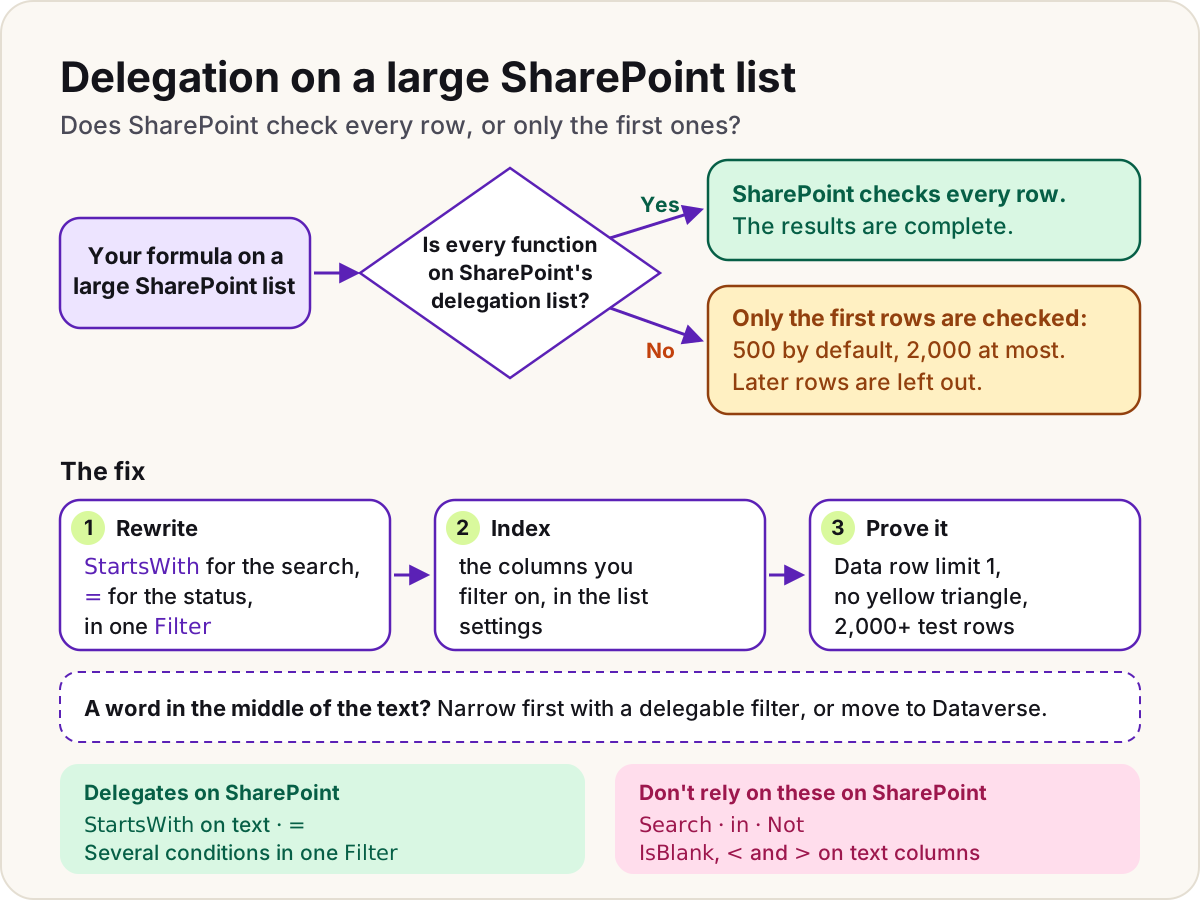
Short answer: Delegation means the data source runs the query and sends back only the matching rows. If any part of a formula can't be delegated to that source, the app receives only the source's first 500 rows, or up to 2,000 if you raise the data row limit, and works through that partial set itself. Rows past that point are left out of the result.
In more detail:
- It's all or nothing. One non-delegable function makes the whole query run on the device.
- The limit is in Settings > General > Data row limit: 500 by default, 2,000 at most. Raising it only delays the problem, and Microsoft notes that a higher limit can slow the app.
- Studio marks non-delegable formulas with a yellow warning triangle and a blue underline, but only for data sources that support delegation, and Learn notes that not every non-delegable case shows the warning. Data already in the app, such as collections, tables in variables and static Excel data, needs no delegation and shows no warning.
- A control's value or a variable is fine inside a delegated query. It doesn't depend on any column, and Learn lists such values among the parts of a formula that can be delegated.
- Each data source that supports delegation documents what it can delegate. SharePoint's list is shorter than Dataverse's: Search,
inand Not aren't on it, for example.
- Check the connector's delegation list
- Look for the yellow triangle
- Set the data row limit to 1
- Test with more than 2,000 rows
- Confirm the calls in Live monitor
Follow-up they may ask: "Why set the row limit to 1?" A gallery that should list hundreds of records then shows a single one, so a formula that isn't delegated stands out the first time you open the screen. Microsoft recommends it for exactly that reason.
Read more: Delegation in Power Apps: why your gallery stops at 500 rows
5. How do you choose between Dataverse and SharePoint for an app's data?
Short answer: SharePoint lists suit simple, flat data, modest volumes, and users who already have Microsoft 365. Dataverse suits related tables, large volumes, record-level security, rules that must always hold, and proper deployment with solutions. The trade-off is cost, because Dataverse makes the app premium.
In more detail:
- Delegation: Dataverse delegates more, including Search and
inon text columns. On SharePoint, Search isn't delegable, so a "contains" search on a big list leaves rows out. - Security: Dataverse has security roles, business units, teams and column-level security. SharePoint relies on site, list and item permissions.
- Licensing: Microsoft's licensing FAQ lists premium connectors and Dataverse among the features that need a premium licence, and users of a premium app need a per app or per user plan. A strong candidate also knows that an app's licence designation doesn't count premium connectors used inside a flow the app calls.
- A good answer asks how big the data will be in two years, not how big it is today.
Follow-up they may ask: "The client won't pay for premium licences. What do you do?" Design for SharePoint from day one: index the columns you filter on, keep every formula delegable, and agree the size at which a move to Dataverse should be reconsidered.
Read more: Dataverse or SharePoint lists? An honest comparison
6. When should you load data into a collection, and when shouldn't you?
Short answer: Use a collection for small data that the user changes or calculates on many times before saving, such as a basket or a draft list of lines. Don't copy large, read-only tables into collections. ClearCollect can't be delegated, so it copies at most the data row limit, and the screen waits until it finishes.
In more detail:
- Collect and ClearCollect are on Microsoft's list of functions that can't be delegated, so a ClearCollect of a whole 10,000-row list gets only the first 500 rows, or up to 2,000 if you raised the limit.
- Microsoft's performance guidance says read-only data is best read straight from the source, and that collections suit small data you work on repeatedly.
- The same guidance puts the cost of starting a flow at about 0.6 seconds per call, so filling collections through Power Automate slows the app down quickly.
- SaveData and LoadData suit small things such as preferences. For real offline work with larger data, Microsoft points to the offline feature for Dataverse.
// Capped at the data row limit: ClearCollect can't be delegated
ClearCollect(colRequests, Requests)

// Better: let the data source do the filtering, then copy only this user's open requests.
// Complete only while the filtered result fits within the data row limit.
ClearCollect(colMyOpen, Filter(Requests, AssignedToEmail = User().Email, IsClosed = false))
Follow-up they may ask: "Do collections show delegation warnings?" No. A collection is already in memory, so formulas that use it show no delegation warning, even if it was capped when it was filled.
Read more: Delegation in Power Apps: why your gallery stops at 500 rows
Formulas, variables and forms
7. Global variables, context variables, collections and named formulas: when do you use each?
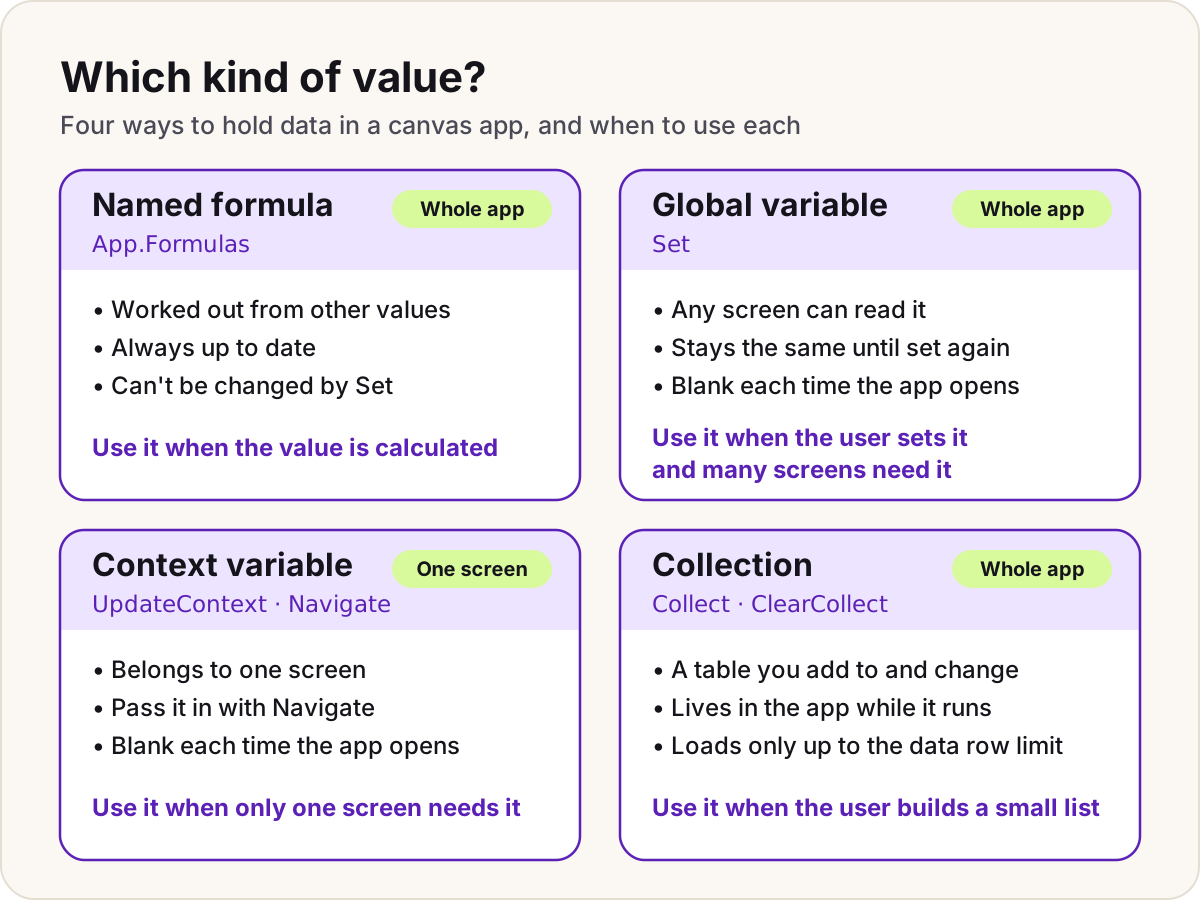
Short answer: A global variable, set with Set, holds a value every screen can read. A context variable, set with UpdateContext or passed with Navigate, belongs to one screen. A collection holds a table you add to and change. A named formula in App.Formulas is a value defined once by a formula, which Power Apps keeps current as its inputs change; prefer one to a variable for any value you can derive rather than store.
In more detail:
- Variables live only while the app runs, and they start blank every time it opens.
- Set and UpdateContext don't recalculate. If the source changes, the variable stays the same until something sets it again. Named formulas recalculate automatically and are only worked out when something needs them.
- A named formula can't call behaviour functions, and nothing else in the app can assign it a value. State that an action sets, such as whether a side panel is open, still belongs in a variable.
- Context variables suit passing a record into a details screen with Navigate.
- The Variables pane in Studio shows where each variable is set and used, which helps when you take over someone else's app.
// App.Formulas: calculated when needed, always current, can't be changed elsewhere
UserEmail = User().Email;

// A dropdown's OnChange: a global variable every screen can read
Set(varRegion, drpRegion.Selected.Value)

// A button's OnSelect: open the details screen and pass the record as a context variable
Navigate(scrDetails, ScreenTransition.Fade, { locRequest: galRequests.Selected })

// A basket the user builds up: a collection
Collect(colBasket, { Item: galProducts.Selected.Name, Qty: 1 })
Follow-up they may ask: "Why not put everything in App.OnStart?" Learn warns that logic in OnStart can slow the app's loading. With non-blocking OnStart, the default, the first screen doesn't wait for it to finish, so a label that reads a variable set there can be blank at first. Microsoft recommends named formulas for cached values and App.StartScreen to choose the first screen. Question 13 covers this.
Read more: Named formulas and components: a structure that scales
8. SubmitForm or Patch: which do you use for a complex form?
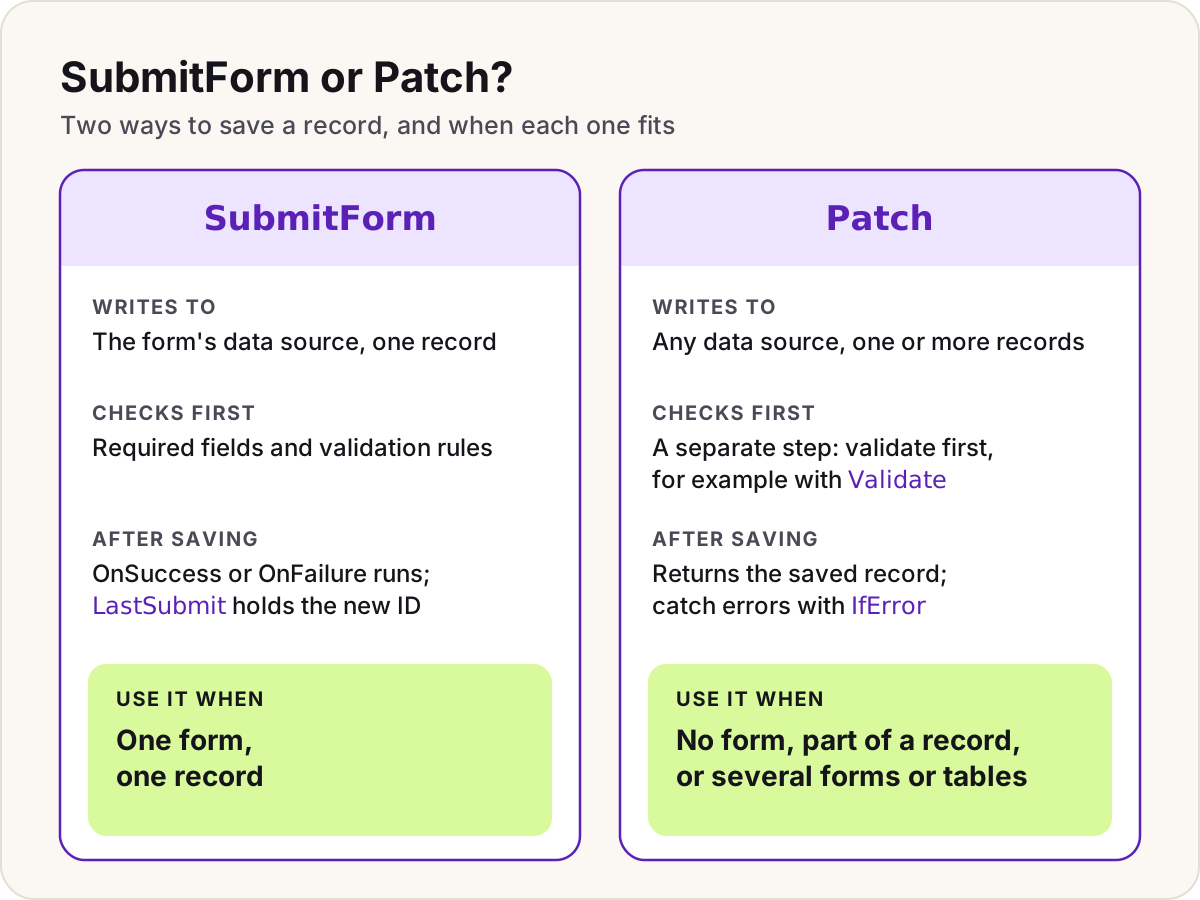
Short answer: Use SubmitForm with an Edit form control when one form maps to one record. It checks required fields and validation rules, writes the record, and then runs the form's OnSuccess or OnFailure. Use Patch when the save doesn't fit one form: no form control, only some columns, several forms or tables, or a custom save step.
In more detail:
- SubmitForm validates before it writes. With Patch, validation is a separate step: Learn's data sources guidance checks the record first, for example with the Validate function, then writes it with Patch and catches errors with IfError.
- After a successful SubmitForm, the form's LastSubmit property holds the saved record, including values the server created, such as a new ID. Use it in OnSuccess.
- A form's Updates property returns its field values as a record, so you can save a form with Patch and keep the cards' mapping.
- Patch accepts several change records and applies them in order, so two forms can become one record.
- Patch is also how you save a parent record and then its children: Patch the parent, read its new key from the result, then Patch the related records.
The examples use a SharePoint list called Requests:
// Save button: one form, one record
SubmitForm(frmRequest)

// frmRequest.OnSuccess: LastSubmit includes server-generated values such as the new ID
Notify("Request " & frmRequest.LastSubmit.ID & " saved", NotificationType.Success);
Navigate(scrRequests, ScreenTransition.Fade)

// frmRequest.OnFailure: Error holds a message the user can act on
Notify(frmRequest.Error, NotificationType.Error)
// Two forms, one new record: Patch applies both sets of Updates in order
IfError(
    Patch(Requests, Defaults(Requests), frmDetails.Updates, frmCosts.Updates),
    Notify("Not saved: " & FirstError.Message, NotificationType.Error),
    Navigate(scrRequests, ScreenTransition.Fade)
)
Follow-up they may ask: "Where does the new record's ID come from after SubmitForm?" From the form's LastSubmit property, which is available in OnSuccess.
Read more: Patch a SharePoint Person column from Power Apps, plus Choice and Lookup columns
9. What do With and Concurrent do?
Short answer: With gives names to values inside a single formula, like local variables that disappear when the formula ends. Concurrent runs several behaviour formulas at the same time, so independent data calls don't wait for each other.
In more detail:
- Microsoft recommends With over context or global variables for in-between values. It's self-contained, and it works in any formula, not only in behaviour properties.
- With is handy for holding a result, such as the record Patch returns, long enough to use it again.
- Concurrent helps only when the calls are independent. You can't predict the order in which they finish, and Studio shows an error if one formula inside depends on another inside.
- Concurrent works only in behaviour formulas, and it doesn't promise true parallelism: the device or browser decides how many of the calls actually overlap.
- Microsoft's performance guidance warns that loading many data sources at once can cause timing and throttling problems.
// With: look up the record once and use it twice, without leaving a variable behind
With(
    { r: LookUp(Requests, RequestNumber = txtNumber.Text) },
    r.Title & " (" & r.Site & ")"
)

// Concurrent: two small, independent lookups loaded at the same time
Concurrent(
    ClearCollect(colRegions, Regions),
    ClearCollect(colCategories, Categories)
)
Follow-up they may ask: "Concurrent or named formulas for start-up data?" Prefer named formulas: Power Apps works them out when they're needed and can calculate them in parallel without your help. Keep Concurrent for behaviour work that must run at a set moment.
10. How do you handle errors in a canvas app?
Short answer: Catch errors where they happen with IfError, tell the user something useful with Notify, and use App.OnError as the catch-all that reports or logs anything you didn't handle. Patch returns an error you can test with IfError, and the Errors function lists a data source's errors after a change.
In more detail:
- A failed Patch in a chain of actions doesn't stop the next one: the next action is still attempted. IfError lets you stop at the first failure.
- Inside IfError and App.OnError, FirstError and AllErrors give you the message, the kind of error, and where it came from.
- App.OnError runs after the error has happened, so it can't swap in a different value; it decides how the error is shown or logged. Use it to log with Trace, and rethrow with
Error(FirstError)if you still want the standard banner. - These functions rely on formula-level error management. It's on by default for new apps; in older apps, check Settings > Updates > Retired.
- For forms, use the form's OnFailure and Error properties rather than wrapping SubmitForm.
// App.OnError: record every unhandled error in Live monitor, then show the usual banner
Trace(
    "Unhandled error: " & FirstError.Message,
    TraceSeverity.Error,
    { source: FirstError.Source }
);
Error(FirstError)
Follow-up they may ask: "Where do Trace messages go?" To Live monitor while the app runs, and to Application Insights if the app is set up to send telemetry there.
11. What are user-defined functions, and when would you write one?
Short answer: They're functions you define in App.Formulas and then call from formulas across the app, the way you call Switch or Filter. Reach for one when you find yourself pasting the same logic into several controls with only the inputs changed. Microsoft announced them as generally available in September 2025.
In more detail:
- Types aren't optional: be ready to write a signature such as
StatusLabel(Status: Text): Texton a whiteboard. - Know the behaviour form too: the body sits inside curly braces, as in
ShowWarning(Msg: Text): Void = { Notify(Msg, NotificationType.Warning) };. Only that form can set variables or show messages, andVoidsays the function returns nothing. - Two limits to name if asked: a function can't call itself yet, and a record argument with an extra field causes an error.
- They depend on the new analysis engine, which Microsoft's announcement says is on by default for new apps.
// App.Formulas
StatusLabel(Status: Text): Text =
    Switch(Status, "New", "Waiting for review", "Blocked", "Needs your help", Status);

// A label in a gallery
StatusLabel(ThisItem.Status.Value)
Follow-up they may ask: "Can Copilot explain a formula that calls your function?" Don't count on it. Learn lists user-defined functions as something the formula bar's Copilot doesn't recognise.
Read more: Named formulas and components: a structure that scales
12. Why build components in a component library?
Short answer: A component library lets many apps reuse the same header, menu or badge. Every app that uses the library stays tied to it and is offered the update when a component changes, and the library itself travels between environments inside a solution. A component built inside one app is restricted to that app, and importing components from one app into another is a retired feature.
In more detail:
- Design each component around input and output properties. Components in a library can never reach an app's variables, collections or controls, which keeps them reusable.
- Editing a library component from inside an app forks it: the app gets its own copy, and later library releases skip that copy. To stop makers forking a component that must stay standard, switch off its customization setting in the library, which starts switched on.
- Only published versions of a library reach the apps that use it.
- Known limits worth naming: flows aren't supported in component libraries, components can't go inside a gallery or a form, and components don't support UpdateContext.
Follow-up they may ask: "What's the difference between a canvas component and a code component?" A canvas component is built from controls and Power Fx. A code component, built with the Power Apps component framework, is written in code by a developer, and code components aren't supported inside component libraries.
Read more: Named formulas and components: a structure that scales
Performance and layout
13. An app is slow to start. Where do you look first?
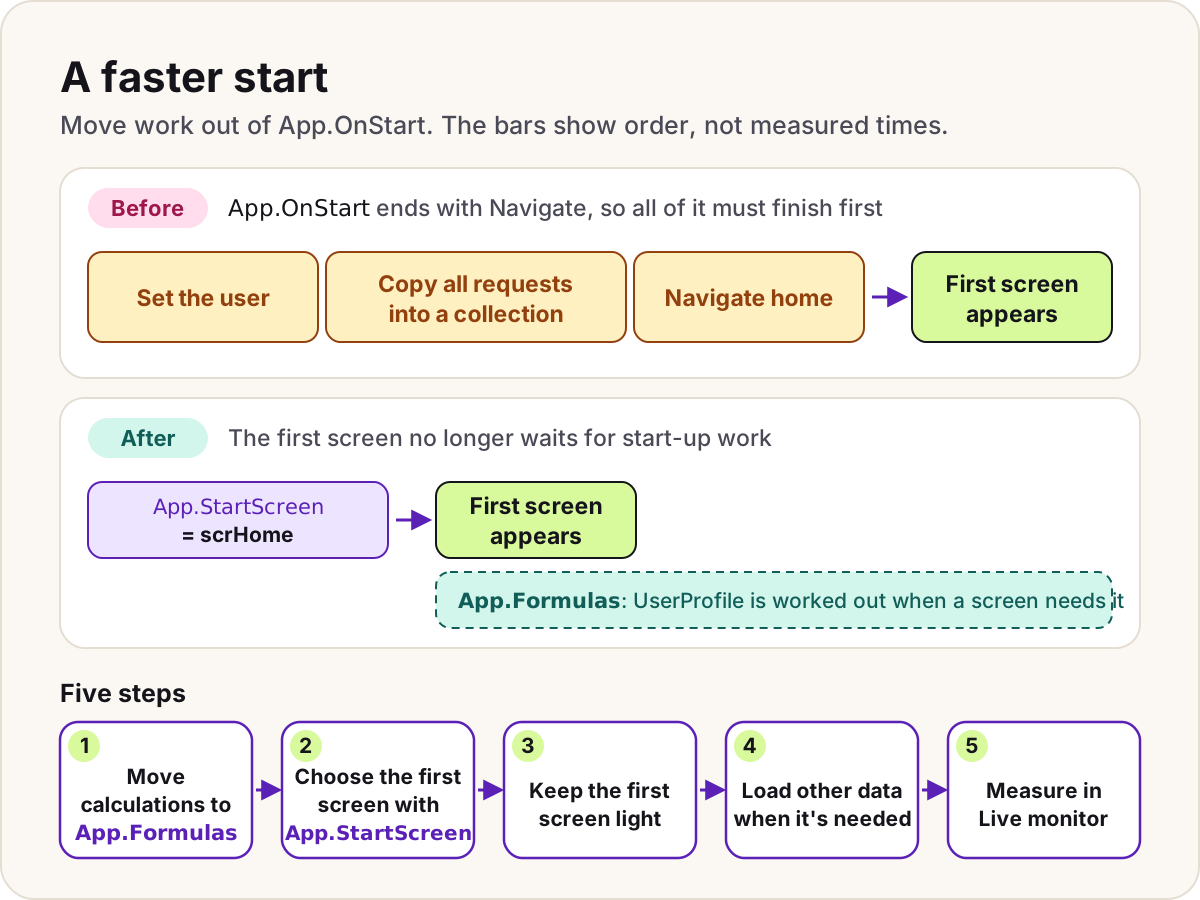
Short answer: App.OnStart. Learn warns that logic in OnStart can slow the app's loading, and Microsoft's troubleshooting table lists an overloaded OnStart first among the causes of slow loading. Move calculated values into named formulas, choose the first screen with App.StartScreen, keep that screen light, and measure with Live monitor before and after.
In more detail:
- Using Navigate in OnStart is retired, because it forces OnStart to finish before the first screen shows. App.StartScreen picks the first screen instead.
- Variables and collections created in OnStart aren't available to StartScreen. Named formulas are.
- Don't copy whole tables into collections at start-up, and don't call flows to fill them.
- Keep the first screen simple, delete unused screens, and keep references between screens low. A reference to another screen forces that screen to load too.
- Microsoft suggests a blank first screen in the tree when you use StartScreen, because the first screen is always loaded with the app.
- Tools: Advanced tools > Open live monitor shows each data call with its duration and size, and App checker flags formula, performance and accessibility issues.
- Move calculations to App.Formulas
- Choose the first screen with App.StartScreen
- Keep the first screen light
- Load other data when it's needed
- Measure in Live monitor
// Before, in App.OnStart: start-up logic that Learn warns can slow loading
// (and Navigate in OnStart is retired)
Set(varUser, LookUp(Users, 'Primary Email' = User().Email));
ClearCollect(colAllRequests, Requests);
Navigate(scrHome)

// After, in App.Formulas: worked out only when a screen needs it
UserProfile = LookUp(Users, 'Primary Email' = User().Email);

// And in App.StartScreen
scrHome
Follow-up they may ask: "The start is quick now, but one screen is slow. What do you check?" Data calls repeated for every gallery row, such as a LookUp inside a gallery, and the number of controls on the screen. Microsoft's app metrics flag screens with more than 15 controls.
Read more: Named formulas and components: a structure that scales
14. How do you make one canvas app work on a phone and a desktop?
Short answer: Turn off Scale to fit, then size and place controls with formulas based on their parent's size, ideally inside auto-layout containers that arrange their children for you. Use the screen's Size property and the app's SizeBreakpoints to change the layout at different widths, and test on real devices.
In more detail:
- With Scale to fit on, which is the default, the whole layout scales to the device, so a phone layout looks oversized in a browser.
- Use
Parent.WidthandParent.Heightinstead of fixed numbers. Dragging a control afterwards replaces its formulas with fixed values. - Inside a gallery template, use
Parent.TemplateWidthandParent.TemplateHeight. - The screen's Size property returns ScreenSize.Small to ScreenSize.ExtraLarge by comparing the width with App.SizeBreakpoints. For tablet and web apps, the defaults are 600, 900 and 1200.
- The authoring canvas doesn't respond to these formulas, so publish the app and test it on devices and at different browser widths.
- Modern controls and themes, based on Fluent 2, are switched on under Settings > Updates > New. Microsoft defines features on the New tab as generally available, though some individual modern controls, such as Table, are still labelled preview.
// Both containers sit directly on the screen, so Parent is the screen and Parent.Size works
// A side panel that only appears on wider screens
conSidePanel.Visible: Parent.Size >= ScreenSize.Medium

// A card that fills the width on a phone and takes a third of it elsewhere
conCard.Width: Parent.Width * If(Parent.Size = ScreenSize.Small, 1, 1/3)
Follow-up they may ask: "Why not build a separate phone app?" Two apps double the maintenance. A separate phone screen or app makes sense only when the task on the phone is really different.
Security, ALM and governance
15. How is security different for an app on Dataverse and an app on SharePoint?
Short answer: Sharing a canvas app gives people the app, not the data. On SharePoint, the app signs in as each user, so users need permissions on the list itself, and those permissions, not the app, decide what each person can see and change. On Dataverse, security roles, business units and teams decide which records and columns each person can read or change.
In more detail:
- Hiding a button or filtering a gallery is a design choice, not security. Real restrictions belong in the data source.
- Dataverse access adds up: a user gets the broadest access any of their roles grants, so one role can't take away what another gives.
- Column-level security protects individual columns, but only for records the user can already reach.
- When you share an app that uses Dataverse, the sharing panel lets you assign security roles at the same time.
- Some connections, such as SQL Server with SQL authentication, are shared implicitly with the app, so users work through the maker's credentials. A strong candidate flags that as a risk.
Follow-up they may ask: "A user sees Dataverse records they shouldn't. Where do you look?" Their security roles, including roles they get through teams, their business unit, and any records shared with them directly.
Read more: Security roles, business units and teams without the tangle
16. How do you move an app from development to production?
Short answer: Build the app in an unmanaged solution in a development environment, then deploy it as a managed solution to test and, after testing, the same version to production. Use pipelines in Power Platform, or Azure DevOps or GitHub. Never edit in production.
In more detail:
- Managed solutions can't be edited where they're deployed, so what reaches production is exactly what passed through test.
- Pipelines deploy the solution together with its connection references and environment variables. Every stage receives the same exported artifact, one stage after another, and the pipeline keeps a copy of every deployed version.
- Every target environment of a pipeline must be a managed environment. From October 2026, the admin deployment page notifies admins when a pipeline deploys to an unmanaged target, and later deployments are blocked unless it's converted within 30 days. One 30-day extension is allowed per environment.
- If the pipeline's setting allows it, you can redeploy an earlier successful version from the run history. Microsoft warns that this overwrites the newer version and can't be undone.
- Source control: canvas apps can be stored as human-readable YAML files, a feature generally available since September 2025. Dataverse Git integration connects a development environment's solutions to Azure DevOps or GitHub. Learn's "ALM for admins and makers" page still labels it preview, GitHub support entered public preview on 31 August 2026, and it needs managed environments.
- Build in an unmanaged solution in development
- Commit to source control
- Deploy the managed solution to test
- Set environment variables and connections
- Deploy the same version to production
Follow-up they may ask: "What doesn't a solution carry?" The data in Dataverse tables. Solutions and pipelines move customisations, not table data, so plan reference data separately.
Read more: Deploy Power Platform solutions with Azure DevOps or GitHub
17. What are environment variables and connection references for?
Short answer: They hold the things that differ between environments, so the app itself doesn't change when it moves. An environment variable stores a value, such as a SharePoint site and list or a setting. A connection reference points to a connection for a connector. You supply both when the solution is imported into the next environment.
In more detail:
- Data source environment variables let a canvas app use one SharePoint site and list in test and another in production without editing the app. Turn on Automatically create environment variables when adding data sources in the app's settings, or pick existing variables on the Advanced tab when you add the data.
- Existing apps don't switch to environment variables by themselves: remove the data source and add it back.
- A changed value can take up to an hour to reach apps and flows.
- Keep the variable's definition in the solution but leave its value out, so the target environment asks for its own.
- Flows use connection references for every connector. Canvas apps use them only for implicitly shared connections, such as SQL Server authentication.
- A Secret-type environment variable reads its value from Azure Key Vault.
Follow-up they may ask: "The production app still reads the test list. Why?" Learn's troubleshooting article lists causes such as a default value used because no current value was set, and values cached in the browser for up to an hour. Its advice is to test in a new browser session and use Live monitor to see which list the app actually calls.
Read more: Fix "User is not authorized to read secrets" in Key Vault variables
Scenario questions
Scenario questions test judgement. Talk through the steps in order, say what you'd check, and name the trade-off.
18. A SharePoint list has over 5,000 rows. Build a search box and a status filter that still work.
Short answer: Use only operations SharePoint can delegate: StartsWith on the title for the search box, and = on the status, in one Filter. Index the columns you filter on, test with the data row limit set to 1, and say plainly that a "contains anywhere" search needs Dataverse or a narrower query.
Step by step:
- Check what SharePoint delegates. StartsWith on text and
=on text, numbers, dates and Choice values delegate. Learn names Search on SharePoint text columns as non-delegable, andinisn't on SharePoint's delegation list.Not, IsBlank on text, and<and>on text don't delegate either. - Write one delegable Filter. Several conditions in one Filter are combined with And, which SharePoint can delegate.
- Handle "All" without breaking delegation.
drpStatus.Selected.Value = "All"doesn't read any column of the list. Learn says parts of a formula like that "are sent to the data source as a constant and don't block delegation". - Let an empty search box show everything. StartsWith returns true when the text it looks for is empty.
- Index the columns you filter on. SharePoint Online's list view threshold is 5,000 items, and Microsoft's guidance for large lists is to filter on indexed columns. Index Title and Status in the list settings, ideally before the list grows.
- Prove it. Set the data row limit to 1 while testing, check for the yellow triangle, and test with more than 2,000 rows.
- Say what it can't do. StartsWith only matches the start of the title. If users must find a word in the middle, move the data to Dataverse, where Search and
indelegate on text columns.
// Gallery Items. Requests is a SharePoint list with a text column Title and a Choice column Status.
// drpStatus.Items: ["All", "New", "In progress", "Done"]
Filter(
    Requests,
    StartsWith(Title, txtSearch.Text),
    drpStatus.Selected.Value = "All" || Status.Value = drpStatus.Selected.Value
)
Do
Filter large SharePoint lists with StartsWith and = on indexed columns, and prove it with a data row limit of 1.
Don't
Rely on Search, ClearCollect or anything missing from SharePoint's delegation list for a large list. Past the data row limit, rows are left out without an error.
Follow-up they may ask: "The users insist on searching inside the text. What do you offer?" Ask which records they really need to search. If it's usually open or recent requests, filter on status and date first, which SharePoint can delegate, and run the "contains" search over that result. That works until the filtered result passes the data row limit; if it will, move the list to Dataverse.
Read more: Delegation cheat sheet: what works on SharePoint, Dataverse and SQL Server
19. The app calls a flow that sometimes fails. How do you handle it in the app?
Short answer: Treat the flow like any other data call. Wrap its Run in IfError, give the user a clear message, and have the flow catch its own errors and return a status through its Respond to Power Apps action. Keep the flow quick, because a synchronous call from an app times out after 120 seconds.
In more detail:
- There are two kinds of failure. The call itself fails (a connection, permission or timeout problem), or the flow runs but its work fails. IfError catches the first. A status output the flow always returns covers the second.
- Inside the flow, use try and catch scopes so it answers on both the success and the failure path.
- Anything the app passes to a flow crosses the network, where someone could read or alter it. Microsoft advises validating those values in the flow, for example checking an email address's domain before sending.
- Changing a flow's inputs, connections or response outputs can break published versions of apps that call it. For a live app, Microsoft's advice is to work on a copy of the flow, then update the app.
- Don't use flows as a data layer: each call costs about 0.6 seconds to start.
The example calls a flow named ApproveRequest and tells the user whether the call went through:
// Button OnSelect: IfError runs the second Notify only if the call returns no error
IfError(
    ApproveRequest.Run(varRequest.ID),
    Notify("Couldn't reach the approval service. Try again shortly.", NotificationType.Error),
    Notify("Request sent for approval.", NotificationType.Success)
)
Follow-up they may ask: "The flow takes four minutes. What now?" Don't make the user wait for it. Start the work from the data instead, for example with a flow triggered when the record is saved, and show progress from a status column. Microsoft also documents that actions after a flow's response action keep running past the 120-second limit, so a flow can answer the app first and finish the work afterwards. Its performance guidance also suggests server-triggered actions over flows called from the app.
Read more: Try, catch and finally: error handling with scopes and Child flows that fail well
20. Users report the app broke after a release. What do you do?
Short answer: Stabilise first, then fix. Confirm what's broken and for whom, reproduce it with Live monitor, roll back to the last good version if the impact is high, and keep users informed. Then fix the cause in development and ship the fix through the normal pipeline.
Step by step:
- Scope it. Which screens, which users, since when, and what changed in the release: the app, a flow, a data source or an environment variable.
- Reproduce it. Open Live monitor for the published app and use Connect user to watch an affected user's session. Look for failed calls, status codes such as 403 (access denied) and 429 (throttled), and slow requests.
- Check what moved with the release. A changed flow can break published apps that call it, a new environment variable value can take up to an hour to apply, and a missing security role shows up as a permission error.
- Roll back if needed. With pipelines, redeploy the previous successful version from the run history if the setting is on, knowing it overwrites the newer version.
- Communicate. Send a short message to users and the business owner: what's affected, the workaround, and when you'll update them.
- Fix forward properly. Make the fix in development, deploy it through test, and add the case to your test checklist.
- Review. Write down the cause and the change to the process, without blame.
- Scope the impact
- Reproduce in Live monitor
- Roll back or fix forward
- Tell users
- Fix in development
- Review what let it through
Follow-up they may ask: "How would you stop it happening again?" Deploy only managed solutions through a pipeline, run App checker and solution checker before each release, keep a short smoke test, and copy a flow before changing anything a live app relies on.
21. A stakeholder wants a layout that breaks on mobile. What do you do?
Short answer: Show, don't argue. Publish a quick version, open it on a phone together, and offer an alternative that keeps what they care about. Then agree the decision in writing, including who the app is for and which devices it must support.
Step by step:
- Find the real need. Ask what the layout gives them: seeing everything at once, matching a paper form, or following a brand rule.
- Make the problem visible. The authoring canvas doesn't respond to sizing formulas, so publish the app and look at it on an actual phone and at different browser widths.
- Offer options with their costs. For example, a responsive layout that stacks the same content on small screens, a separate phone screen for the field task, or a desktop-only app if no one will use it on a phone.
- Raise accessibility where it applies. If the organisation targets WCAG 2.2 AA, content that scrolls vertically has to work at a width of 320 CSS pixels without horizontal scrolling.
- Record the decision. Note the devices in scope and what was agreed.
Follow-up they may ask: "They still insist. Then what?" Build what they asked for, write the known limit into the release notes and the support handover, and keep the responsive option ready in case users run into the problem.
Behavioural questions
Behavioural questions ask what you did, not what you know. Use a short structure:
- Situation: one or two sentences of context.
- Action: what you did, and why.
- Result: what changed, with a real measure if you have one.
The outlines below are examples of the shape of a good answer, not stories to copy. Use your own projects and your own numbers.
22. Tell me about an app you're proud of.
Short answer: Pick one app with a clear before and after. Describe the problem in a sentence, the two or three decisions you made and why, and what changed for the people who used it.
Example outline (an illustration, not a real project):
- Situation: a facilities team logged repair requests by email and lost track of them.
- Action: a canvas app on a SharePoint list, with StartsWith search and indexed columns because the list would pass 5,000 items; a flow for notifications; deployment through a solution with environment variables.
- Result: your real numbers go here, such as monthly active users and how long a request now takes to log. If you didn't measure, say what you'd measure next time.
Follow-up they may ask: "What would you do differently?" Have an honest answer ready, such as setting up source control or adoption tracking from the first day.
Read more: Measuring Power Apps adoption: users, retention and time saved
23. How do you explain a technical limit to someone who isn't technical?
Short answer: Explain the effect on their work, not the mechanism, then give them choices and the cost of each. "The search will only find titles that start with what you type, unless we move the data to a different store, which costs more per user" lands better than a talk about delegation.
Example outline (an illustration, not a real project):
- Situation: a manager asked why the request app "loses" older records.
- Action: you showed that the app was checking only the first 500 rows of a large list, fixed the formulas that could be fixed, and explained the two options for the rest, with their costs.
- Result: the option they chose, and how you confirmed that every record now appears.
Follow-up they may ask: "What if they choose the option you advised against?" Put the risk in writing, build it well, and agree when you'll revisit the decision.
Read more: Delegation in Power Apps: why your gallery stops at 500 rows
What changed in 2026
These changes are recent, so state their status carefully: Microsoft says preview features shouldn't be used in production.
24. How do you use Copilot when you build apps?
Short answer: As an assistant whose work you review, not an author you trust blindly. Copilot in the formula bar can explain a formula in plain language and suggest one from a comment, and Copilot can draft an app and its Dataverse tables from a description. Check everything it produces, especially delegation and security; Microsoft itself warns that AI-generated content can be wrong.
In more detail:
- In the formula bar: Explain this formula, formulas generated from a code comment, and Create a formula, which is the one Learn labels preview. Copilot works on one property at a time and doesn't recognise user-defined functions.
- An admin must enable Copilot for the environment and tenant, and Learn notes that some Copilot features are in preview and not available in every region.
- The vibe experience, which builds a plan, data and an app together, is in preview. Learn now points makers to app building in Copilot Cowork and, soon, in Copilot Studio.
- For app users, Microsoft 365 Copilot in canvas apps has been in public preview since 13 April 2026 and needs a Microsoft 365 Copilot licence. Since 2 February 2026, a custom Copilot can no longer be added to new canvas apps.
- A strong answer gives a concrete habit, such as asking Copilot to explain an inherited formula, then checking the delegation warning yourself.
Follow-up they may ask: "Would you ship an app Copilot generated?" Only after the same review as any other app: data source and delegation, security, error handling, accessibility, and a move into a solution.
25. What are code apps and generative pages?
Short answer: Both bring code into Power Apps. Code apps are web apps written in a code editor with frameworks such as React or Vue, then hosted on Power Platform with its connectors and governance. Generative pages are React pages that AI writes from your description, and they run inside model-driven apps. Both appear in the new AB-400 developer exam.
In more detail:
- Code apps: an admin turns them on per environment. Users need a premium licence, through Power Apps Premium, pay-as-you-go, an App Pass or auto-claim. They follow managed environment policies such as sharing limits and data policies. Learn lists limits, including no Power Platform Git integration and no SharePoint forms integration. Learn's code apps overview, updated in September 2026, carries no preview label.
- Generative pages: generally available since 30 October 2025, at first in US environments only. Microsoft's release plan marks them available in any supported region from 2 April 2026, but today's Learn page limits in-browser authoring to environments in the United States, Great Britain, Australia and Singapore. Building them with AI code-generation tools, such as GitHub Copilot CLI, became generally available on 2 April 2026 and works worldwide on public clouds. You describe the page and add up to six Dataverse tables; connector data and custom APIs are in preview.
- For a canvas maker role, be honest: know what they are and when you'd suggest them, without claiming production experience you don't have.
Follow-up they may ask: "When would you choose a code app over a canvas app?" When a team of professional developers needs full control of the interface and logic in a code-first workflow. For most business apps, a canvas or model-driven app is quicker to build and to support.
26. Which certifications matter for a Power Apps role now?
Short answer: PL-600 retired on 30 June 2026 and PL-200 on 31 August 2026, and PL-400 becomes AB-400 on 16 October 2026. For makers, the replacement for PL-200 is AB-410, Intelligent Applications Builder Associate. For developers, it's AB-400.
In more detail:
- AB-400, "Extending Microsoft Power Platform Solutions with Code and AI", adds code apps, generative pages, Model Context Protocol (MCP) app widgets, Copilot Studio workflows and Microsoft Foundry agents. Its change log removes PL-400's sections on advanced canvas app features and on optimising and troubleshooting apps.
- Registration for PL-400 closes on 16 October 2026. People who register by then can take it until 30 October 2026.
- AB-410, "Building Intelligent Applications", covers Dataverse, model-driven and canvas apps, flows, and AI prompts. Its canvas skills overlap much of this page: named formulas, user-defined functions, component libraries, variables and collections, error handling, and testing with Monitor.
- For PL-600, Microsoft's partner announcements name the Agentic AI Business Solutions Architect certification, exam AB-100, as a partial replacement.
- Microsoft's partner announcement notes that a certification earned before its retirement date stays valid for a year.
Follow-up they may ask: "What does the AB-400 change tell you about the developer role?" Microsoft now expects Power Platform developers to work with code-first tools and AI agents as well as low-code, so show you can do both.
Before the interview
- Build a small canvas app on a SharePoint list of more than 2,000 rows. Set the data row limit to 1 and make every screen still work.
- Move it through a solution to a second environment, using a data source environment variable.
- Break it on purpose: make a Patch fail, handle it with IfError and Notify, and watch it in Live monitor.
- Prepare two stories, one success and one problem you solved, each as situation, action and result, with your real measures.
- Read the study guide for the exam that matches the role: AB-410 for makers, AB-400 for developers.
- Skim what's new. Since September 2026, Microsoft publishes new Power Platform capabilities on the AI at Work roadmap instead of in release plans.
- Prepare your own questions: how they handle environments and deployments, who supports apps after go-live, and which licences their users have.
The answers follow Microsoft's documented behaviour as of 13 October 2026. The formulas follow Microsoft's documented syntax and weren't run for this page.
Sources
- Query limitations: delegation and query limits (Microsoft Learn)
- Connect to SharePoint from a canvas app, with its delegation table (Microsoft Learn)
- Delegable functions and operations for Dataverse (Microsoft Learn)
- Delegable functions and operations for SQL Server (Microsoft Learn)
- Filter, Search and LookUp functions (Microsoft Learn)
- EndsWith and StartsWith functions (Microsoft Learn)
- List view threshold in SharePoint Online (Microsoft Learn)
- What are model-driven apps? (Microsoft Learn)
- Understand behavior formulas for canvas apps (Microsoft Learn)
- Understand variables in canvas apps (Microsoft Learn)
- App object: Formulas, OnError, OnStart and StartScreen (Microsoft Learn)
- Power Apps user-defined functions are generally available (Microsoft Power Platform blog, September 2025)
- Understand data sources for canvas apps (Microsoft Learn)
- EditForm, NewForm, SubmitForm, ResetForm and ViewForm functions (Microsoft Learn)
- Edit form and Display form controls (Microsoft Learn)
- Patch function (Microsoft Learn)
- Errors function (Microsoft Learn)
- Notify function (Microsoft Learn)
- Back and Navigate functions (Microsoft Learn)
- With function (Microsoft Learn)
- Concurrent function (Microsoft Learn)
- Error, IfError, IsError and IsBlankOrError functions (Microsoft Learn)
- Power Fx error handling (Microsoft Learn)
- Trace function (Microsoft Learn)
- Component library (Microsoft Learn)
- Component library application lifecycle management (Microsoft Learn)
- Canvas component overview (Microsoft Learn)
- Optimize app or page load for peak performance (Microsoft Learn)
- Troubleshoot canvas app performance issues (Microsoft Learn)
- Identify and mitigate canvas app performance issues (Microsoft Learn)
- Metrics and recommendations for Power Apps (Microsoft Learn)
- Live monitor overview (Microsoft Learn)
- Debug canvas apps by using Live monitor and Trace (Microsoft Learn)
- Create responsive layouts in canvas apps (Microsoft Learn)
- Overview of modern controls and themes (Microsoft Learn)
- Modern controls and properties in canvas apps (Microsoft Learn)
- Understand new, preview, experimental and retired features in canvas apps (Microsoft Learn)
- Share a canvas app with your organization (Microsoft Learn)
- Ownership-based security in Microsoft Dataverse (Microsoft Learn)
- Overview of connectors for canvas apps: security and types of authentication (Microsoft Learn)
- Share resources used by canvas apps (Microsoft Learn)
- How to check license designation for an app (Microsoft Learn)
- Power Apps licensing FAQs (Microsoft Learn)
- Use Dataverse as a data source for canvas apps (Microsoft Learn)
- Solution concepts (Microsoft Learn)
- Overview of pipelines in Power Platform (Microsoft Learn)
- Admin deployment page (Microsoft Learn)
- Redeploy past solution versions (Microsoft Learn)
- Overview of Dataverse Git integration (Microsoft Learn)
- FAQs about source code integration (Microsoft Learn)
- ALM for admins and makers (Microsoft Learn)
- GitHub support for source code integration, 2026 release wave 1 (Microsoft Learn)
- Manage your source code for canvas apps, 2025 release wave 1 (Microsoft Learn)
- Environment variables overview (Microsoft Learn)
- Use a connection reference in a solution (Microsoft Learn)
- Use data source environment variables in canvas apps (Microsoft Learn)
- Data source references based on environment variables aren't updated during solution import (Microsoft Learn)
- Troubleshoot Power Apps flow integration issues (Microsoft Learn)
- Use Power Automate pane (Microsoft Learn)
- Limits of automated, scheduled, and instant flows: request limits (Microsoft Learn)
- Use asynchronous responses (Microsoft Learn)
- Employ robust error handling in Power Automate (Microsoft Learn)
- Collaborative troubleshooting using Live monitor (Microsoft Learn)
- Use Copilot to create and edit Power Fx formulas (Microsoft Learn)
- Copilot in Power Apps overview (Microsoft Learn)
- Build apps through conversation with Copilot (Microsoft Learn)
- Overview of the Power Apps vibe experience (Microsoft Learn)
- Use Microsoft 365 Copilot in canvas apps, 2026 release wave 1 (Microsoft Learn)
- Use Microsoft Copilot in canvas apps (Microsoft Learn)
- Add a custom Copilot to a canvas app (Microsoft Learn)
- Power Apps code apps overview (Microsoft Learn)
- Generate a page using natural language (Microsoft Learn)
- Generate model-driven app pages using natural language, 2025 release wave 1 (Microsoft Learn)
- What's new and planned for Power Apps, 2026 release wave 1 (Microsoft Learn)
- Use generative pages globally, 2026 release wave 1 (Microsoft Learn)
- Study guide for Exam PL-400, moving to AB-400 (Microsoft Learn)
- Study guide for Exam AB-400 (Microsoft Learn)
- Study guide for Exam AB-410 (Microsoft Learn)
- Retired certification exams (Microsoft Learn)
- Partner Center announcements, July 2026 (Microsoft Learn)
- Partner Center announcements, August 2026 (Microsoft Learn)
- Understanding Success Criterion 1.4.10: Reflow (W3C)
Was this helpful?
Comments
No comments yet. Share what worked for you.
Sign in to comment. Comments show under a display name you choose, never your email.