Power BI refresh fails: "wasn't enough memory to finish running it"
There wasn't enough memory for the refresh: it hit a memory limit on your capacity. Refresh less at once, shrink the model, or move to a larger SKU.
Power BIFix a problem11 min read
Your semantic model refresh in the Power BI service fails, and the refresh history says: "This operation was canceled because there wasn't enough memory to finish running it." You may also see Query memory limit exceeded or the code 0xC13E0003. The refresh needed more memory than the Fabric or Premium capacity allows one semantic model, or one query in it, to use, so the capacity stopped it. Most of Microsoft's fixes make each refresh need less memory; a larger capacity is the last one on its list.
- A scheduled or on-demand refresh fails sometimes or every time, for a full or an incremental refresh.
- The message includes "wasn't enough memory to finish running it" or
Query memory limit exceeded, or the error code is0xC13E0003. - Refreshes you start through the XMLA endpoint fail the same way.
- It started after the workspace moved to another capacity, or it fails mostly late in the day.
Why a refresh runs out of memory
A refresh doesn't just load new data over the old. While it runs, the existing copy of the model stays in memory so reports keep working, the new copy is built beside it, and the engine needs temporary working space as well. Microsoft's capacity documentation says this makes the memory used by the model during refresh more than double. Any report queries that run at the same time add their own memory on top.
Each Fabric or Premium capacity size sets a ceiling on how much memory one semantic model can use, all of that included. When the peak reaches the ceiling, resource governance cancels the operation. Microsoft lists these ceilings by size:
| Capacity size | Max memory per semantic model |
|---|---|
| F2, F4, F8 | 3 GB |
| F16 | 5 GB |
| F32 | 10 GB |
| F64 | 25 GB |
| F128 | 50 GB |
| F256 | 100 GB |
| F512 | 200 GB |
| F1024 and above | 400 GB |
Microsoft notes that this column is an upper bound for the model's size, and that memory has to be kept back for refreshes and queries. So the largest model that refreshes reliably is smaller than the number in the table. Its page on large semantic models gives an example: a model of about 12 GB on a capacity with a 25 GB limit is close to half and may run out of memory during refresh.
Microsoft's XMLA endpoint documentation shows the full form of this message, which starts with "Resource governing:" and ends with three numbers: the memory consumed, the memory limit, and the database size before the command ran. If your error details include them, here's how to read them. Usually, the limit for the command is what the model is allowed minus what it already uses when the refresh starts. A tool can set a lower limit through the DbpropMsmdRequestMemoryLimit XMLA property, but never a higher one. If "consumed memory" is 0 and the size before the command is already above the limit, the refresh never got started: the model alone is too big for the capacity.
The models most at risk, per Microsoft, are large ones, models with high-cardinality columns or wide fact tables, models with calculated columns, calculated tables or complex measures, and refreshes that process several partitions in parallel.
Find the failed attempt
- Microsoft Power BIRefresh starts on the capacity
- Step 2Old and new copies sit in memory
- Step 3Peak reaches the per-model limit
- Step 4Resource governance cancels it
- Step 5Refresh less, or slim the model

- In the Power BI service, go to the workspace and open the semantic model.
- From the model's Refresh menu, choose Refresh history. Microsoft's scheduled refresh page gives this path; the history also opens from the model's settings.
- Expand the failed refresh. Power BI retries a failed refresh automatically, and the history lists each attempt with its own number, start, end, duration and status.
- Select (Show) beside a failed attempt to read its error. Look for the memory message and, if it's there, the consumed, limit and size figures.
What the dialog shows, as of March 2026:
- Scheduled, OneDrive, Direct Lake and OneLake Integration: the tabs. Refreshes of the model, scheduled or on demand, are listed under Scheduled.
- Hide: collapses the expanded refresh. Its row shows the type, start, end and status.
- Request ID: and Time: identify the refresh.
- Details: a numbered row per attempt, with its type (Data for loading data), Duration, Status and a (Show) link to that attempt's error. A successful refresh also lists a Query Cache row; when the data step fails, that step doesn't run.
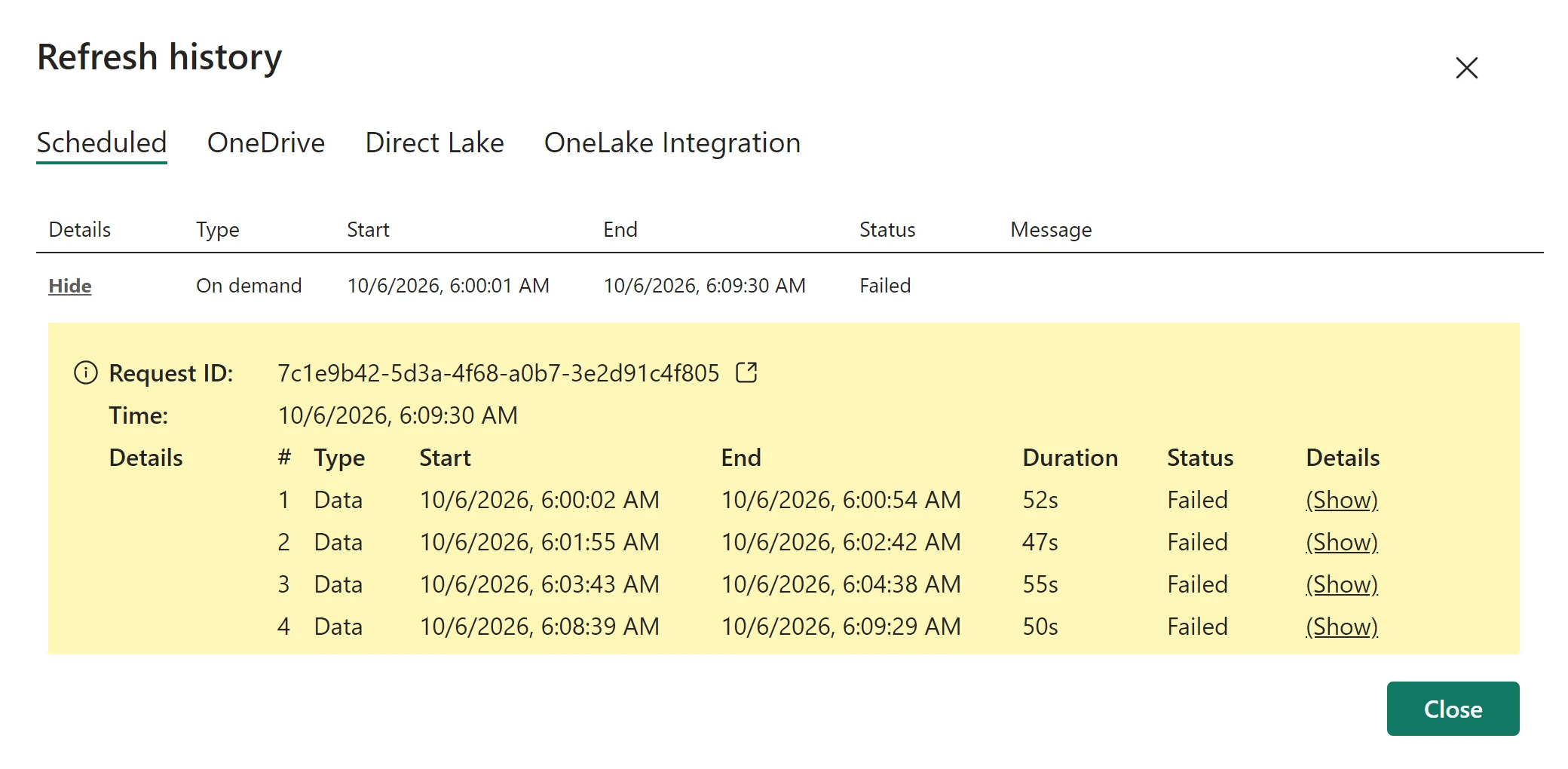
A refresh you start through the XMLA endpoint appears in Refresh history only if it finishes all its stages, so check your tool's own output for those.
Rule out a one-off
Microsoft describes three situations. Rule them out before you change the model:
- A busy moment. If the capacity was briefly short of memory during a period of high demand, it usually recovers quickly. A single failure that doesn't repeat needs only a retry.
- A move to another capacity. If the failures started after the workspace moved, the new capacity may have a lower per-model limit. That can cause failures even when the capacity as a whole doesn't look busy. Compare the two sizes in the table above.
- Late in the day, on a large model. Large models use on-demand loading by default, which pages data into memory as it's needed. By late in the day more of the model can be in memory before the refresh begins. Microsoft suggests testing whether an earlier refresh time helps.
If the failures are regular and none of these explain them, the model needs less memory to refresh.
Make the refresh use less memory
Work through these in order. The first three don't need a bigger capacity.
1. Refresh only what changed
A full refresh rebuilds every table, so the old and new copies of the whole model are in memory together. Refreshing only some tables or partitions keeps that overlap smaller. Microsoft names two ways:
- Incremental refresh. It splits a large table into partitions by date and refreshes only the recent ones. Our incremental refresh guide walks through setting it up and checking it works.
- Table-level or partition-level refresh, through the enhanced refresh REST API or the XMLA endpoint. The REST API needs a model in Premium, Premium Per User or Power BI Embedded, and the
Dataset.ReadWrite.Allpermission.
This example request body, written from Microsoft's documented parameters and not run by us, refreshes one partition of a sales table and the date table, two threads at a time, as one transaction:
{
  "type": "full",
  "commitMode": "transactional",
  "maxParallelism": 2,
  "objects": [
    { "table": "Sales", "partition": "Sales-2026" },
    { "table": "Date" }
  ]
}
Keep commitMode as transactional. Microsoft warns that with partialBatch, a failure can leave the model empty or only partly loaded.
2. Process fewer partitions at once
Microsoft lists lowering refresh parallelism as a fix when you refresh several partitions of the same model together. In the enhanced refresh API, maxParallelism sets the most threads that process at once; it defaults to 10.
3. Make the model smaller
Microsoft's list for reducing peak refresh memory:
- Remove columns and rows you don't need.
- Reduce high-cardinality columns and wide fact tables.
- Optimise data types and transformations, and check that your queries fold back to the source.
- Move calculated tables and calculated columns into the data source or your ETL process, so the refresh doesn't build them in memory.
4. Turn on semantic model scale-out
With scale-out, read-only replicas answer report queries while the refresh runs on the read/write copy. Microsoft lists it as a mitigation for memory-related refresh failures. It needs the Large semantic model storage format setting on the model. Microsoft's configuration page gives two ways to turn it on: in the semantic model's settings, or through the Power BI REST APIs. Its newest page on model settings (April 2026) lists query scale-out among them. An older overview page still says the REST APIs are the only way; the newer pages show both.
5. Move to a larger capacity
If the model is already lean and still needs more room, move the workspace to a larger F SKU with a higher per-model limit (see the table). Microsoft notes that after scaling, memory limits can take time to adjust fully, so give the capacity time to settle before you judge the result. If errors continue after all of this, Microsoft's advice is to open a support ticket.
Do
- Read the consumed, limit and size figures in the full message before you choose a fix.
- Use incremental refresh on any large table that only grows.
- Leave room: plan for a refresh needing more than twice the model's size in memory.
Don't
- Don't move a workspace to a smaller capacity without checking the per-model limit first.
- Don't buy a bigger SKU to cover a model full of unused columns.
- Don't refresh with
partialBatchunless an empty or partly loaded model is acceptable.
The capacity limit messages are different
The same Learn page lists three messages that mean too many refreshes at once, not one model that's too big:
- "You've exceeded the capacity limit for semantic model refreshes. Try again when fewer semantic models are being processed."
- "Capacity level limit exceeded."
- "Node level limit exceeded."
For these, spread your refresh schedules out, refresh outside busy hours, or retry. Microsoft notes that Power BI already retries throttled scheduled and on-demand refreshes; if you refresh through XMLA or the REST API, add your own retry. Several of the memory fixes above help here too. For capacity-wide slowdowns caused by compute use, see our Fabric capacity throttling guide.
If the workspace is on shared capacity
Microsoft's out-of-memory guidance above is for Fabric and Premium capacities. A workspace on shared capacity, where workspaces go by default, has different, fixed limits: an imported model can be at most 1 GB, and a refresh can process at most 10 GB of uncompressed data. If refresh fails there for that reason, Microsoft's advice is to import less data. Our refresh failures checklist covers those limits and the other common causes, and refresh on your terms covers scheduling.
A single report visual that runs out of memory is a different limit again, on one query rather than the refresh. That's covered in this visual has exceeded the available resources.
The steps in this guide follow Microsoft's documentation as of 28 October 2026; we haven't run them in a tenant.
Sources
- Troubleshoot refresh scenarios: semantic model refresh fails with out-of-memory errors — Microsoft Learn
- Data refresh in Power BI: semantic model refresh history — Microsoft Learn
- Configure scheduled refresh: troubleshooting — Microsoft Learn
- What is Power BI Premium? Semantic model SKU limitation — Microsoft Learn
- Troubleshoot XMLA endpoint connectivity: resource governing command memory limit in Premium — Microsoft Learn
- Large semantic models in Power BI Premium — Microsoft Learn
- Enhanced refresh with the Power BI REST API — Microsoft Learn
- Power BI semantic model scale-out — Microsoft Learn
- Configure semantic model scale-out — Microsoft Learn
- Manage semantic model settings in the settings pane — Microsoft Learn
Add LowCodeStacks as a preferred source on Google
Did this fix it?
Comments
No comments yet. Share what worked for you.
Sign in to comment. Comments show under a display name you choose, never your email.