"You don't have any gateway installed or configured" in Power BI
Power BI says no gateway is set up for the data sources in this dataset? Add every on-premises source to a gateway, with the same server and database names.
Power BIFix a problem9 min read
You open a semantic model's settings in the Power BI service, or try to set up scheduled refresh, and Power BI says: "You don't have any gateway installed or configured for the data sources in this dataset." The message means Power BI couldn't find one that has a connection for every on-premises data source the model uses, with the same server and database names as the file you published. Fix the connections, and the gateway shows up.
Which message do you see?
You don't have any gateway installed or configuredIn the model's settings or when you set up refreshA source has no matching gateway connection.- No gateway to choose when you set up scheduled refreshNames don't match, you're not a user, or a source is missing.
Report could not access the data sourceWhen someone opens the reportThe model's source and the gateway's connection don't match.Not configured correctlyBeside a gateway in the model's settingsAdd the missing source to that gateway.
- Step 1Check a gateway is installed and you can see it
- Step 2List every on-premises source in the model
- Step 3Add each source to the gateway
- Step 4Use the same server and database names as Desktop
- Step 5Get added as a user of each connection
- Step 6Pick the gateway in the model's settings
What the message means
Power BI links a semantic model to a gateway through the gateway's connections, also called data sources. Each connection names one source, such as a SQL Server database. Microsoft's troubleshooting page says the gateway section of a semantic model's settings lists only gateways that have matching data source definitions for every on-premises source the model uses. One source without a match is enough to hide the gateway.
Learn's message still says "dataset", the old name for a semantic model. It's the same thing.
The usual causes, in the order to check them:
- No gateway is installed, or you can't see it.
- The gateway has no connection for one of the model's on-premises sources.
- A connection exists, but its server or database name isn't written the same way as in Power BI Desktop.
- You're not on the connection's list of users.
Step 1: Check a gateway exists and you can see it
- In the Power BI service, select the Settings gear in the header, then Manage connections and gateways.
- Look for your gateway. If it should be there but isn't, Microsoft's advice is to clear your browser cache, or sign out of the service and sign back in.
- If there's no gateway at all, someone needs to install an on-premises data gateway on an always-on machine that can reach the source. Standard mode is the one Microsoft recommends and the one other people can share.
- If a colleague installed it and you still can't see it, you need a role on it. Our guide to moving, updating and sharing a gateway covers gateway roles and connection roles.
If the gateway is there but offline, that's a different problem: see step 3 of the Power BI refresh failed checklist.
Step 2: List every on-premises source the model uses
A model often has more than one source: a SQL Server database plus a file share, say. Microsoft says to add each one to the gateway; if one is missing, the gateway isn't offered for scheduled refresh.
Microsoft's tutorial shows the quickest way to see them from the service. Open the semantic model's settings and expand Gateway and cloud connections. Expand a gateway's row with the arrow under Actions, and the model's data sources are listed. A source the gateway doesn't have yet shows an Add to gateway link beside it.
Step 3: Add each source to the gateway
You can use the Add to gateway link from step 2, or add the connection yourself:
- Select the Settings gear, then Manage connections and gateways.
- Select New, then On-premises.
- Pick the gateway cluster, give the connection a name, and choose the type of source, such as SQL Server.
- Enter the server and database names, exactly as Power BI Desktop has them (see below).
- Choose the authentication method and enter the credentials the gateway should use. For SQL Server, Microsoft lists Windows or Basic.
- Select Create.
Repeat for every on-premises source in the model.
The names must match
The link between the model and the gateway's connection is the server and database names. Microsoft says they must be the same in both places; case doesn't matter. In practice:
| In Power BI Desktop | In the gateway connection | Match? |
|---|---|---|
lcs-sql01, database Sales | LCS-SQL01, database sales | Yes. Case doesn't matter |
10.0.4.21 | lcs-sql01 | No. Microsoft says an IP address in Desktop needs the same IP address in the gateway |
lcs-sql01\REPORTING | lcs-sql01 | No. Microsoft says to use the same SERVER\INSTANCE format in both |
lcs-sql01 | lcs-sql01.lowcodestacks.local | No. The names aren't the same |
The server names here are made up.
Tip
If SQL Server also complains that the server name doesn't match its SSL certificate, Microsoft's fix is to use the server's fully qualified domain name in both the gateway connection and the Power BI Desktop file.
Step 4: Make sure you're a user of each connection
Even with matching names, Power BI shows you the gateway only if your account is on the Users list of the connection. A connection's owner, or a gateway admin, adds you:
- In Manage connections and gateways, select the connection.
- Select Manage users.
- Add the person or security group, and give them one of the roles User, User with resharing or Owner.
- Select Share.
Each connection has its own list, so add the person to every connection the model needs. Microsoft notes that you see only the connections you have access to, even as a tenant administrator.
Step 5: Pick the gateway for the semantic model
Go back to the semantic model's settings and expand Gateway and cloud connections. When every source has a matching connection and you're a user of each, Microsoft says the gateway is listed as Running.
What the section shows, as of August 2025:
- Use an On-premises or VNet data gateway: the toggle that makes the model use a gateway.
- Running on LCS-GW01, select all datasources to use: the gateway's status when it's online on that machine. Select its radio button to use it.
- Not configured correctly: in Microsoft's tutorial, the status of a gateway that doesn't yet have a connection for one of the model's sources. Expand its row and add the missing source, as in step 2.
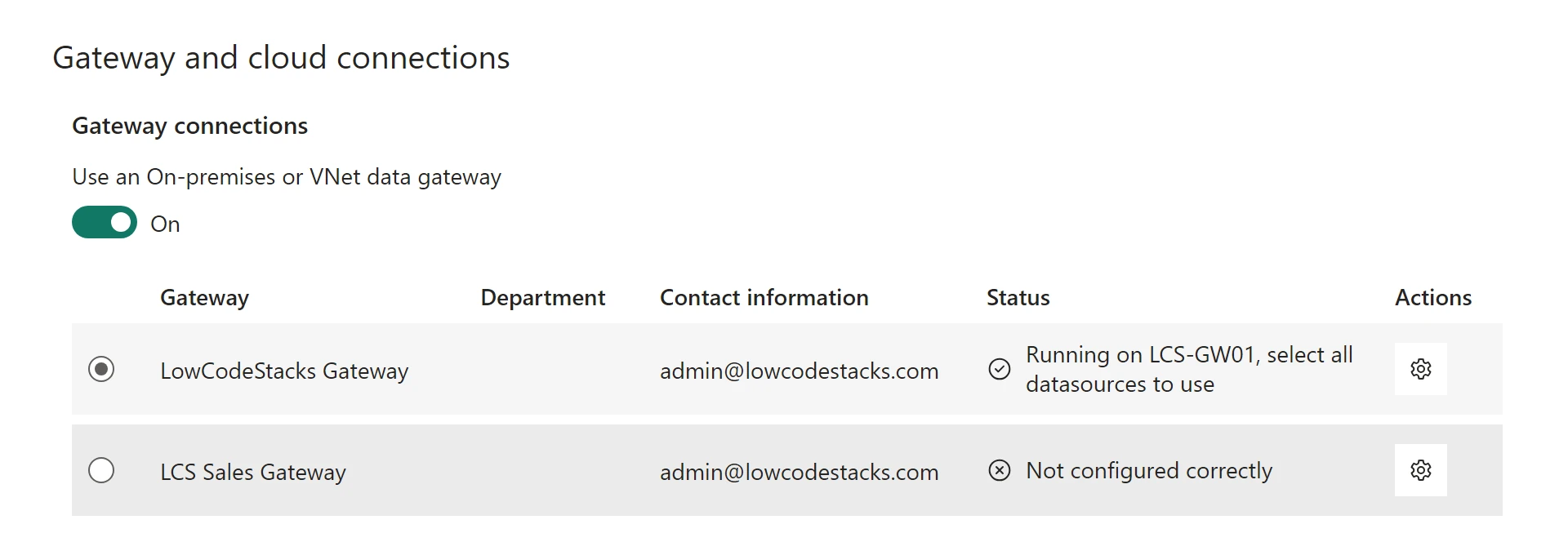
Select the running gateway, then Apply. Now set up scheduled refresh in the model's Refresh settings.
Microsoft also offers these settings in a side pane, which is in preview. There, Gateway and cloud connections sits under Data access.
Other messages with the same cause
Microsoft's troubleshooting page lists more messages that come down to the same matching rules:
| What you see | What Learn says causes it | Fix |
|---|---|---|
| No on-premises data gateway to choose when you configure scheduled refresh | The server and database names differ from Desktop; your account isn't on the data source's Users tab; or not every on-premises source is defined on the gateway | Steps 2 to 4 |
Report could not access the data source because you do not have access to our data source via an on-premises data gateway | The gateway's connection doesn't match the model's source (for example, an IP address in one and a name in the other), or no gateway in your organisation has that source | Step 3 |
| You can't see the gateway's data sources in Get Data for Analysis Services | Only accounts on the data source's Users list can see it | Step 4 |
Do
- Add every on-premises source in the model to the same gateway.
- Copy the server and database names from Power BI Desktop into the gateway connection, in the same form.
- Give access per connection, to the people or groups who publish reports on it.
Don't
- Don't reinstall the gateway for this message before checking the connections; an installed, running gateway is hidden by one unmatched source.
- Don't mix an IP address and a server name, or
SERVER\INSTANCEand a bare server name, between Desktop and the gateway. - Don't expect tenant admin rights to show you other people's connections; you need a role on each one.
This message is about Power BI's data source definitions. If a gateway is missing from Power Automate instead, the cause Microsoft documents is its region: see on-premises data gateway not showing in Power Automate. The steps in this guide follow Microsoft's documentation as of 27 October 2026; we haven't run them in a tenant.
Sources
- Microsoft Learn: Troubleshoot on-premises data gateways (Power BI)
- Microsoft Learn: Add or remove a gateway data source
- Microsoft Learn: Refresh data from an on-premises SQL Server database
- Microsoft Learn: Configure scheduled refresh
- Microsoft Learn: Manage semantic model settings in the settings pane (preview)
- Microsoft Learn: On-premises data gateways in Power BI
- Microsoft Learn: Install an on-premises data gateway
- Microsoft Learn: Manage security roles
- Microsoft Learn: New name for Power BI datasets
- Microsoft Learn: Access a lakehouse from a Power BI semantic model (screenshots of the Gateway connections section)
Add LowCodeStacks as a preferred source on Google
Did this fix it?
Comments
No comments yet. Share what worked for you.
Sign in to comment. Comments show under a display name you choose, never your email.