Fix "this visual has exceeded the available resources" in Power BI
One visual's query hit Power BI's memory or time limit. Find it with Performance Analyzer, shrink it with filters and BLANK measures, and test the limits in Desktop.
Power BIFix a problem9 min read
A report page that worked in Power BI Desktop shows an error in one visual once it's published: "This visual has exceeded the available resources. Try filtering to decrease the amount of data displayed." The report isn't broken. That one visual asked the semantic model for more than a single query is allowed to use, and Power BI stopped it so everyone else's reports stay responsive. The fix is nearly always to make that query smaller.
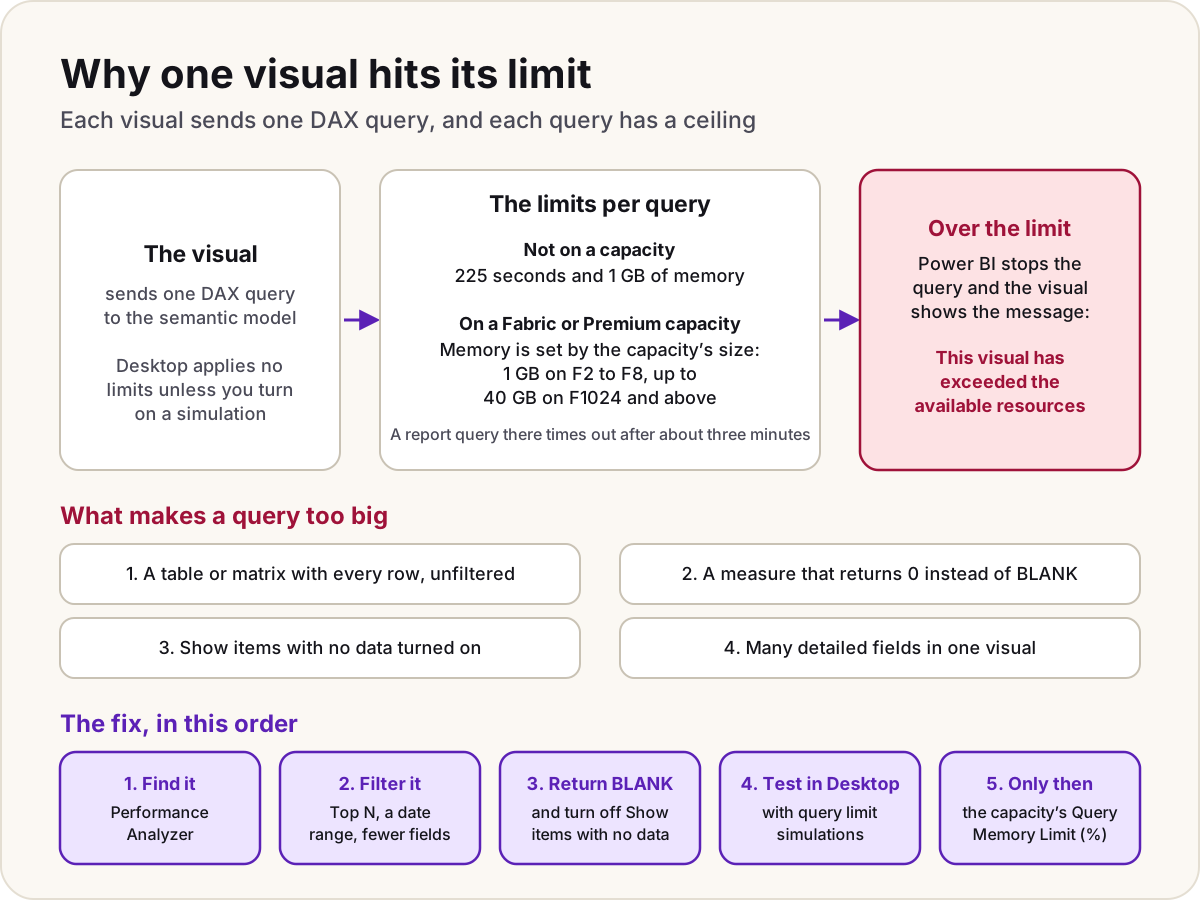
- One visual on the page shows the message; the others load.
- It works in Power BI Desktop and fails in the service, or fails only for some filter selections.
- The visual is a table or matrix with many rows, or a chart with a long axis, often after a measure or field was added.
What the limit is
Every visual gets its data by sending one DAX query to the semantic model. To stop a single query from using too many resources, Microsoft limits how long a query in a published report can run and how much memory it can use. If a visual's query reaches either limit, the visual shows an error instead of data.
| Where the semantic model lives | Time per query | Memory per query |
|---|---|---|
| A workspace that isn't on a capacity (shared) | 225 seconds | 1 GB |
| A Fabric or Premium capacity | 225 seconds in Desktop's simulation table; Microsoft describes the report timeout as typically about three minutes | Set automatically by size: 1 GB on F2 to F8, 2 GB on F16, 5 GB on F32, 10 GB on F64 to F256, 20 GB on F512, 40 GB on F1024 and above |
Two things follow from this:
- Desktop doesn't apply these limits to a local model unless you switch on a query limit simulation, so a visual can work in Desktop and fail once it's published. Reports created before the setting existed are set to No query limits.
- The message tells you the fix. Microsoft's own list of resolutions for it is about asking for less data: filter the date range or categories, remove fields that aren't essential, use aggregated data instead of detailed rows, split the visual into several smaller ones, and work with the model's owner on aggregations.
A different message, "Couldn't load data for this visual", can come from a capacity's Max Result Row Count setting. And if every report on a capacity is slow or refusing work, that's capacity throttling, which our Fabric capacity throttling guide covers.
Find the visual and its query
- Step 1The visual sends one DAX query
- Step 2The query passes the memory or time limit
- Step 3Power BI stops the query
- Step 4Filter and simplify the visual
- Step 5The visual loads
- In Power BI Desktop, open the page and select Optimize > Performance Analyzer. In the service, open the report, select Edit, then View > Performance Analyzer.
- Select Start recording, then Refresh visuals.
- Expand the failing visual. Its DAX query time is the time spent in the semantic model; the larger it is, the more likely the query is the problem rather than drawing the visual.
- Select Copy query, or Run in DAX query view in Desktop, to see exactly which columns and measures the visual asks for and how many rows come back.
Make the query smaller
Filter what the visual shows
The more data a visual has to show, the more memory its query needs. Microsoft's optimisation guide singles out the table visual left unfiltered over a large model: every row is loaded into memory and uncompressed for each refresh of the visual. Its fix is a Top N filter set higher than anyone will scroll to, for example 10,000 rows, so the experience doesn't change but the memory drops sharply. The same thinking applies to every visual: filter to a date range, a region or a status by default, and use drillthrough or a tooltip page for the detail.
Let measures return BLANK
Visuals leave out any row where every measure is BLANK. A measure that turns BLANK into 0 defeats that, and Power BI has to fetch every combination of the fields in the visual, using far more memory. Microsoft's DAX guidance calls it turning a sparse calculation into a dense one.
-- Forces a row for every customer, including the ones with no sales
Sales (No Blank) = IF ( ISBLANK ( [Sales] ), 0, [Sales] )
Profit Margin = DIVIDE ( [Profit], [Sales], 0 )

-- Returns BLANK when there's nothing to show, so those rows drop out
Profit Margin = DIVIDE ( [Profit], [Sales] )
If people need to see a zero, show it in one card or total, not in a measure used on a detailed table.
Turn off Show items with no data
Show items with no data, on a field's menu in the visual's field wells, does something similar on purpose: it adds rows for combinations that have no data. Microsoft warns it can slow visuals down and make data exports time out. Turn it off on large visuals, or use it only on short lists such as months.
Ask fewer fields at once
Each extra column in a table or matrix multiplies the rows the query returns. Remove fields that aren't needed for the decision the visual supports, and split a "do everything" table into a summary and a drillthrough page.
Do
- Give every large table a default filter or a Top N filter.
- Return BLANK from measures unless a zero means something.
- Check each heavy visual's DAX query time in Performance Analyzer before publishing.
Don't
- Don't buy a bigger capacity to fix one badly scoped visual; the query will grow back into it.
- Don't turn on Show items with no data for a field with thousands of values.
Test it before you publish
Make Desktop apply the same limits as the service, so you see the error before your readers do:
- Select File > Options and settings > Options.
- Under Current file, select Report settings and scroll to Query limit simulations.
- Choose Auto (recommended), which applies the limits of wherever Desktop thinks the model is hosted and falls back to Shared capacity, or choose the capacity your workspace uses.
Reopen the page. A visual that now shows the error in Desktop will show it in the service too.
When to change the capacity
If the visual is filtered sensibly and still needs more, and the workspace is on a Fabric or Premium capacity, a capacity admin can change the Query Memory Limit (%) setting: in the service, OneLake catalog > Govern > Capacities, choose the capacity, then expand Workloads and find the Semantic models settings. The default of 0 applies the automatic limit for the capacity's size. Microsoft's caution is real: a higher limit lets one heavy report slow other queries down, push other semantic models out of memory, and cause out-of-memory errors for other people on the capacity. A larger capacity size raises the automatic limit too.
Two settings that look relevant and aren't: raising Query Timeout (seconds) doesn't lengthen report visuals' queries, because reports use their own shorter timeout, and a workspace that isn't on a capacity has a fixed 1 GB limit you can't change.
For more DAX patterns that keep measures lean, see our Power BI DAX cheat sheet.
Sources
- Troubleshoot Power BI tile refresh errors: "This visual has exceeded the available resources" — Microsoft Learn
- Set visual query limits in Power BI Desktop — Microsoft Learn
- Configure workloads in a Premium capacity: Query Memory Limit and Query Timeout — Microsoft Learn
- Use Performance Analyzer to examine report performance — Microsoft Learn
- Optimization guide for Power BI: apply the most restrictive filters — Microsoft Learn
- Avoid converting BLANKs to values — Microsoft Learn
- Show items with no data in Power BI — Microsoft Learn
- Visual has exceeded available resources — Fabric community forum thread (a lead, confirmed against the Learn pages above)
Add LowCodeStacks as a preferred source on Google
Did this fix it?
Comments
No comments yet. Share what worked for you.
Sign in to comment. Comments show under a display name you choose, never your email.