Power Pages site missing from the Portal Management app? Fix it
Site not showing in the Portal Management app? It's likely on the enhanced data model, which uses Power Pages Management. How to check, and other app fixes.
Power PagesFix a problem10 min read
You open the Portal Management app to change an advanced setting on your Power Pages site, and the site isn't there. Or the app itself is missing, or the records you just imported landed somewhere else. Often nothing is broken. Power Pages has two data models, and each has its own management app. A site built on the enhanced data model, which is the default for new sites, lives in an app called Power Pages Management, and the Portal Management app can't see it.
- Your site isn't in the list of websites in the Portal Management app.
- The Portal Management app doesn't appear, or won't open, but an app called Power Pages Management does.
- Website records you create or import show up in the other app.
- A record shows a Script Error:
One of the scripts for this record has caused an error. For more details, download the log file.(or a similar message). - A form or setting keeps loading, or says
We can't get that information right now.
Why the site isn't listed
Microsoft's troubleshooting page for the app puts it simply: the app you opened doesn't match the data model of the site. The two apps look and behave alike, but they read different Dataverse tables.
| Data model | App to open | Where the configuration is stored |
|---|---|---|
| Standard | Portal Management | Tables that start with adx_, such as adx_website and adx_webrole |
| Enhanced | Power Pages Management | Tables that start with mspp_, such as mspp_website and mspp_webrole |
The Portal Management app shows only the adx_ tables. So a site on the enhanced data model never appears in it, however long you wait. Learn adds that website records you create or import belong to the data model of the app you're using, which is why records can land in the "wrong" app.
Three more facts from Learn explain why so many people hit this:
- New sites use the enhanced data model by default. A few Dynamics 365 templates still create standard sites, such as Customer Portal and Field Service.
- Power Pages Management is installed by default on Dataverse environments in supported regions, even where there's no site yet. Learn's Portal Management page says this began for new environments in August 2023.
- An admin can switch new sites back to standard by turning off the Switch to enhanced data model option in the admin center. That doesn't change existing sites.
Check which data model the site uses
Learn gives four ways. Any one of them settles it:
- The admin center. In the Power Platform admin center, go to Resources > Power Pages sites, select the site, then Manage. The Data Model field in Site Details says Standard or Enhanced.
- The design studio. The Set up workspace shows which data model the site uses.
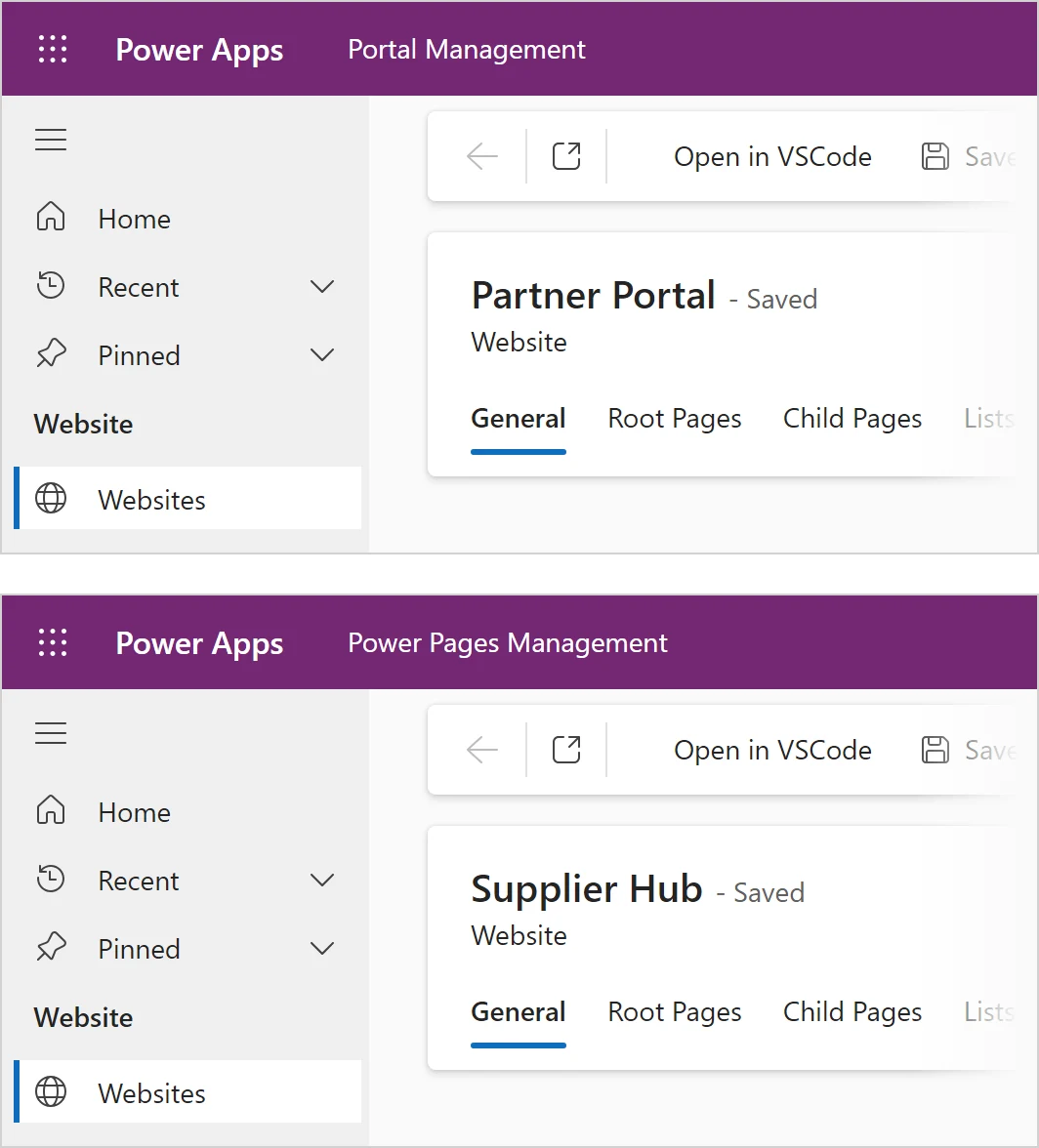
- The app's name. Open the management app and read the header beside Power Apps. Portal Management means standard. Power Pages Management means enhanced.
- The Power Platform CLI. Run
pac pages list -v. Learn says this needs CLI version 1.22.4 or later.
pac pages list -v
What the app shows, as of August 2026:
- Power Apps: the product name, top left.
- Portal Management or Power Pages Management: the app's name beside it. It tells you the site's data model.
- Websites, under Website in the left pane: where the site's record is.
- Microsoft Power PagesPick the site
- Step 2Read its Data Model
- Step 3Standard uses adx_ tables, enhanced uses mspp_
- Step 4Open the app with the matching name
- Step 5Select its website record

Open the app that matches
Once you know the data model, open the matching app. Learn's pages give three routes:
- From the Power Pages home page. On the site's card, select the ellipsis (…), then the management app. For an enhanced site, Learn's steps name it Power Pages Management.
- From the design studio. Select the ellipsis (…) in the tool belt, then the management app.
- From Power Apps. Go to Power Apps, select Apps, then the app. It opens in a new tab.
In the app, go to Website > Websites and select your site's record. After switching apps, Learn says the site and its website record appear and you can edit the configuration.
After a migration to the enhanced data model
Learn's migration guide explains a second way a site seems to vanish. When a standard site is migrated, its standard website record is deactivated and a separate enhanced record becomes active. From then on, configure the site in Power Pages Management. The old record in Portal Management is no longer the live one. Learn also warns that the two records are separate, so review any changes made after the switch before you revert a site to the standard data model.
Script errors and records that won't load
Learn's troubleshooting page lists three related symptoms:
- Opening a record such as a web page, basic form, list or multistep form step shows a script error. Learn's Portal Management app overview shows it in a Script Error dialog (screenshot from February 2023):
One of the scripts for this record has caused an error. For more details, download the log file.The troubleshooting page, from August 2026, describes a message that resemblesAn error has occurred in one of the scripts for this record. Download the log file for more information. - The downloaded log file mentions
ReferenceError: Web resource method does not exist. - A form or setting keeps loading, or says
We can't get that information right now. Either try again or check our support page to see if there are any known issues.
The usual cause is a browser extension, such as an ad blocker, stopping the app's scripts. Missing privileges can cause it too. Work through Learn's fix in order:
- Turn off ad blockers and similar extensions, then reload the record. Or open the app in another browser with no extensions.
- Check your security role. You need the System Administrator role in the same Dataverse environment as the site. Learn says System Customizer can open the app too, but may not be able to see or change some records other people created, such as notes and attachments on web files.
- Check the site's package. In the admin center, go to Environments, select the site's environment, then Resources > Power Pages sites. Select the site, then Websites package(s) details to see the installed packages and their versions. If a newer version of the site's package is available, upgrade it. The troubleshooting page names the package CDSBasePortal for standard sites and PowerPagesCore for enhanced sites. Learn's migration guide writes the enhanced one as
PowerPages_Core, the name it lists withpac solution list --includeSystemSolutions.
Warning
Learn says a package update can make the site and environment unstable while it runs, and it upgrades the package for every site in the environment that uses it. Do it outside busy hours.
Learn's pages don't fully agree on the last step. The enhanced data model page says enhanced sites get fixes automatically, without the manual package updates standard sites need. Yet the same page sets a minimum Power Pages Core package version for some Dynamics 365 templates, and the troubleshooting page lists checking the enhanced package. Viewing the package details doesn't upgrade anything, so look before you decide.
If the error stays in a browser with no extensions and with the right role, Learn suggests contacting Microsoft support. Have the site address, the environment, the data model, the app's name, the exact message, the log file, a screenshot, steps to reproduce and the affected user's security role ready.
Other problems with the app
You can't share the app with someone
You don't share this app. Learn says access comes from Dataverse security roles, so give the person the System Administrator role (or System Customizer, with its limits) in the site's environment. They see the app the next time they sign in.
You can't add a web role to a contact on an enhanced site
On the enhanced data model, Web Role (mspp_webrole) is a virtual table. You can't customise virtual tables, so it doesn't appear when you try to create a relationship with contacts. Assign web roles from the contact instead, per Learn:
- In Power Pages Management, select Security > Contacts, then the contact.
- With the form selector under the contact's name, switch to the Portal Contact (Enhanced) form.
- On the General tab, in the Web Roles section, select Add Existing Web Role.
- Search for and pick the web roles, add them, then save the contact.
On a standard site, go the other way: in Portal Management, open the web role, go to its related contacts, add the existing contacts who need it, then save. Either way, Learn says there's no built-in way to map a Microsoft Entra group to a web role, so you assign roles contact by contact. Our guide to web roles and table permissions explains what a web role grants, and inviting users to Power Pages covers giving roles through invitations.
A new language doesn't show
Enable the language in Dataverse first, and wait. Learn says provisioning a language can take an hour or more. Then add it to the website as a published website language, and translate the content. Pages without translated content fall back to the default language.
Do
- Check the data model before you open either app. Learn says this one check resolves or explains many of these problems.
- Use the design studio for everyday changes. Learn suggests keeping the management app for advanced customisation.
- Note the data model, app name and exact message before you raise a support case.
Don't
- Don't recreate a site's records in the other app to make it "appear". Records follow the app's data model, not your site.
- Don't delete records in either app unless you're sure. Learn says they're the live configuration, and deleting one can break references on the site.
- Don't run a package update in the middle of the working day.
For the bigger picture, our Power Pages interview questions explain the two data models side by side.
The steps in this guide follow Microsoft's documentation as of 28 October 2026; we haven't run them in a tenant.
Sources
- Troubleshoot common Portal Management app issues — Microsoft Learn
- Enhanced data model — Microsoft Learn
- Portal Management app overview — Microsoft Learn
- Update the Power Pages solution — Microsoft Learn
- Standard to enhanced data model migration overview — Microsoft Learn
- Assign a security role to a user — Microsoft Learn
- Create and assign web roles — Microsoft Learn
Add LowCodeStacks as a preferred source on Google
Did this fix it?
Comments
No comments yet. Share what worked for you.
Sign in to comment. Comments show under a display name you choose, never your email.