Fix "Expression.Error: The column of the table wasn't found"
A Power Query step names a column that isn't there any more. Read the column name in the error, find the step that uses it, then fix the step or let it skip.
Power BIFix a problem8 min read
A Power BI refresh, or a query in Power Query Editor, stops with "Expression.Error: The column 'Date' of the table wasn't found." The data source still works and nothing is corrupted. One step in your query refers to a column by name, and when it ran, the table it received had no column with that name. Power Query doesn't guess, so the step fails and the query stops loading. The fix is to find that step and bring it in line with the columns the table has today.
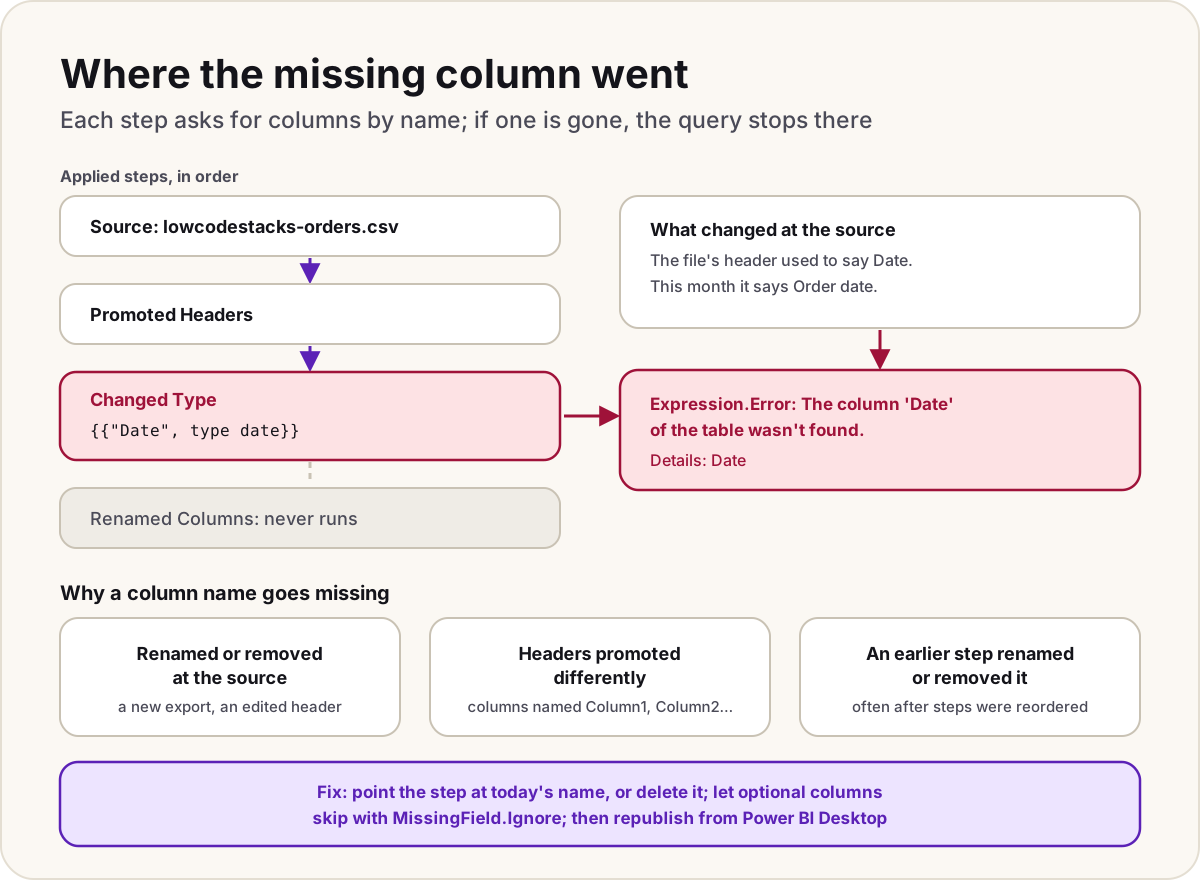
- Power Query Editor shows a yellow bar under the formula bar:
Expression.Error: The column '…' of the table wasn't found., with the column name under Details. - In Power Query Online and dataflows, the same error also shows ErrorCode = 10224.
- A scheduled refresh in the Power BI service fails after someone changed the source file, sheet or table.
- It names a column such as
Column1that you never typed yourself.
What the error means
Microsoft splits a step-level error into three parts:
| Part | In this error | What it tells you |
|---|---|---|
| Error reason | Expression.Error | The step's formula failed |
| Error message | The column 'Date' of the table wasn't found. | Which kind of failure: a column name the table doesn't have |
| Error detail | Date | The exact name the step asked for |
Microsoft's own explanation is short: a step makes a direct reference to a column name that doesn't exist in the query. A step-level error stops the whole query from loading, so the steps after it never run, and nothing reaches the report.
The Power Query M language is case-sensitive, so a step that asks for date won't find a column called Date. A column can look present in the preview and still fail the lookup.
Find the step and the name
- In Power BI Desktop, select Transform data to open Power Query Editor, and select the query that fails.
- In the list of applied steps, select each step from the top. The first one that shows the yellow error bar is the step to fix. If the bar offers Show details, select it to see the reason, the code and the detail.
- Read the step's formula in the formula bar. The missing name is in it, for example
Table.TransformColumnTypes(#"Promoted Headers", {{"Date", type date}}). - Select the step just before it and look at the column headers in the preview. That's the table the failing step received. Compare its names with the one in the formula.
Microsoft's example of this error shows the pattern in reverse: a step renames a column called Column to Date, but the source file was changed by hand and already has a Date heading, so there's no Column left to rename.
Why the column is missing
| What happened | How to spot it | Fix |
|---|---|---|
| The column was renamed or removed at the source: a new export, an edited header, a changed view | The step before the failing one shows the new name, or no such column | Change the name in the step's formula to today's name, or remove the step if the column is gone for good |
The headers were promoted differently, so columns are named Column1, Column2 and so on | The error names Column1, or a real header such as Customer when the preview shows Column1 | Fix the promote-headers step: a change at the source (an extra title row, say) can move the real headers down a row |
| An earlier step renamed or removed the column, often after steps were reordered or one was edited | The column exists after Source but disappears a few steps later | Point the failing step at the new name, or move it before the rename |
| An automatic Changed Type step lists every column by name | The failing step is Changed Type right after Promoted Headers | Edit or delete the step, then set types again for the columns you have |
The last one is common with files. For unstructured sources such as Excel, CSV and text files, Power Query inspects the first 200 rows and adds two steps automatically: one that promotes the first row to column headers, and Changed type, which names each column it typed. So when a later file arrives with different headers, that step is often the first to fail. The behaviour is set in Power BI Desktop under File > Options and settings > Options, in the Type Detection section of Data Load:
- under CURRENT FILE, the check box Detect column types and headers for unstructured sources;
- under GLOBAL, a choice between always, never, and according to each file's setting.
Let a step skip a missing column
Some columns come and go legitimately, such as an optional column in a monthly file. Several table functions take an optional last argument that says what to do when a column is missing, instead of raising the error:
| Value | What happens |
|---|---|
MissingField.Error | The default: the step fails with this error |
MissingField.Ignore | The missing column is skipped |
MissingField.UseNull | The missing column is added, filled with null |
Table.RenameColumns, Table.RemoveColumns and Table.SelectColumns take it as the third argument:
Table.RenameColumns(
    #"Promoted Headers",
    {{"Order date", "Date"}},
    MissingField.Ignore
)
Table.TransformColumnTypes takes it inside a record in its third argument, beside the culture:
Table.TransformColumnTypes(
    #"Renamed Columns",
    {{"Date", type date}, {"Discount", type number}},
    [Culture = "en-GB", MissingField = MissingField.UseNull]
)
Warning
Use this only for columns that are truly optional. If the column your visuals depend on disappears, skipping it hides the problem: the refresh succeeds, and measures that use the column fail or show blanks instead.
Publish the fix
Power BI Desktop and the Power BI service treat a changed column differently. Microsoft's refresh documentation says a data refresh in the service fails when a source column or table is renamed or removed, because the service doesn't do a schema refresh. So:
- Fix the query in Power BI Desktop, apply the changes so the model reloads, and check the visuals that use the column.
- Publish the semantic model again, then refresh it in the service.
A schema refresh also removes the old column from the model, so measures, relationships and row-level security that used it may need fixing too.
Do
- Read the name under Details first; it tells you exactly what to search for.
- Rename columns once, in one step near the start, and refer to the new names after it.
- Agree with whoever produces the file that header changes are announced.
Don't
- Don't delete every step after the failing one to make the error go away.
- Don't use
MissingField.Ignoreon a column the report needs.
If the error names a table rather than a column, see the key didn't match any rows in the table. For other ways a refresh can fail, work through our Power BI refresh checklist.
Sources
- Dealing with errors in Power Query: the column of the table wasn't found — Microsoft Learn
- Data types in Power Query: automatic detection of column data type and headers — Microsoft Learn
- Promote or demote column headers — Microsoft Learn
- Table.RenameColumns — Microsoft Learn
- Table.RemoveColumns — Microsoft Learn
- Table.SelectColumns — Microsoft Learn
- Table.TransformColumnTypes — Microsoft Learn
- MissingField.Type — Microsoft Learn
- Capitalization in Power Query M — Microsoft Learn
- Data refresh in Power BI: understanding data refresh — Microsoft Learn
Add LowCodeStacks as a preferred source on Google
Did this fix it?
Comments
No comments yet. Share what worked for you.
Sign in to comment. Comments show under a display name you choose, never your email.