Power Automate tutorial for beginners: your first cloud flow
Build your first cloud flow in 30 minutes: a Microsoft Forms response posts to Teams and sends an email, with standard connectors a Microsoft 365 licence covers.
Power AutomateFix a problem10 min read
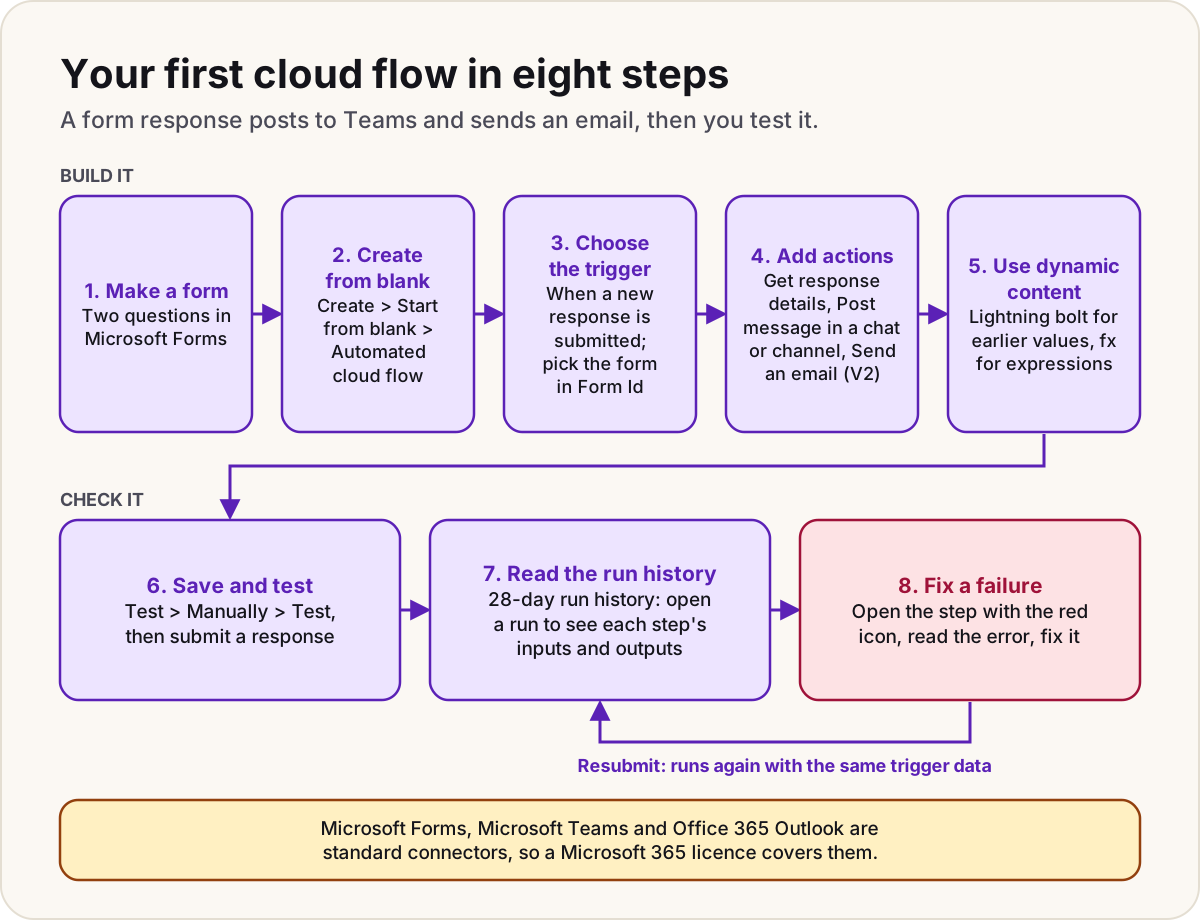
This Power Automate tutorial for beginners builds one real cloud flow from start to finish in about 30 minutes: when someone fills in a Microsoft Forms form, the flow fetches their answers, posts them in a Teams channel and emails you. It uses only standard connectors, so a Microsoft 365 work licence that includes Power Automate covers it. Along the way you'll use the new designer, dynamic content, testing and run history, which is most of what every flow needs.
What you need
- A work or school account with a Microsoft 365 licence that includes Power Automate. Microsoft 365 licences let you create and run cloud flows with standard connectors, and Microsoft Forms, Microsoft Teams and Office 365 Outlook are all standard. The Forms connector works only with organisational accounts.
- A team in Microsoft Teams with a channel you can post in.
- About 30 minutes.
Automated flows run on the owner's licence, so the flow keeps working however many people fill in the form. If you later add a premium connector, such as SQL Server or HTTP, you'll need more: see Power Automate licensing explained.
Step 1: Make a short form
In Microsoft Forms, create a form called Equipment request with two questions:
- What do you need? (text)
- How urgent is it? (choice: Today, This week, No rush)
Submit one response yourself so you know the form works. Keep the form open in a browser tab; you'll use it to test.
Step 2: Create the flow from blank
- Sign in to Power Automate.
- On the left, select Create.
- Under Start from blank, select Automated cloud flow. An automated flow starts when something happens, here a new form response. (An Instant cloud flow starts from a button; a Scheduled cloud flow runs on a timetable.)
- In Flow name, type Equipment request alert.
The home page also offers to build the flow with Copilot from a sentence. That works, but building it by hand once teaches you what Copilot is doing for you.
Step 3: Choose the trigger
A trigger is the event that starts the flow.
- In the trigger search box (Choose your flow's trigger), type forms.
- Select When a new response is submitted (Microsoft Forms), then Create.
- The designer opens. Select the trigger card to open its configuration pane on the left.
- In Form Id, pick Equipment request.
Warning
Forms that belong to a group don't appear in the Form Id list. Open the form for editing, copy the part of the address after FormId=, and enter it in Form Id as a custom value.
This is the new designer, which Microsoft calls the recommended way to build cloud flows. Cards on the canvas stay small, and you configure each one in the pane on the left. If your screen looks different, check the New designer toggle at the top right.
Step 4: Add the actions
Actions are what the flow does after the trigger fires. To add one, select the plus sign (+) under the last card and search in the Add an action pane.
Get the response details
The trigger only tells the flow that someone answered, with a Response Id. A separate action fetches the answers.
- Select + under the trigger and search for forms.
- Select Get response details.
- In Form Id, pick the same form.
- Select the Response Id box, select the lightning bolt, and choose Response Id from the trigger.
Post in a Teams channel
- Select + under Get response details, search for Teams, and select Post message in a chat or channel under Microsoft Teams.
- Set Post as to Flow bot, so the post comes from a generic sender rather than from you.
- Set Post in to Channel, then pick the Team and Channel.
- In Message, type New equipment request: and add the answers with dynamic content (step 5).
Send an email
- Select + under the Teams action, search for send an email, and select Send an email (V2) under Office 365 Outlook (Microsoft's getting-started tutorial labels the connector Microsoft 365 Outlook; it's the same action).
- To: your own address.
- Subject: Equipment request, followed by the urgency answer.
- Body: both answers, with a line of text before each.
Select << at the top right of the pane to close it when you're done with a card.
Step 5: Use dynamic content
Dynamic content is how one step uses the output of an earlier one. In any field:
- Select the lightning bolt to insert a value from an earlier step. After Get response details, the form's answers are in that list. If you can't find a value, select See more.
- Select fx to write an expression, a formula that works the value out.
- Or type a slash (/) in the field and choose Insert dynamic content or Insert expression.
Try one expression: put today's date at the end of the email subject.
formatDateTime(utcNow(), 'd MMMM yyyy')
utcNow() is the current time in UTC, so near midnight the date can be a day out for you. Dates and time zones in flows shows how to convert it.
Step 6: Save and test
- Select Save on the command bar. If something's missing, a red X and a description appear, and the card with the problem is marked. Fix it and save again. Flow checker, next to Save, checks the whole flow for errors.
- Select Test, choose Manually, then select Test.
- The designer tells you what to do: submit a response to the form. Switch to the form tab and send a test answer.
- Back in the designer, each card gets a green check mark with the seconds it took.
Check your Teams channel and your inbox. Once you've tested manually once, Test also offers Automatically, which reuses the trigger data from a recent run, so you don't have to fill in the form every time.
If nothing happens at all, the trigger didn't fire. Work through why didn't my trigger fire before changing the actions.
Step 7: Read the run history
- Leave the designer with the Back arrow at the top left of the page (not your browser's back button).
- On the flow's details page, the 28-day run history lists each run with its Start, Duration and Status.
- Select a run's start time. The flow opens with each step's result. Select any step to see exactly what went in and what came out.
The inputs and outputs are the fastest way to answer "why did it do that?". If the email has a gap where an answer should be, the outputs of Get response details show whether the answer was empty or you picked the wrong field.
To see more than the latest runs, select All runs. Edit columns adds trigger outputs as columns, so you can spot the run you want without opening each one.
Step 8: Fix a failure
A failed run shows Failed in the run history. Open it: the step that broke has a red exclamation icon. Select it, and the pane shows the error and Microsoft's hint for fixing it.
| The error says | What it usually means | Fix |
|---|---|---|
| Unauthorized, 401 or 403 | A connection's sign-in has expired or lacks rights | Under How to fix, select View Connections, then Fix connection, then Resubmit |
| Bad request or Not found, 400 or 404 | A setting in the action is wrong | Edit the flow, correct the action, save, then Resubmit |
| 500 or 502 | A temporary failure on the service's side | Resubmit |
Resubmit runs the flow again with the same trigger data, so you don't need another form response. Cloud flow error codes covers each code in depth.
Warning
Resubmitting runs every action again. If the flow failed after the Teams post, a resubmit posts a second message. Check which steps succeeded before you resubmit.
Power Automate also emails the flow's owner repair tips when a flow fails, with a Fix my flow button. In the new designer, Copilot can summarise an error in plain words.
What to learn next
Do
- Add a trigger condition so the flow only runs for urgent requests.
- Turn the email into an approval with approvals that don't stall.
- Wrap the actions in try, catch and finally scopes so a failure emails you instead of failing silently.
- Learn what your licence covers before you reach for a premium connector: Power Automate licensing explained.
Don't
- Don't build important flows under one person's account without a co-owner; see changing a flow's owner when someone leaves.
- Don't resubmit a failed run blindly when it sends messages.
- Don't paste a whole form response into Teams: a message posted by an action can't be bigger than about 28 KB.
Sources
- Tutorial: Get started with cloud flows — Microsoft Learn
- Create your first cloud flow without Copilot — Microsoft Learn
- Create a cloud flow in Power Automate — Microsoft Learn
- Explore the cloud flows designer — Microsoft Learn
- Triggers in Power Automate cloud flows — Microsoft Learn
- Overview of flows with Microsoft Forms — Microsoft Learn
- Common ways to use a form in a flow — Microsoft Learn
- Microsoft Forms connector reference — Microsoft Learn
- Send a message in Teams using Power Automate — Microsoft Learn
- Microsoft Teams connector reference — Microsoft Learn
- Office 365 Outlook connector reference — Microsoft Learn
- Test cloud flows — Microsoft Learn
- Troubleshoot a cloud flow — Microsoft Learn
- Deep dive on specific licenses: seeded licenses — Microsoft Learn
- Power Automate licensing FAQ — Microsoft Learn
- Reference guide to workflow expression functions — Microsoft Learn
Did this fix it?
Comments
No comments yet. Share what worked for you.
Sign in to comment. Comments show under a display name you choose, never your email.