Power BI vs Excel: which to use, and how they work together
Power BI vs Excel on data size, refresh, sharing, security, visuals and modelling: when each is the better tool, and how Analyze in Excel joins the two.
Power BIChoose a tool12 min read
Excel is the better tool when one person needs to work with numbers: type them in, model what-ifs, format a one-off table. Power BI is the better tool when many people need the same numbers: refreshed on a schedule, shared from one model, and filtered so each person sees only what they're allowed to. The choice between Power BI vs Excel is rarely all or nothing, though. They share the same engines, and the most useful set-up is often a Power BI model that people analyse in Excel.
Note
Checked against Microsoft Learn on 22 October 2026. Excel's limits and features were checked on Microsoft Support, and Power BI prices on Microsoft's pricing page, the same day.
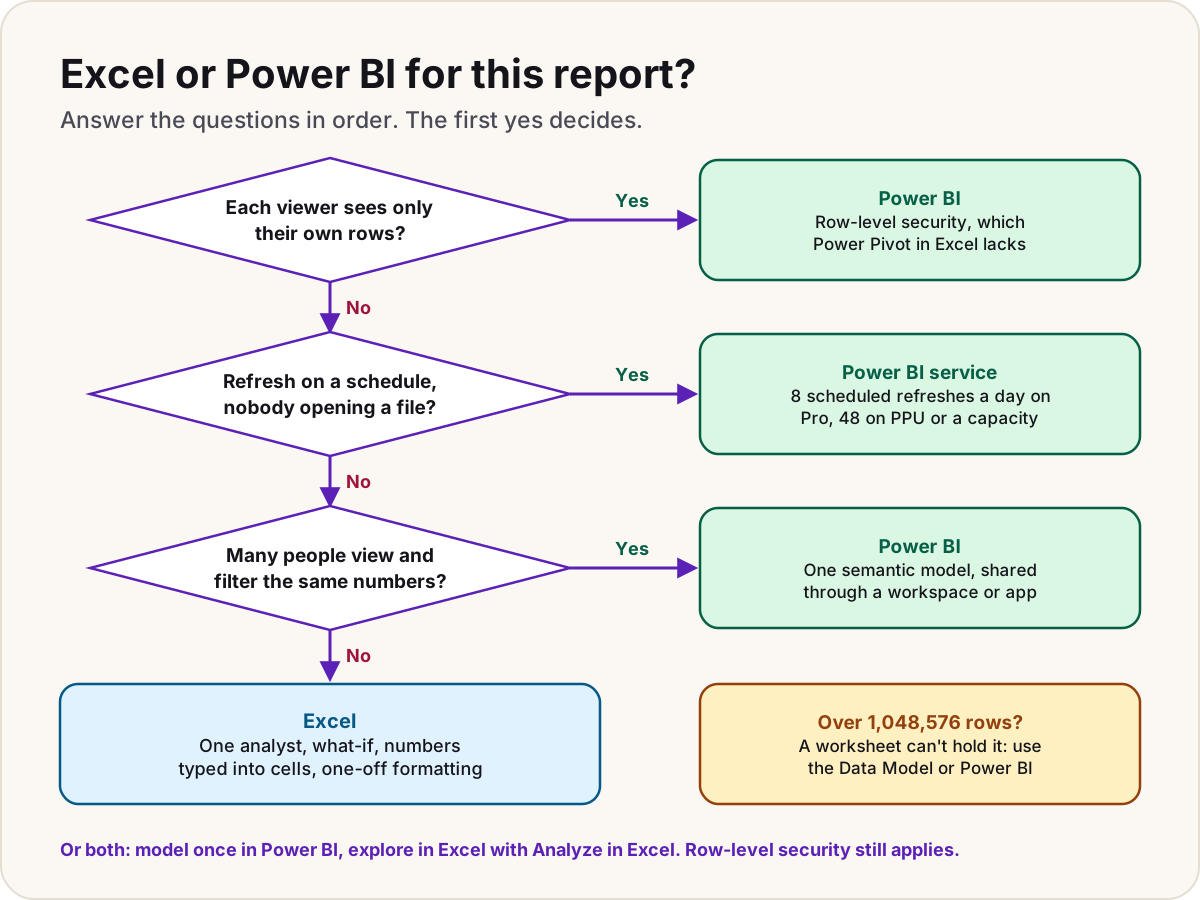
The comparison at a glance
| Excel | Power BI | |
|---|---|---|
| Rows | 1,048,576 per worksheet; 1,999,999,997 per table in the Data Model | 1,999,999,997 distinct values per column in an Import model |
| Model size | Set by memory on 64-bit Excel (see below); 250 MB per file in Excel for the web | 1 GB on Pro, 100 GB on Premium Per User, up to the capacity's size on Fabric |
| Refresh | By hand, when the file opens, or every set number of minutes | Scheduled in the service: 8 a day on Pro, 48 on PPU or a capacity |
| Who sees what | File permissions; no row-level security | Workspace roles, apps, and row-level security per viewer |
| Interactivity | PivotTables, PivotCharts, slicers | Selecting one visual filters or highlights the others by default |
| Calculations | Cell formulas, plus DAX in Power Pivot | DAX measures in a shared semantic model |
| Typing numbers in, what-if | Yes, it's built for it | No; it reports on data held elsewhere |
| Where it runs | Windows, Mac, web (Power Pivot on Windows only) | Power BI Desktop on Windows; reports in a browser |
Data size and refresh
A worksheet holds 1,048,576 rows by 16,384 columns. That's the limit people hit first, and it's where the "Excel can't handle it" reputation comes from. But Excel has a second store: the Data Model, a compressed analytical database inside the workbook, the same kind of model Power BI uses. A Data Model table can hold up to 1,999,999,997 rows.
How big the whole model can get is less clear, because Microsoft's pages disagree:
Warning
Microsoft's Power Pivot overview says it supports files up to 2 GB and up to 4 GB of data in memory. Microsoft's Excel specifications page says 64-bit Excel imposes no hard limit on file size, only available memory, while 32-bit Excel shares a 2 GB address space with everything else. On Excel for the web, a workbook with a Data Model is capped at 250 MB. Plan for the stricter numbers if the workbook will be shared.
Power BI's limits are set by the licence and the workspace:
- A semantic model in a Pro workspace can be up to 1 GB; Premium Per User raises it to 100 GB; on a Fabric capacity it can grow to the capacity's limit with the large semantic model storage format.
- Scheduled refresh runs in the service, with nobody's laptop involved: up to 8 a day in a Pro workspace and 48 on PPU or a capacity. A refresh on shared capacity must finish within two hours.
Excel refreshes when someone asks it to: Data > Refresh All (Ctrl+Alt+F5), or two options under Data > Queries & Connections, the Connections tab, a connection's Properties, then Usage: Refresh data when opening the file and Refresh every a set number of minutes. That's fine for one analyst. It's the wrong model for a report that 200 people expect to be current at 8 a.m.
Sharing and security
In Excel, the security boundary is the file: you share a workbook through OneDrive or SharePoint, and its permissions decide who can open or edit it. Inside the file, there's no per-person filter. Microsoft's DAX overview states that row-level security isn't available in Power Pivot, so one workbook can't show different rows to different people. Sheet protection doesn't fill the gap either: Microsoft says worksheet-level protection isn't intended as a security feature.
Power BI separates the data from who sees it:
- Workspaces have roles (Admin, Member, Contributor, Viewer); apps publish a finished set of reports to a wider audience.
- Row-level security filters the model per viewer with DAX rules. It applies to people with the Viewer role; Admins, Members and Contributors can edit the model, so it doesn't restrict them.
- Many reports can use one shared semantic model, so revenue has one definition everywhere (one semantic model, many reports).
The trade-off is licensing: to share Power BI content, both the author and the viewer need a paid licence, unless the content sits on a large enough capacity. See Licences in one paragraph.
Visuals and interactivity
Excel's reporting tools are PivotTables, PivotCharts and slicers. A slicer can drive several PivotTables at once (select the slicer, then Slicer > Report Connections), but only PivotTables that share the same data source. Everything else is a cell: you can format, annotate and lay out a page exactly as you like.
In Power BI, the visuals on a page are connected by default: select a bar in one chart and the others cross-filter or cross-highlight to match. The report designer can set, for each pair of visuals, whether a selection filters, highlights or does nothing. On top of that come drillthrough pages and reports that open in a browser or the Power BI mobile app, with nothing to install for the viewer.
Power BI vs a PivotTable
If what you're really comparing is a PivotTable, Power BI's closest equivalent is the matrix visual: rows, columns and values, with drill-down through hierarchies. Microsoft describes it as similar to a pivot table in Excel. The difference is around it: the matrix cross-filters the other visuals on the page, and it reads a model that's refreshed and secured centrally.
Modelling: Power Pivot vs the Power BI model
Here the two are closer than most people expect. Power Pivot (Excel's data modelling add-in) and Power BI Desktop both hold related tables in the same kind of in-memory model, and both use DAX for calculated columns and measures. A Power Pivot model moves into Power BI almost whole: File > Import > Power Query, Power Pivot, Power View in Power BI Desktop converts the workbook's queries, relationships, calculated columns, measures and KPIs into a .pbix file.
The differences are around the model:
- Power Pivot runs only in Excel for Windows; Microsoft says it isn't currently available in Excel for Mac or Excel for the web.
- Power BI adds row-level security, publishing to the service, scheduled refresh, and one model shared by many reports.
Either way, the model rewards the same habits: shape the data in Power Query, split flat exports into a star schema (star schema from messy exports) and write measures rather than columns for anything that should follow a filter (calculated column or measure). For how Power Query, Power Pivot and Power BI fit together as layers, see Power Query vs Power Pivot vs Power BI.
Where Excel is the better tool
- One person, one analysis. Ad hoc questions, a quick PivotTable, a check on someone else's number.
- What-if and planning. Scenarios and Solver, or a budget where people type in assumptions. Power BI reports on data; it isn't where you type it.
- Exact layout. A formatted table for a board pack, cell by cell.
- Small, stable data. A few thousand rows that change once a month don't need a service.
Where Power BI is the better tool
- Many viewers, one version of the truth. A shared semantic model, published once.
- Refresh without people. Scheduled refresh in the service instead of someone opening a file at 7 a.m.
- Each person sees only their rows. Row-level security per region, team or customer.
- Interactive reports. Visuals that filter each other, drillthrough, the mobile app.
- Large or many sources. Models up to 100 GB on PPU, and more on a capacity.
How they work together
The best set-ups use both: Power BI holds the model, Excel is one of the ways people explore it.
Analyze in Excel
From a report in the Power BI service, select Export > Analyze in Excel (or More options (...) beside a semantic model in its workspace). Power BI creates a workbook connected live to the semantic model; you build PivotTables against its tables and measures, and Refresh pulls current data. You need Build permission on the model or at least the Contributor role in its workspace, and your admin must have the Users can work with Power BI semantic models in Excel using a live connection tenant setting turned on.
Two things to know:
- Row-level security still applies, so a viewer sees only their rows in Excel too.
- PivotTables send MDX queries, which need explicit measures. Drag-and-sum implicit measures won't summarise there, which is one more reason to write real measures in the model.
Live tables from a visual, or from Excel itself
- From a visual: More options (...) > Export data, choose Summarized data and the .xlsx (Excel) with live connection (500,000 row max) format. You get an Excel table that refreshes against Power BI.
- From Excel: Insert > PivotTable > From Power BI (Microsoft), or Data > Get Data > From Power Platform > From Power BI (Microsoft). The Power BI add-in lists the semantic models you can build on and inserts a connected PivotTable or a connected table.
Mac users can only work with these Power BI-connected workbooks in Excel for the web.
Excel as a source for Power BI
Excel is one of Power BI's most common sources. In Power BI Desktop, select Home > Get data > Excel, then pick the sheets or tables to load in the Navigator. In the service, New item > Semantic model > Excel imports a workbook's tables and Data Model into a new semantic model. Keep the file in OneDrive or SharePoint: Power BI checks it for changes about once an hour, and Microsoft no longer supports uploading local workbooks and configuring refresh for them. Format ranges as Excel tables first so their names come through cleanly.
Licences in one paragraph
Power BI Desktop is free. Sharing is where the cost is: in October 2026, Power BI Pro is $14 and Premium Per User $24 per user per month, paid yearly, and both the person sharing and the people viewing need one, unless the content sits on an F64 or larger Fabric capacity, where viewers with the Viewer role can use a free licence. Analyze in Excel also works with a free licence, but only on models in My workspace or on a Premium or F64+ capacity. For the full picture, see Power BI licensing explained.
Sources
- Excel specifications and limits — Microsoft Support
- Data Model specification and limits — Microsoft Support
- Power Pivot: Powerful data analysis and data modeling in Excel — Microsoft Support
- Turn on Power Pivot — Microsoft Support
- Refresh an external data connection in Excel — Microsoft Support
- Protect a worksheet — Microsoft Support
- Use slicers to filter data — Microsoft Support
- Data refresh in Power BI — Microsoft Learn
- Power BI implementation planning: Subscriptions, licenses, and trials — Microsoft Learn
- Large semantic models in Power BI Premium — Microsoft Learn
- Data sources for the Power BI service — Microsoft Learn
- Row-level security (RLS) with Power BI — Microsoft Learn
- DAX overview — Microsoft Learn
- Roles in workspaces in Power BI — Microsoft Learn
- DAX glossary — Microsoft Learn
- Change how visuals interact in a Power BI report — Microsoft Learn
- Create a matrix visual in Power BI — Microsoft Learn
- Import Excel workbooks into Power BI Desktop — Microsoft Learn
- Create Excel workbooks with refreshable Power BI data — Microsoft Learn
- Get data from Excel workbook files — Microsoft Learn
- Get started with Power BI Desktop — Microsoft Learn
- Download Power BI Desktop — Microsoft Learn
- Power BI pricing — Microsoft
Was this helpful?
Comments
No comments yet. Share what worked for you.
Sign in to comment. Comments show under a display name you choose, never your email.