What is Power Automate? Flows, connectors, licences and limits
What is Power Automate, how does it work and what is it used for? The kinds of flow, triggers and connectors, what Microsoft 365 includes, and where it stops.
Power AutomateQuick reference12 min read
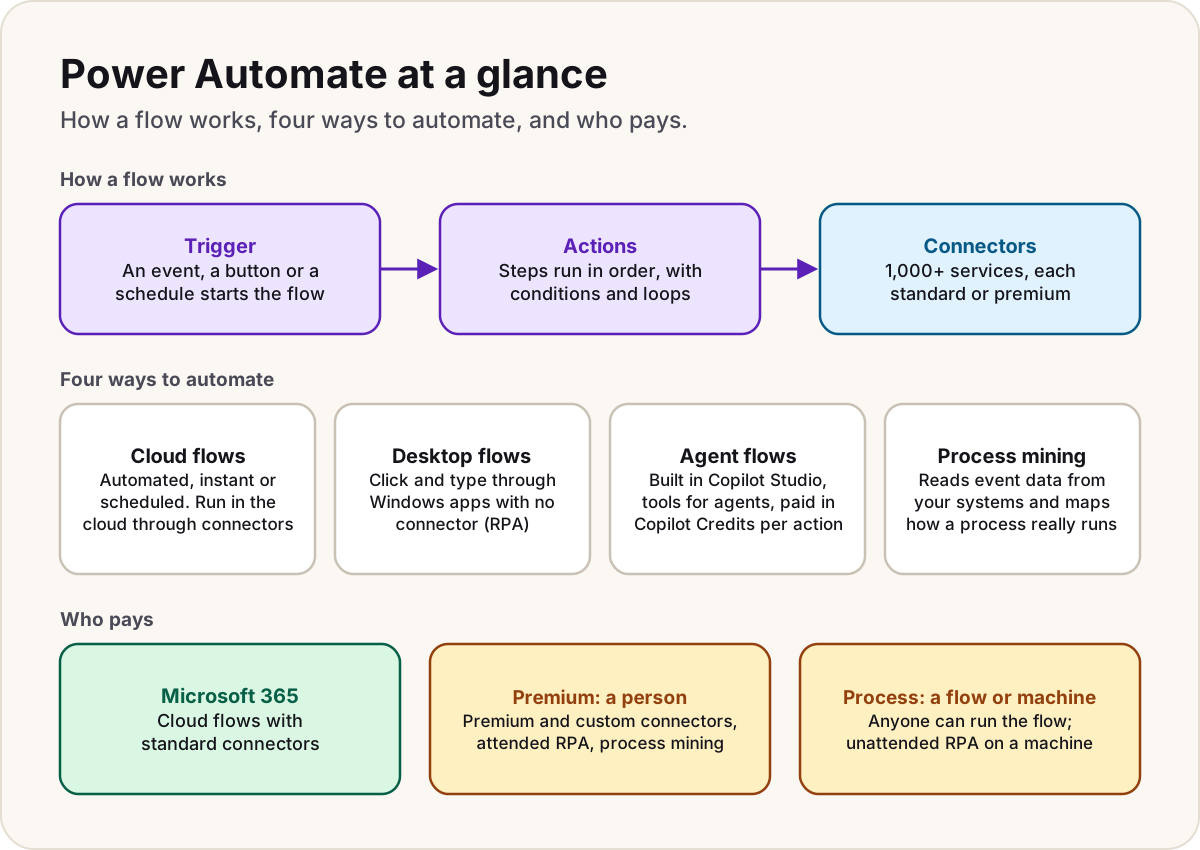
Power Automate is Microsoft's service for automating repetitive work. A flow waits for something to happen, such as an email arriving, a button being pressed or a set time, and then carries out a series of steps across your apps through ready-made connectors. It's part of Power Platform, most Microsoft 365 work accounts can already build flows with standard connectors, and it can also drive desktop applications by clicking and typing, which is called robotic process automation (RPA).
Power Automate in one minute
Every flow has the same shape:
- a trigger that starts it: an event (a new email, a new SharePoint item, a form response), a person pressing a button, or a schedule;
- one or more actions that follow: send a message, create a record, copy a file, ask for an approval, and so on, with conditions, loops and error handling between them;
- connectors that let the trigger and actions talk to other services, from SharePoint and Outlook to Salesforce and SQL Server.
You build flows in the browser at make.powerautomate.com, either by describing what you want to Copilot or from scratch in the designer. Microsoft's own description is a way to streamline business processes and automate repetitive tasks with little or no code. You sign in with a Microsoft work or school account.
The kinds of flow
Cloud flows: automated, instant and scheduled
Cloud flows run in Microsoft's cloud and reach your apps through connectors. When you create one without Copilot, you choose one of three types:
| Type | Starts when | Example |
|---|---|---|
| Automated cloud flow | An event happens in a connected service | An email arrives from a particular person |
| Instant cloud flow | Someone selects a button, in Power Automate, Teams, SharePoint or a Power App | Send the team a reminder, or start an approval |
| Scheduled cloud flow | A time you set comes round | Upload yesterday's data to SharePoint every morning |
Copilot is on by default in the new designer and builds a flow from a plain-language description; an admin can turn it off. Generative actions (in preview) go further: you describe the intent and AI picks the actions at run time. Microsoft currently limits them to nine Microsoft 365 connectors, including SharePoint, Office 365 Outlook, Teams and Approvals, and says preview features aren't meant for production.
Desktop flows (RPA)
Desktop flows automate what a person does on a Windows PC: opening applications, clicking, typing and reading the screen. You build them in Power Automate for desktop, from more than 400 prebuilt actions or by recording yourself, and they work with web pages, Excel, files and folders, older desktop applications and terminal emulators.
Use them when there's no connector or API. A cloud flow often starts the desktop flow, hands it the data and deals with the result. If you've found the Power Automate app already installed on a Windows 11 PC, that's Power Automate for desktop: with a personal Microsoft account it builds desktop flows that run on that PC, at no extra cost, but it doesn't include cloud flows.
Two catches from Microsoft's prerequisites: devices with ARM processors aren't supported, and on Windows 10 Home or Windows 11 Home you can build and run desktop flows locally but can't start them from a cloud flow.
Agent flows in Copilot Studio
Agent flows look like cloud flows but are built and managed in Copilot Studio, on its Workflows page. They have the same trigger-and-actions shape, add AI actions such as running a prompt, and can be given to an agent as a tool. They're paid for differently: every action they run uses Copilot Studio capacity (Copilot Credits) instead of a Power Automate licence. You can convert a cloud flow into an agent flow, but Microsoft says the change can't be reversed. Our guide to choosing a cloud flow, an agent flow or a desktop flow compares all three side by side.
Process mining
Process mining doesn't automate anything by itself. It reads event data from your systems of record, such as an ERP or a service desk, and draws a map of how a process actually runs: the steps, the delays, the rework. You use it to find bottlenecks and to decide what's worth automating. It's included with Power Automate Premium.
Business process flows
One more kind sits inside model-driven Power Apps. A business process flow shows a bar of stages at the top of a form and can require certain columns before someone moves to the next stage. Microsoft notes it adds no automation of its own beyond guiding data entry; it's usually paired with cloud flows that do the work.
Triggers, actions and connectors
Connectors are what make Power Automate useful. Microsoft's pages don't agree on the count: the custom connectors overview says more than 1,000, and the Logic Apps migration guide says more than 1,400 for Power Automate. Either way, there are well over a thousand, published by Microsoft, by the service's own vendor, or by independent publishers. Each one offers triggers ("when a new item is added"), actions ("create a file"), or both.
Every connector is in one of two tiers:
- Standard connectors include most of Microsoft 365: SharePoint, Outlook, Teams, OneDrive for Business, Excel Online (Business), Planner and Approvals, among many others.
- Premium connectors include Dataverse, SQL Server, the Azure services, Salesforce, and the generic HTTP connector. Using one in a flow needs a premium licence.
When nothing suitable exists, a developer can build a custom connector around any REST API; custom connectors also need a premium licence. Whatever the tier, an admin's data policies decide which connectors can be used, and which can be used together in one flow. Our data policy checklist covers how they work.
Triggers can carry conditions too, so a flow only starts when, say, a status column changes to Approved. That saves runs and stops loops; trigger conditions shows how to write them.
What Microsoft 365 includes, and what Premium adds
Many Microsoft 365 and Office 365 licences include Power Automate rights for automated, instant and scheduled cloud flows with standard connectors, up to 6,000 actions a day per user. Work or school accounts without those licences can still use the free Power Automate plan: cloud flows with standard connectors (without sharing), and desktop flows run by hand on their own PC.
Beyond that, there are two paid licences:
- Power Automate Premium licenses a person: premium and custom connectors, desktop flows in attended mode (with the person at the machine), process and task mining, and a higher daily allowance of 40,000 requests. This is what people usually mean by "Power Automate Premium".
- Power Automate Process licenses a flow or a machine instead of a person: anyone can start that flow without their own premium licence, and on a machine it runs desktop flows unattended.
Prices, the exceptions for flows inside licensed Power Apps, and who pays for each run are in Power Automate licensing explained.
Warning
A flow that works for its maker can fail for others. Automated and scheduled flows run on their owner's licence, but instant flows run on the licence of whoever presses the button. Share a button flow that uses a premium connector, and everyone who runs it needs a premium licence too.
What people automate with it
Microsoft's own examples, and the flows our readers build most:
- Approvals. A request is submitted in a form or a SharePoint list; the manager gets an approval in Teams and Outlook; the result updates the item and tells the requester. Add deadlines and reminders with approvals that don't stall.
- Notifications and reminders. Post in Teams when a high-priority item arrives, or email owners about items due this week (reminder emails for items due soon).
- Files and attachments. Save email attachments to SharePoint or OneDrive, rename them and file them by date (files and attachments in flows).
- Moving data between systems. Copy new form responses into a list or a database, or upload a daily extract on a schedule.
- Old systems with no API. A desktop flow types invoice details into an ERP screen, or reads prices from a website into Excel.
- Finding what to automate next. Process mining shows where a process actually waits, before anyone builds a flow.
Where Power Automate stops
Power Automate has firm limits. These are from Microsoft's limits page for cloud flows:
| Limit | Value |
|---|---|
| How long one run can last | 30 days, including time waiting for an approval; pending steps then time out |
| How long run history is kept | 30 days |
| Actions in one flow | 500; use child flows for more |
| Nesting depth (conditions inside loops inside scopes) | 8 levels |
| Items an Apply to each loop can process | 5,000 on Microsoft 365 and free licences, 100,000 on premium ones |
| Size of one message | 100 MB, or 1 GB where an action supports chunking |
| Flows one person can own | 600; use solutions for more |
| Flow with continuous errors | Turned off after 14 days |
| Flow that's never triggered | May be turned off after 90 days, with a warning 30 days before; not for flows whose owner has a premium licence or a Process licence |
Daily request limits matter too: every action counts, retries included, against 6,000 a day on Microsoft 365 licences and 40,000 on Premium. Microsoft is in a transition period where these are applied per flow at higher levels, so design for the official numbers.
Some jobs belong elsewhere:
- High-volume, IT-owned integration with managed identities, private networking and source-controlled deployments is what Azure Logic Apps is built for. See cloud flows or Logic Apps.
- Screen automation is fragile. A desktop flow breaks when the application's screen changes, and it needs a Windows machine, a session and credentials. Use a connector or an API whenever one exists.
- A flow tied to one person. When a flow's owner leaves, the flow drops to the lowest performance profile, and a premium flow with no licensed owner is eventually turned off. Keep important flows in solutions with a co-owner, and give the ones many people rely on a Process licence.
Do
- Start from a template or Copilot, then read every step before turning the flow on.
- Put flows that matter in a solution, with a co-owner, from the start.
- Check whether a connector is premium before you design around it.
Don't
- Don't use a desktop flow where a connector exists.
- Don't share a premium instant flow without licensing the people who will run it.
- Don't build long-waiting approvals without a timeout: after 30 days the run times out, and nobody is told unless you planned for it.
Sources
- What is Power Automate? — Microsoft Learn
- Explore the Power Automate home page — Microsoft Learn
- Overview of cloud flows — Microsoft Learn
- Use generative actions in cloud flows (preview) — Microsoft Learn
- Introduction to desktop flows — Microsoft Learn
- Prerequisites and limitations for desktop flows — Microsoft Learn
- Get started with Power Automate in Windows 11 — Microsoft Learn
- Agent flows overview — Microsoft Learn
- Overview of process mining — Microsoft Learn
- Business process flows overview — Microsoft Learn
- Connectors overview — Microsoft Learn
- Custom connectors overview: connector count — Microsoft Learn
- Power Automate migration to Azure Logic Apps (Standard): connector count — Microsoft Learn
- Connector classification in data policies — Microsoft Learn
- Types of Power Automate licenses — Microsoft Learn
- Power Automate licensing FAQ — Microsoft Learn
- Requests limits and allocations — Microsoft Learn
- Limits of automated, scheduled, and instant flows — Microsoft Learn
Was this helpful?
Comments
No comments yet. Share what worked for you.
Sign in to comment. Comments show under a display name you choose, never your email.