Fix "You aren't a member of the environment's security group"
Power Apps says you can't open apps in this environment. Why sharing the app isn't enough, how an admin adds you to the right group and syncs it, and what's next.
Governance & adminFix a problem7 min read
Someone shared a canvas app with you, you open the link, and instead of the app you get: "You can't open apps in this environment. You aren't a member of the environment's security group." Nothing is wrong with the app or the way it was shared. The environment the app lives in only lets in members of one Microsoft Entra group, and you aren't in it yet. Only an admin can fix that, and this guide is the short list of what they need to check.
- A shared canvas app shows
You can't open apps in this environment. You aren't a member of the environment's security group. - The message may name a contact to ask for access, if your admins have set governance details.
- It started for many people at once, often right after an admin attached a group to the environment.
Why sharing the app isn't enough
An admin can associate a Microsoft Entra security group (or a Microsoft 365 group) with an environment to control who can be a user there. Microsoft's rules for it:
- Adding someone to the group adds them to the environment, and removing someone from the group disables them there.
- Only licensed members of the group are created as users in the environment.
- Attaching a group to an environment that already has users disables everyone who isn't in the group. That's why the message often appears for a whole team on the same morning.
- A canvas app can still be shared with people outside the group, but they must be members to run it. That's exactly the gap this message reports.
Some accounts are treated differently, which explains "it works for me but not for them":
| Who | Needs to be in the group? |
|---|---|
| Someone with the Power Platform Administrator role | No: they show as an active user and can sign in |
| Someone with the Dynamics 365 administrator role | Yes: they can't use the environment until they're added and enabled |
| Application users (the identities that services and integrations sign in as) | No |
| A member of a group nested inside the environment's group | They aren't added in advance: they're added the first time they open the environment, or through a Dataverse group team |
Find the environment's security group
The app's owner can tell you which environment it's in. Then an admin with the Power Platform Administrator or Dynamics 365 administrator role checks which group that environment uses:
- Sign in to the Power Platform admin center.
- In the navigation pane, select Manage, then Environments, and choose the environment.
- Select Edit. The Edit details pane has a Security group area that shows the group; select its Edit icon only if you mean to change it.
Check it's the group you expected. Two settings Microsoft rules out: on-premises Windows Active Directory groups aren't supported, only Microsoft Entra groups; and the default and developer environments can't have a security group at all.
Add the person and sync them to the environment
- Step 1Add them to the environment's group
- Step 2Re-add the user or run diagnostics
- Step 3Assign a security role
- Microsoft Power AppsOpen the app again

- Add them to the group. In the Microsoft 365 admin center, go to Teams & groups > Active teams & groups, select the group, select Edit next to Members, then + Add members. This needs the Groups Administrator or User Administrator role: Microsoft notes that the Power Platform Administrator role alone can't manage Entra groups. You can do the same in the Microsoft Entra admin center.
- Sync the change to the environment. A membership change has to reach the environment before it counts. To push it now, an admin can re-add the user: in the Power Platform admin center, open the environment, select Settings, expand Users + permissions, select Users, then Add user, find the person and select Add.
- Or run diagnostics. On the same Users page, select the person and then Run diagnostics. It syncs their details from Microsoft Entra ID into the environment and says why they can or can't get in, with what to fix. If you open a support case, include its results.
- Open the app again.
After the group, a licence and a role
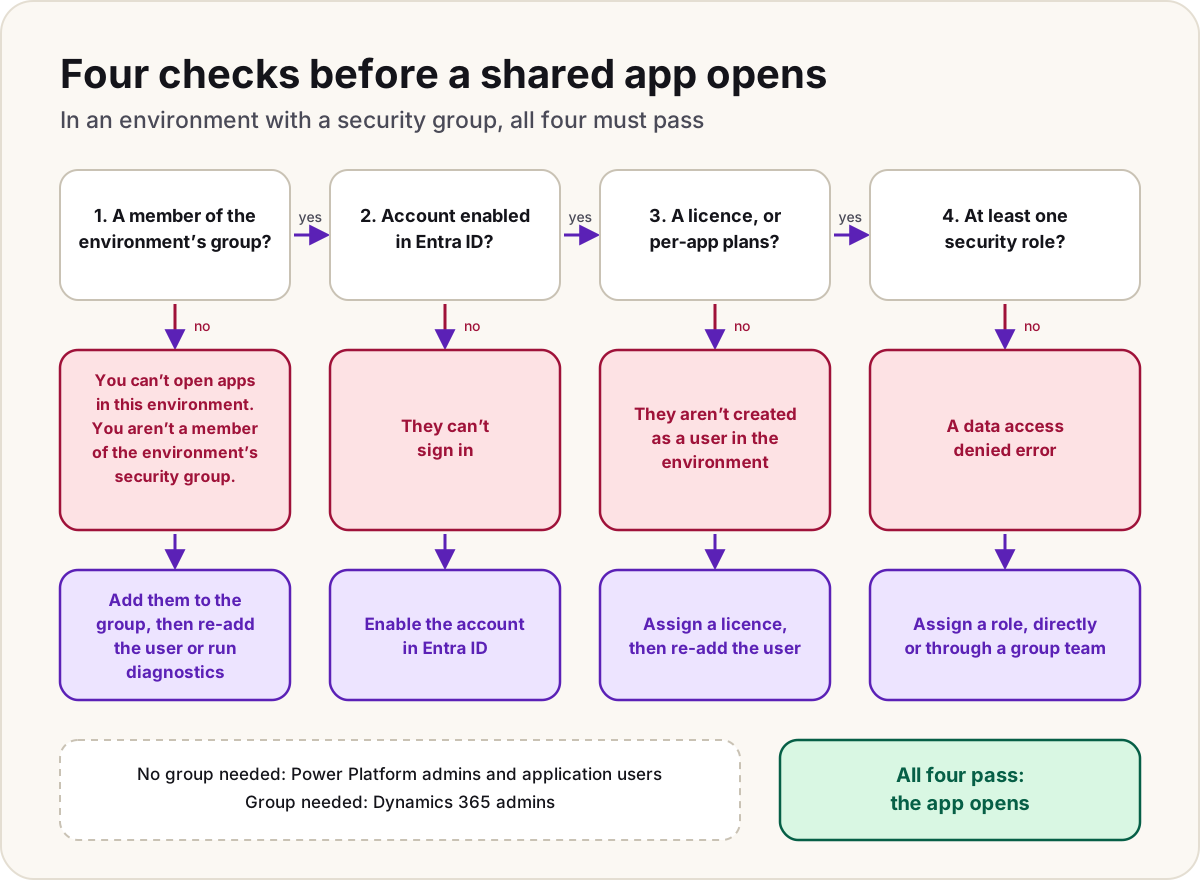
Being in the group only gets someone through the door. For an environment with a Dataverse database, Microsoft lists four things a person needs:
| Requirement | If it's missing |
|---|---|
| Their account is enabled for sign-in in Microsoft Entra ID | They can't sign in at all |
| A licence with a Power Platform or Dynamics 365 service plan, or per-app plans allocated to the environment | They aren't created as a user; assign a licence, then re-add them so it syncs |
| Membership of the environment's group, if it has one | The message this guide is about |
| At least one security role, assigned directly or through a group team | A data access denied error when they run an app |
With a per-app plan allocated to the environment, Microsoft treats every user as licensed when they open it. For which role grants what, see our Dataverse access cheat sheet; for which licence a person needs, see Power Apps licensing explained.
Do
- Give each important environment its own group, and add people to the group rather than to the environment one by one.
- Grant security roles to a Dataverse group team linked to the same Entra group, so access follows membership.
- Set governance details, so the message tells people whom to ask.
Don't
- Don't remove the group from the environment to make the message go away: it's the control that keeps everyone else out.
- Don't attach a group to a busy environment without first checking who's missing from it; everyone outside it is disabled at once.
Sources
- Control user access to environments with security groups and licenses — Microsoft Learn
- Troubleshoot user access problems for different environments — Microsoft Learn
- Add users to an environment — Microsoft Learn
- Manage group teams — Microsoft Learn
- You are not a member of the environment's security group — Power Apps community forum thread (a lead, confirmed against the Learn pages above)
Add LowCodeStacks as a preferred source on Google
Did this fix it?
Comments
No comments yet. Share what worked for you.
Sign in to comment. Comments show under a display name you choose, never your email.