Azure DevOps for Power Platform: set up CI/CD step by step
Set up Azure DevOps for Power Platform from scratch: Build Tools, a secret-free service connection, an export pipeline into Git, and a release with approvals.
Azure + Power PlatformFix a problem12 min read
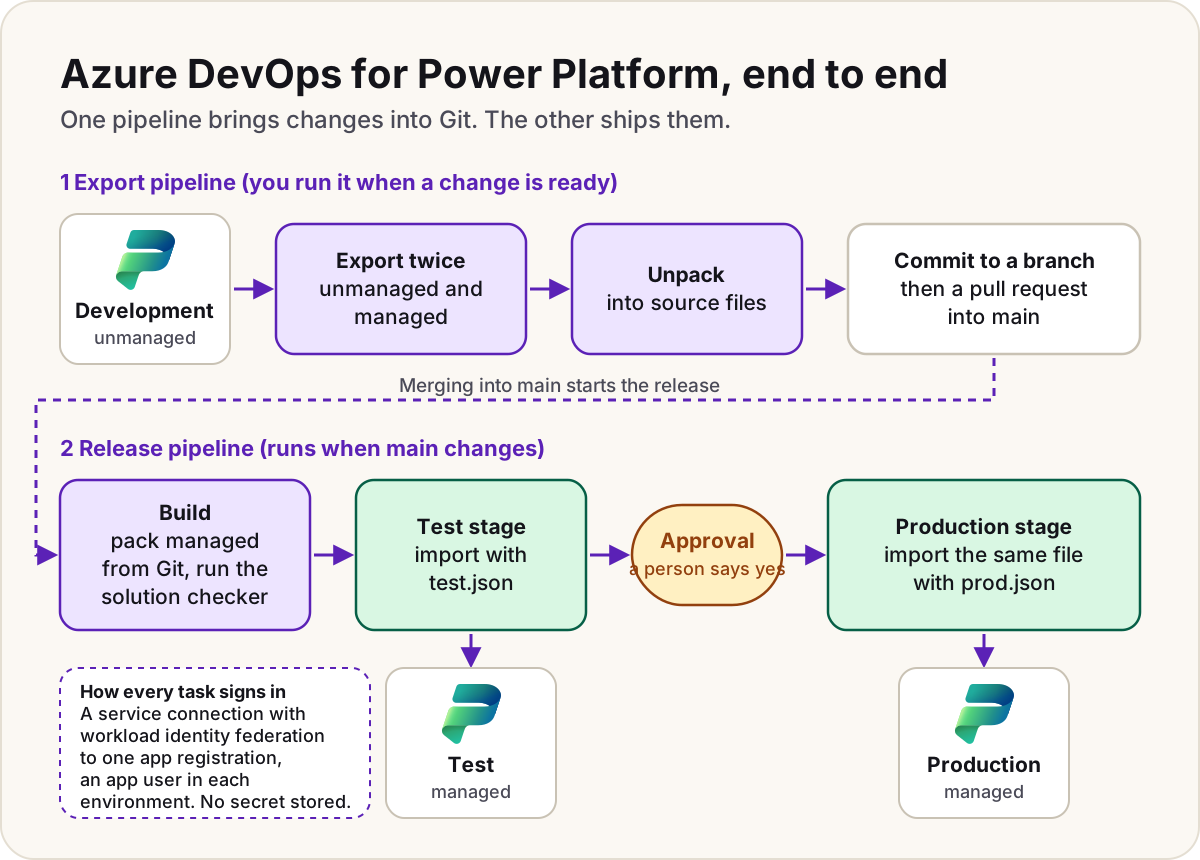
This is the hands-on companion to our guide on when to use Azure DevOps or GitHub for Power Platform deployments. That guide helps you decide. This one sets up Azure DevOps for Power Platform from an empty organization and ends with two working pipelines, with every screen and setting named.
What you need first
| You need | Why |
|---|---|
| Development, test and production environments with a Dataverse database | Microsoft's Build Tools only support environments with a database. |
| Your work in a solution, unmanaged in development | Pipelines move solutions, not loose apps and flows. |
| An Azure subscription you can link for billing | The free pipeline minutes only apply once the organization is linked to one. |
| Rights to create an app registration in Microsoft Entra ID, and to add users in each environment | The pipelines sign in as their own identity. |
Azure DevOps's free tier covers the first five users with Basic access, unlimited private Git repositories, and one Microsoft-hosted pipeline job at a time, up to 60 minutes per run and 1,800 minutes a month for private projects. That's plenty for one team's solution deployments.
Step 1: Create the organization and project
- Sign in at
dev.azure.comand select New organization. - Enter a name, choose the hosting geography, select the Azure subscription for billing, and select Continue. Linking the subscription is what turns on the free pipeline minutes.
- Create a private project, for example PowerPlatform-ALM. New public projects can't be created any more.
- In the project, open Repos and initialise the repository with a README, so it has a
mainbranch.
Step 2: Install the Power Platform Build Tools
The Build Tools are Microsoft's free Azure DevOps extension with ready-made tasks for exporting, packing, checking and importing solutions.
- Open the Microsoft Power Platform Build Tools page on the Visual Studio Marketplace and install it into your organization. If there's no install option, you need an organization administrator to install it or grant you the permission.
- Use the version 2 tasks (their names end in
@2). They're built on the Power Platform CLI, run on Windows or Linux agents, and get Microsoft's new features. Don't mix task versions in one pipeline: Microsoft says that isn't supported.
Step 3: Create the pipelines' identity
Pipelines should never sign in as a person. Create one app registration for them:
- In the Microsoft Entra admin center, go to App registrations > New registration, name it (for example AzDevOps-PowerPlatform), and select Register.
- Copy the Application (client) ID and the Directory (tenant) ID. Don't create a client secret: the next step makes one unnecessary.
Then make it a user in each environment the pipelines touch:
- In the Power Platform admin center, go to Manage > Environments, select the environment, and select Settings.
- Select Users + permissions > Application users, then New app user.
- Select Add an app, choose your app registration, pick the Business unit, and add the System Administrator security role, which is the role Microsoft's Build Tools instructions use. Select Create.
- Repeat for development, test and production.
Step 4: Connect Azure DevOps to each environment
Make one service connection per environment. Microsoft recommends workload identity federation: Azure DevOps and Microsoft Entra ID trust each other, so no password or secret is stored, nothing expires, and it works in tenants that require multi-factor authentication.
- In your project, go to Project settings > Service connections > New service connection, search for Power Platform, and select it.
- Choose Workload Identity federation as the authentication method. Microsoft's tutorial marks it as preview as of this guide's check date. It needs Build Tools version 2.0.69 or later.
- Enter the environment's Server URL (for example
https://contoso-dev.crm.dynamics.com), the Tenant ID and the Application ID. - Name it after the environment (PowerPlatform-Dev) and select Save. The connection page then shows an Issuer and a Subject identifier: copy both.
- Back in your app registration, go to Certificates & secrets > Federated credentials > Add credential, choose Other issuer, paste the Issuer and Subject identifier exactly, give it a name and select Add.
- Repeat for test and production. One app registration can hold all three federated credentials, one per service connection.
Warning
The issuer and subject must match character for character, including capitals. A mismatch shows up only when a pipeline runs, as a sign-in error saying no matching federated identity record was found.
If you can't use federation, the same service connection type accepts Service principal and client secret. It works, but the secret expires and has to be rotated before it does.
Step 5: Let the pipeline commit to Git
The export pipeline pushes files to your repository, and by default the pipeline's identity can only read it.
- Go to Project settings > Repositories, select your repository, then Security.
- Under Users, select <project name> Build Service (<organization name>). Choose that one, not Project Collection Build Service Accounts.
- Set Contribute and Create branch to Allow.
Step 6: The export pipeline
Create pipelines/export.yml in the repository with the content below, then Pipelines > New pipeline > Azure Repos Git, pick the repository, choose Existing Azure Pipelines YAML file and select it. Change ContosoInvoices to your solution's name (not its display name).
trigger: none

pool:
  vmImage: windows-latest

variables:
  SolutionName: ContosoInvoices

steps:
- checkout: self
  persistCredentials: true

- task: PowerPlatformToolInstaller@2
  displayName: Install the Power Platform tools

- task: PowerPlatformWhoAmi@2
  displayName: Check the connection
  inputs:
    authenticationType: PowerPlatformSPN
    PowerPlatformSPN: PowerPlatform-Dev

- task: PowerPlatformExportSolution@2
  displayName: Export unmanaged
  inputs:
    authenticationType: PowerPlatformSPN
    PowerPlatformSPN: PowerPlatform-Dev
    SolutionName: $(SolutionName)
    SolutionOutputFile: $(Build.ArtifactStagingDirectory)/$(SolutionName).zip
    Managed: false
    AsyncOperation: true
    MaxAsyncWaitTime: 60

- task: PowerPlatformExportSolution@2
  displayName: Export managed
  inputs:
    authenticationType: PowerPlatformSPN
    PowerPlatformSPN: PowerPlatform-Dev
    SolutionName: $(SolutionName)
    SolutionOutputFile: $(Build.ArtifactStagingDirectory)/$(SolutionName)_managed.zip
    Managed: true
    AsyncOperation: true
    MaxAsyncWaitTime: 60

- task: PowerPlatformUnpackSolution@2
  displayName: Unpack into source files
  inputs:
    SolutionInputFile: $(Build.ArtifactStagingDirectory)/$(SolutionName).zip
    SolutionTargetFolder: $(Build.SourcesDirectory)/solutions/$(SolutionName)
    SolutionType: Both

- script: |
    git config user.email "export-pipeline@contoso.example"
    git config user.name "Export pipeline"
    git checkout -b export/$(Build.BuildId)
    git add --all solutions
    git commit -m "Export $(SolutionName) from development [skip ci]"
    git push origin export/$(Build.BuildId)
  displayName: Commit to a new branch
Why export twice? Microsoft's packaging tool can't turn an unmanaged solution into a managed one. Exporting both, named Name.zip and Name_managed.zip, and unpacking with Both keeps the managed differences in Git, so the release pipeline can later pack a managed solution from the files alone.
Run it with Run pipeline whenever a change in development is ready. It creates a branch called export/<run number>; open a pull request from it into main so someone reviews what changed before it ships. [skip ci] in the commit message stops the push from starting other pipelines.
Step 7: The release pipeline
Create the environments and the approval
- Go to Pipelines > Environments > New environment and create Test and Production (choose None for resources).
- Open Production, select Approvals and checks, then +, Approvals, and Next.
- Add the approvers (a person or a group; with a group, any one member can approve), set a Timeout, and select Create. If nobody approves within the timeout, the stage is skipped.
Add the deployment settings files
Connection references and environment variables need different values in each environment. A deployment settings file gives the import those values, so nobody has to fill them in by hand afterwards. Generate one from the managed export with the Power Platform CLI:
pac solution create-settings --solution-zip .\ContosoInvoices_managed.zip --settings-file .\settings\test.json
Fill in each environment variable's Value, and each connection reference's ConnectionId from a connection that already exists in the target environment (in Power Apps, Connections, select the connection, and copy the ID from the address bar). Save settings/test.json and settings/prod.json in the repository. The file holds IDs and settings, never passwords; keep secrets in Azure Key Vault and point a secret-type environment variable at them.
Microsoft checks the connections during import: each connection must belong to the owner of the connection reference, or be shared with them. After the first import, check who owns the connection references in the solution, and share the connections with that owner.
The pipeline
Create pipelines/release.yml and add it as a pipeline the same way:
trigger:
  branches:
    include:
    - main
  paths:
    include:
    - solutions
    - settings

pool:
  vmImage: windows-latest

variables:
  SolutionName: ContosoInvoices

stages:
- stage: Build
  jobs:
  - job: Pack
    steps:
    - task: PowerPlatformToolInstaller@2
      displayName: Install the Power Platform tools

    - task: PowerPlatformPackSolution@2
      displayName: Pack the managed solution
      inputs:
        SolutionSourceFolder: $(Build.SourcesDirectory)/solutions/$(SolutionName)
        SolutionOutputFile: $(Build.ArtifactStagingDirectory)/$(SolutionName)_managed.zip
        SolutionType: Managed

    - task: PowerPlatformChecker@2
      displayName: Run the solution checker
      inputs:
        authenticationType: PowerPlatformSPN
        PowerPlatformSPN: PowerPlatform-Dev
        FilesToAnalyze: $(Build.ArtifactStagingDirectory)/*.zip
        RuleSet: 0ad12346-e108-40b8-a956-9a8f95ea18c9
        ErrorLevel: HighIssueCount
        ErrorThreshold: 0

    - publish: $(Build.ArtifactStagingDirectory)
      artifact: solution
    - publish: $(Build.SourcesDirectory)/settings
      artifact: settings

- stage: Test
  dependsOn: Build
  jobs:
  - deployment: ImportToTest
    environment: Test
    strategy:
      runOnce:
        deploy:
          steps:
          - download: current
            artifact: solution
          - download: current
            artifact: settings
          - task: PowerPlatformToolInstaller@2
          - task: PowerPlatformImportSolution@2
            displayName: Import into test
            inputs:
              authenticationType: PowerPlatformSPN
              PowerPlatformSPN: PowerPlatform-Test
              SolutionInputFile: $(Pipeline.Workspace)/solution/$(SolutionName)_managed.zip
              AsyncOperation: true
              MaxAsyncWaitTime: 60
              UseDeploymentSettingsFile: true
              DeploymentSettingsFile: $(Pipeline.Workspace)/settings/test.json

- stage: Production
  dependsOn: Test
  jobs:
  - deployment: ImportToProduction
    environment: Production
    strategy:
      runOnce:
        deploy:
          steps:
          - download: current
            artifact: solution
          - download: current
            artifact: settings
          - task: PowerPlatformToolInstaller@2
          - task: PowerPlatformImportSolution@2
            displayName: Import into production
            inputs:
              authenticationType: PowerPlatformSPN
              PowerPlatformSPN: PowerPlatform-Prod
              SolutionInputFile: $(Pipeline.Workspace)/solution/$(SolutionName)_managed.zip
              AsyncOperation: true
              MaxAsyncWaitTime: 60
              UseDeploymentSettingsFile: true
              DeploymentSettingsFile: $(Pipeline.Workspace)/settings/prod.json
What each part does:
- Build packs the managed solution from Git, so what's deployed is exactly what was reviewed, and runs the solution checker rule set (the same one as the checker in Power Apps).
ErrorLevel: HighIssueCountwithErrorThreshold: 0fails the build on any high-severity issue. - Test imports that file. Because the stage targets the Test environment, Azure DevOps records each deployment there.
- Production waits at the approval you set on the Production environment, then imports the same file that passed test.
AsyncOperation: truematters for anything but tiny solutions: without it, the import task times out after four minutes.
The first time a stage uses a service connection or an environment, Azure DevOps asks for permission on the run page. Select Permit once for each.
When it fails
- "No matching federated identity record found": the issuer or subject in the app registration's federated credential doesn't match the service connection exactly.
- The export or import task can't find the solution:
SolutionNamemust be the solution's unique name, not its display name. - The import times out after about four minutes: set
AsyncOperation: trueand aMaxAsyncWaitTime. - Pack Managed fails: the folder was unpacked from an unmanaged export only. Export managed too and unpack with Both.
- The push in the export pipeline is refused: the Build Service identity is missing Contribute on the repository, or
persistCredentials: trueis missing. - Flows are off after import, or a connection reference is empty: check the deployment settings file's
ConnectionIdvalues, and that those connections are shared with the owner of the connection references. - A run stops at 60 minutes: that's the free tier's limit per job. Split the work into more jobs, or buy a parallel job, which allows 360 minutes.
Do
- Use workload identity federation, so there's no secret to leak or renew.
- Deploy the same managed file to test and production, built once from Git.
- Keep one service connection per environment, and approvals on production.
Don't
- Don't sign pipelines in with a person's user name and password: it can't satisfy multi-factor authentication, and it stops when that person leaves.
- Don't import unmanaged solutions into test or production.
- Don't put passwords or keys in the deployment settings file.
For the Power Platform side of the same journey, see deploying with pipelines in Power Platform or Azure DevOps, and for a flow that fails after import because it can't read a Key Vault secret, Key Vault secret environment variable not authorized.
Sources
- Microsoft Power Platform Build Tools for Azure DevOps — Microsoft Learn
- Microsoft Power Platform Build Tools tasks — Microsoft Learn
- Tutorial: Schedule environment copy using Azure DevOps (workload identity federation setup) — Microsoft Learn
- Pre-populate connection references and environment variables for automated deployments — Microsoft Learn
- SolutionPackager tool: managed and unmanaged solutions — Microsoft Learn
- Create an application user — Microsoft Learn
- Define approvals and checks — Microsoft Learn
- Run Git commands in pipeline scripts — Microsoft Learn
- Configure and pay for parallel jobs — Microsoft Learn
- Billing overview: free tier — Microsoft Learn
Did this fix it?
Comments
No comments yet. Share what worked for you.
Sign in to comment. Comments show under a display name you choose, never your email.