Power BI tutorial for beginners: build your first report
Build your first Power BI report in about 30 minutes with Microsoft's free Financial sample: install, clean, model, one measure, visuals, a slicer, then publish.
Power BIFix a problem11 min read
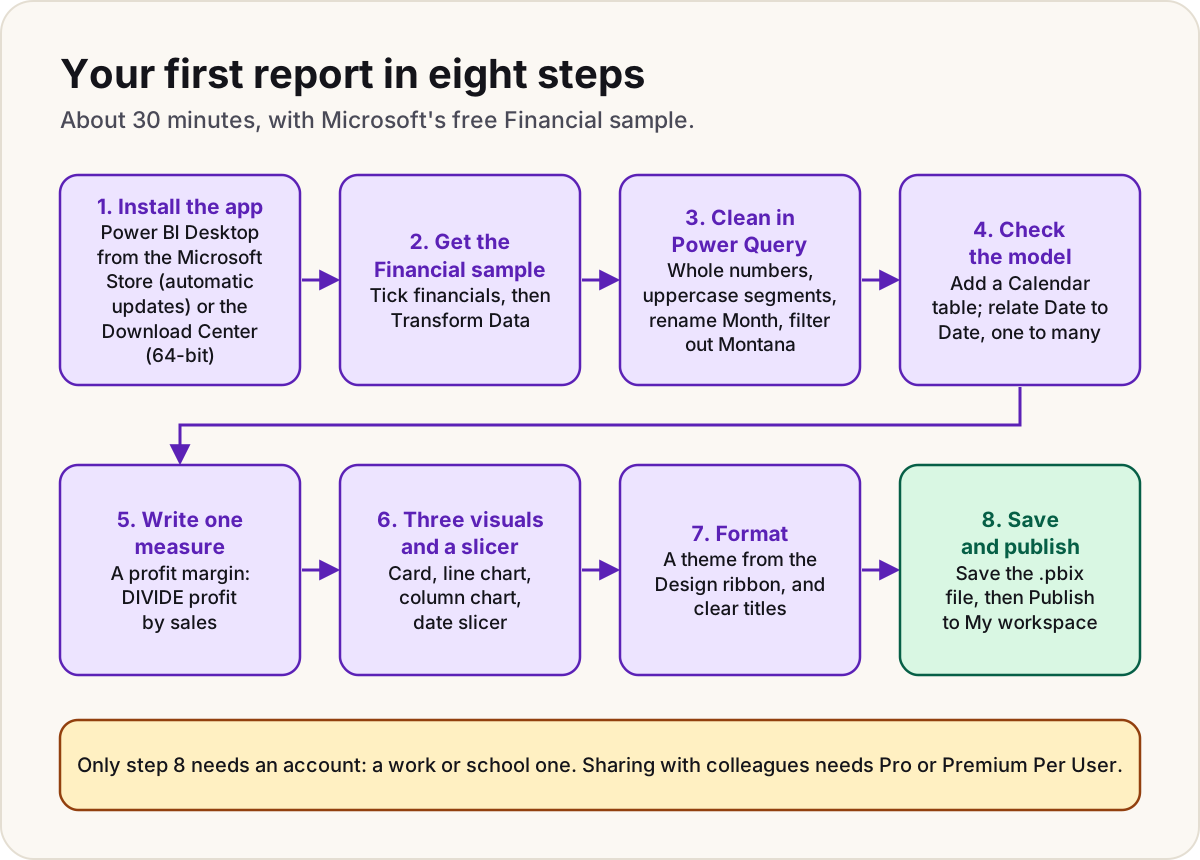
This Power BI tutorial for beginners takes you from nothing installed to a published report in about 30 minutes, using only free tools and Microsoft's own sample data. You'll follow the same path every real report takes: get data, clean it, model it, calculate, visualise, publish. Every button name below comes from Microsoft Learn's current pages, and where two of Microsoft's pages disagree, we say so.
What you need
- A Windows PC. Power BI Desktop is a free Windows app. Microsoft's minimum is Windows 10 or later, 2 GB of free memory (4 GB recommended) and a screen of at least 1440 x 900. If Windows display scaling is set above 100%, some dialogs can disappear off screen, so set it back to 100% if a window seems stuck.
- About 30 minutes.
- A work or school account, only for the last step. Microsoft's tutorial needs an account only to publish. The Power BI service doesn't accept personal addresses such as Gmail or Hotmail.
Step 1: Install Power BI Desktop
Microsoft offers two ways, and both install the latest version:
| Microsoft Store | Download Center | |
|---|---|---|
| Updates | Automatic, in the background | You install each month's release yourself |
| Admin rights | Not needed | Needed to install |
| Version | Latest | Latest, 64-bit (32-bit is no longer supported) |
Pick the Microsoft Store unless your IT team says otherwise: it keeps you current, and Microsoft only supports the latest version. Search the Store for Power BI Desktop and select Install. If you already have the downloaded version, uninstall it first: Microsoft doesn't support the two side by side.
Open Power BI Desktop from the Start menu. You land on the Home page.
Step 2: Get the Financial sample
The sample is a single Excel table of sales and profit by segment, country and product, over 2013 and 2014. There are two routes:
- Inside Power BI Desktop. On the Home page, select Learn with sample data, then Load sample data.
- As a file. Download the Financial Sample workbook from Microsoft's sample page (linked in Sources). Then, on the Home page, select Excel workbook, browse to the file and select Open.
Note
Microsoft's pages name the in-app route differently. The August 2026 tutorial says Learn with sample data on the Home page; the older sample page says Use sample data on the Add data to your report screen. Use whichever your version shows; both end at Load sample data.
The Navigator window opens. Tick the box next to financials first: until a table is ticked, the Load and Transform Data buttons stay greyed out. Then select Transform Data, because we want to clean it before it lands in the model.
Step 3: Clean the data in Power Query
Power Query Editor opens. Every change you make is recorded as a step under Query Settings > APPLIED STEPS, so nothing touches the original workbook and you can delete any step to undo it.
- Fix a data type. Select the Units Sold column. On the Transform tab, select Data Type > Whole Number, and choose Replace current in the dialog. Half a unit sold makes no sense, and changing types is the clean-up you'll do most often.
- Tidy text. Select the Segment column, then Transform > Format > UPPERCASE.
- Rename a column. Double-click the Month Name header and rename it Month.
- Filter rows. Open the dropdown on the Product header and clear Montana, a product the sample treats as discontinued.
- On the Home tab, select Close & Apply.
The data loads into the model. In the Data pane on the right, a sigma (∑) marks a numeric field and a calendar icon marks a date.
Tip
Clean data as far back as you can: in the source, then Power Query, then DAX. For a real export with repeated customer and product details, building a star schema from messy exports shows how to split one flat file into proper tables.
Step 4: Check the model and add a date table
One table is fine for a first report, but almost every real model needs a date table: one row per day, related to the dates in your data. Add one now.
- Select Table view on the left.
- On the Home ribbon, select New table, type this in the formula bar and select the check mark:
Calendar = CALENDAR ( DATE ( 2013, 1, 1 ), DATE ( 2014, 12, 31 ) )
- Select Model view on the left. You'll see two tables: financials and Calendar.
- Drag Date from Calendar onto Date in financials. In the dialog that opens, Power BI fills in the settings for you; select Save.
Now check what you built. A line joins the two tables, with a 1 on the Calendar end and a * on the financials end: one-to-many, because each date appears once in Calendar and many times in the sales data. The arrow on the line shows filters flowing from Calendar to financials, which is exactly what a date slicer needs.
Warning
If your Windows region uses a comma as the decimal separator, DAX expects semicolons between arguments: CALENDAR ( DATE ( 2013; 1; 1 ); DATE ( 2014; 12; 31 ) ). Pasted formulas can also bring curly quotes with them; retype them if you get a syntax error.
Microsoft's tutorial calls the dialog New relationship with a Save button; its older relationships page shows Create relationship with OK. The steps are the same. Our date table guide covers the columns a full date table needs and when to mark it as one.
Step 5: Write one measure
Power BI already sums Profit and Sales for you when you drag them into a visual. A margin is different: you have to divide the totals, not add up the rows. That's a job for a measure.
- Select Report view on the left, then select the financials table in the Data pane.
- On the Home ribbon, select New measure.
- Replace
Measure =in the formula bar with this, then press Enter or select the check mark:
Profit margin % =
DIVIDE ( SUM ( financials[Profit] ), SUM ( financials[Sales] ) )
- With the measure selected, go to the Measure tools ribbon and, in the Formatting group, set Format to a percentage.
DIVIDE returns a blank instead of an error when the bottom number is zero. The measure is recalculated for every cell, slicer and total, so the grand total is the margin of all sales, not a sum of row margins. Calculated column vs measure explains why that matters.
Step 6: Build three visuals and a slicer
Stay in Report view. As in Microsoft's tutorial, select a blank part of the canvas before you start each new visual.
A title. On the Insert ribbon, select Text box and type a title such as Finance summary. Make it bold and size 20.
A card for the measure. In the Visualizations pane, on the Build visual tab, select Card, then drag Profit margin % into Values. Since the November 2025 release, this is the new card visual. Designing a KPI card shows how to give it a target and a trend later.
A line chart of profit over time.
- Drag Profit onto a blank area. Power BI starts with a column chart.
- Drag Date from the Calendar table onto the same chart.
- On the Build visual tab, open the dropdown next to Date in the X-axis well, choose Date Hierarchy, and clear Quarter and Day so only Year and Month are left.
- Change the visual type to Line chart. December 2014 stands out as the best month.
A column chart by product and segment. Select a blank area, then tick Sales, Product and Segment in the Data pane. Power BI builds a clustered column chart. Stretch it across the bottom of the page.
A slicer.
- Drag Date from the Calendar table to a free space, then choose Slicer in the Visualizations pane.
- In the Data pane, expand Date and clear Quarter and Day, so the slicer lists years and months.
Select 2013 in the slicer: the card, line chart and column chart all change, because the slicer filters Calendar and the relationship passes that filter to financials.
Step 7: Format the page
Keep formatting light; the point is that people can read it.
- Theme. On the Design ribbon, pick a theme from the Themes gallery. It recolours every visual at once.
- Titles. Select the line chart, open Format visual > General > Title, and set Text to Profit by month with a font size of 16. Give the column chart a title that asks its question, such as Which product and segment sell most?
- Number display. If the card shows a rounded value you don't want, set Callout values > Values > Display units under Format visual > Visual.
Note
Microsoft's tutorial suggests the Executive theme, but Microsoft's themes page (also August 2026) lists the current built-in themes as Bloom, Dark, Divergent, Frontier, Innovate, Soft dark, Tidal and Copilot default. Pick any of those.
Step 8: Save and publish
- Select File > Save (or press Ctrl+S) and name the file. It saves as a
.pbixfile. - On the Home ribbon, select Publish and sign in with your work or school account if asked.
- Choose My workspace as the destination.
- Select Open '<your file name>' in Power BI. The report opens in the Power BI service, in your browser.
What your licence allows from here:
| You have | You can |
|---|---|
| A free Fabric licence | Publish to My workspace and view it yourself |
| Power BI Pro or Premium Per User | Publish to shared workspaces and share with colleagues |
| No work or school account | Build everything in Desktop; to try the service, Microsoft suggests a Microsoft 365 trial, which needs a credit card |
Who needs which licence to view a shared report depends on the workspace's capacity. Power BI licensing explained walks through it.
What to learn next
Do
- Rebuild this report from your own spreadsheet, keeping the same steps.
- Learn the model first: a star schema from messy exports, then a date table in Power BI.
- Write measures for anything you total, and read why totals go wrong when they don't add up.
- Turn the card into a proper KPI with designing a KPI card.
Don't
- Don't fix data types in visuals; fix them in Power Query, once.
- Don't store a margin in a column and let the visual sum it.
- Don't plan to share on a free licence: sharing with colleagues needs Pro or Premium Per User.
Sources
- Tutorial: Create a report from an Excel workbook in Power BI — Microsoft Learn
- Download Power BI Desktop — Microsoft Learn
- Get started with Power BI Desktop — Microsoft Learn
- Download the Financial Sample Excel workbook for Power BI — Microsoft Learn
- Create and manage relationships in Power BI Desktop — Microsoft Learn
- Model relationships in Power BI Desktop — Microsoft Learn
- Tutorial: Create your own measures in Power BI Desktop — Microsoft Learn
- Create dynamic format strings for measures — Microsoft Learn
- DIVIDE function (DAX) — Microsoft Learn
- Create a card visual in Power BI — Microsoft Learn
- Use report themes in Power BI — Microsoft Learn
- Sign up for or purchase Power BI as an individual — Microsoft Learn
- Tutorial: Get started creating in the Power BI service — Microsoft Learn
Did this fix it?
Comments
No comments yet. Share what worked for you.
Sign in to comment. Comments show under a display name you choose, never your email.