Environment not showing in Power Apps? Each list has its own rule
Power Apps, Power Automate and the admin center each list environments by different rules. Which role puts an environment in each list, and what to check first.
Governance & adminFix a problem10 min read
You open the environment switcher in Power Apps, and the environment your team builds in isn't there. Yet a colleague sees it, or it shows up for you in Power Automate or the Power Platform admin center. Nothing is broken. Each of those three lists decides for itself which environments to show you, and the main thing it looks at is your security roles in each environment. Microsoft's troubleshooting page says a missing role assignment is the most common reason. Fix the role, and the environment usually appears within minutes.
- An environment shows in Power Automate but not in the Power Apps environment switcher, or the other way round.
- Someone was just given access and still can't see the environment.
- An admin can't find an environment in the admin center's list, in a tenant with lots of environments.
- The environment has gone from the admin center for every admin, Power Platform administrators included.
Each list has its own rule
Microsoft's page on missing environments sets out what puts an environment in each list:
| Where you're looking | The environment shows when you have | Learn's notes |
|---|---|---|
| Power Apps (make.powerapps.com) | The Environment Maker role, or maker permission on at least one app in the environment | The Environment Admin role and custom roles don't add it |
| Power Automate | Any built-in security role, or you co-own at least one flow there | |
| Power Platform admin center | Admin access: System Administrator in an environment with Dataverse, Environment Admin in one without | Power Platform administrators, delegated admins and authorized service principals see every environment. Dynamics 365 administrators see only environments whose security group they're in, if one is set |
So the classic case, "I see it in Power Automate but not in Power Apps", fits the table. Per this page, any built-in role is enough for Power Automate, but Power Apps needs the Environment Maker role or maker permission on an app.
Learn adds that admin PowerShell, the pac admin list command and related admin tools follow the admin center's rules. So an admin script that lists environments sees what the admin center shows you, not what Power Apps shows.
Learn's two Power Apps pages word the rule differently
Learn's page on signing in to Power Apps is broader. It says that to see the environment list in the switcher, you need the Environment Maker, System Customizer or System Administrator role. It also says the switcher groups environments under Build apps with Dataverse (where you're a System Administrator or System Customizer) and Other environments (where you're only an Environment Maker, or can edit at least one canvas app). The troubleshooting page names only the Environment Maker role and app permissions, and says the Environment Admin role and custom roles don't add the environment. Both pages list Environment Maker.
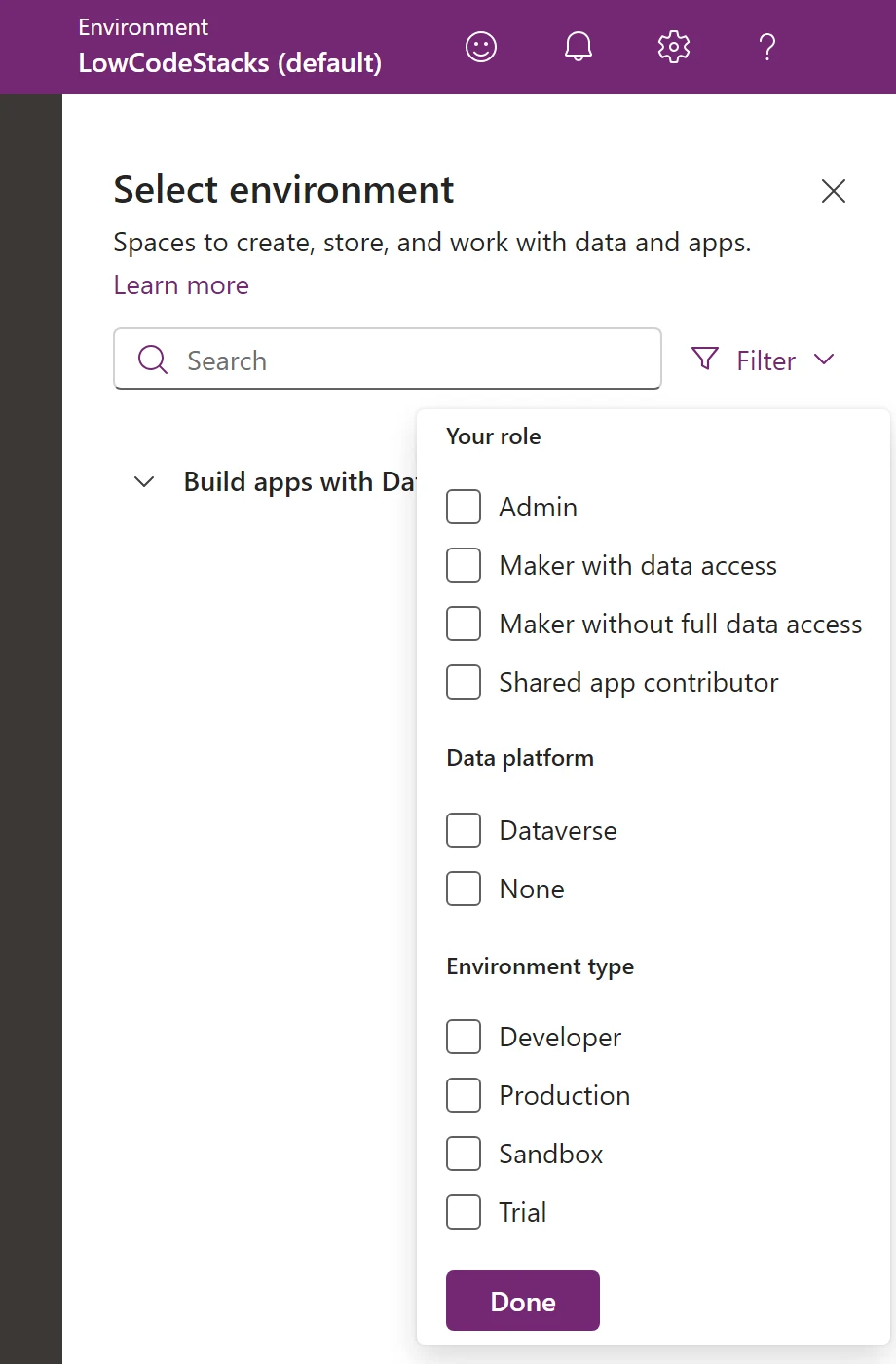
The switcher's Filter option lets you narrow the list by your role, such as Admin, Maker with data access, Maker without full data access and Shared app contributor. The sign-in page's table maps the Admin filter to System Administrator and Environment Admin.
What the switcher shows with its filter open, as of February 2025:
- Select environment: the pane the environment switcher in the header opens.
- Filter: narrows the list by Your role, Data platform and Environment type, then Done.
- Build apps with Dataverse: the group for environments where you're a System Administrator or System Customizer.
First, wait, then load the whole list
- Step 1Name the list it's missing from
- Step 2Wait ten minutes
- Step 3Load the full list in the admin center
- Step 4Check the role and how it was given
- Step 5Missing for every admin? Check deleted environments
- Give it ten minutes. Learn says new access usually shows within a minute or two, because of caches and background processes, but recommends waiting ten minutes before you troubleshoot further.
- Load the full list in the admin center. In a tenant with many environments, the admin center may load only some of them at first so the page opens quickly. Learn's text says to select Show all at the bottom of the list. Its screenshot shows a Show more button with Show all in its drop-down, and the line "Loading more environments in the background…". Searching the list also loads every environment.
Check the role and how it was given
Compare the person's roles with the table above. Then check how the role reached them, because Learn says it counts in only two ways:
- Assigned directly to the user, or
- Assigned to a Microsoft Entra group team the user belongs to.
Roles given through a Dataverse owner team never put an environment in the list. Learn says plainly not to use owner teams for this.
To give someone a role directly, Learn's steps for an environment with Dataverse are:
- Sign in to the Power Platform admin center as a System Administrator.
- Open the list of environments and choose the environment.
- In the environment's settings, open users and permissions, then the list of users.
- Select the user, then the command for managing their security roles.
- Select the roles, such as Environment Maker, and save. Learn notes that the roles you save become the user's direct roles, and any you leave unselected aren't assigned.
Three rules from Learn that catch people out:
- You can't hand out more than you have. Someone assigning roles can't give a role with more privileges than their own.
- The default environment is different. Everyone added to its Dataverse database gets Basic User and Environment Maker automatically.
- Some roles don't show the environment at all. A user with only the SharePoint custom form maker role doesn't see that environment in the Power Apps or Power Automate list.
Our Dataverse access cheat sheet explains what each built-in role can do.
Run user access diagnostics
For an environment with a Dataverse database, Learn suggests the admin center's diagnostics. Many of the problems that stop someone using an environment also keep it out of their lists.
- In the admin center, select the environment.
- In its settings, open users and permissions, then the list of users.
- Select the user and run diagnostics.
- Read the result and fix what it reports.
Running it also syncs the user's details from Microsoft Entra ID into the environment. Two common findings: the person isn't in the environment's security group, or their user record is missing or out of sync with Entra ID, in which case an admin can add them to the environment explicitly.
One limit to know: Learn's page on user access lists a known issue. The system currently checks only security roles assigned directly to a user, not roles inherited through a group team. Learn's role-assignment page adds that its steps manage only direct roles too. So for a person who gets their role through an Entra group team, check the team's roles yourself.
Gone for every admin? Check whether it was deleted
If tenant administrators can't see the environment either, Learn says to check whether it was deleted first. A recently deleted environment can be recovered:
- In the admin center, open the list of environments.
- Open the list of recently deleted environments.
- Select the environment and recover it.
Learn's recovery page gives the time you have: the standard soft-delete period is seven days, and a production environment with Dynamics 365 apps stays recoverable for up to 28 days. Recovery can take several hours, and depending on the environment type you may need enough storage capacity. Afterwards, solution-aware cloud flows are turned off. Turn child flows on before the flows that call them, and test connections and apps before people go back to work.
If the environment wasn't deleted and still doesn't show for Power Platform administrators, Learn's answer is a support request. Have three things ready: which environment (its ID, name or Dataverse URL), which user (their Entra object ID or user principal name), and which list it's missing from.
Developer, trial and support environments
These environment types sync users differently. Learn says only the first user is added to the environment's user table. So other admins, even Power Platform administrators who see the environment in the admin center, may need to be added to it explicitly before every admin task works, such as using management connectors.
Two more things to rule out
- The wrong directory. A guest maker signs in to their home tenant first. Learn's sign-in page says to use Switch directory to move to the tenant where the environment lives.
- Partner admin access. Learn says Power Apps doesn't recognise granular delegated admin privileges (GDAP), although the admin center does. So a partner can work with a customer's environments in the admin center through GDAP, but can't use GDAP to sign in to the customer's Power Apps.
Do
- Give makers the Environment Maker role, directly or through an Entra group team.
- Ask "which list?" first. The rule for Power Apps, Power Automate and the admin center isn't the same.
- Keep the environment ID, the user's object ID and the list's name handy before you open a support case.
Don't
- Don't rely on an owner team to give access to the environment list.
- Don't count on Environment Admin or a custom role to fix the Power Apps list. Learn's troubleshooting page says neither adds the environment there.
- Don't sit on a deleted environment. Recovery works only within the soft-delete period, usually seven days.
For the questions admins get asked about environments, see our Power Platform admin interview questions.
The steps in this guide follow Microsoft's documentation as of 28 October 2026; we haven't run them in a tenant.
Sources
- Troubleshoot missing environments — Microsoft Learn
- Sign in to Power Apps: choose an environment — Microsoft Learn
- Assign a security role to a user — Microsoft Learn
- Troubleshoot user access problems for different environments — Microsoft Learn
- How do I recover a recently deleted environment? — Microsoft Learn
- Manage Power Apps: SharePoint custom form makers — Microsoft Learn
Add LowCodeStacks as a preferred source on Google
Did this fix it?
Comments
No comments yet. Share what worked for you.
Sign in to comment. Comments show under a display name you choose, never your email.