"Sharing is disabled in this environment": sharing limits explained
A red banner blocks you from sharing a flow, app or agent. It's a managed environment sharing rule. What each rule blocks, and what makers and admins can do.
Governance & adminFix a problem10 min read
You try to add a co-owner to a cloud flow, and a red banner appears instead: "Sharing is disabled in this environment." The environment is a managed environment, and an admin has set rules that limit how widely people can share canvas apps, flows and agents there. Your share broke one of those rules, so it was stopped. This guide explains which rule does what, what you can still do as a maker, and where an admin changes it.
- On a flow's Co-owners page, a red banner says
Sharing is disabled in this environment., followed by a link to your organisation's documentation and an administrator's address, if your admins set them. - Sharing a canvas app or an agent can be refused too, if the environment has a rule for apps or agents. Learn says makers are informed when a share breaks the rules; its only example screen is the flow one.
- People who already had access keep it. The block is on new shares.
- On an app, flow or agent that already breaks the rules, you can remove people but not add any.
Why you see it
Sharing limits are a feature of Managed Environments. In a managed environment, admins can limit how broadly users share canvas apps, solution-aware cloud flows and agents. Microsoft's page on limiting sharing sets out how they behave:
- They're checked when someone shares. The rule applies at the moment you try to share with a person or a group.
- Existing access stays. People who had access before the rule was set keep it.
- Out-of-compliance items can only shrink. If an app, flow or agent breaks a rule set after it was shared, only unsharing is allowed until it complies.
- Changes take up to an hour to start being enforced after an admin saves them in the Power Platform admin center.
- Dataverse for Teams is a special case. Sharing to the team when you select Publish to Teams isn't affected, but sharing with people or groups in a different team is.
What the blocked share looks like on a flow, as of January 2025:
- Co-owners: the page where you add owners to a flow. The page itself warns that an owner gets full control of the flow.
- Add a system user or team as an owner, with its Enter names or email addresses box: where the share was attempted.
- The red banner: the block itself, with here linking to your organisation's documentation and the administrator's address beside it.
- Learn more, at the end of the banner.
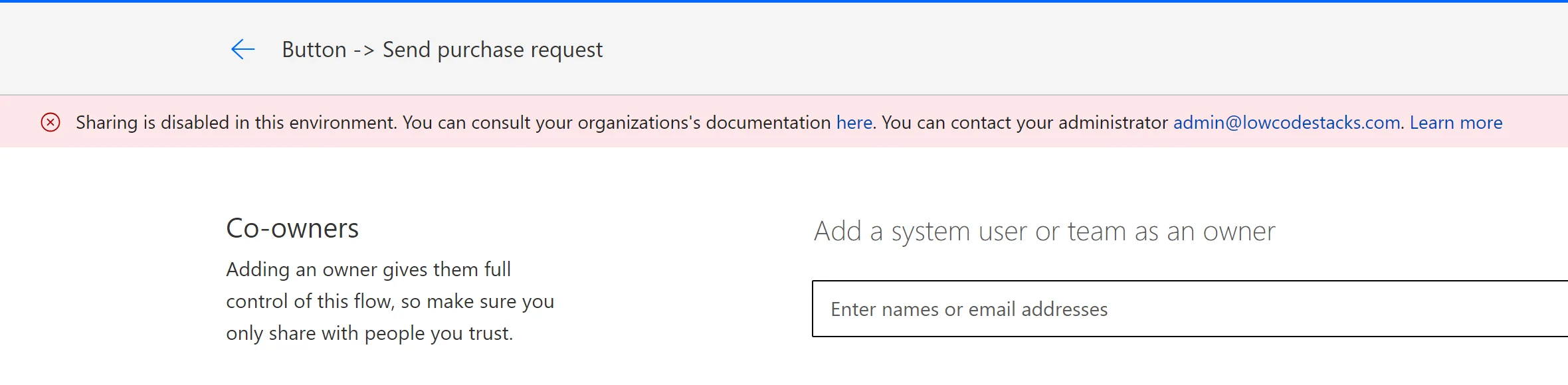
"Organizations's" is how the banner reads on Learn's screenshot, typo included; our recreation keeps it as shown.
What each rule blocks
The rules sit in three groups, one per product. The names below are as the newest admin center screenshot on Learn (February 2026) shows them; Learn's own tables word some of them slightly differently, such as "Limit total individuals who can be shared to".
| Product | Setting | What happens when it's in force |
|---|---|---|
| Canvas apps | Don't set limits (default) | No limit on sharing apps |
| Canvas apps | Exclude sharing with security groups | Makers can't share apps with any security group, or with everyone |
| Canvas apps | Limit total individuals who can share to | Only with the option above: a maximum number of people an app can be shared with |
| Solution-aware cloud flows | Let people share solution-aware cloud flows | When cleared, makers can't share their cloud flows or agent flows with anyone, person or group |
| Agents | Let people grant Editor permissions when agents are shared | When cleared, owners and editors can't make a person an editor. Sharing with viewers isn't affected |
| Agents | Let people grant Viewer permissions when agents are shared | When cleared, owners and editors can't share with a person as a viewer, or with a security group |
| Agents | Only share with individuals (no security groups) | Viewers can only be individuals, not groups |
| Agents | Limit the number of viewers who can access each agent | Only with the option above: a maximum number of viewers per agent |
So a flow that can't be shared with anyone at all points to the cleared flow setting. An app that shares with a person but not with a group points to Exclude sharing with security groups. The admin center's own text adds one more rule for agents: sharing limits don't apply when an agent's authentication is set to No authentication.
If you're the maker
- Step 1You share a flow, app or agent
- Step 2The environment's sharing rules are checked
- Step 3The share is blocked
- Step 4Ask the admin, using the banner's contact
- Step 5The admin keeps or changes the rule
- Read the banner's links. If your admins set governance error content, the banner links to your organisation's documentation and names a contact. Start there: your organisation's documentation is where it can say what to do instead.
- Share within the rule, if it allows any sharing. If groups are excluded for apps, sharing with named people still works, up to any limit the admin set. For agents, check whether editors or viewers are still allowed.
- Remove people first on an item that's out of compliance. Only unsharing works until it's back inside the rules.
- Ask the admin if the work needs a share the rule forbids. Say what you're sharing, with whom and why. They can change the rule for the environment, or tell you which environment is meant for shared work.
Don't look for a way around the block, such as rebuilding the flow somewhere else and sharing from there. Sharing limits are part of how your organisation protects its data.
If you're the admin
Learn's steps to see or change the rules:
- Sign in to the Power Platform admin center.
- In the navigation pane, select Manage, then Environments, and choose the managed environment.
- On the command bar, select Edit Managed Environments.
- Find the Manage sharing section, choose the settings and select Save.
What the section shows, as of February 2026:
- Power Apps, Canvas apps: the two radio buttons, and the greyed limit that turns on with Exclude sharing with security groups.
- Power Automate, Solution-aware cloud flows: the single checkbox. It's shown cleared here to illustrate the blocked state (Learn's screenshot shows it ticked); cleared, it's the setting behind the flow banner above.
- Copilot Studio: a short explanation, then the Editors and Viewers settings for agents.
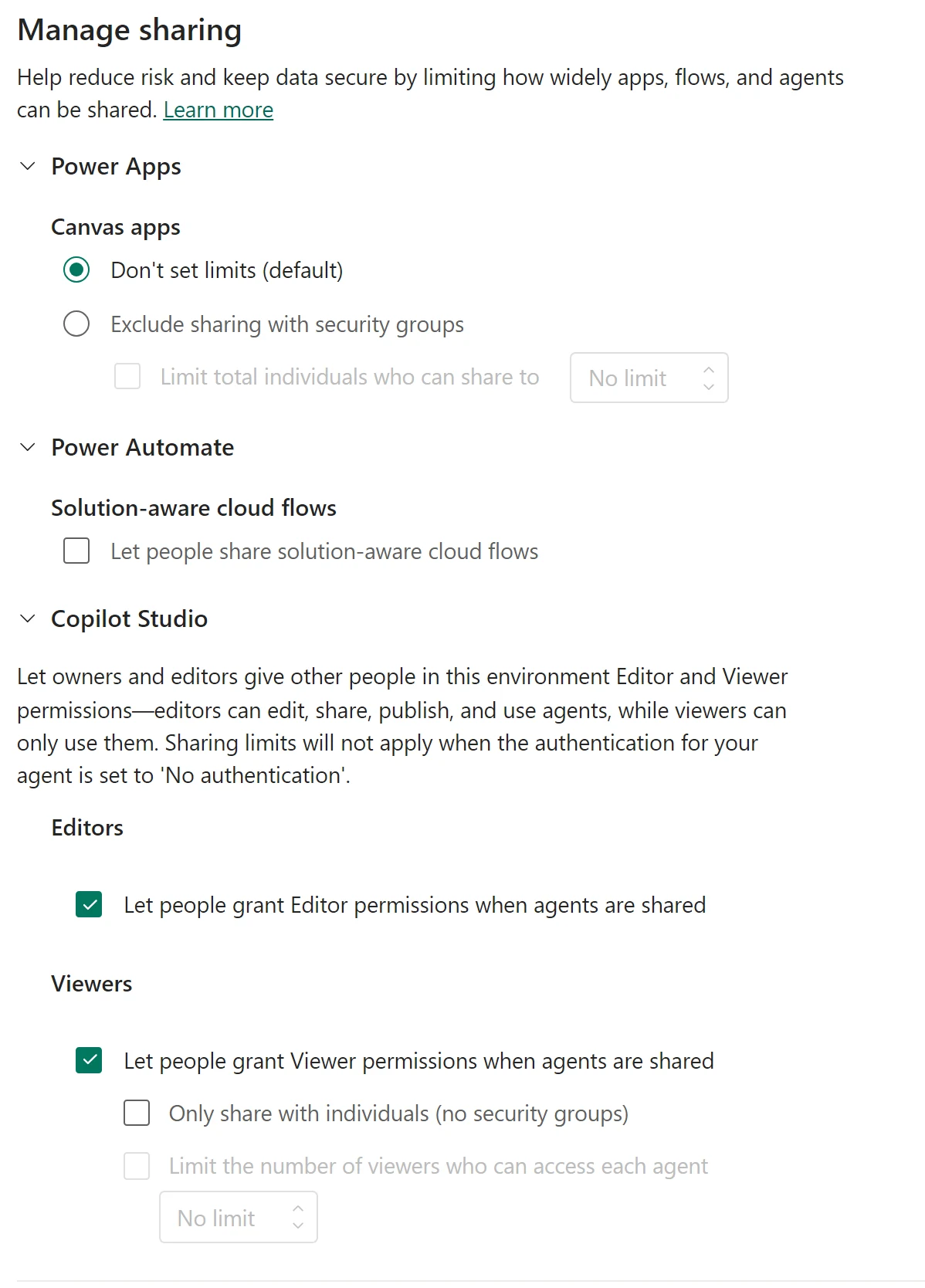
After you save, allow up to an hour before testing the share again.
The same settings in PowerShell
Learn gives PowerShell scripts to set and remove the limits, using cmdlets from the Power Apps administration module (Microsoft.PowerApps.Administration.PowerShell). Each reads the environment's governance configuration, sets one or two values in its extended settings, and saves it back. For solution-aware cloud flows, the setting is solutionCloudFlows-limitSharingMode: disableSharing turns sharing off, and noLimit turns it back on. Learn's script to remove the flow limit:
# Retrieve the environment
$environment = Get-AdminPowerAppEnvironment -EnvironmentName <EnvironmentId>

# Update the managed environment settings
$governanceConfiguration = $environment.Internal.properties.governanceConfiguration
$governanceConfiguration.settings.extendedSettings | Add-Member -MemberType NoteProperty -Name 'solutionCloudFlows-limitSharingMode' -Value "noLimit" -Force

# Save the updated managed environment settings
Set-AdminPowerAppEnvironmentGovernanceConfiguration -EnvironmentName <EnvironmentId> -UpdatedGovernanceConfiguration $governanceConfiguration
For canvas apps the settings are limitSharingMode and maxLimitUserSharing; for agents, bot-limitSharingMode, bot-maxLimitUserSharing and bot-authoringSharingDisabled. One thing to watch if you copy Learn's agent script that excludes security groups: as published on 27 October 2026, it skips the line that reads $governanceConfiguration from the environment, which every other script on the page has. Add that line before running it.
Make the banner point somewhere useful
The banner's documentation link and contact address come from your tenant's governance error message content. Set it with New-PowerAppDlpErrorSettings (or update it with Set-PowerAppDlpErrorSettings), giving a URL for your guidance and an email address for questions; either can be shown on its own. Microsoft's Copilot Studio page warns that these settings apply to every Power Platform app in the tenant, so use a shared mailbox and a page that explains all your governance rules, not just this one.
Do
- Publish a short page on what can be shared where, and link it from the governance error content.
- Tell makers before you tighten a rule; existing shares stay, but new ones stop at once (or within the hour).
- Pair sharing limits with environment access control. Our guide to not being a member of the environment's security group covers that side, and our data policy checklist the connector side.
Don't
- Don't clear the flow sharing setting in an environment where teams rely on co-owned flows without a plan for the flows already shared.
- Don't expect the rule to remove existing access; unshare out-of-compliance items yourself if that's the goal.
- Don't put a personal email address in the governance error content; it shows to everyone who's blocked.
The steps in this guide follow Microsoft's documentation as of 27 October 2026; we haven't run them in a tenant.
Sources
Add LowCodeStacks as a preferred source on Google
Did this fix it?
Comments
No comments yet. Share what worked for you.
Sign in to comment. Comments show under a display name you choose, never your email.