Power Automate desktop "unpublished active row" error: fix it
Publish or Save draft fails with "unpublished active row"? A version control mismatch: update Power Automate for desktop, wait for the rollout, check settings.
Power AutomateFix a problem11 min read
You select Publish, or Save draft, in Power Automate for desktop, and the flow won't save. Instead you get: "You are attempting to do a published update of a component in an unmodified context when there is an unpublished active row." The message doesn't say what to do, but Microsoft's troubleshooting page does. Microsoft documents it for environments where desktop flow version control is on, and it comes down to two things: which version of Power Automate for desktop last saved the flow, and whether every environment you work in has version control. This guide explains both, the fixes in Microsoft's order, and the similar message you can get when importing a flow.
What are you seeing?
Publish failsPublish or Save draft shows the unpublished active row messageCompare app versions first.Import failsImporting a published desktop flow gives a longer message about a "publishable component"The target environment has an unpublished draft.Newer versionThe app says the flow was generated by a newer Power Automate versionSame root cause; update the app.Publish unavailablePublish can't be selected at allAdd and enable at least one action.
How version control works
Microsoft's version control page sets out the parts that matter here:
- When it arrived. Power Automate for desktop supports version control from the November 2025 release, version 2.62. It reaches environments gradually. Once an environment has it, it's on for every installed version of the app that supports it.
- Two ways to save. Save draft saves your latest changes as the latest version, without making them official. Publish makes a version the official one, which is the one that runs from the console or the cloud.
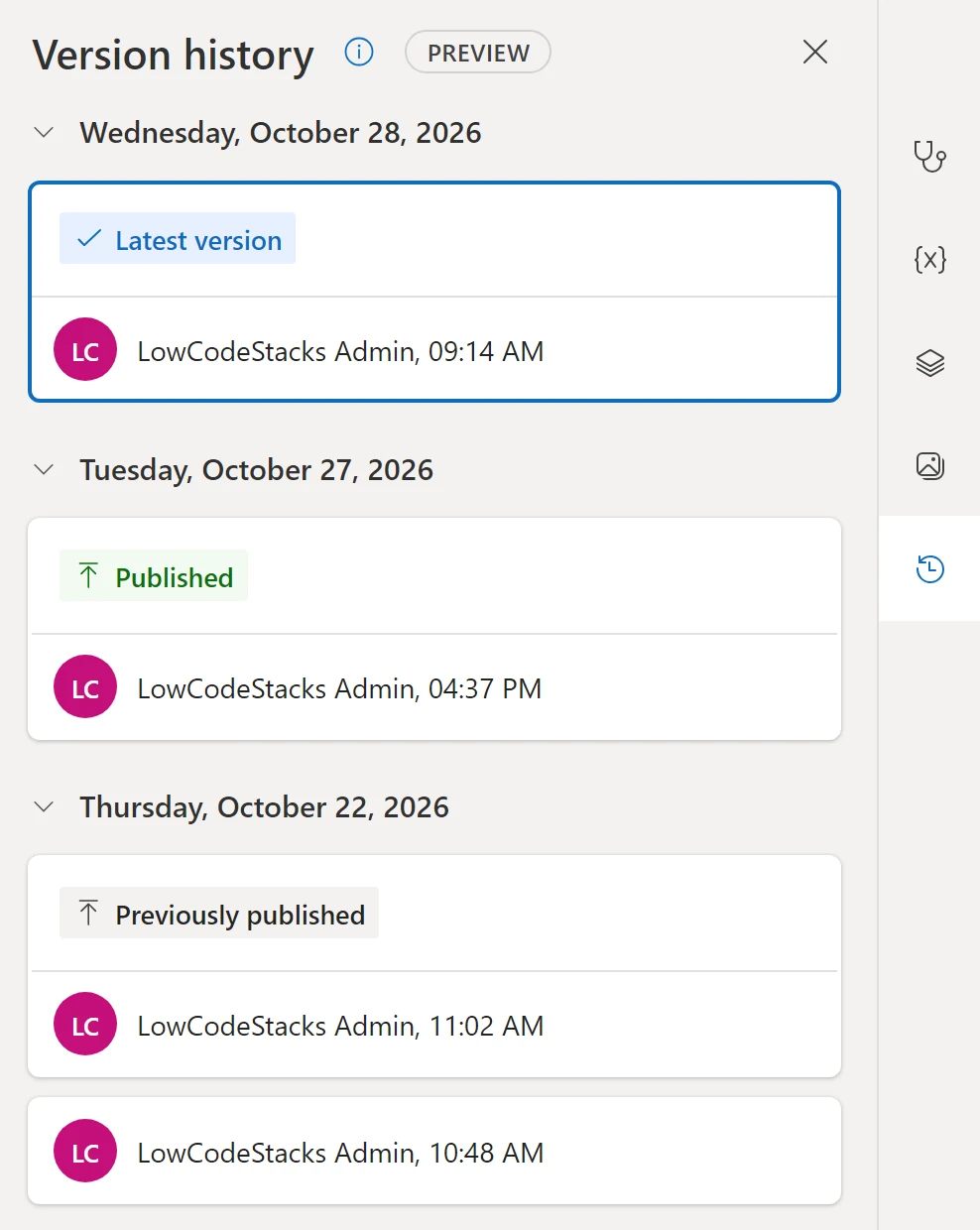
- Version history. The version history pane lists every saved version with its date and user, flagged as Latest version (the newest draft), Published or Previously published.
- Where versions live. Every draft and published version is stored in Dataverse. Versions older than 12 months are deleted, except the latest published one.
- It stays on. Once an environment has the feature, you can't turn version control off. Microsoft says this is by design.
- Publish needs an action. Publish stays unavailable until the flow has at least one enabled action.
So with version control, a flow can have an unpublished draft sitting on top of its published version.
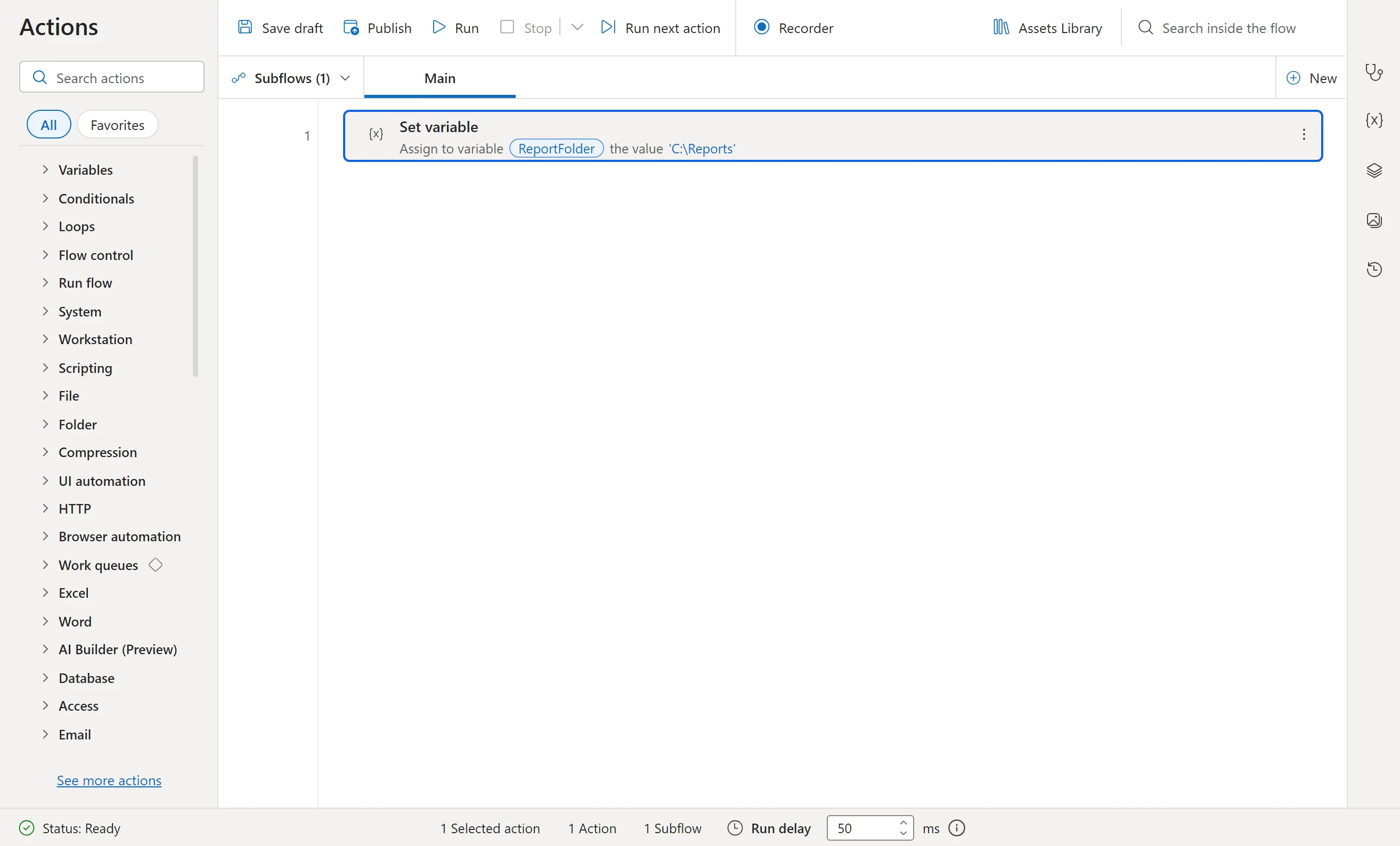
Where these are in the flow designer, as of November 2025:
- Save draft, first on the command bar: saves your changes as the latest version without publishing them.
- Publish, beside it: makes the version the official one, which runs from the console or the cloud. The error can appear on either button.
- The last button on the narrow bar at the right edge opens the version history pane.
- Step 1Someone saves the flow with a newer app version
- Step 2You publish from an older app, or move to an environment without version control
- Step 3Publish or Save draft is refused
- Step 4Same app version and version control on everywhere
- Step 5Publish again
Why it happens
Microsoft's troubleshooting page lists three situations:
| Situation | What it means |
|---|---|
| The flow was created or last edited with a newer Power Automate for desktop than the one you're running | Another person, or another of your machines, is ahead of you |
| The newer version hasn't rolled out or been installed on your device yet | You can't catch up yet |
| You moved from an environment with version control to one without it | Version control is on in one environment and not the other |
To find which version last saved a flow, Microsoft's update page describes a check in the Power Automate portal. Open Tables, show all tables, open the Process table and filter it to rows whose Category is Desktop Flow. The clientversion property in the Metadata column is the last Power Automate for desktop version that saved the flow. Compare it with your own version, which Microsoft's install page says the app shows in its about information, opened from its help menu.
Fix 1: update Power Automate for desktop
Microsoft's fix is to use the same version that last saved the flow, or the latest version. In practice, that means updating, because Microsoft's update page says rolling back isn't supported. If you need an older version for business continuity, Microsoft says to contact Microsoft Support.
How you update depends on how the app was installed. Microsoft's install page tells them apart by the name in the Windows list of installed apps:
- Power Automate (the Microsoft Store version) updates itself and doesn't need admin rights.
- Power Automate for desktop (the MSI version) tells you when a new version is ready. Choose to update from that notice, run the installer it downloads, and finish the setup. This needs admin rights on the computer; without them, ask your IT team, or move to the Store version.
From version 2.54, the MSI version can also update itself in the background, but only if automatic updates are configured. Microsoft's automatic updates page says regular automatic updates are off by default and an admin turns them on in the Windows registry. They don't run in some cases, for example while a desktop flow is running or on a machine that isn't registered. If your team relies on them to stay on the same version, check they're on for every machine.
Our guide to Power Automate on Windows 11 covers the two versions and reinstalling.
The same cause gives a second message, documented on Microsoft's update page: "This flow has been generated by a newer Power Automate version than the one currently installed." The fix is the same, an update to that version or newer. For teams, the install page suggests deploying the latest installer to every machine, and a silent install for managed machines.
Fix 2: wait for the new version
If someone else saved the flow with a version that isn't available to you yet, Microsoft's advice is to wait until it is, then update and publish again. Version control itself also rolls out gradually, so two environments you use may get it at different times.
While you wait, our suggestion (not Microsoft's) is to make changes to that flow only from a machine that already has the newer version, so the drafts stay consistent.
Fix 3: version control in every environment
The third cause is moving between environments where one has version control and the other doesn't. Microsoft's fix is to make sure version control is on in every environment where you edit or publish desktop flows. An admin checks it in the Power Platform admin center, per Microsoft's steps:
- Select Manage, then Environments, and choose the environment.
- Select Settings, expand Product, and select Features.
- Find the desktop flow version control section. Microsoft's page describes two settings there:
- One turns version control on for that environment.
- The other opts the environment into the rollout, so the first setting switches on by itself when the feature becomes available.
Remember that this can't be undone. Once an environment has version control, it stays on.
Version control also has prerequisites. The environment and the flow must use the v2 schema. Viewing and restoring versions needs the prvReadcomponentchangesetpayload privilege; without it, Microsoft says, viewing or restoring a version fails. The Environment Maker role includes read and write on ComponentChangesetVersion by default, so check any custom security roles your organisation uses.
When it happens on import
Microsoft's version control page lists a known issue with a longer version of the message: "You are attempting to do a published update of a publishable component in an unmodified active context when there exists an unpublished active row." It happens when you import a published desktop flow into an environment that already holds an unpublished draft of the same flow.
Microsoft's advice is to make sure the target environment has no unpublished drafts of the flow before you import the published version. Learn doesn't give the steps for clearing a draft, so we don't either. Our suggestion (not Microsoft's) is to look first: in the flow's version history pane in the target environment, a Latest version entry that's newer than Published is a draft. Ask whoever made it before you change anything.
What a draft looks like in the pane, as of November 2025:
- Latest version, on the newest entry: the most recent draft. When it sits above the Published entry, as here, the flow has an unpublished draft.
- Published: the official version, the one that runs.
- Previously published: an older version that was official before.
- Each entry shows who saved it and when, grouped by date.
Do
- Keep everyone who edits a flow on the same, latest version of Power Automate for desktop.
- Check clientversion in the Process table when you're not sure who saved the flow last.
- Turn version control on in development, test and production alike.
Don't
- Don't try to roll the app back; Microsoft doesn't support it.
- Don't import a published flow over a target that has someone's unpublished draft.
- Don't turn version control on in an environment without telling its makers; it can't be turned off.
The steps in this guide follow Microsoft's documentation as of 28 October 2026; we haven't run them in a tenant.
Sources
- Microsoft Learn: Troubleshoot version control errors when publishing or saving a flow
- Microsoft Learn: Version control in Power Automate for desktop
- Microsoft Learn: Update or roll back Power Automate for desktop
- Microsoft Learn: Install Power Automate: which install you have, and updates
- Microsoft Learn: Install Power Automate: version mismatch across environments
- Microsoft Learn: Configure automatic updates for Power Automate for desktop
Add LowCodeStacks as a preferred source on Google
Did this fix it?
Comments
No comments yet. Share what worked for you.
Sign in to comment. Comments show under a display name you choose, never your email.