Power Apps wrap "Something went wrong" [5objp] or [2002]: fixes
Your wrapped mobile app builds, but sign-in fails. What codes 5objp and 2002 (9n155) mean, and the app registration fixes Microsoft documents for each.
Power AppsFix a problem11 min read
You used the wrap wizard in Power Apps to turn a canvas app into a native mobile app. The build worked and the app installs, but sign-in stops on "Something went wrong" with a short code in brackets: [5objp] or [2002]. Both codes point at the Microsoft Entra app registration the wrapped app signs in with, not at your canvas app. Microsoft's troubleshooting page says these errors often happen when a wizard step, such as permissions or registration, was missed, even though the build succeeded. This guide shows what each code means and the documented fix.
- The build finishes and the app installs, but signing in shows
Something went wrong. [5objp]. - Or signing in shows
Something went wrong [2002], with error code 9n155. - Learn writes the first message with a full stop before the code and the second without one.
Which code you have
| Code | What it means | Where you fix it |
|---|---|---|
[5objp] | The Android signature hash or the redirect URI doesn't match the registration | The app registration's Authentication settings, the Android redirect URI |
[2002] with 9n155 | The registration only accepts accounts from one tenant | The app registration's supported account types |
Both fixes happen in the Microsoft Entra admin center, under App registrations, on the registration the wrap wizard created or the one you picked. You need rights to edit that registration.
- Step 1Sign-in shows a code in brackets
- Step 2Read the code
- Microsoft Entra IDOpen the app registration
- Step 45objp: match the Android hash and redirect URI
- Step 52002 or 9n155: allow multitenant accounts
- Step 6Sign in again

5objp: the signature hash or the redirect URI
An Android app proves which app it is with a signature hash: a short fingerprint of the key that signed the package. The app registration keeps a redirect URI for each platform. For Android, that URI is built from the bundle ID and the signature hash; Microsoft's Entra documentation gives the form msauth://<package name>/<signature hash>. If the app on the phone presents a hash or a URI the registration doesn't list, sign-in fails. Learn names two causes.
Cause 1: the app was signed with a different key
The package was signed with a key other than the one whose hash is registered. That happens when a different keystore is used at build time, or when the registered hash was generated or copied wrongly, for example with an extra space or a stray character.
To check it, following Microsoft's steps:
-
Generate the hash again from the keystore that actually signed the app. Learn's Android signing page runs this in the Command Prompt; replace the alias and file with your own (Learn uses a
.pfxkeystore for automatic signing and.jksfor manual signing):cmd keytool -exportcert -alias powerappswrap -keystore powerappswrap.pfx | openssl sha1 -binary | openssl base64 -
In the Microsoft Entra admin center, go to App registrations and select the app.
-
Select Authentication and find the Android redirect URI: the one that starts with
msauth://and ends with a signature hash. -
Compare the registered signature hash with the one you just generated. If it's missing or different, add or correct it, then save.
Cause 2: the redirect URI doesn't match
Redirect URIs are case-sensitive, so a bundle ID typed with different capitals is a mismatch. Encoded characters such as %2F and %3D must also match exactly what's registered.
Learn's way to see the URI the app really uses:
- Install Android Studio and set up an emulator.
- Drag the APK onto the running emulator to install it, open the app and try to sign in.
- On the error screen, find the redirect URI the app used.
- If its hash part has encoded characters, decode them (
%2Fbecomes/) to get the signature hash. - In the app registration's Authentication settings, compare that URI with the registered ones character by character, including case and encoding. If it isn't there, add it with the correct bundle ID and hash, then save. Entra's current page on redirect URIs adds one by choosing to add a redirect URI, picking the Android platform, and entering the package name (your bundle ID) and the signature hash; Entra builds the URI from them.
Learn's advice to stop it happening again is simple: copy the bundle ID and hash from the project or build output, never type or edit them by hand, and check the runtime redirect URI in logs or an emulator.
Only on copies from Google Play
A community article reports 5objp on copies installed from Google Play while a directly installed APK signs in fine. Learn's wrap pages don't cover this case. Microsoft's Entra troubleshooting article on Android apps published to Google Play explains the likely reason: Google Play signs the installed app with Google's own key, so its signature hash differs from the one you registered. That article gets the new hash from the app signing page of the Google Play Console and adds it as a new Android redirect URI, keeping the old one. Its other steps edit the app's own code, which a wrapped app doesn't expose to you, so we can't say this alone fixes a wrapped app. If you're in this case, compare the hashes and raise it with Microsoft support. The wrap wizard page also says AAB files, the format Google Play takes, must always be signed by hand.
2002 and 9n155: a single-tenant registration
Microsoft's error page says this code appears when the app registration isn't set up for multitenant accounts. Per that page, a registration the wrap wizard creates is single tenant by default, and it stays that way unless someone changes it. A registration made by hand with single tenant chosen fails the same way.
The fix is to make the registration multitenant. Microsoft's Entra page on changing the accounts an app supports does it in the registration's manifest:
- Sign in to the Microsoft Entra admin center as at least an Application Developer, go to App registrations and select the app.
- Open the registration's manifest editor and download the manifest JSON file.
- Find the
signInAudienceproperty.AzureADMyOrgmeans single tenant. Set it toAzureADMultipleOrgs(accounts in any organizational directory, multitenant). The wrap wizard page also acceptsAzureADandPersonalMicrosoftAccount, the multitenant option that adds personal Microsoft accounts. - Save the file, then upload it in the manifest editor.
Per the error page, the registration's overview should then show that it supports multiple organizations.
Note
If the change won't save: Entra's page says switching from single tenant to multitenant can fail when the registration's Application ID URI isn't on one of your tenant's verified domains. An older Entra troubleshooting page (for error AADSTS50020) says signInAudience can't be changed in the manifest, and that you create the registration again with the right account type. If that's what you find, create a multitenant registration in Entra, pick it from the wizard's owned registrations, and add its redirect URIs and API permissions as the wizard page describes.
Warning
One sentence on the wizard page says both single-tenant and multitenant customers can use wrap. That's about who can use wrap. Every Learn statement about the registration's own setting says multitenant: the same section of the wizard page (wrap supports only multitenant account types; single tenant isn't supported yet), the error page (9n155 comes from a single-tenant registration) and the troubleshooting page (set the app to multitenant). Make the registration multitenant.
What the wizard's registration step checks
The wizard's registration step, Register app in its list of steps, opens a page headed Register your app that shows whether each piece is in place. What the page shows, as of March 2026, for an app that targets Android only:
- Owned registrations: the registration the wrapped app uses. New app registration, at the top, creates one.
- A tick beside each API the wizard checks: Azure API Connections, Dynamics CRM, Microsoft Graph, PowerApps Service, Mobile Device Management, Power BI and PowerPlatformApi. A red icon marks one that's missing, and 1 Click - Fix app permissions appears below the list. Learn's own permissions table words these differently (Microsoft Mobile Application Management, and no Microsoft Graph or PowerPlatformApi row).
- Authentication: ticks for the Bundle ID and the Android Redirect URI. Learn's July 2025 screenshot also ticks an iOS Redirect URI and an AAD App ID.
- A notice, Admin consent status not known, asking you to check that a tenant admin has granted consent.
- Tenant type: in the July 2025 screenshot, a multitenant type that also allows personal Microsoft accounts.
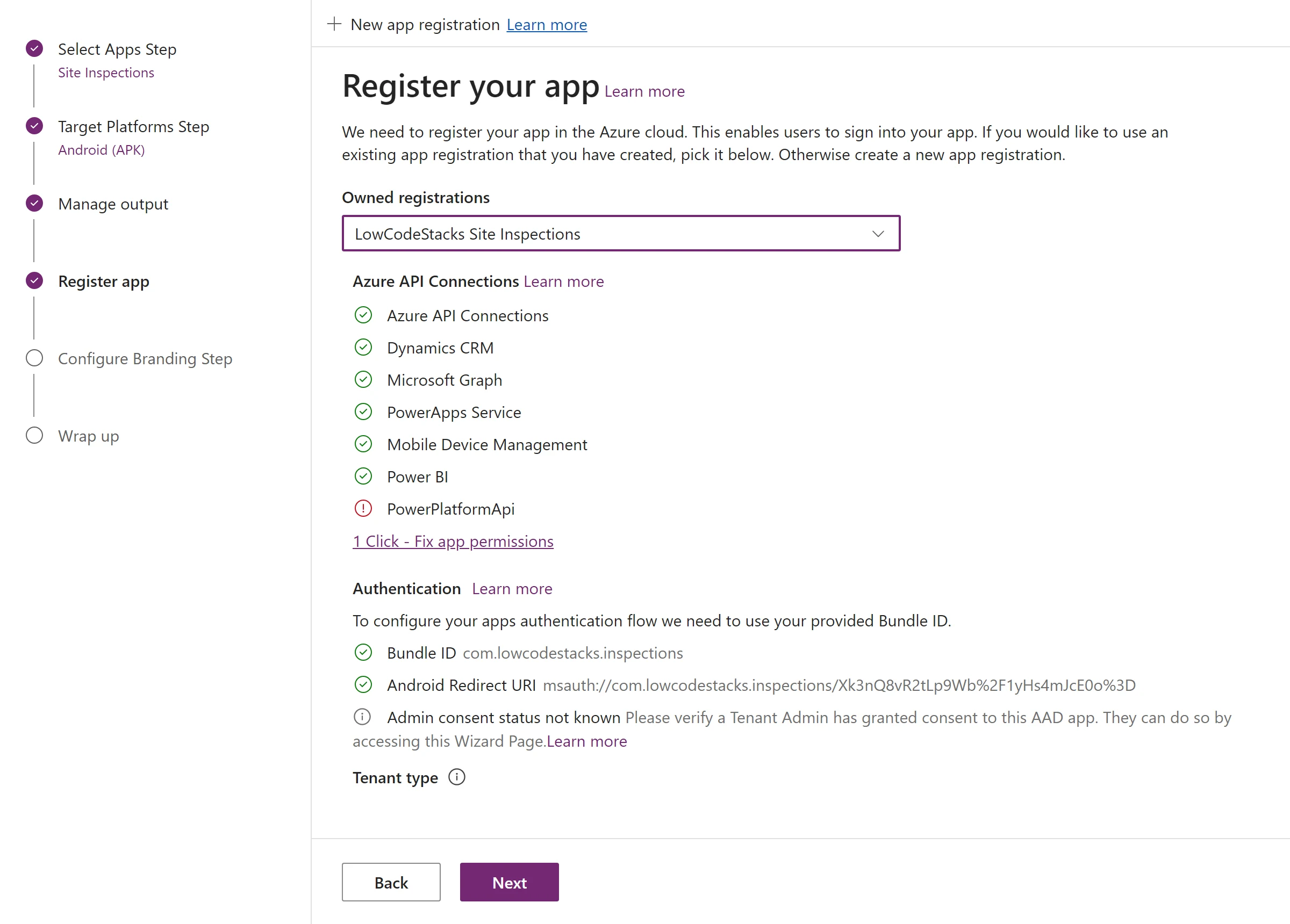
If a line isn't ticked, fix it before you build again. The wizard can grant missing API permissions in one step if you're an Azure admin; otherwise an admin uses the PowerShell commands on the wizard page. The redirect URI in the picture shows the encoding from cause 2: the / and = in the signature hash appear as %2F and %3D.
If sign-in still fails
Learn's general wrap troubleshooting adds these checks for a wrapped app that won't sign in or shows no data:
- API permissions are all configured, with admin consent granted.
Add-AdminAllowedThirdPartyAppshas been run by a tenant admin with the registration's app ID, so the registration is allowed as a third-party app.- A redirect URI for each platform you target, iOS and Android, each set up separately.
- The user can open the app: the canvas app is shared with them. If it is, check Conditional Access policies and look up the correlation ID from the failed sign-in in Entra's sign-in troubleshooting.
Before you contact Microsoft support, collect session details. Learn says that in the wrap wizard you tap the gear icon at the top right of the sign-in screen and choose the session details option; in the app on a phone, you press and hold the screen and choose the same option.
Once the app signs in, our guide to offline mode in canvas apps covers the next question most mobile apps face.
Do
- Keep one record of the bundle ID, keystore and signature hash for each wrap project, and copy from it.
- Add a new redirect URI for a new hash rather than editing the one that works.
- Check the wizard's ticks after any change to the registration.
Don't
- Don't retype a hash or a bundle ID by hand; one wrong capital or character breaks sign-in.
- Don't rebuild with a different keystore without registering its hash.
- Don't switch the registration back to single tenant to tighten access; use sharing and Conditional Access instead.
The steps in this guide follow Microsoft's documentation as of 28 October 2026; we haven't run them in a tenant.
Sources
- "Something went wrong" error that occurs when using the wrap feature — Microsoft Learn
- Troubleshoot common issues when using the wrap feature — Microsoft Learn
- Wrap wizard: step-by-step guide to building your native mobile app — Microsoft Learn
- Code sign for Android — Microsoft Learn
- Configure a mobile app that calls web APIs: redirect URI format — Microsoft Learn
- How to add a redirect URI to your application — Microsoft Learn
- Modify the accounts supported by an application — Microsoft Learn
- Error AADSTS50020: changing the sign-in audience — Microsoft Learn
- Authentication fails after an Android app is published to the Google Play Store — Microsoft Learn
- Community knowledge article KA-25793 (a lead, not a source of fact) — Power Platform Community
Add LowCodeStacks as a preferred source on Google
Did this fix it?
Comments
No comments yet. Share what worked for you.
Sign in to comment. Comments show under a display name you choose, never your email.