Fix "Number of requests exceeded the limit of 6000" in Dataverse
One account sent Dataverse more than 6,000 requests in five minutes. Find the flow or load behind it, send fewer and slower requests, and let it retry.
DataverseFix a problem8 min read
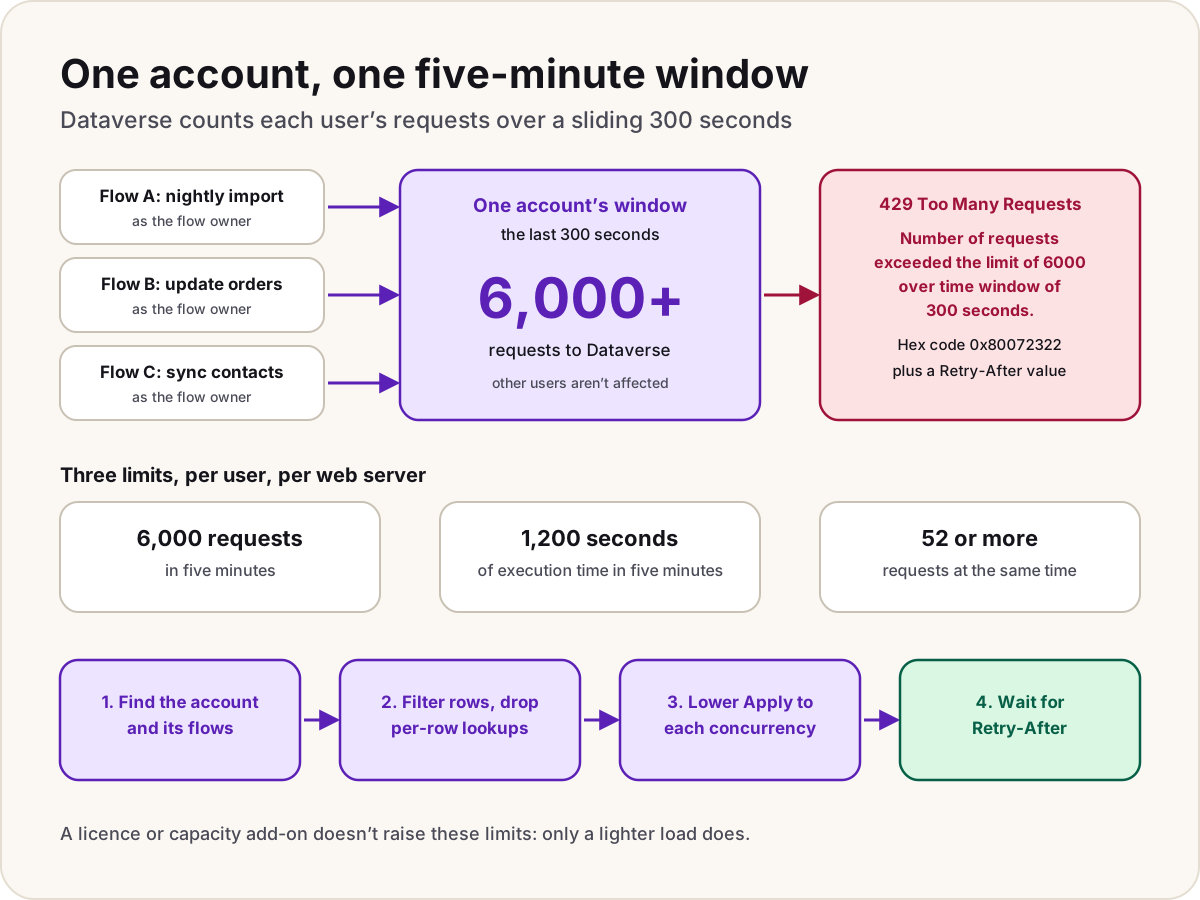
A flow that updates a few thousand rows, a data import or a script against the Dataverse Web API fails partway through with: "Number of requests exceeded the limit of 6000 over time window of 300 seconds." Your data and permissions are fine. Dataverse's service protection limits stopped one account that sent too many requests in five minutes, so it can't slow the environment down for everyone else. The cure is to send fewer requests, more evenly, and to wait when Dataverse says so.
- A Dataverse action in a flow fails with status 429 and the message
Number of requests exceeded the limit of 6000 over time window of 300 seconds. - It happens in big runs, such as an Apply to each over thousands of rows, or when several flows run at the same moment.
- A script or integration gets error code
-2147015902(hex0x80072322).
What the limit counts
Dataverse applies service protection API limits to every external request, from flows, apps, integrations and scripts. Each user account has its own limits, so only the account that sends an unusual load is slowed. There are three, each with its own message:
| Limit (per user, per web server) | Error code | Hex code | Message |
|---|---|---|---|
| 6,000 requests in a sliding five-minute window | -2147015902 | 0x80072322 | Number of requests exceeded the limit of 6000 over time window of 300 seconds. |
| 20 minutes (1,200 seconds) of combined execution time in the same window | -2147015903 | 0x80072321 | Combined execution time of incoming requests exceeded limit of 1,200,000 milliseconds over time window of 300 seconds. … |
| 52 or more requests at the same time | -2147015898 | 0x80072326 | Number of concurrent requests exceeded the limit of 52. |
What Microsoft says about how they're applied:
- Per web server. Each server behind your environment counts on its own. Most environments have several; a trial environment has one. The numbers are defaults and can vary between environments.
- Plug-ins and classic workflows don't add requests. Operations they run inside Dataverse don't count toward the number of requests, but the time they take is added to the request that started them.
- Application users get the same limits as everyone else.
- It isn't the daily request limit. Power Platform request limits are a separate allowance counted over 24 hours and tied to licences. The 6,000 requests per 24 hours that comes with Microsoft 365 apps with Power Platform access is a different 6,000 again: going over it delays a flow's actions rather than returning this message.
Find the account that's over the limit
In Power Automate, Microsoft says the Dataverse limits are evaluated per user, where the user is whoever is associated with the action: usually the flow owner, or the person running it if the action runs in their context. So every flow whose Dataverse connection signs in as the same account shares one five-minute window. That's why the message often appears only when two or three big flows run at the same time.
- Open the failed run and select the failed Dataverse action. Note which connection it uses.
- Look at the loop around it: how many items it ran over, and how many Dataverse actions run per item. A loop over 5,000 rows that runs Get a row by ID and then an update on each one sends 10,000 requests on its own.
- On the flow's details page, the Analytics tab shows how many actions it ran.
- List the other flows that use the same account's connection, and when they run.
In canvas and model-driven apps, Microsoft notes that people working interactively rarely reach these limits. When an app does, it's usually a bulk action, such as one button that patches hundreds of records in a loop.
Send fewer requests
These are the changes Microsoft recommends for flows, in the order that usually saves most:
- Filter at the source. Use Filter rows (an OData filter) and Select columns on List rows, instead of listing everything and testing each row inside Apply to each. Each iteration of a loop sends its own requests. Our OData filter query cheat sheet has the syntax.
- Drop per-row lookups. If each item fetches a related row, list the related rows once before the loop, and match them with Filter array or Select, which don't call Dataverse.
- Add trigger conditions, so a flow that starts on every change runs only for the rows it needs.
- Lower loop concurrency. Apply to each runs one item at a time by default and can be set to up to 50 at once. High concurrency reaches 6,000 sooner and can pass the 52-concurrent limit. Turn it down, or off, for loops that write to Dataverse.
- Spread big jobs out. Microsoft's advice for large nightly or monthly loads is to move toward processing changes as they happen, so no five-minute window takes the whole job.
- Use a different account only for a different job. A separate service account or application user has its own limits, but use it because the integration deserves its own identity, not to multiply one job's throughput.
Wait and retry: a licence won't raise it
With every service protection error, Dataverse returns a Retry-After value: how many seconds to wait before that account's requests are accepted again. The more demanding the recent requests, the longer the wait, and it grows if the account keeps pushing.
- In a flow, an action's Retry policy setting retries a failed request at fixed or exponential intervals. Microsoft's guidance prefers exponential. Retries count as actions too, so don't set a high count to brute-force a loop that sends too much.
- In code, use
ServiceClientorCrmServiceClientfrom the Dataverse SDK for .NET, which pause and resend after the Retry-After period. For the Web API, read theRetry-Afterheader on the 429 response; in PowerShell,Invoke-RestMethod -MaximumRetryCounthonours it. - In an app, don't show users the raw message, which Microsoft says isn't meant for them. Show that the server is busy and stop new requests until the current one finishes.
No purchase lifts these limits. Microsoft says a Power Automate Process licence doesn't raise them, and moving an environment to pay-as-you-go doesn't either. They're there to protect the service, so the only lasting fix is a lighter load.
Do
- Filter and select columns at the source, before any loop.
- Keep loops that write to Dataverse at low concurrency.
- Give big integrations their own service account or application user, and schedule them apart from other heavy flows.
Don't
- Don't raise retry counts to push a heavy loop through; retries are requests too.
- Don't buy capacity or licences expecting this error to stop.
For how Dataverse fits with the rest of the platform, see What is Dataverse?, and for other run failures, our cloud flow error codes guide.
Sources
- Service protection API limits — Microsoft Learn
- Microsoft Dataverse API limits overview — Microsoft Learn
- Understand platform limits and avoid throttling — Microsoft Learn
- Limits of automated, scheduled and instant flows: concurrency, looping and debatching limits — Microsoft Learn
- Requests limits and allocations — Microsoft Learn
- Power Automate licensing FAQ: what counts as an action — Microsoft Learn
- Employ robust error handling: implement a retry policy — Microsoft Learn
Add LowCodeStacks as a preferred source on Google
Did this fix it?
Comments
No comments yet. Share what worked for you.
Sign in to comment. Comments show under a display name you choose, never your email.