Fix "assignedTo contained no valid users" in a Power Automate approval
No one in the approval's Assigned to box matched a user in your tenant. Find the value the run sent, then fix the usual causes: names, separators and guests.
Power AutomateFix a problem7 min read
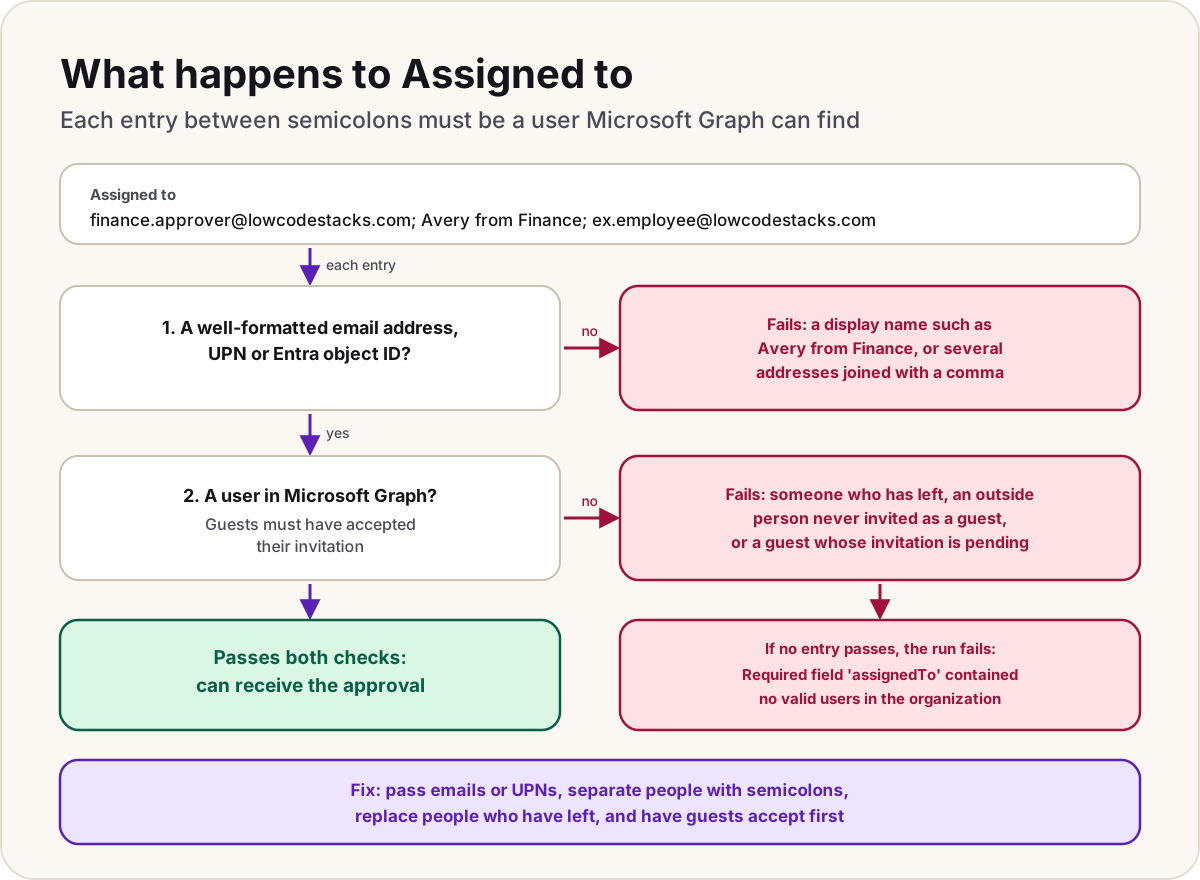
Your approval flow fails on Start and wait for an approval (or Create an approval) with InvalidApprovalCreateRequestAssignedToNoValidUsers and the message "Required field 'assignedTo' contained no valid users in the organization." The approval was never created, so nobody was asked. Power Automate looked up every entry in the Assigned to box in Microsoft Graph, your tenant's directory, and couldn't match a single one. The fix is nearly always in the value the flow passed in, not in the approval action itself.
- The approval action fails with
Required field 'assignedTo' contained no valid users in the organizationand the codeInvalidApprovalCreateRequestAssignedToNoValidUsers. - Assigned to is filled from dynamic content or an expression, not typed in.
- It fails for some runs and not others, depending on who the item belongs to.
What the error means
Microsoft documents three reasons for this error:
- an entry isn't a well-formatted email address, user principal name (UPN) or Microsoft Entra object ID;
- an entry is well formatted but doesn't match any user in Microsoft Graph;
- with several people separated by semicolons, none of them was found.
The last point matters: Microsoft describes the error only for the case where no entry is found. So a list where one address of three is wrong doesn't raise it, and the mistake can go unnoticed. When you do see the message, every entry failed.
See what the run sent
The value in the designer is often dynamic content, so check what it turned into for the failed run:
- Open the flow's run history and select the failed run.
- Select the approval action to see its inputs, and find the assigned-to value.
- Compare it with what Graph expects: something like
approver@lowcodestacks.com, one per entry, separated by;.
If the input is blank, you have the related "missing or empty" error instead (see below).
Common causes and fixes
| What the run sent | Why Graph can't match it | Fix |
|---|---|---|
A display name, such as Avery from Finance | It isn't an email, UPN or object ID | Use the person field's Email, or look the person up with Get user profile (V2) from Office 365 Users and pass their email or UPN |
| Two addresses joined with a comma, or a space-separated list | The whole string is read as one malformed entry | Separate people with semicolons: a@lowcodestacks.com;b@lowcodestacks.com |
| An address with extra text around it, such as spaces or a name in angle brackets | Not well formatted | Clean it with trim(), or build the list with Select and join(…, ';') |
| The address of someone who has left | Their account is gone from Microsoft Entra ID | Replace them, for example with their manager from Get manager (V2), or a fallback approver |
| An outside person's own email | They aren't a user in your tenant | Invite them as a guest in Microsoft Entra ID first |
| A guest who hasn't accepted the invitation | Pending guests are removed from the approver list | Have them accept; if every approver is a pending guest, the approval can't be created |
| A group's email | Only mail-enabled Microsoft 365 groups and security groups are supported | Use one of those, or list the people |
What the approval card shows in the designer, as Microsoft's screenshots show it in 2026:
- Approval type, such as Approve/Reject - First to respond.
- Assigned to, required, where you type a name or email to pick people, or add dynamic content.
- Switch to Advanced Mode, beside it, where you can enter the value as an expression.
Tip
Guard the action. Before the approval, add a Condition that checks the assigned-to value isn't empty and contains @, and send anything that fails to a fallback approver or an owner's inbox. The flow then never stops silently on a bad row.
Guests
Microsoft supports approvals for guest users, with conditions: they must have accepted the B2B invitation, and they need a Power Automate licence (from your tenant or their own) to view and respond. A guest's approval can't be answered from an actionable email in Outlook; they respond in Power Automate. To check a guest's status, in the Microsoft Entra admin center open Users > All users, select the guest, and check the invitation status on their profile.
The related approval errors
Microsoft lists these alongside it. They look alike but mean different things:
| Code | Message | What to fix |
|---|---|---|
InvalidApprovalCreateRequestAssignedToMissing | Required field 'assignedTo' is missing or empty. | The dynamic content or expression was empty for this run, often a blank person column |
InvalidApprovalRequestor | The approval requestor must be a single, valid user account within your organization | The Requestor field: one user only, as email, UPN or object ID |
GraphUserDetailByEmailMultipleFound | Found multiple matching users (…) for '…'. | Two accounts share the address; an admin needs to sort out the duplicate |
XrmApplyUserNotMemberOfSecurityGroup | Could not create a CDS system record representing user '…'. … | The environment is locked to a security group the person isn't in; see our guide to environment security groups |
Do
- Pass emails or UPNs, never display names, and join several people with semicolons.
- Keep a fallback approver for rows whose person has left or is blank.
- Invite outside approvers as guests, and check they've accepted, before the flow needs them.
Don't
- Don't assume a partly wrong list will fail: this error only appears when nobody in it was found, so check every entry.
- Don't put several people in Requestor; it takes one.
Once the approval is created, our guide to approvals that don't stall adds deadlines, reminders and escalation, and approval actions compared helps you pick the right action and type.
Sources
- Common errors creating and assigning Power Automate Approvals — Microsoft Learn
- Get started with approvals: assign approvals to any user in your tenant — Microsoft Learn
- Top scenarios with approval flows: send an approval to multiple people — Microsoft Learn
- Request approvals from Microsoft 365 groups: known issues and limitations — Microsoft Learn
- Support for guest users: approvals — Microsoft Learn
- Known issues with approvals: work with guest users — Microsoft Learn
- Create and test an approval workflow with Power Automate — Microsoft Learn
- Approval flow not sending email throws error — Power Automate community forum thread (a lead, confirmed against the Learn pages above)
Add LowCodeStacks as a preferred source on Google
Did this fix it?
Comments
No comments yet. Share what worked for you.
Sign in to comment. Comments show under a display name you choose, never your email.