Copilot Studio FlowActionBadRequest: refresh the flow, fix its inputs
FlowActionBadRequest means your agent and its flow disagree about inputs or outputs. Refresh the flow on the Action node, match the types, then republish.
Copilot StudioFix a problem10 min read
Your Copilot Studio agent calls an agent flow and stops with FlowActionBadRequest. In Teams it shows up as a bare line: FlowActionBadRequest Conversation Id: … Time (UTC): …. What broke is the handshake between the two: the agent sent inputs, or expected outputs, that no longer match what the flow declares. Learn's most common fix is to refresh the flow inside the topic, check its parameters and republish the agent.
- In Teams or another channel, the agent replies with
FlowActionBadRequest, a conversation ID and a time in UTC. - In the test pane, Learn says makers get the error code with more context. Learn's error code reference lists the messages behind this code, such as
The parameter with name {ItemKey} on flow {FlowName} ({FlowId}) is missing in the 'Call Flow' action. - It often starts after someone changes the flow and the agent isn't refreshed or republished.
What the error means
Microsoft's error code reference describes FlowActionBadRequest as a malformed request to an agent flow. Its dedicated troubleshooting page names the usual cause: the flow's input or output schema no longer matches what the agent expects. That often happens when the flow is changed but the agent isn't refreshed and republished, so a channel such as Teams sends or receives data in a shape the flow doesn't accept. Null or missing input values can cause it too.
The error code reference lists four messages under this code. Each points at a different fix:
| Message (Learn's wording, placeholders in braces) | What it tells you |
|---|---|
| The parameter with name {KeyName} on flow {FlowName} ({FlowId}) is declared to be of type {ItemTypeKind}. This type isn't supported when invoking Power Automate. Currently, only Text, Boolean and Numbers are supported. | An input's type isn't one the call accepts. See match each input's type |
| The parameter with name {ItemKey} on flow {FlowName} ({FlowId}) is missing in the 'Call Flow' action. | The flow expects an input the agent isn't sending. Refresh the flow |
| The parameter with name {KeyName} on flow {FlowName} ({FlowId}) evaluated to type {ResolveType}, expected type {ExpectedType}. | The variable you pass has a different base type from the input |
| The flow {FlowName} ({FlowId}) failed to run with response code {ResponseCode}, error code: {FlowErrorCode}. | The flow didn't run successfully. The message gives the response code and the flow's error code |
Learn's one-line resolution for all four is to check that the base type of every variable you pass to the flow matches the parameter's type.
Fix it step by step
- Microsoft Copilot StudioOpen the topic
- Step 2Refresh the Action node
- Step 3Match each input's type
- Step 4Save and republish
- Step 5Start over in Teams

1. Refresh the flow on the Action node
When you add an agent flow to a topic, Copilot Studio puts it in the topic as an Action node. Refreshing the node brings its inputs and outputs back in line with the flow's current ones, which is Learn's most common fix.
- In Copilot Studio, open the agent and go to the topic that calls the flow.
- On the Action node, select the … menu, then Refresh.
- Compare the node's inputs and outputs with the flow's trigger and its Respond to the agent action. Names and types should match.
- Save the topic, then publish the agent again.
What the node shows, as of March 2026:
- Action: the node's header, with the … menu at its right.
- Power Automate inputs (1): each input the flow declares, with its type in brackets, and a box for the value the topic passes.
- View flow details: the flow the node calls, under its name.
- Outputs (2): each value the flow sends back, with its type, and a box to choose the variable that stores it.
- Refresh, in the open menu, beside Properties, Rename, Delete and New comment.
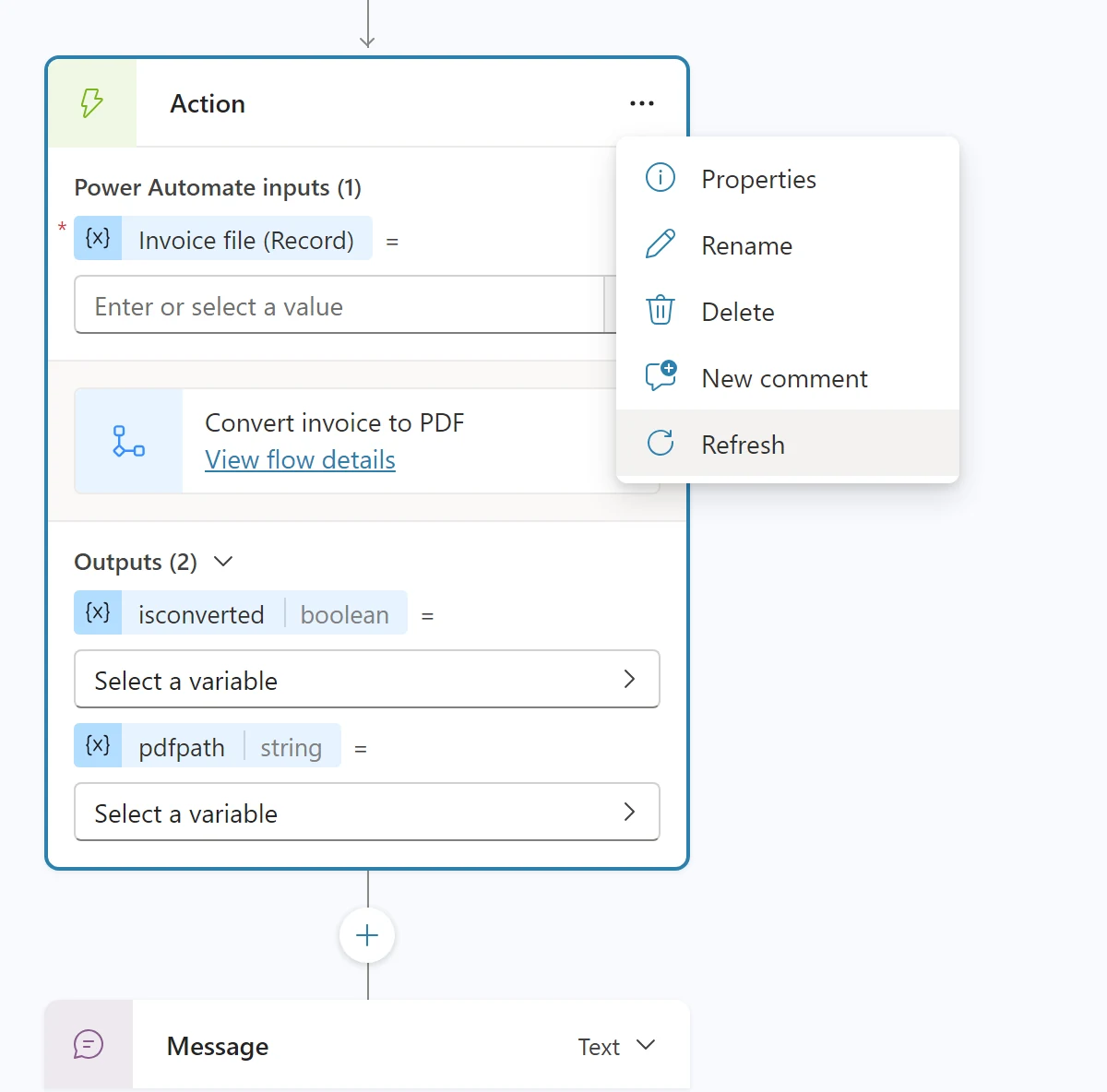
Learn's FlowActionBadRequest page covers only a flow called from a topic, through its Action node. It gives no separate steps for a flow added to the agent from the Tools page. Learn's error code reference, under BindingKeyNotFoundError, says to try refreshing the inputs or outputs, and that to get the latest inputs and outputs you remove the agent flow and add it again. It doesn't say which of these applies to a flow added from the Tools page.
2. Match each input's type
Every Copilot Studio variable has a base type, fixed the first time it gets a value: String, Boolean, Number, Table, Record, DateTime, Choice or Blank. Pass a variable whose base type matches the flow's input. When they differ, the "evaluated to type" message names both: the type the variable had and the type the flow expected.
Learn isn't consistent on which types a flow call accepts. The error message above says only Text, Boolean and Numbers. But the dedicated FlowActionBadRequest page's own screenshot shows an Action node input, Uploaded file, of type Record, and Microsoft's page on upgrading classic chatbots says Copilot Studio agents can send more complex objects, such as Dataverse records, while classic bots can only exchange text, number and yes/no values. Microsoft's page on passing files to agent flows passes a file to an agent flow in a topic as a record with contentBytes and name, and for a flow added as a tool, says you can then select File as the type of user input in the flow. Whichever page applies, the error code reference's resolution is the same: the base type of each variable you pass must match the parameter's type.
3. Handle empty inputs
If the error stays after a refresh, check what actually reaches the flow:
- Compare the values the Action node passes with the inputs on the flow's When an agent calls the flow trigger.
- If a value might be empty, find out where. Learn's page suggests adding a Message action to the flow that captures the input values and returns them, so you can see what arrived.
- Add logic or expressions to the flow that handle null or missing inputs.
4. Start a new conversation in Teams
Teams can keep an older version of the conversation with the agent, so the error can survive everything above. In the Teams chat with the agent, type start over, goodbye or another phrase that triggers the end-of-conversation topic, then start a new conversation. It picks up the latest version of the flow. Our guide to a Copilot Studio agent not working in Teams covers other ways Teams holds on to old versions.
5. Clear the conversation state
If it still fails, type /debug clearstate in the Teams chat with the agent. Learn says this resets the conversation context and makes Teams reload the agent's state.
FlowActionException: the same refresh
FlowActionException is a related code. The error code reference describes it as an error while running an agent flow, and its three messages are all about the flow's outputs. Two of them tell you to refresh the flow:
No output was received from flow {FlowName} ({FlowId}), even though output was expected as per the agent definition.The output parameter with name {ItemKey} on flow {FlowName} ({FlowId}) is missing from the response data. Refresh the flow, or ensure the flow returns this value.The output parameter with name {ItemKey} on flow {FlowName} ({FlowId}) is missing from the output schema. Please refresh the flow.
Refresh the Action node as in step 1, and check that Respond to the agent returns every output the node lists. Learn's own resolution for this code is to check the flow for errors. And if the flow responds in more than one branch, Microsoft's page on modifying a flow says each Respond to the agent must have the same outputs.
When refresh isn't enough
A third code, BindingKeyNotFoundError, says a binding, input binding or output binding "is not found, refresh this flow to get the latest bindings". Learn explains that one or more inputs changed on the agent flow: added, removed or renamed. The page words the fix two ways. Its summary table says the agent flow needs to be removed and added again so Copilot Studio has the correct list of inputs. Its resolution says to check the inputs and outputs, try refreshing them, and if that doesn't work, set up the agent flow again; it ends by saying that to get the latest inputs and outputs, you remove and re-add the agent flow.
Do
- Refresh the Action node and republish the agent after every change to a flow's inputs or outputs.
- Keep input names and types stable once an agent uses the flow. Adding, removing or renaming an input all mean refreshing the flow in the agent.
- Test in the test pane first: Learn says it gives you the error code with more context, where Teams shows the code, a conversation ID and a time.
Don't
- Don't keep testing in an old Teams conversation after a fix; start over first.
- Don't pass a variable that might be empty to the flow unless the flow handles a null or missing input.
- Don't change a flow that agents use in production without updating and republishing those agents in the same change.
Related errors
If the flow runs but the agent gives up waiting, that's Copilot Studio FlowActionTimedOut, a time limit rather than a schema problem. For which kind of flow to build in the first place, see cloud flow, agent flow or desktop flow?.
The steps in this guide follow Microsoft's documentation as of 27 October 2026; we haven't run them in a tenant.
Sources
- FlowActionBadRequest agent error in channels — Microsoft Learn
- Resolve Microsoft Copilot Studio agent error codes — Microsoft Learn
- Add an agent flow as a tool to an agent — Microsoft Learn
- Use agent flows with your agent — Microsoft Learn
- Variables overview: variable types — Microsoft Learn
- Upgrade classic chatbots to Copilot Studio — Microsoft Learn
- Modify an existing flow to use with an agent — Microsoft Learn
- Pass files to agent flows, connectors, and tools — Microsoft Learn
Add LowCodeStacks as a preferred source on Google
Did this fix it?
Comments
No comments yet. Share what worked for you.
Sign in to comment. Comments show under a display name you choose, never your email.