How to make a heat map in Power BI with a matrix
Build a Power BI heat map from a matrix: the data it needs, the gradient settings, colours people can read, and fixes for when the colours or sort order look wrong.
Power BIFix a problem7 min read
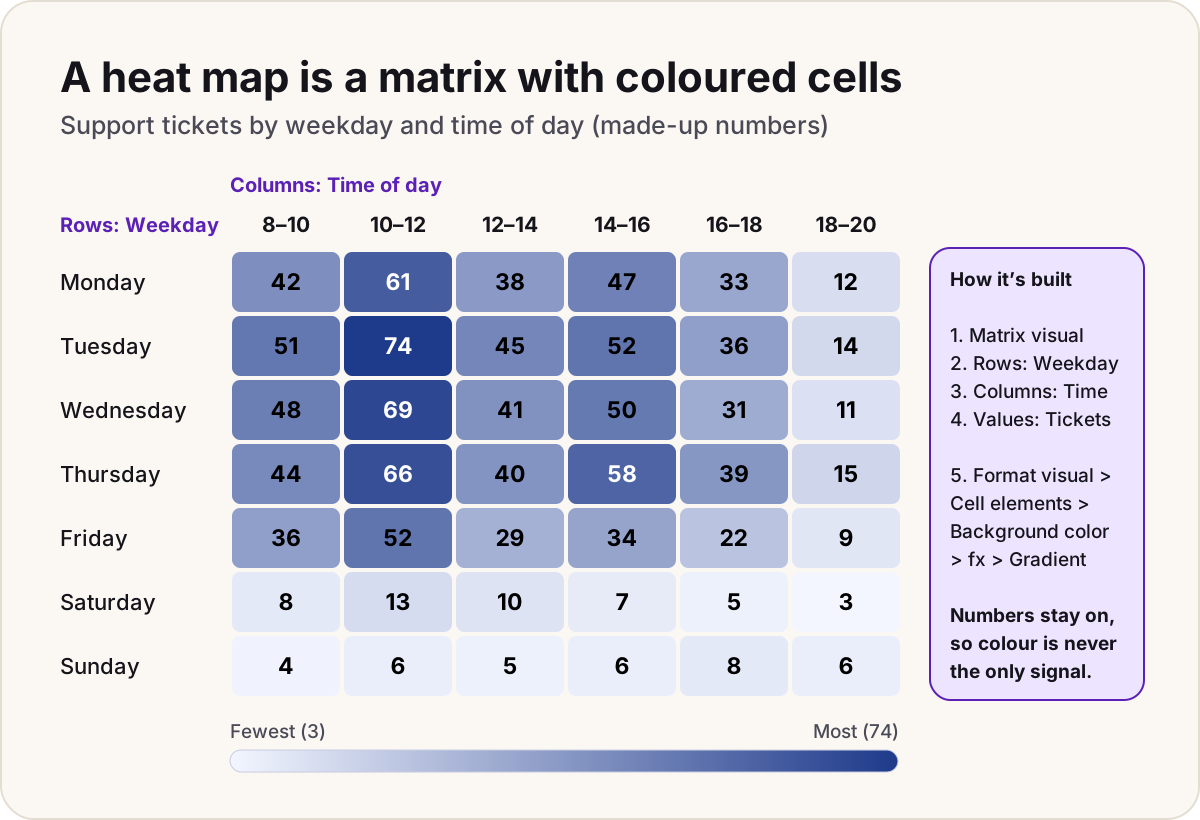
A heat map is a grid where the colour of each cell shows how big its number is, so the busy and quiet spots stand out before anyone reads a value. Power BI doesn't need a special visual for it: Microsoft describes conditional formatting as the way to create heat map effects, and on a matrix it gives you exactly this grid.
What the data needs
You need two things to cross and one thing to count:
| Part | Example | Where it goes |
|---|---|---|
| A category for the rows | Weekday | Rows |
| A category for the columns | Time of day, in two-hour slots | Columns |
| A number to colour by | Number of tickets | Values |
If those columns don't exist yet, add them. With a Tickets table and a CreatedOn date-time column, these DAX calculated columns and measure are enough (in a bigger model, put the weekday columns on your date table instead):
Weekday = FORMAT ( Tickets[CreatedOn], "dddd" )

Weekday number = WEEKDAY ( Tickets[CreatedOn], 2 )

Time slot =
VAR StartHour = INT ( HOUR ( Tickets[CreatedOn] ) / 2 ) * 2
RETURN FORMAT ( StartHour, "00" ) & "-" & FORMAT ( StartHour + 2, "00" )

Time slot start = INT ( HOUR ( Tickets[CreatedOn] ) / 2 ) * 2

Tickets = COUNTROWS ( Tickets )
WEEKDAY with 2 numbers Monday as 1 and Sunday as 7. The two "number" and "start" columns are only there to sort by, in the next step.
Build the matrix
- In the Visualizations pane, select Matrix.
- Drag Weekday to Rows, Time slot to Columns and the Tickets measure to Values.
- Fix the order. Text sorts alphabetically, so Friday comes first. In Report view, select the Weekday column in the Data pane, then Column tools > Sort by Column > Weekday number. Do the same for Time slot, sorting by Time slot start.
- For a clean grid, open Format visual and turn off Row subtotals and Column subtotals, so the totals don't sit among the cells.
A matrix shows at most 100 columns at a time, so keep the column category short: hours, weekdays or months work; individual dates don't.
Colour the cells
- With the matrix selected, open Format visual and expand Cell elements.
- Under Apply settings to, pick your measure in Series (here, Tickets).
- Turn on Background color, then select fx next to it. (Or right-click Tickets in the Values well and choose Conditional formatting > Background color: it opens the same dialog.)
- Set Format style to Gradient.
- Leave What field should we base this on? as Tickets, with its summarization.
- Under How should we format empty values?, choose how blank cells look. A blank isn't zero, so a neutral colour is clearer than the "lowest" one.
- Set Minimum to Lowest value with a very light colour, and Maximum to Highest value with a dark colour of the same family.
- Select OK.
Add a middle color gives a three-colour scale with a Center value. Use it when the middle means something, for example a target, with values below and above it in two different families; for "fewer to more", two colours read better.
- Each cell's value
- Compared with the lowest and highest value in the matrix
- Placed on the colour scale
- Lowest gets the light colour, highest the dark one
- Everything in between is blended
Colour by bands instead of a gradient
A gradient is relative: the darkest cell is always the busiest one, even on a quiet week. When fixed thresholds matter (more than 60 tickets is "overloaded" every week), use Rules instead of Gradient and add one row per band, such as 0 to 30, 30 to 60 and 60 or more, each with its own colour.
Rules for percentages are written as decimals: .25, not 25. Choose Number next to the value, not Percent, because Percent means a percentage of the range between the lowest and highest values, not the value itself.
The third option, Field value, colours each cell with whatever a measure returns, such as a hex code. It's the most flexible:
Tickets colour =
VAR T = [Tickets]
RETURN
    SWITCH (
        TRUE (),
        ISBLANK ( T ), BLANK (),
        T >= 60, "#172554",
        T >= 30, "#5B6FAE",
        "#EEF1FB"
    )
Set Format style to Field value and base it on Tickets colour.
Colours everyone can read
Microsoft's report accessibility checklist asks for two things that matter here: don't use colour as the only way to show information, and keep text contrast at 4.5:1 or more against its background.
Do
- Keep the numbers in the cells. The colour finds the hot spot; the number tells you how hot.
- Use one colour family from light to dark. Microsoft lists green with red, and blue with purple, among the combinations people struggle to tell apart.
- Make the text readable on both ends of the scale: dark text on the light cells, white on the dark ones. Add a second conditional format on Font color using Rules (for example, white when the value is above 60) to switch it.
- Add alt text to the visual that says what the map shows, such as "Tickets peak on weekday mornings, 10 to 12".
Don't
- Don't use a red-to-green scale. It's the most common heat map palette and the hardest to read for many people.
- Don't hide the numbers to get a "pure colour" look unless the map is only an overview. Setting the same gradient on Font color and Background color does hide them (the text blends into the cell), and then colour is the only signal.
When it doesn't look right
- The weekdays run Friday, Monday, Saturday: the Sort by Column step is missing. If Power BI refuses it, each weekday must have exactly one number in the sort column.
- There's no colour at all: the matrix has no category on Rows or Columns. A visual without a grouping shows as one row, and that row doesn't support conditional formatting.
- The gradient won't apply, or looks broken: the measure returns NaN somewhere, usually from dividing by zero. Use
DIVIDE ( a, b )instead ofa / b. - The row and column headers stay plain: Power BI doesn't conditionally format headers, only values, subtotals and totals.
- The printed report has no colours: turn on Background graphics in the browser's print settings.
For the numbers behind the colours, especially when totals don't add up the way you'd expect, see why are my totals wrong. If the report also needs a headline number, designing a KPI card uses the same readable-colour rules.
Sources
- Apply conditional formatting in tables and matrices — Microsoft Learn
- Conditional formatting in Power BI visuals — Microsoft Learn
- Matrix visual format settings — Microsoft Learn
- Matrix visual considerations and limitations — Microsoft Learn
- Design Power BI reports for accessibility — Microsoft Learn
- Sort one column by another column in Power BI — Microsoft Learn
Did this fix it?
Comments
No comments yet. Share what worked for you.
Sign in to comment. Comments show under a display name you choose, never your email.